
1. Introduction
This manual provides detailed instructions for the setup, operation, maintenance, and troubleshooting of your MelGeek MADE68 Ultra Wired Gaming Keyboard. Please read this guide thoroughly to ensure optimal performance and longevity of your device.
2. Product Overview
The MelGeek MADE68 Ultra is a high-performance wired gaming keyboard designed for precision and customization. It features advanced Hall Effect magnetic switches and a durable aluminum construction.
Key Features:
- Hall Effect Magnetic Switches: Utilizes TTC Magneto switches, eliminating physical contact wear. Offers adjustable actuation from 0.1-4.0mm and rapid trigger responses, ideal for competitive gaming.
- Pro-Grade Performance: Features a 16K polling rate and 8KHz report rate for zero-lag inputs. The W.I.N. Algorithm and Rapid Trigger dynamically optimize actuation points for enhanced precision.
- Unmatched Customization: Supports hot-swappable switches and hybrid switch compatibility. Includes replaceable RGB lightbox panels and side plates for visual personalization.
- Ergonomic & Durable Design: Designed with a 6.5° ergonomic slope and Poron dampening foam for reduced fatigue. ABS double-shot keycaps resist shine, and the aluminum shell ensures durability.
- Smart Web & Software Ecosystem: The HIVE firmware enables macro programming, DKS (Dynamic Keystroke Strategy), and SnapTap anti-jitter features. Supports OTA updates for future functionalities.

Figure 1: MelGeek MADE68 Ultra Wired Gaming Keyboard.
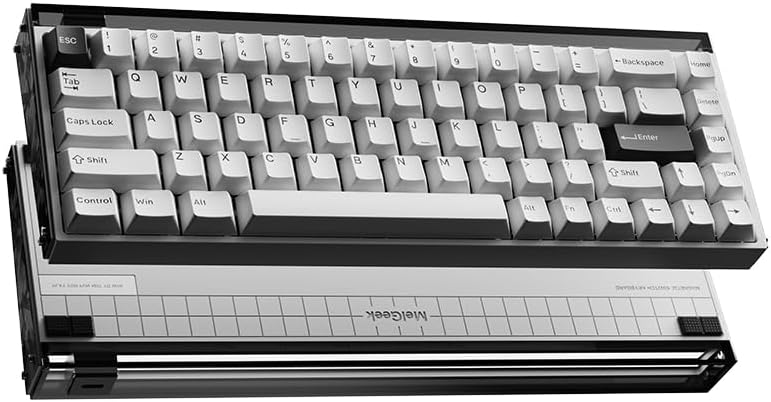
Figure 2: Overview of key features including DIY customization, web driver, and rapid trigger.
3. Package Contents
Upon opening your MelGeek MADE68 Ultra package, you should find the following items:
- 1 x Made68 Keyboard
- 1 x Type-C Cable
- 1 x User Manual (this document)
Video 1: Unboxing the MelGeek MADE68 Ultra keyboard, showing the contents and initial setup.
4. Setup
Follow these steps to set up your MelGeek MADE68 Ultra keyboard:
- Connect the Keyboard: Use the provided USB-C cable to connect the keyboard to an available USB port on your computer (PC, Laptop, Gaming Console, or Tablet).
- Initial Power-On: The keyboard will automatically power on and its RGB lighting will activate upon successful connection.
- Driver Installation: The keyboard is plug-and-play. For advanced customization and features, access the MelGeek HIVE web driver at hive.melgeek.com.

Figure 3: The keyboard features hot-swappable sockets for easy switch replacement.
5. Operating Instructions
FN Key Instructions:
The MADE68 Ultra utilizes FN key combinations for various functions. Refer to the quick guide for a full layout. Common functions include:
- FN + Q/W/E/R/T: Toggle between different keyboard profiles.
- FN + A/S: Toggle between Mac/Windows operating system modes.
- FN + Z/X/C/V: Adjust lighting effects.
- FN + F1-F12: Multimedia controls (Play/Pause, Volume Up/Down, Mute, etc.).
HIVE Software Customization:
The MelGeek HIVE web-based software allows for extensive customization:
- Macro Programming: Create and assign custom macros to keys.
- Dynamic Keystroke Strategy (DKS): Configure advanced key behaviors.
- SnapTap Anti-Jitter: Optimize key response for precision.
- Adjustable Actuation: Fine-tune the actuation point of each magnetic switch (0.1-4.0mm).
- Rapid Trigger: Set dynamic actuation points for faster key resets.
- RGB Lighting: Customize 16.8 million RGB lighting effects and 7 lighting modes.
Access the HIVE software at hive.melgeek.com. No download is required.
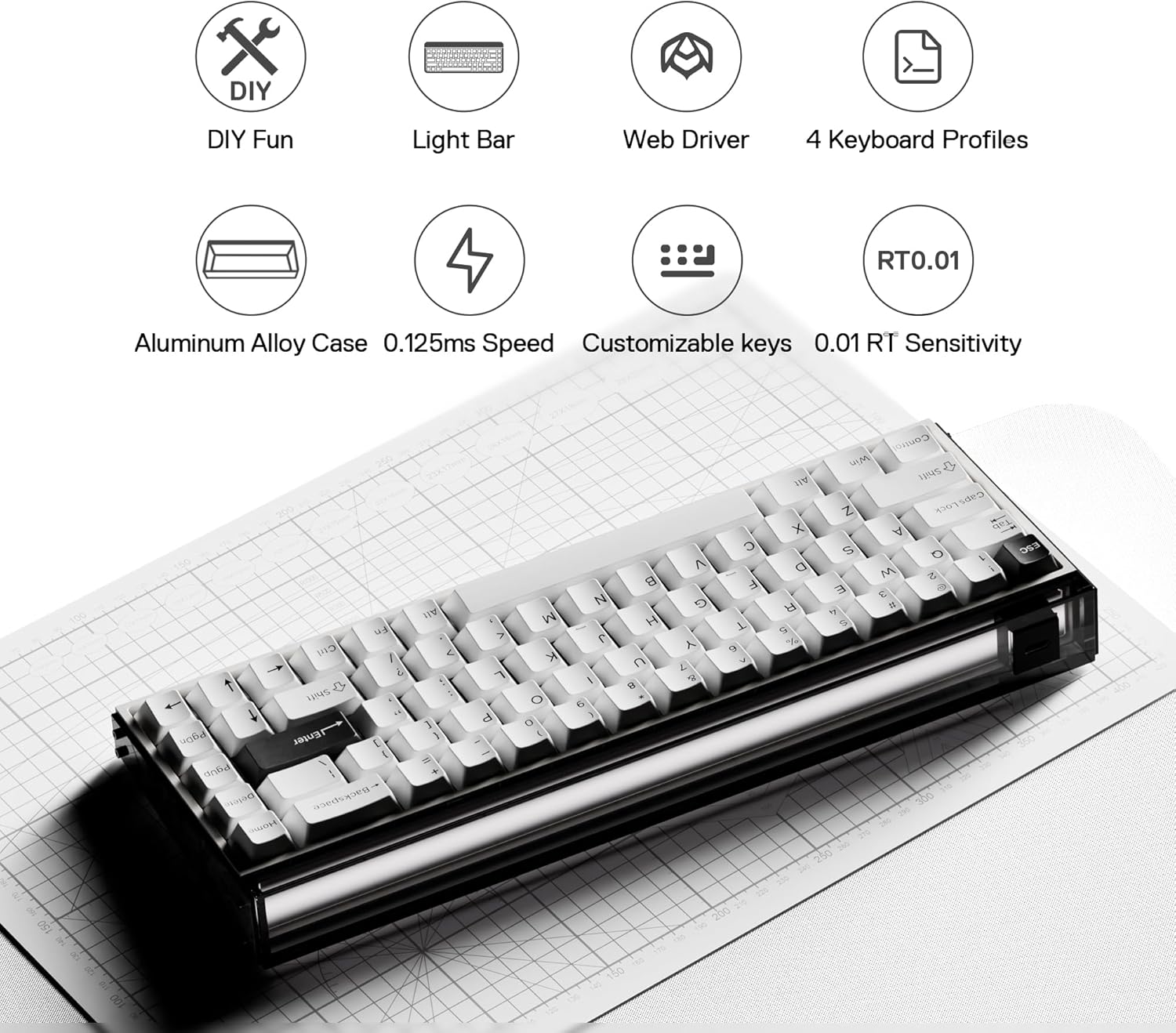
Figure 4: The HIVE web driver provides comprehensive customization options.
Physical Customization:
- Hot-Swappable Switches: Easily remove and replace switches to change typing feel or sound.
- Replaceable Lightbox Panels & Side Plates: Customize the aesthetic of your keyboard by swapping out the RGB lightbox panels and side plates.

Figure 5: The keyboard supports interchangeable side panels for personalized aesthetics.
Video 2: Demonstration of the typing sound profile of the MelGeek MADE68 Ultra keyboard.
Video 3: A typing demonstration of the MelGeek MADE68 Ultra keyboard in use.
6. Maintenance
- Cleaning: Regularly clean the keyboard with a soft, dry cloth. For deeper cleaning, remove keycaps and use compressed air to clear debris.
- Switch Care: When hot-swapping switches, ensure proper alignment to avoid bending pins.
- Cable Management: Avoid sharp bends or excessive pulling on the USB-C cable to prevent damage.
7. Troubleshooting
- Keyboard Not Responding: Ensure the USB-C cable is securely connected to both the keyboard and the computer. Try a different USB port or cable.
- Keys Not Registering: If specific keys are not working, check if the switches are properly seated. If hot-swappable, try reseating or replacing the switch.
- Lighting Issues: Use the FN key combinations or the HIVE software to adjust lighting settings. If the issue persists, ensure the keyboard firmware is up to date via HIVE.
- Software Not Detecting Keyboard: Ensure your internet connection is stable when accessing the HIVE web driver. Try clearing your browser cache or using a different browser.
8. Specifications
| Feature | Detail |
|---|---|
| Model | MADE68 Ultra |
| Number of Keys | 68 |
| Layout | ANSI (US) |
| Case Material | Aluminum alloy |
| Switch Type | Magnetic (TTC Magneto) |
| Keycap Material | ABS Double-Shot |
| Rapid Trigger | Yes |
| Adjustable Actuation | 0.1-4.0 mm |
| Polling Rate | 8000Hz |
| Backlight | RGB |
| Connectivity Technology | USB-C (Wired) |
| Compatible Systems | Mac/Windows/Linux |
| Item Weight | 4.16 pounds |
| Dimensions (L x W x H) | 12.48 x 4.61 x 1.57 inches (317 x 117 x 40 mm) |

Figure 6: Detailed specifications and dimensions of the MADE68 Ultra.
9. Warranty and Compliance
MelGeek warrants that its hardware product shall be free from defects in materials and workmanship for a period of one year from the date of purchase. This warranty is subject to normal use and conditions. For detailed warranty information and product compliance, please refer to the included 'Important Safety, Compliance and Warranty Information' document or visit the official MelGeek website.
Warning: Risk of Repair: Opening or servicing your equipment may present the risk of electric shock, personal injury, or other hazards. MelGeek recommends that you seek professional help to service the appliance.
Warning: High Risk Use: This equipment is not designed or intended for use in any application or situation with a high risk of equipment failure which could lead to death, serious injury, or severe environmental damage.
MelGeek Compliance: This product complies with all applicable requirements for the Restriction of Hazardous Substances (RoHS) and WEEE (Waste Electrical and Electronic Equipment) directives.
10. Support
For further assistance, technical support, or to provide feedback, please contact MelGeek through the following channels:
- Official Website: www.melgeek.com
- HIVE Web Driver: hive.melgeek.com
- Social Media: Follow MelGeek on official social media platforms for updates and community support.


