
AiBaoQi P3
AiBaoQi P3 Sports Smart Watch User Manual
Model: P3
Introduction
Thank you for choosing the AiBaoQi P3 Sports Smart Watch. This manual provides detailed instructions on how to set up, operate, and maintain your new smartwatch. Please read this manual carefully before using the device to ensure proper function and longevity.

Image: The AiBaoQi P3 Sports Smart Watch, showcasing its sleek design and vibrant display.
What's in the Box
Please check the package contents to ensure all items are present:
- AiBaoQi P3 Smart Watch (x1)
- Earphones pair (x1)
- Data Cable (x1)
- User Manual (x1)
Setup Guide
1. Charging the Smart Watch
Before first use, fully charge your AiBaoQi P3 Smart Watch. The watch is equipped with a 380mAh battery for extended use.
- Connect the provided data cable to the charging port on the watch.
- Connect the other end of the data cable to a standard USB power adapter (not included) or a computer's USB port.
- The watch display will show a charging indicator. The LED light will flash for 3 seconds when charging begins.
- A full charge typically takes approximately 2 hours.

Image: The AiBaoQi P3 Smart Watch connected to its charging cable, illustrating the charging process and extra-long battery life.
2. Installing the Companion App
To unlock the full functionality of your smartwatch, you need to install the 'FitCloudPro' application on your smartphone.
- Ensure your smartphone is running Android 4.4 or above, or iOS 8.0 or above.
- Search for 'FitCloudPro' in your smartphone's app store (Google Play Store for Android, Apple App Store for iOS).
- Download and install the application.
- Open the 'FitCloudPro' app and follow the on-screen instructions to create an account or log in.
3. Pairing with Your Smartphone
After installing the app, pair your smartwatch with your phone via Bluetooth.
- Enable Bluetooth on your smartphone.
- Open the 'FitCloudPro' app.
- Navigate to the device pairing section within the app (usually found under "Device" or "My Device").
- The app will search for available devices. Select "P3 Smart Watch" from the list.
- Confirm the pairing request on both your phone and the watch if prompted.
- Once successfully paired, the watch will synchronize data with the app. If searching for the watch, its LED light will flash.
Operating Your Smart Watch
Basic Navigation
The AiBaoQi P3 Smart Watch features a 1.91-inch IPS high-resolution touchscreen (240 * 296 pixels) for intuitive navigation.
- Swipe Up/Down: Scroll through menus and notifications.
- Swipe Left/Right: Access different functions or widgets.
- Tap: Select an item or confirm an action.
- Press Side Button: Usually returns to the home screen or powers on/off.
Key Features
LED Dynamic Colorful Breathing Light
The P3 Smart Watch features a unique LED dynamic colorful breathing light with 8 distinct lighting effects. These lights provide visual cues for various functions and notifications.
- Charging/Power On/Off: Light flashes for 3 seconds.
- Incoming Calls: Light flashes frequently. It goes out when the call is answered or hung up.
- Information Reception: Light flashes for 3 seconds upon receiving new information.
- Wrist Lift: Light flashes for 3 seconds when the wrist is lifted to activate the screen.
- Heart Rate Alarm: If your heart rate exceeds 120 beats per minute, the light will flash as an alarm.
- LED Display Function: From the main interface dropdown menu, click on the LED icon to turn it blue, and the light will continue to flash.
- Find Watch: When searching for the watch via the app, the light flashes.
- Flashlight Mode: Pull down on the main interface and click the flashlight icon; the light will stay on.

Image: Two AiBaoQi P3 Smart Watches, one black and one orange, highlighting the newly upgraded colorful lights and their suitability for various functions.

Image: Examples of different lighting effects available on the AiBaoQi P3 Smart Watch, including Panchromatic rotation, Monochromatic alternation, Gradient effect, Panchromatic respiration, and Monochromatic respiration.

Image: An orange AiBaoQi P3 Smart Watch on a charging pad, illustrating the multi-functionality of its 8 lighting effects triggered by various actions like boot, shutdown, incoming call, message, wrist lift, dial, motion, music, charging, and find phone.
Bluetooth Calling
Make and receive phone calls directly from your watch when connected to your smartphone via Bluetooth.
- Ensure your watch is paired with your phone.
- Access the call function on your watch.
- You can dial numbers or select contacts from your synced phone book.
- During an incoming call, the watch will display the caller ID, and the LED light will flash. You can answer or reject the call from the watch.

Image: A smartphone displaying an incoming call screen next to the AiBaoQi P3 Smart Watch, demonstrating the one-click Bluetooth call feature allowing users to make and receive calls directly on the watch.
Health Monitoring
Monitor your health and fitness metrics directly from your wrist.
- Heart Rate: Dynamic heart rate monitoring with live detection. The watch will flash if heart rate exceeds 120 bpm.
- Blood Oxygen: True blood oxygen measurement.
- Pedometer/Calorie: Tracks steps taken and calories burned.
- Sleep Monitoring: Monitors your sleep patterns.
- Sedentary Reminder: Alerts you when you've been inactive for too long.
Message Alerts & Social Media Notifications
Receive notifications from your smartphone directly on your watch, including calls, messages, and alerts from various social media applications.
- Supports 26 kinds of social software message notifications, including Facebook, Twitter, WhatsApp, LinkedIn, Instagram, Messenger, Snapchat, Line, Kakao Talk, Viber, Skype, Telegram, and more.
- Ensure notifications are enabled in the 'FitCloudPro' app and your phone's settings.
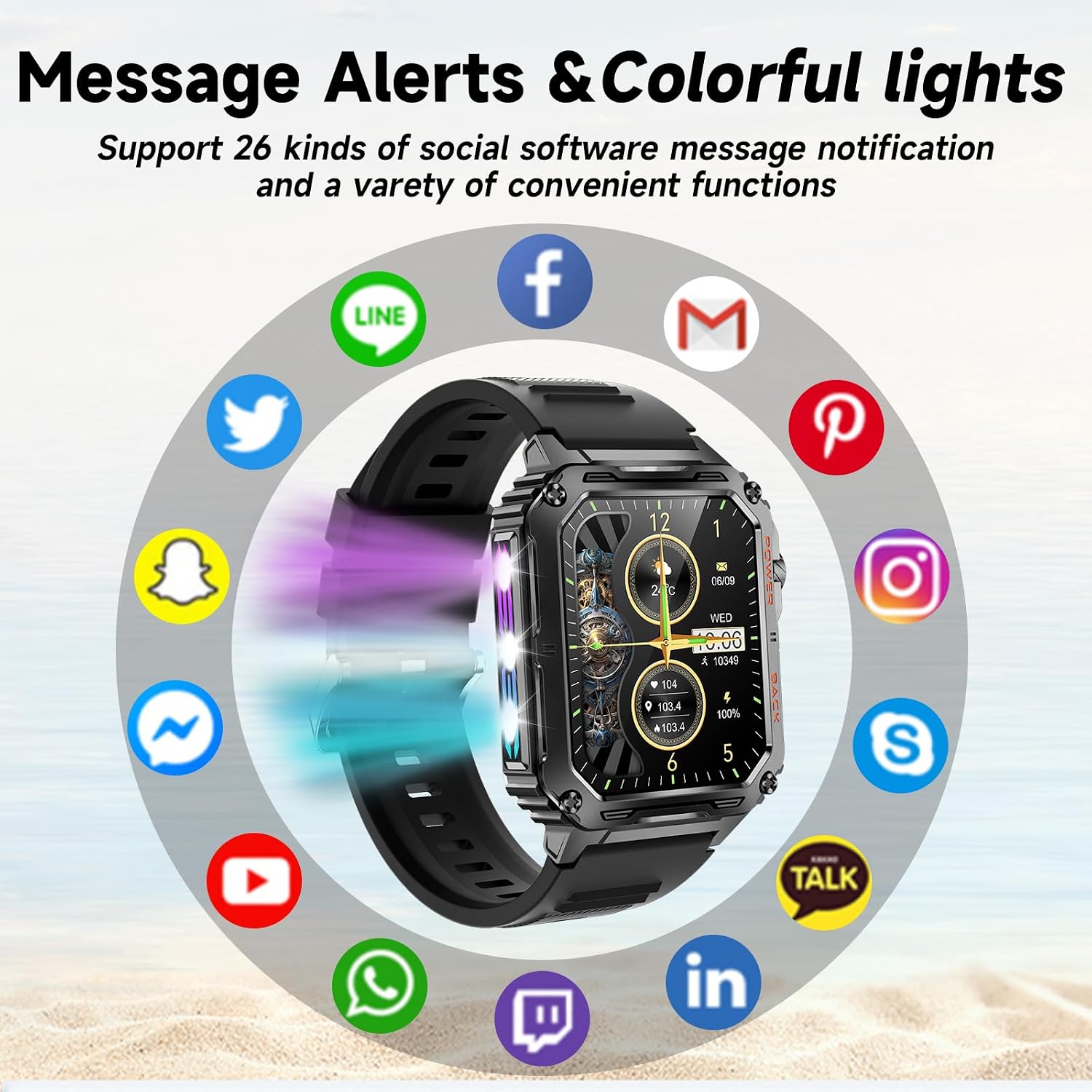
Image: The AiBaoQi P3 Smart Watch surrounded by various social media application icons, illustrating its support for message alerts and colorful lights for notifications.
Flashlight Function
Quickly activate a flashlight directly from your watch.
- Pull down the main interface on your watch.
- Tap the flashlight icon. The screen will illuminate brightly, and the LED light will stay on.

Image: The AiBaoQi P3 Smart Watch displaying a flashlight icon and emitting light, demonstrating its built-in flashlight function for illuminating dark areas.
Sports Modes
The AiBaoQi P3 Smart Watch supports over 100 sports modes to track your exercise activities.
- Navigate to the sports mode section on your watch.
- Select your desired activity to begin tracking.
- The watch will record data such as distance, calories burned, and heart rate during your workout.

Image: The AiBaoQi P3 Smart Watch displaying exercise records, highlighting its 100+ sports modes and LED colorful lights, along with its 380mAh battery for extra-long standby.
Maintenance
Proper maintenance ensures the longevity and optimal performance of your AiBaoQi P3 Smart Watch.
- Cleaning: Wipe the watch screen and strap regularly with a soft, dry cloth. For stubborn stains, use a slightly damp cloth and then dry thoroughly.
- Avoid Harsh Chemicals: Do not use abrasive cleaners, solvents, or harsh chemicals, as they can damage the watch's finish and internal components.
- Water Resistance: While designed for sports, avoid prolonged submersion in water or exposure to high-pressure water jets. Refer to product specifications for exact water resistance ratings.
- Temperature: Avoid exposing the watch to extreme temperatures (very hot or very cold) or sudden temperature changes, as this can affect battery life and display.
- Storage: When not in use for extended periods, store the watch in a cool, dry place.
Troubleshooting
If you encounter issues with your AiBaoQi P3 Smart Watch, refer to the following common solutions:
| Problem | Possible Solution |
|---|---|
| Watch does not turn on | Ensure the watch is fully charged. Connect it to the charger for at least 30 minutes. |
| Unable to pair with phone |
|
| Notifications not received |
|
| Inaccurate health data |
|
Specifications
| Feature | Detail |
|---|---|
| Brand | AiBaoQi |
| Model Name | P3 Smart Watch |
| Display Size | 1.91 Inches |
| Display Resolution | 240 * 296 (IPS High Resolution) |
| Battery Capacity | 380 Milliamp Hours (Lithium Ion) |
| Connectivity | Bluetooth |
| Compatible Devices | Smartphone |
| Operating System Compatibility | Android 4.4 and above, iOS 8.0 and above |
| Special Features | Touchscreen, LED Dynamic Colorful Breathing Light, Bluetooth Calling, Heart Rate Monitor, Blood Oxygen Monitor, Pedometer, Sleep Monitor, Message Alerts |
| Material | All metal design |
Warranty and Support
For warranty information and technical support, please refer to the documentation included with your purchase or contact AiBaoQi customer service through their official website or the 'FitCloudPro' application.
Please retain your proof of purchase for any warranty claims.
Ask a question about this manual
Ask about setup, troubleshooting, compatibility, parts, safety, or missing instructions. Manuals+ will review the question and use this page’s manual context to help answer it.