1. Introduction
Thank you for choosing the Lubluelu SL60 Pro Robot Vacuum Cleaner and Mop. This manual provides essential information for the safe operation, maintenance, and troubleshooting of your device. Please read it thoroughly before use and retain it for future reference.
2. Important Safety Instructions
To reduce the risk of injury or damage, read these safety instructions carefully and keep them accessible during product use.
- This appliance can be used by children aged 8 years and above and persons with reduced physical, sensory or mental capabilities or lack of experience and knowledge if they have been given supervision or instruction concerning use of the appliance in a safe way and understand the hazards involved.
- Children should be supervised to ensure they do not play with the appliance.
- Cleaning and user maintenance shall not be made by children without supervision.
- Only use the power adapter supplied by the manufacturer.
- Do not use the appliance in areas with open flames or fragile objects.
- Ensure the robot is turned off and unplugged before cleaning or performing maintenance.
- Do not immerse the robot or charging base in water.
- Keep hair, loose clothing, fingers, and all parts of the body away from openings and moving parts.
3. Package Contents
Verify that all components are present and in good condition upon unpacking. If any items are missing or damaged, please contact customer support.
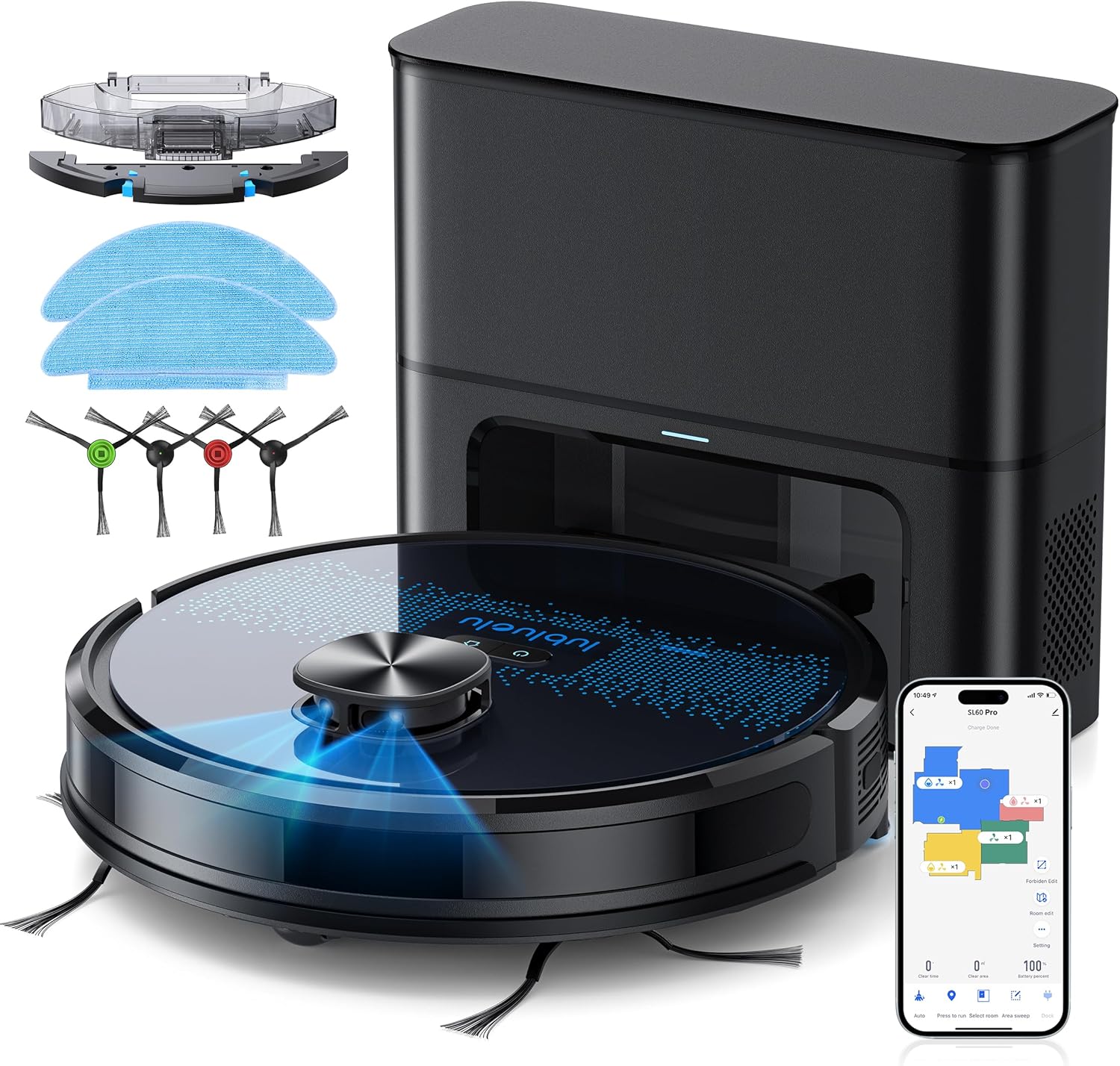
- Lubluelu SL60D Robot Vacuum Cleaner
- D3 Self-Emptying Station
- Extra Dust Bag (2.5L capacity)
- Mop Pad (2 pieces)
- Cleaning Tool
- Side Brushes (2 pairs)
- Extra HEPA Filter
- User Manual
4. Product Overview
The Lubluelu SL60 Pro is an advanced robot vacuum and mop designed for efficient home cleaning. It features LIDAR navigation, 4000Pa suction power, a 2.5L self-emptying dust station, and smart app control.
4.1 Key Features
- LIDAR Navigation: Equipped with 8-meter laser range and SLAM algorithm for accurate mapping and efficient route planning.
- Self-Emptying Station: Automatically empties the robot's dustbin into a 2.5L disposable bag, requiring manual emptying only every 60 days.
- 4000Pa Suction Power: Powerful brushless motor with three adjustable suction levels for effective cleaning on various surfaces, including carpets.
- 3-in-1 Cleaning: Sweeps, vacuums, and mops simultaneously with electronic water control and Y-shaped mopping patterns.
- Multi-Floor Mapping: Stores up to 5 maps for multi-level homes, allowing for customized cleaning plans.
- Customizable Cleaning: Set no-go zones, virtual walls, spot cleaning, edge cleaning, and scheduled cleaning via the app.
- Automatic Recharging: Returns to the charging base when battery is low (below 15%) and resumes cleaning from where it left off once charged to 80%.
- Low Noise Operation: Operates at approximately 55dB.

5. Setup
5.1 Charging the Robot
Before first use, fully charge the robot. Place the self-emptying station against a wall with at least 0.5 meters of clear space on either side and 1.5 meters in front. Ensure the power cable is securely connected.

5.2 Installing Side Brushes
Attach the side brushes by pressing them onto the square posts at the bottom of the robot until they click into place.
5.3 Installing the Dust Bin/Water Tank
The robot comes with a combined dust bin and water tank. Fill the water tank with clean water (do not use cleaning solutions that may clog the system). Attach the mop pad to the bottom of the tank. Insert the assembly into the robot until it locks.
5.4 Connecting to Wi-Fi and App
To unlock all smart features, connect your robot to the Lubluelu app (Smartlife app). Ensure your Wi-Fi network is 2.4GHz.
- Download the 'Smartlife' app from your mobile app store.
- Register or log in to your account.
- Press and hold the power button on the robot for 3-5 seconds until the Wi-Fi indicator light blinks rapidly.
- In the app, tap 'Add Device' and select 'Robot Vacuum (Wi-Fi)' under 'Small Home Appliances'.
- Follow the in-app instructions to connect the robot to your 2.4GHz Wi-Fi network.
6. Operation
6.1 Starting/Pausing Cleaning
- Start: Press the power button on the robot or tap 'Start' in the app.
- Pause: Press the power button again or tap 'Pause' in the app.
- Return to Base: Press the home button on the robot or tap 'Recharge' in the app.
6.2 Cleaning Modes
The robot offers various cleaning modes accessible via the Smartlife app:
- Auto Cleaning: The robot intelligently maps and cleans your home using its LIDAR navigation.
- Spot Cleaning: Directs the robot to clean a specific small area intensively.
- Zone Cleaning: Define specific areas on the map for the robot to clean.
- Edge Cleaning: The robot cleans along walls and furniture edges.
- Scheduled Cleaning: Set specific times for the robot to clean automatically.

6.3 Using the Mopping Function
Ensure the water tank is filled and the mop pad is attached. The app allows you to adjust water flow levels for different floor types.
6.4 Managing Maps and No-Go Zones
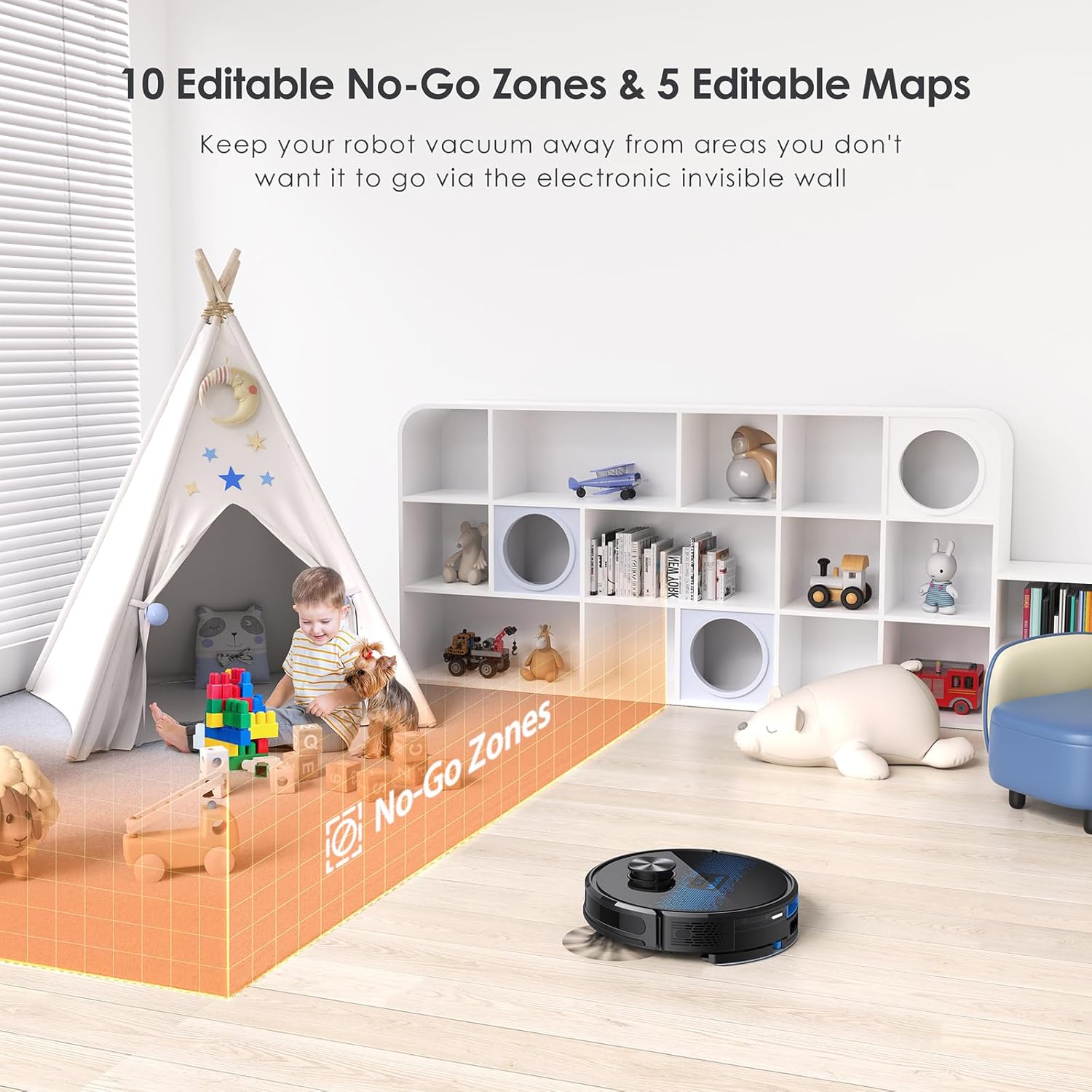
The SL60 Pro can store up to 5 different maps, useful for multi-level homes. You can also define up to 10 no-go zones or virtual walls to restrict the robot from certain areas.
6.5 Voice Control
The robot is compatible with Amazon Alexa and Google Assistant. Follow the instructions in the Smartlife app to link your device for voice commands.
7. Maintenance
Regular maintenance ensures optimal performance and extends the lifespan of your robot vacuum.
7.1 Emptying the Dust Bin
The self-emptying station automatically handles dust collection. The 2.5L dust bag in the station should be replaced approximately every 60 days, depending on usage.

7.2 Cleaning the Main Brush
Periodically remove the main brush and clean it using the provided cleaning tool to remove tangled hair and debris.
7.3 Cleaning Side Brushes
Check side brushes for wear and tear. Remove any tangled hair or debris. Replace if damaged.
7.4 Cleaning the Filter
Tap the filter to remove loose dirt. Rinse the filter with water if necessary, ensuring it is completely dry before reinstallation.
7.5 Cleaning the Water Tank and Mop Pad
After each mopping session, empty any remaining water from the tank and clean the mop pad. The mop pad can be hand-washed or machine-washed.
7.6 Cleaning Sensors and Charging Contacts
Wipe all sensors and charging contacts on both the robot and the charging station with a clean, dry cloth to ensure proper function.
8. Troubleshooting
If you encounter issues with your Lubluelu SL60 Pro, refer to the following common problems and solutions:
| Problem | Possible Cause | Solution |
|---|---|---|
| Robot does not turn on. | Low battery or power switch off. | Ensure the power switch is on and charge the robot. |
| Robot cannot connect to Wi-Fi. | Incorrect Wi-Fi band (not 2.4GHz), wrong password, or router too far. | Ensure 2.4GHz Wi-Fi, verify password, move robot closer to router, or reset Wi-Fi on robot. |
| Robot gets stuck frequently. | Obstacles, tangled cables, or uneven surfaces. | Clear the cleaning area of obstacles, cables, and small items. Use no-go zones for problematic areas. |
| Poor cleaning performance. | Full dustbin, dirty brushes/filter, or low suction setting. | Empty dustbin, clean brushes and filter, increase suction power via the app. |
| Mopping function not working. | Empty water tank, dry mop pad, or clogged water nozzle. | Fill water tank, moisten mop pad, clean water nozzle. |
For further assistance, please contact Lubluelu customer support.
9. Specifications
| Feature | Detail |
|---|---|
| Brand | Lubluelu |
| Model Name | SL60 Pro |
| Color | Blue Black |
| Product Dimensions (Robot) | 32 x 32 x 10 cm |
| Item Weight | 4.4 Kilograms |
| Suction Power | Up to 4000 Pa |
| Dust Bag Capacity (Station) | 2.5 Liters |
| Water Tank Capacity | 250 Milliliters |
| Voltage | 14.4 Volts |
| Noise Level | 55 Decibels |
| Runtime | Up to 2 hours 30 minutes |
| Navigation Type | LIDAR |
| Compatible Devices | Smartphone (Wi-Fi 2.4GHz), Amazon Alexa, Google Assistant |
| Special Features | LIDAR Navigation, Smart Mapping, Obstacle Avoidance, Edge Cleaning, Wet/Dry Mopping, App Control, No-Go Zones, Continuous Breakpoint Cleaning, Multi-Stage Mapping |
10. Warranty and Support
Lubluelu is committed to customer satisfaction. For any issues with your robot vacuum, please contact our customer service team. We provide lifetime technical support.
- Warranty: Please refer to your purchase documentation for specific warranty details.
- Contact Support: For technical assistance or service inquiries, please email us or visit our official website.