
1. Introduction
This manual provides detailed instructions for the setup, operation, and maintenance of your JoFomp 17.3" Large Digital Wall Clock. Please read this manual thoroughly before use to ensure proper functionality and longevity of the product.
2. Safety Information
- Ensure the clock is connected to a stable power source (5V/2A adapter included).
- Do not expose the device to extreme temperatures, direct sunlight, or high humidity.
- Keep out of reach of children.
- Do not attempt to disassemble or repair the device yourself. Contact customer support for assistance.
- The remote control requires 2 AAA batteries (not included).
- A 1 AAA battery (not included) is required for the memory function to retain settings during power outages.
3. Package Contents
Verify that all items are present in the package:
- JoFomp 17.3" Digital Wall Clock
- Remote Control
- 5V/1A DC Power Adapter
- Power Cord
- Mounting Hooks (2)
- Mounting Template Ruler
- User Manual (this document)

Figure 3.1: Included accessories and main unit.
4. Product Overview
The JoFomp 17.3" Large Digital Wall Clock features a clear LED display and multiple functions for convenience.

Figure 4.1: Front display of the digital wall clock.
4.1 Display Features
- Time Display: Large 17.3" LED digits.
- Date Display: Month and Day.
- Day of Week: Indicated by illuminated text (Mon-Sun).
- Temperature: Displays in Celsius or Fahrenheit.
- Humidity: Displays relative humidity percentage.
- Dual Alarms: Two independent alarm settings.
- DST Indicator: Daylight Saving Time status.

Figure 4.2: Labeled display functions.
4.2 Back Panel and Buttons
The back of the clock houses control buttons and connection ports.

Figure 4.3: Back panel with labeled components.
- Setting Buttons: Five buttons for manual adjustments (Light, SET, +, -, Alarm).
- Memory Battery Compartment: For 1 AAA battery (not included) to retain settings.
- Power Port: For connecting the power adapter.
- Mounting Holes: For wall installation.
5. Setup
5.1 Power Connection
- Connect the power cord to the clock's power port.
- Plug the 5V/2A power adapter into a standard electrical outlet. The clock will power on and display.
Note: The clock requires continuous power to operate. It is not battery-powered for primary display.
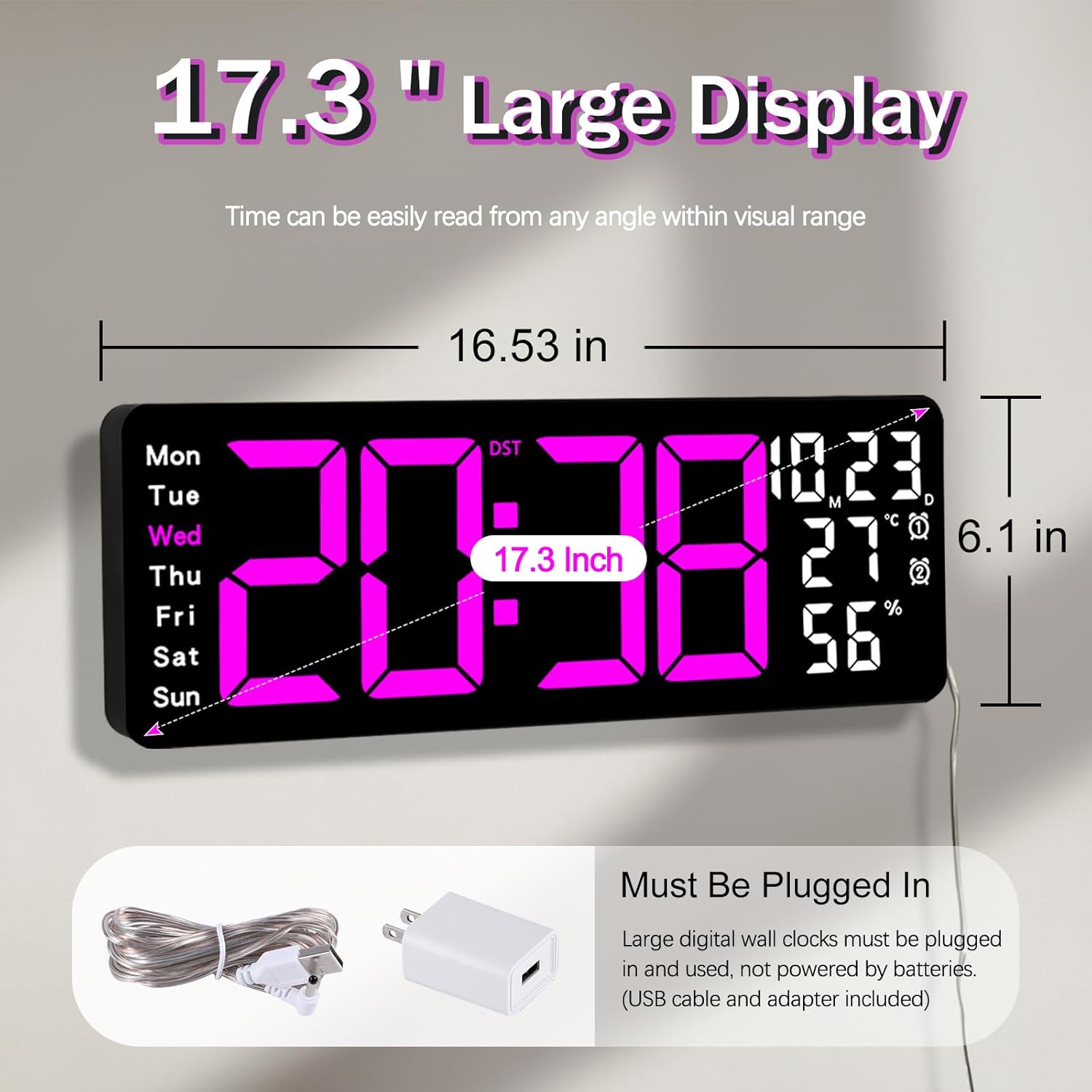
Figure 5.1: Power connection and dimensions.
5.2 Memory Battery Installation (Optional)
To retain time and settings during a power outage, install a 1 AAA battery (not included) into the memory battery compartment on the back of the clock.
- Locate the memory battery compartment on the back of the clock.
- Open the compartment cover.
- Insert one 1.5V AAA battery, ensuring correct polarity (+/-).
- Close the compartment cover securely.
5.3 Wall Mounting
Use the included mounting template ruler and hooks for easy wall installation.
- Determine the desired location for your clock.
- Place the mounting template ruler on the wall at the desired height.
- Mark the positions for the mounting hooks according to the ruler's indications.
- Install the mounting hooks into the wall at the marked positions.
- Carefully hang the clock onto the installed hooks, ensuring it is level and secure.
6. Operating Instructions
The clock can be operated using either the remote control or the buttons on the back.
6.1 Time and Date Setting
Use the remote control or the "SET" button on the back of the clock.
- Press the SET button (on remote or back of clock) to enter setting mode.
- Use the + and - buttons to adjust the flashing value (e.g., hour, minute, year, month, day).
- Press SET again to confirm the current setting and move to the next parameter.
- Repeat until all settings are configured.
6.2 12/24 Hour Format Conversion
To switch between 12-hour and 24-hour time formats:
- Press the dedicated 12/24H button on the remote control.
- Alternatively, during time setting, the format option will appear.

Figure 6.1: 12/24H format conversion.
6.3 Temperature Unit Conversion (°C/°F)
To switch between Celsius and Fahrenheit temperature units:
- Press the °C/°F button on the remote control.
6.4 Alarm Setting (Dual Alarms)
The clock supports two independent alarms.
- Press the ALARM button on the remote control or the back of the clock.
- Use + and - to set the desired alarm time.
- Press ALARM again to confirm and move to the next alarm or exit.
- To activate/deactivate an alarm, press the corresponding alarm button (e.g., AL1 or AL2) on the remote.
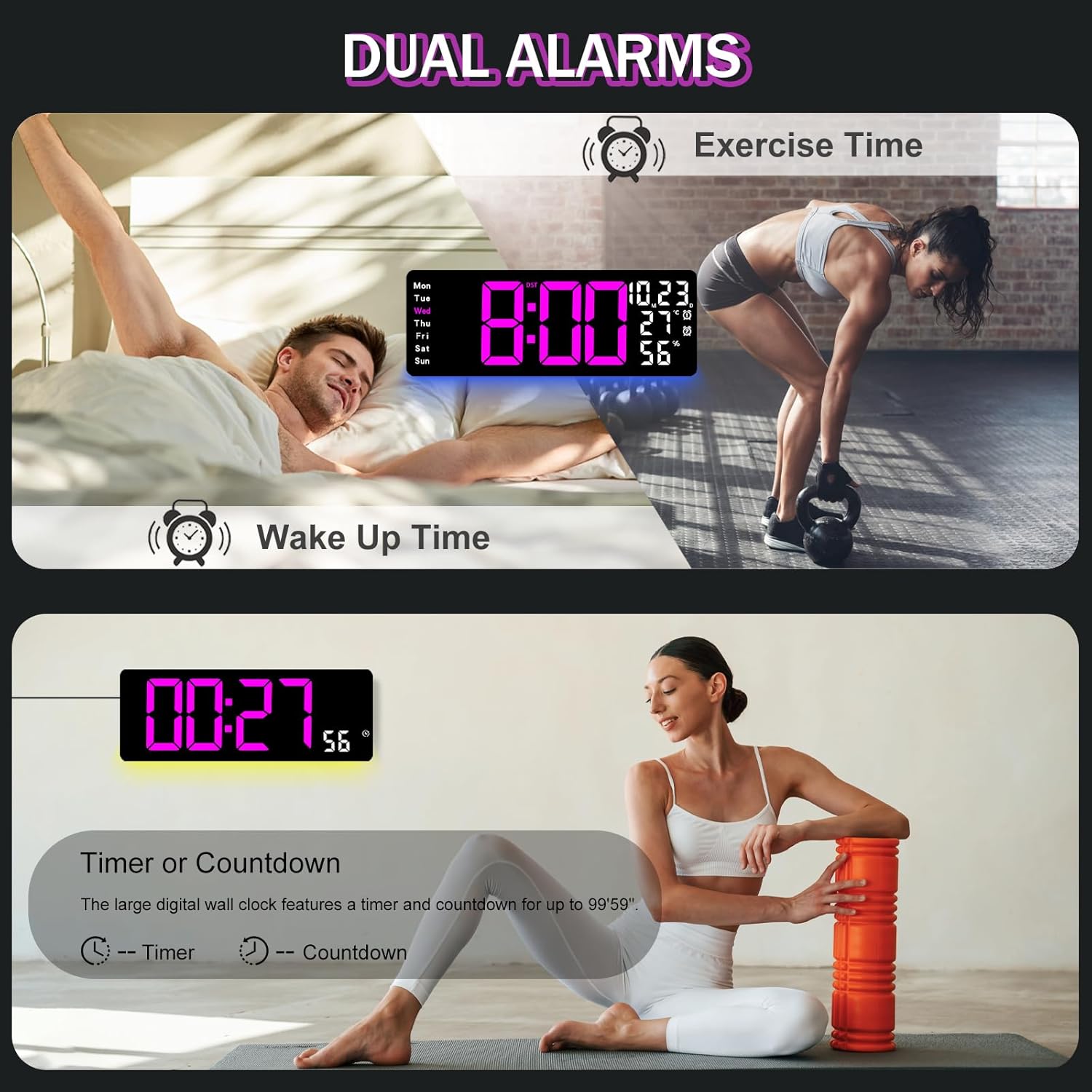
Figure 6.2: Dual alarm and timer functions.
6.5 Brightness Adjustment
The clock offers 10 levels of brightness, adjustable manually or automatically.
- Automatic Brightness: The built-in light sensor adjusts brightness based on ambient light. Activate this mode by pressing the AUTO button on the remote.
- Manual Brightness: Press the BRIGHTNESS button on the remote, then use + and - to select one of the 10 levels.

Figure 6.3: Custom and auto-brightness settings.

Figure 6.4: Brightness regulator illustration.
6.6 Ambient Light Features
The clock includes a night light feature at the bottom with multiple color options.
- Press the LIGHT button on the remote control or the back of the clock to cycle through 8 fixed colors and 1 multi-color mode.
- In multi-color mode, the colors automatically convert. Press OK to fix a favorite color.
- Adjust the brightness of the ambient light using the + and - buttons when the ambient light is active.

Figure 6.5: Multiple ambient night light options.

Figure 6.6: 9 color ambient light options.
6.7 Timer and Countdown Function
The clock features a timer (count-up) and countdown function up to 99 minutes and 59 seconds.
- Press the TIMER button on the remote control.
- Use + and - to set the desired time for countdown.
- Press START/STOP to begin or pause the timer/countdown.
- Press RESET to clear the timer.

Figure 6.7: Timing function (count-up/countdown).
Video 6.1: Demonstration of multi-functional features including night light change, brightness control, count-up, and countdown. This video also shows the time, date, day, alarm clock, temperature, and humidity displayed on the same screen, along with 12/24 hour conversion, Celsius/Fahrenheit conversion, and DST enablement. The back design and buttons are also briefly shown.
6.8 Daylight Saving Time (DST)
If DST is observed in your region, you can enable or disable it.
- Long press the - button on the remote control to enable or disable DST. The DST indicator will appear/disappear on the display.

Figure 6.8: Enabling and disabling Daylight Saving Time.

Figure 6.9: Daylight Saving Time (DST) functionality.
6.9 Remote Control Usage
The remote control provides convenient access to all clock functions without needing to reach the clock directly.

Figure 6.10: Remote control and its functions.

Figure 6.11: Remote control in use.
- Ensure the remote control has 2 AAA batteries installed (not included).
- Point the remote control directly at the clock for optimal response.
- Each button on the remote corresponds to a specific function as described in this manual.
7. Maintenance
- Clean the clock's display and body with a soft, dry cloth. Avoid abrasive cleaners or solvents.
- Ensure the power adapter and cord are free from damage.
- Replace the memory battery annually to ensure settings are retained during power interruptions.
8. Troubleshooting
| Problem | Possible Cause | Solution |
|---|---|---|
| Clock display is off. | No power supply. | Check if the power adapter is securely plugged into the clock and the outlet. Ensure the outlet is functional. |
| Remote control not working. | Low or dead batteries in remote; obstruction; remote out of range. | Replace remote batteries (2 AAA). Ensure no obstructions between remote and clock. Point directly at the clock within effective range. |
| Settings lost after power outage. | No memory battery or dead memory battery. | Install a fresh 1.5V AAA battery in the memory compartment. |
| Incorrect temperature/humidity reading. | Sensor interference or placement. | Ensure the clock is not placed near heat sources, direct sunlight, or in areas with extreme drafts. Allow time for the sensor to stabilize. |
| Ambient light not changing colors. | Stuck in fixed color mode. | Press the LIGHT button on the remote to cycle through modes. If stuck on a fixed color, press the OK button to release it from fixed mode. |
9. Specifications
| Feature | Detail |
|---|---|
| Brand | JoFomp |
| Model Number | 6669 |
| Display Type | Digital LED |
| Display Size | 17.3 inches |
| Product Dimensions | 16.5"W x 6.7"H |
| Power Source | Corded Electric (5V/2A adapter included) |
| Memory Battery | 1 x AAA (not included) |
| Brightness Levels | 10 (Auto/Manual) |
| Ambient Light Colors | 8 Fixed + 1 Multi-color |
| Special Features | Large Display, Adjustable Brightness, Temperature Display, Humidity Display, Dual Alarms, Timer, Countdown, DST, Remote Control |
| Mounting Type | Wall Mount |
| Item Weight | 1.95 pounds |
10. Warranty and Support
JoFomp products are designed for reliability and performance. For warranty information or technical support, please refer to the contact details provided with your purchase or visit the official JoFomp website. Keep your purchase receipt as proof of purchase.