
1. Introduction
Thank you for choosing the SABLUTE Wireless Keyboard and Mouse Combo. This ergonomic set is designed to provide a comfortable, silent, and efficient typing and navigation experience. Featuring wave keys, a cushioned palm rest, and 2.4G lag-free wireless connectivity, it is compatible with multiple operating systems including Windows and macOS.
This manual provides detailed instructions for setup, operation, maintenance, and troubleshooting to ensure you get the most out of your new device.

Image: The SABLUTE Wireless Keyboard and Mouse Combo, featuring the ergonomic wave keyboard, comfortable mouse, and the included USB-A and USB-C dongles.
2. What's in the Box
Please check the contents of your package to ensure all items are present:
- SABLUTE Ergonomic Wireless Keyboard
- SABLUTE Wireless Mouse
- 2-in-1 USB Receiver (USB-A and USB-C compatible)
- User Manual (this document)
Note: 2 AA batteries for the keyboard and 1 AA battery for the mouse are not included and must be purchased separately.
3. Setup Guide
3.1. Battery Installation
- Locate the battery compartment on the underside of the keyboard. Insert 2 AA batteries, ensuring correct polarity.
- Locate the battery compartment on the underside of the mouse. Insert 1 AA battery, ensuring correct polarity.
- Turn on the power switch for both the keyboard and the mouse. The power switch for the keyboard is located on the top right side, and for the mouse, it is on the underside.
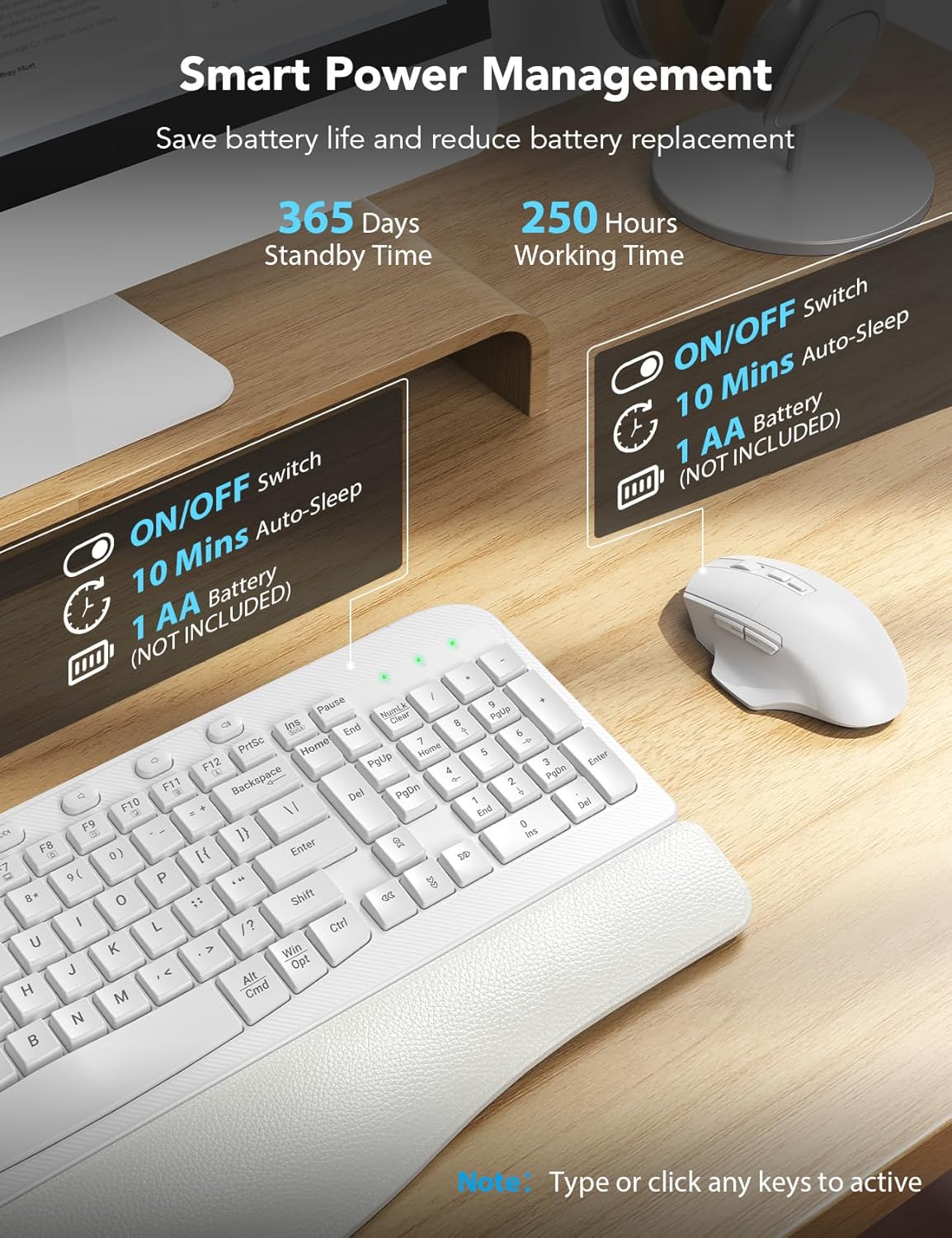
Image: Diagram showing the battery compartments for the keyboard (2 AA batteries) and mouse (1 AA battery), along with the ON/OFF switches and ergonomic tilt legs.
3.2. Connecting the USB Receiver
- Locate the 2-in-1 USB receiver. It supports both USB-A and USB-C ports.
- Plug the USB receiver into an available USB-A or USB-C port on your computer.
- The keyboard and mouse should automatically connect. If not, refer to the troubleshooting section for re-pairing instructions.

Image: Illustration demonstrating the compatibility with both USB-A and USB-C ports using the included 2-in-1 USB receiver.

Image: Visual representation of the 2.4G stable wireless link between the keyboard, mouse, and the USB receiver, highlighting plug-and-play functionality with no delay up to 33ft/10m.
4. Operating Instructions
4.1. Ergonomic Design and Comfort
The SABLUTE keyboard features an ergonomic wave design that reduces pressure and promotes a more natural typing posture. The integrated palm rest, made of comfortable leather with high-density foam support and a sturdy plastic bottom, provides excellent wrist support for extended use.

Image: The ergonomic wave-curved keyboard designed for natural and relaxed typing posture.

Image: Detailed view of the integrated palm rest, highlighting its Togo-style leather, high-density foam support, and sturdy plastic bottom for all-day comfort.
4.2. Keyboard Features
- Silent Typing: The crater membrane structure effectively reduces typing noise by 95%, creating a quieter working environment.
- Efficient Hotkeys: In addition to standard F1-F12 multimedia keys, the keyboard includes 8 one-touch shortcut keys for improved efficiency.
- Adjustable Tilt: The adjustable leg stand allows you to set the keyboard to a comfortable height.

Image: Overview of the keyboard's 20 efficient shortcut keys, including F1-F12 multimedia keys and 8 one-touch shortcut keys.
4.3. Mouse Features
The 6-button mouse is designed for comfort and efficiency:
- Adjustable Tracking Speed: Cycle through 3 levels of tracking speed (DPI) to suit your preference.
- Forward/Backward Buttons: Convenient buttons for quick navigation in web browsers and file explorers.
- Silent Micro-Switch: Reduces clicking noise for a quieter experience.

Image: The comfortable ergonomic mouse with its 7-button layout, highlighting the forward, backward, and thumb rest features, along with whisper-quiet operation and 3 tracking speeds.

Image: Detailed view of the ergonomic mouse, illustrating its 7 buttons, 3 tracking speeds, whisper click, high sensitivity, and ultralight design.
4.4. Dual System Compatibility
The combo is compatible with any device featuring a USB-A or USB-C port. You can easily switch between Windows and macOS layouts using the following key combinations:
- FN + A: Switch to Windows layout
- FN + S: Switch to macOS layout
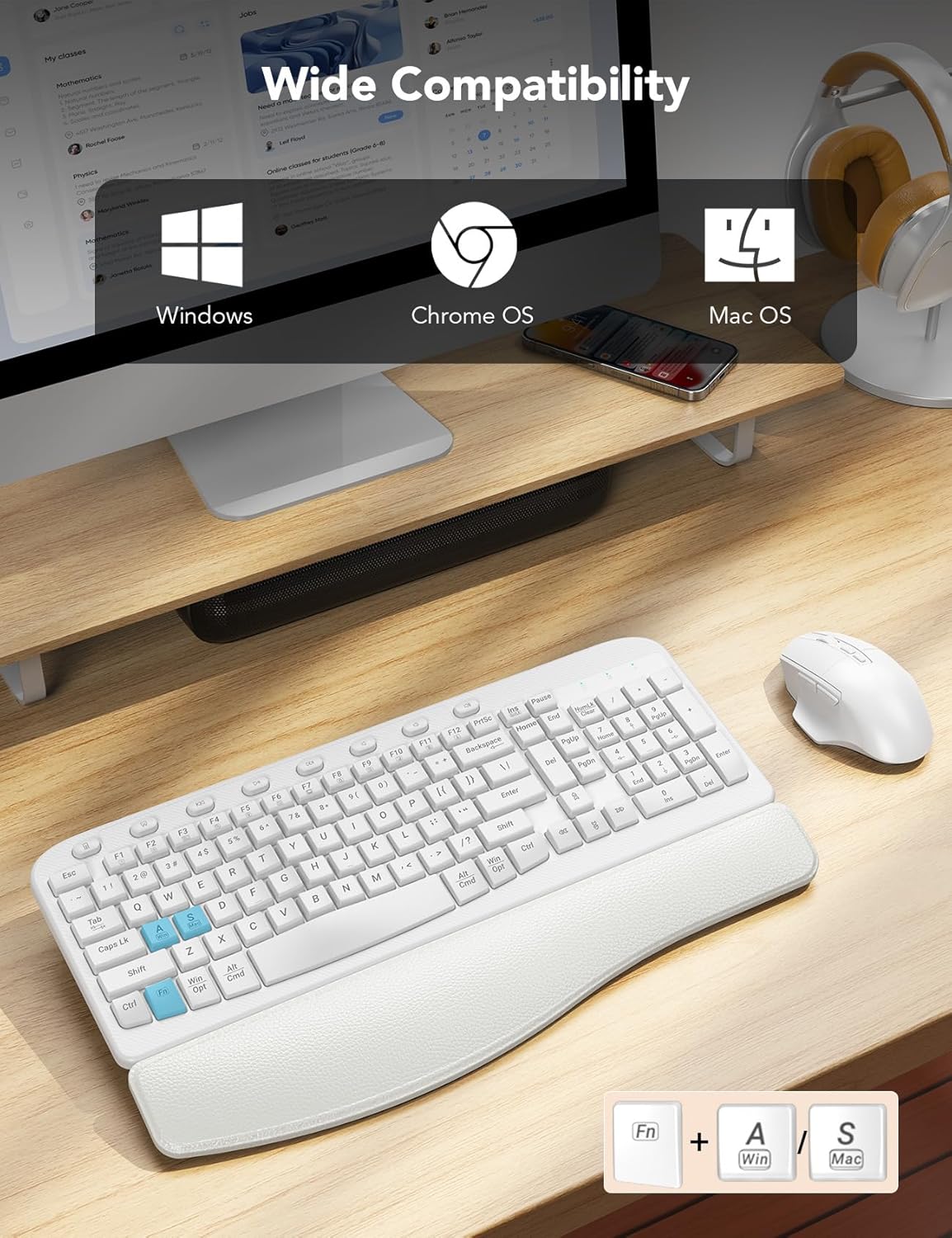
Image: Visual showing the keyboard's wide compatibility with Windows, Chrome OS, and Mac OS, along with the FN+A (Windows) and FN+S (Mac) key combinations for switching layouts.

Image: Close-up of the keyboard highlighting the FN+A and FN+S keys for seamless switching between Windows and Mac OS layouts.
4.5. Smart Power Management
To conserve battery life, both the keyboard and mouse feature a smart auto-sleep mode. If idle for 10 minutes, they will enter sleep mode. Simply type or click any key/button to wake them up.
- Keyboard Standby Time: Up to 365 days
- Mouse Working Time: Up to 250 hours

Image: Illustration of the smart sleep mode feature, showing that both keyboard and mouse enter sleep after 10 minutes of inactivity, with details on standby and working times.
5. Maintenance
To ensure the longevity and optimal performance of your SABLUTE Wireless Keyboard and Mouse Combo, follow these maintenance guidelines:
- Cleaning: Use a soft, dry cloth to wipe down the surfaces of the keyboard and mouse. For stubborn dirt, a slightly damp cloth with mild soap can be used, but ensure no liquid enters the device. Avoid harsh chemicals or abrasive cleaners.
- Battery Replacement: Replace batteries when performance degrades or the low battery indicator (if present) illuminates. Always use new, high-quality AA batteries.
- Storage: When not in use for extended periods, turn off the power switches on both devices to conserve battery life. Store in a cool, dry place away from direct sunlight and extreme temperatures.
- Avoid Spills: Keep liquids away from the keyboard and mouse to prevent damage to internal components.
6. Troubleshooting
If you encounter issues with your SABLUTE Wireless Keyboard and Mouse Combo, please refer to the following common solutions:
6.1. Keyboard or Mouse Not Responding
- Check Batteries: Ensure batteries are correctly installed and have sufficient charge. Replace if necessary.
- Power On: Verify that the power switches on both the keyboard and mouse are in the 'ON' position.
- USB Receiver Connection: Ensure the USB receiver is securely plugged into a working USB port on your computer. Try a different USB port if available.
- Re-pairing: If the devices lose connection, you may need to re-pair them with the receiver. For the keyboard, press and hold 'Esc' and '=' keys simultaneously until the red light flashes, then plug in the USB receiver. For the mouse, long press the left, middle, and right buttons for 5-6 seconds, then plug in the USB receiver. Stop pressing after connecting.
- Interference: Move the keyboard and mouse closer to the USB receiver. Avoid placing them near other wireless devices or large metal objects that might cause interference.
Video: A helpful guide demonstrating how to troubleshoot and re-pair your SABLUTE keyboard and mouse if they are not responding, including steps for both devices.
6.2. Lag or Delayed Response
- Ensure the distance between the devices and the receiver is within the effective range (up to 33ft/10m).
- Check for potential wireless interference from other 2.4GHz devices (e.g., Wi-Fi routers, cordless phones).
- Replace batteries, even if they seem to have some charge left, as low power can affect performance.
7. Specifications
| Feature | Detail |
|---|---|
| Model Number | KC15 |
| Connectivity Technology | 2.4G USB Wireless |
| Compatible Devices | Laptop, Television, Personal Computer (Windows, macOS, Chrome OS) |
| Keyboard Dimensions | 17.32 x 11.31 x 1.88 inches |
| Mouse Dimensions | 5.0 x 3.2 x 1.7 inches |
| Item Weight | 2.64 pounds |
| Keyboard Battery | 2 AA batteries (not included) |
| Mouse Battery | 1 AA battery (not included) |
| Special Features | Ergonomic wave keys, cushioned palm rest, 8 one-touch shortcut keys, silent typing, 3-level adjustable DPI mouse |

Image: Diagram illustrating the dimensions of the SABLUTE ergonomic keyboard and mouse.
8. Warranty & Support
SABLUTE is committed to providing high-quality products and excellent customer service.
8.1. Manufacturer Warranty
This product is covered by a 360-day manufacturer warranty from the date of purchase. This warranty covers defects in materials and workmanship under normal use. It does not cover damage caused by misuse, accidents, unauthorized modifications, or external causes.
8.2. Customer Support
If you have any questions, require assistance, or need to claim warranty service, please contact us through the following channels:
- Email Support: sabluteservices@outlook.com
- Phone Support (US): +1-213-296-1273
- Operating Hours: Monday - Friday, 9am-1pm PST and 2pm-6pm PST
We offer prompt replies within 24 hours, 90-day replacements, and dedicated brand care.

Image: Visual representation of SABLUTE's after-sales support, including pre-sales Q&A, troubleshooting, accessories reissue, returns and exchanges, along with contact email and phone number.


