
Introduction
This manual provides comprehensive instructions for the setup, operation, maintenance, and troubleshooting of your Womier Q61 60% mechanical keyboard. The Q61 is a compact, high-performance keyboard designed for gaming and typing, featuring QMK/VIA programmability, hot-swappable switches, and a durable coiled cable.

Image: Womier Q61 60% mechanical keyboard with key features highlighted, including QMK/VIA, 3-mode connection, hot-swap, PBT keycaps, 60% layout, 16.8 million RGB backlight, 2-stage ergonomics, and gasket structure.
What's in the Box
Please ensure all the following items are present in your package:
- Womier Q61 Mechanical Keyboard
- USB Type-C to USB-A Coiled Cable
Setup
Connecting the Keyboard
- Locate the USB Type-C port on the Womier Q61 keyboard.
- Connect the USB Type-C end of the provided coiled cable to the keyboard.
- Connect the USB Type-A end of the coiled cable to an available USB port on your computer (PC, Laptop, Gaming Console).
- The keyboard will be automatically recognized by your operating system (Windows, macOS, Linux).

Image: Womier Q61 keyboard connected with its white custom coiled cable.
Coiled Cable Usage
The included custom coiled cable is designed for durability and efficient data transfer. Its coiled design helps manage desk space. Ensure the aviator connector is securely fastened if your cable features one.

Image: A white custom coiled USB-C to USB-A keyboard cable with a detachable aviator connector.
Operating Instructions
QMK/VIA Programmability
The Womier Q61 keyboard supports QMK/VIA firmware, allowing for extensive customization of key layouts, macros, and lighting effects. To program your keyboard:
- Download the VIA software from the official VIA website.
- Connect your Q61 keyboard to your computer via the USB cable.
- Launch the VIA software. The software should automatically detect your keyboard.
- Use the VIA interface to remap keys, create macros, and adjust lighting. Changes are saved directly to the keyboard's firmware.
Note: Key remapping is performed in wired mode. Once programmed, the keymap functions in both wired and wireless modes.
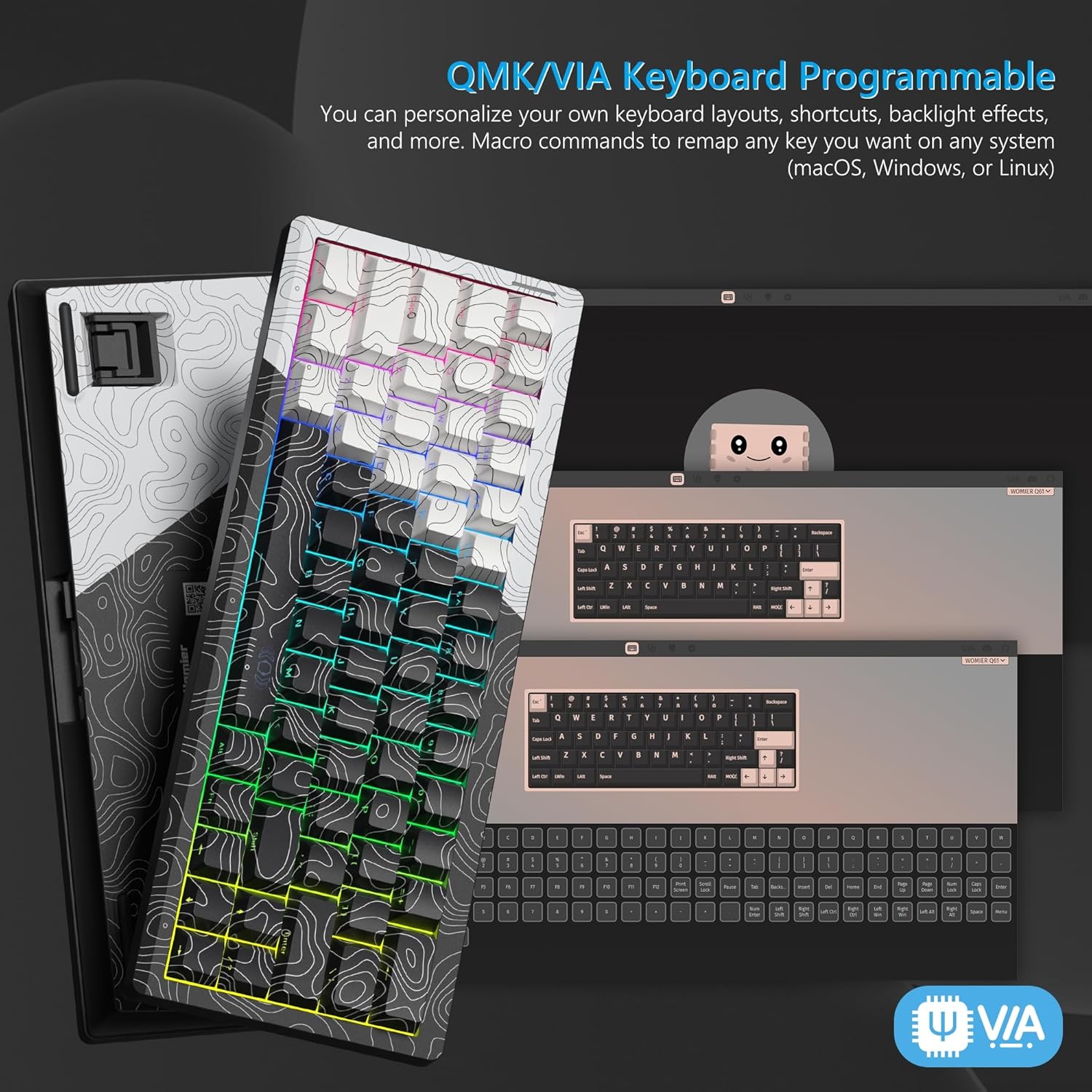
Image: Womier Q61 keyboard with a computer screen showing the QMK/VIA software interface for customization.
Hot-Swappable Switches
The Q61 features hot-swappable switch sockets, allowing you to easily change mechanical switches without soldering. This enables personalization of your typing feel.
- Power off the keyboard or disconnect it from your computer.
- Using a switch puller tool (not included), gently grip the switch you wish to remove and pull it straight up.
- Align the pins of the new switch with the holes on the PCB.
- Gently push the new switch straight down until it clicks into place. Ensure the pins are not bent.
- Reconnect the keyboard and test the new switch functionality.

Image: Close-up of the Womier Q61 keyboard demonstrating hot-swappable switches and a force curve graph for Womier POM Linear Switches.
RGB Backlighting Control
The Q61 keyboard features customizable RGB backlighting. Specific key combinations (often involving the 'Fn' key) are used to cycle through lighting modes, adjust brightness, and change colors. Refer to the keyboard's quick start guide or QMK/VIA software for detailed lighting controls.
Maintenance
Cleaning the Keyboard
- Disconnect the keyboard from your computer before cleaning.
- Use a soft brush or compressed air to remove dust and debris from between the keycaps.
- For stubborn dirt, gently wipe the keycaps with a slightly damp cloth and mild cleaning solution. Avoid excessive moisture.
- Do not immerse the keyboard in water or use harsh chemicals.
Keycap and Switch Care
- When removing keycaps, use a keycap puller tool to avoid damaging the keycaps or switches.
- Handle switches carefully during hot-swapping to prevent bending the pins.
Troubleshooting
- Keyboard Not Responding:
Ensure the USB cable is securely connected to both the keyboard and the computer. Try a different USB port or a different cable. Restart your computer. - Keys Not Registering:
If specific keys are not working, check if the switches are properly seated in their sockets. If hot-swappable, try reseating or replacing the switch. - RGB Lighting Issues:
Verify that the keyboard's lighting is enabled. Use the keyboard's function key combinations or the VIA software to adjust lighting settings. - QMK/VIA Software Not Detecting Keyboard:
Ensure the keyboard is connected via USB. Close and reopen the VIA software. Make sure you have the latest version of VIA.
Specifications
| Model Name | Q61 |
| Brand | Womier |
| Connectivity Technology | USB |
| Compatible Devices | Gaming Console, Laptop, PC, Smartphone, Tablet |
| Keyboard Description | Ergonomic |
| Recommended Uses | Gaming |
| Special Features | Programmable Keys, Custom Coiled Cable, Hot-Swappable Switches |
| Color | Black with White Accents |
| Keyboard Backlighting | RGB |
| Material | Plastic |
| Number of Keys | 61 |
| Power Source | USB Powered |
| Switch Type | Mechanical |
| Keyboard Layout | QWERTY |
| Water Resistance Level | Not Water Resistant |
Warranty and Support
Womier products are designed for reliability and performance. For specific warranty details, please refer to the warranty card included with your product or visit the official Womier website. If you encounter any issues not covered in this manual, please contact Womier customer support for assistance.
For the latest drivers, firmware updates, and support resources, please visit the official Womier support page.


