
Introduction
This user manual provides comprehensive instructions for setting up, operating, and maintaining your IFYOO G18 Tri-Mode 8K Wireless Gaming Mouse. Designed for competitive gaming, this mouse features a PAW3395 sensor, 8K polling rate, and tri-mode connectivity for a versatile and high-performance experience.
What's in the Box
Upon unboxing your IFYOO G18 Gaming Mouse, you should find the following items:
- IFYOO G18 Tri-Mode Wireless Gaming Mouse
- USB-A to USB-C Charging/Data Cable
- 8K Nano Wireless Receiver (USB-A Dongle)
- USB-A to USB-C Adapter
- Replacement Mouse Skates/Slides
- Anti-slip Grip Tapes
- User Manual (this document)

Image: All components included in the IFYOO G18 Gaming Mouse package, laid out on a dark surface. This includes the white gaming mouse, a black braided USB-C cable, a small black USB-A adapter, a user manual, a sheet of black grip tapes, and a small packet of blue replacement mouse skates.
Setup
Connectivity Options
The IFYOO G18 mouse offers three versatile connectivity modes:
- 2.4G Wireless Mode: For optimal gaming performance with an 8K polling rate.
- Locate the 8K Nano Wireless Receiver (USB-A dongle) stored in the compartment on the underside of the mouse.
- Plug the receiver into an available USB-A port on your computer.
- Turn on the mouse using the switch on the bottom. The mouse will automatically connect.
- Bluetooth 5.0 Mode: For general use and compatibility with various devices.
- Switch the mode selector on the bottom of the mouse to BT.
- On your device, search for Bluetooth devices and select "IFYOO G18" to pair.
- Wired Mode: For a stable connection and charging.
- Connect the provided USB-A to USB-C cable to the front of the mouse and an available USB-A port on your computer.
- The mouse will function as a wired mouse and charge simultaneously.

Image: A white IFYOO G18 gaming mouse connected via its USB-C cable to a laptop, with a 2.4GHz wireless receiver shown next to another laptop, and a Bluetooth symbol indicating wireless connectivity to a tablet. This illustrates the tri-mode connectivity options.
DPI Adjustment
The G18 mouse features a dedicated DPI button on its underside, allowing for quick adjustments to sensitivity. The PAW3395 sensor supports up to 26,000 DPI. Default settings include 6-level DPI adjustment. For precise customization and to achieve the maximum 26,000 DPI, utilize the official driver software.

Image: A graphic illustrating the ultra-high DPI capabilities of the IFYOO G18 mouse with its PAW3395 sensor. It shows a range of DPI settings from 400 to 5200, with a note indicating that 26000 DPI can be achieved through driver customization.
Software/Driver Installation
To unlock the full customization potential of your IFYOO G18 mouse, including macro programming, button remapping, polling rate adjustment, and advanced DPI settings, download and install the official driver software from the IFYOO website. A beta web driver is also available for certain functionalities.
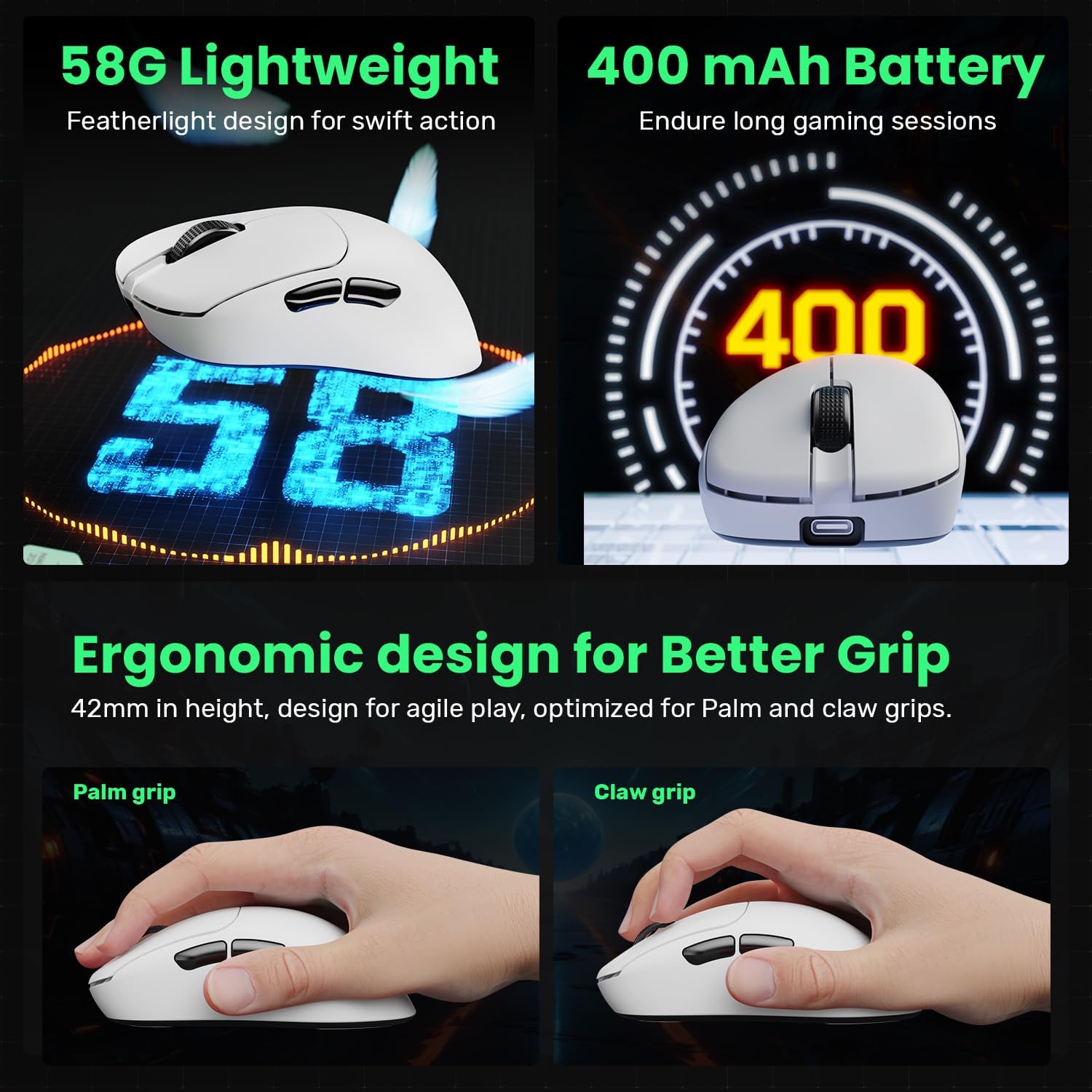
Image: A screenshot of the IFYOO G18 mouse customization driver interface, showing options for key mapping, macros, shake elimination, and DPI settings. The software allows users to tailor their gaming experience by adjusting various mouse parameters.
Operating Instructions
Basic Mouse Functions
The IFYOO G18 features standard mouse buttons and a scroll wheel for intuitive control:
- Left Click: Primary action button.
- Right Click: Secondary action button, typically for context menus.
- Scroll Wheel: Scrolls content vertically. Also functions as a clickable middle button.
- Side Buttons: Two programmable buttons on the left side, typically for forward/backward navigation in browsers or custom in-game actions.
Ergonomics and Grip
The G18 mouse is designed with a right-handed ergonomic shape, weighing only 58g for swift and agile movements. Its smaller size is optimized for both palm grip and claw grip styles, ensuring comfort during extended gaming sessions. Included grip tapes can be applied for enhanced control and feel.

Image: A composite image showcasing the IFYOO G18 mouse's features: its 58g lightweight design, 400mAh battery capacity, and ergonomic design optimized for both palm grip and claw grip, with illustrations of hands demonstrating each grip style.
Battery Life
The mouse is equipped with a 400mAh battery, providing long-lasting power for your gaming sessions. When the battery is low, the indicator light will signal, and you can charge it using the provided USB-C cable. Charging typically takes 3-4 hours.
Maintenance
Cleaning
To maintain optimal performance and hygiene, regularly clean your mouse. Use a soft, dry cloth to wipe down the surface. For stubborn dirt, a slightly damp cloth can be used, ensuring no moisture enters the internal components. Avoid harsh chemicals or abrasive materials.
Replacing Mouse Skates
Over time, the mouse skates (also known as mouse feet or glide pads) on the underside of your mouse may wear out, affecting its glide performance. Your IFYOO G18 comes with replacement skates. To replace them:
- Carefully peel off the old mouse skates.
- Clean the surface where the skates were attached to ensure it's free of residue.
- Peel the backing from the new replacement skates and carefully align them with the designated areas on the mouse's underside.
- Press firmly to ensure proper adhesion.
Troubleshooting
| Problem | Possible Solution |
|---|---|
| Mouse not responding in 2.4G Wireless Mode. | Ensure the 8K Nano Wireless Receiver is securely plugged into a USB-A port. Check if the mouse is switched to 2.4G mode. Try a different USB port. |
| Bluetooth connection issues. | Ensure the mouse is in Bluetooth mode and discoverable. Remove previous pairings on your device and re-pair. Ensure your device's Bluetooth is enabled. |
| Mouse cursor erratic or unresponsive. | Clean the optical sensor on the underside of the mouse. Ensure the mouse is used on a suitable surface (not highly reflective or transparent). Check battery level. |
| DPI settings not changing. | Ensure you are pressing the correct DPI button. If using custom settings, verify the driver software is running and configured correctly. |
| Mouse not charging. | Verify the USB-C cable is properly connected to both the mouse and a power source/USB port. Try a different cable or USB port. |
Specifications
| Feature | Detail |
|---|---|
| Brand | IFYOO |
| Model Number | IFYOO-G18-3395-WhiteBlack |
| Connectivity Technology | Tri-Mode: 2.4G Wireless, Bluetooth 5.0, Wired (USB-C) |
| Sensor | PAW3395 Optical Sensor |
| DPI Range | 50-26000 DPI (Adjustable via driver) |
| Polling Rate | 2.4G Wireless: Max 8K Hz; Wired: Max 1K Hz |
| Buttons | 5 Programmable Buttons |
| Micro-Switches | 100 Million Clicks Lifespan |
| Battery Capacity | 400 mAh (Lithium Polymer) |
| Charging Time | Approx. 3-4 Hours (Input: 5V / 0.5A) |
| Weight | Approx. 58g |
| Dimensions (L x W x H) | 118 x 66 x 42 mm |
| Compatibility | Windows, Mac, Linux, Android, iOS |
Warranty and Support
For warranty information, technical support, or further assistance with your IFYOO G18 Gaming Mouse, please refer to the official IFYOO website or contact their customer service directly. Keep your purchase receipt for warranty claims.