1. Introduction
The AOCHUAN Smart X2 AI Gimbal Stabilizer is designed to enhance smartphone videography with its advanced 3-axis stabilization and integrated AI tracking module. This manual provides essential instructions for setup, operation, and maintenance to ensure optimal performance.
2. Setup
2.1 Package Contents
- 1 × AOCHUAN SMART X2 Gimbal (phone not included)
- 1 × AI Tracking Module
- 1 × USB-C Charging Cable
- 1 × User Manual
- 1 × Mini Tripod
2.2 Unfolding the Gimbal
Gently unfold the gimbal until it forms a stable structure. The design allows for easy deployment and compact storage.
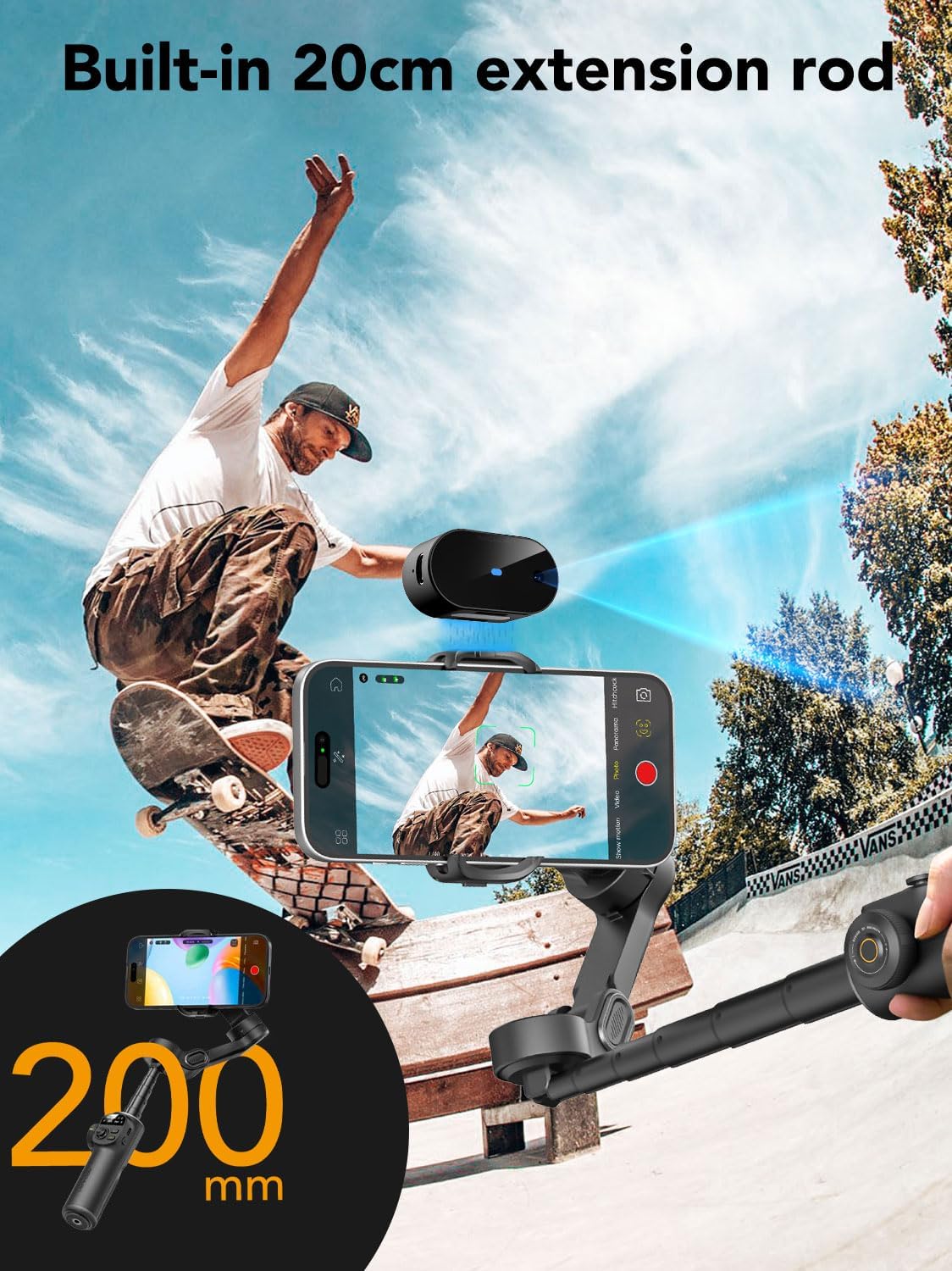
Image: The AOCHUAN Smart X2 AI Gimbal Stabilizer in its unfolded, ready-to-use state.
2.3 Mounting Your Smartphone
Extend the phone clamp and securely place your smartphone. The clamp is designed to accommodate various phone sizes, even with cases.
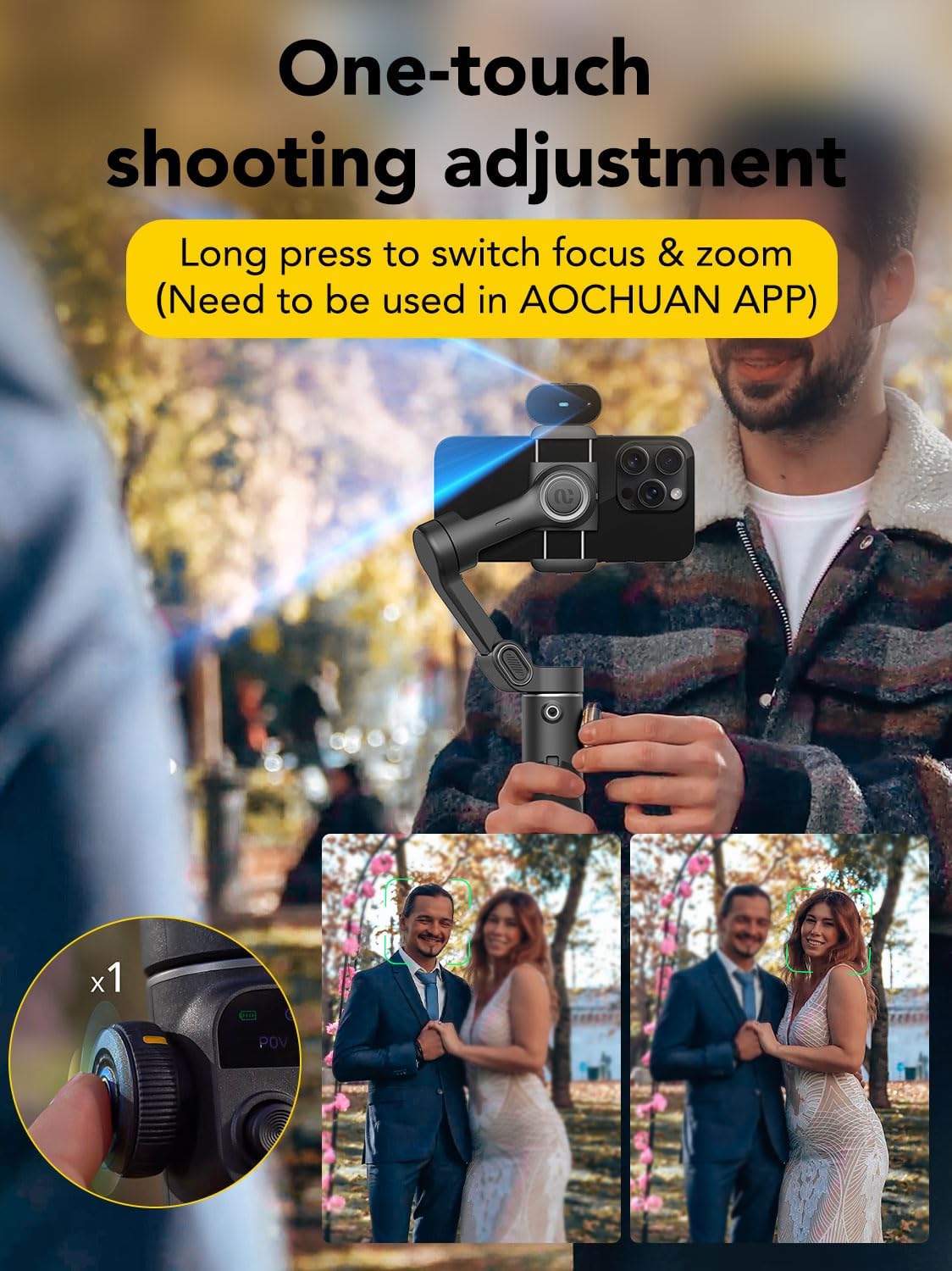
Image: Close-up of the gimbal's phone clamp, demonstrating its adjustable nature to fit different smartphone sizes.
2.4 Attaching the AI Tracking Assistant
The AI Tracking Assistant magnetically attaches above the phone clamp. Ensure it is correctly slotted in. Avoid installing it below the phone clamp or on the left magnetic position to prevent interference.
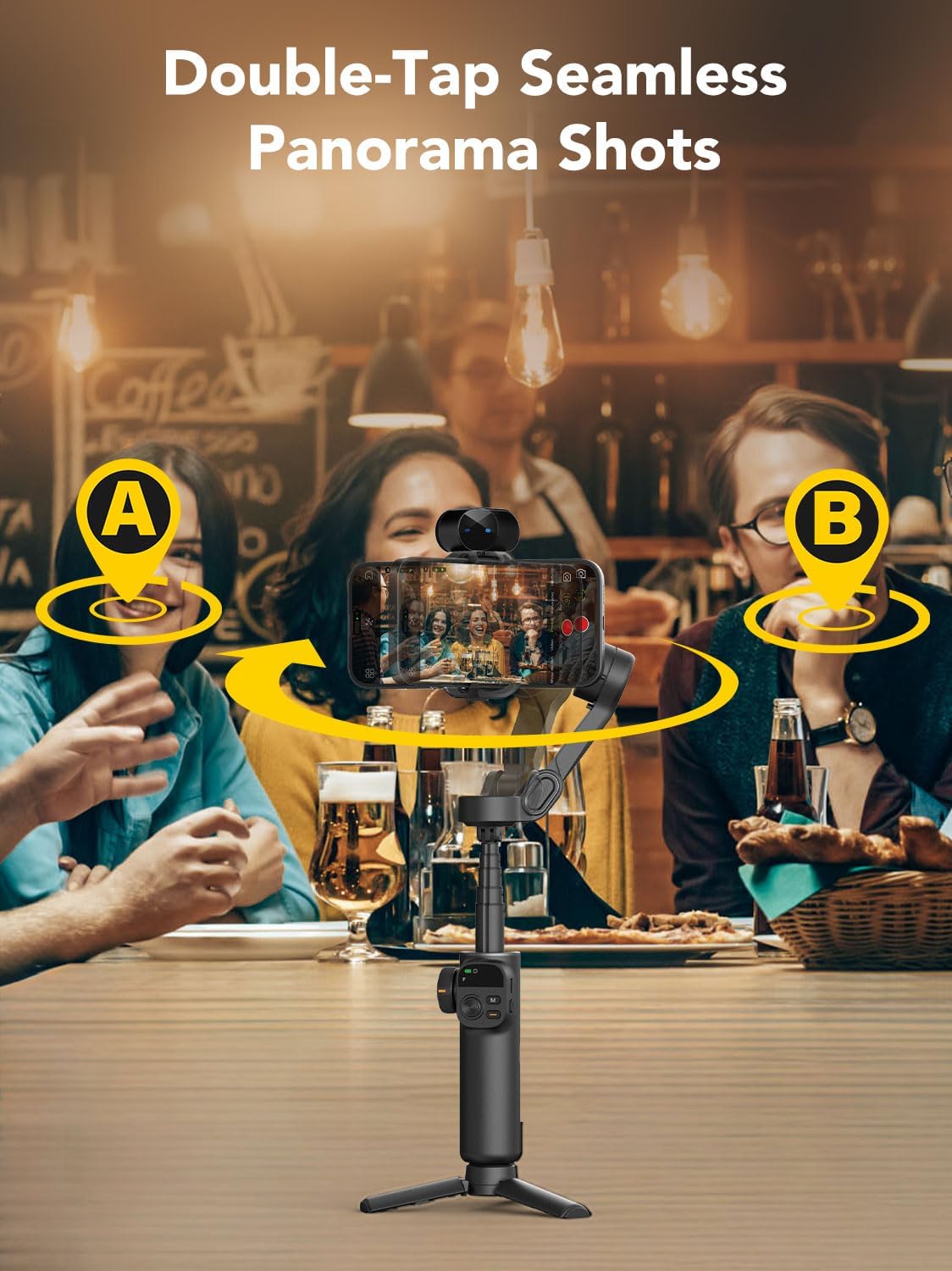
Image: The AI Tracking Assistant module magnetically attached to the top of the smartphone clamp on the gimbal.
2.5 Attaching the Mini Tripod
The mini tripod can be screwed into the 1/4-inch thread at the bottom of the gimbal handle for stable tabletop use or extended shots.

Image: The AOCHUAN Smart X2 AI Gimbal Stabilizer with its mini tripod attached, providing a stable base.
2.6 AI Tracking Assistant Instruction Video
Video: This official video demonstrates how to set up and use the AI Tracking Assistant, including Bluetooth connection, attachment, and gesture controls for tracking, shooting, and composition.
3. Operating Instructions
3.1 Powering On/Off
Long press the power button on the side of the gimbal handle to turn it on or off. The OLED display will illuminate upon activation.
3.2 Gimbal Modes
The Smart X2 AI features an OLED display that shows the current mode and status. Use the multi-function buttons to switch between modes:
- F (Follow Mode): The pan and tilt axes follow your movements.
- POV (Point of View Mode): All three axes follow your movements, providing a first-person perspective.
- DM (Dolly Zoom Mode): Allows for creative dolly zoom effects.
- S (Sport Mode): Provides faster response for quick movements and action shots.

Image: The gimbal's OLED display showing various modes and battery status, providing clear visual feedback.
3.3 AI Tracking and Gesture Control
The integrated AI tracker module enables intelligent face and object tracking without requiring an app. Gesture controls are supported:
- OK Gesture: Enable/Disable intelligent tracking.
- Palm Gesture: Automatically take photos or record videos.
- Double Thumbs-Up Gesture: Switch between landscape and portrait orientation.

Image: A user demonstrating gesture control for the Smart AI Tracking feature, showing the OK gesture for tracking activation.
3.4 Using the Extension Rod
The gimbal features a built-in 20cm retractable extension rod, allowing for wider angles and more versatile shooting perspectives.

Image: The gimbal with its 20cm extension rod fully extended, capturing a dynamic shot of a skateboarder.
3.5 Zoom and Focus Control
The multi-function button next to the OLED display allows for one-touch adjustment of focus and zoom. Long press to switch between focus and zoom functions.

Image: A close-up of the gimbal's control panel, highlighting the zoom and focus wheel for precise adjustments.
3.6 AOCHUAN App Features
While AI tracking works independently, the AOCHUAN app offers additional creative functions such as Inception mode, movie mode, time-lapse photography, and Hitchcock effects.

Image: A visual representation of various creative features available through the AOCHUAN app, including face tracking, gesture control, Hitchcock, and widescreen movie mode.
3.7 Extendable Smart 3-axis Stabilizer Video
Video: This official video showcases the extendable feature and 3-axis stabilization of the Smart X2 gimbal, demonstrating its versatility in various shooting scenarios.
4. Maintenance
4.1 Cleaning
Wipe the gimbal with a soft, dry cloth. Do not use liquid cleaners or solvents, as they may damage the device.
4.2 Storage
Store the gimbal in a cool, dry place away from direct sunlight. Ensure it is folded compactly to prevent damage. When not in use for extended periods, fully charge the battery every three months to maintain battery health.
4.3 Battery Care
The gimbal uses a built-in Lithium Ion battery. Use only the provided USB-C charging cable. Avoid overcharging or completely draining the battery to prolong its lifespan.
5. Troubleshooting
5.1 Gimbal Not Powering On
- Ensure the battery is charged. Connect the gimbal to a power source using the USB-C cable.
- Long press the power button for at least 3 seconds.
5.2 AI Tracking Issues
- Ensure the AI Tracking Module is correctly attached and powered on (steady blue light).
- Make sure there is sufficient lighting in the environment. Tracking works best in well-lit conditions.
- Avoid strong light directly hitting the AI module's lens.
- When using gestures, avoid wearing clothes too close to your skin tone to prevent recognition issues.
- If the green light is flashing, the person is not recognized. Adjust your position or lighting.
5.3 Gimbal Shaking or Unstable
- Ensure your smartphone is securely mounted in the clamp and balanced.
- Restart the gimbal.
- Avoid using remote control shot functions or Inception-style shots when AI tracking is active, as this can cause gimbal shaking.
5.4 Bluetooth Connection Failure
- Ensure Bluetooth is enabled on your smartphone.
- Restart both the gimbal and your smartphone.
- Forget the device in your phone's Bluetooth settings and try pairing again.
6. Specifications
- Product Dimensions: 11.3 x 5 x 2.76 inches
- Item Weight: 12.5 ounces (355 Grams)
- Batteries: 1 Lithium Ion battery required (included)
- Folded Size: 16.5 x 11 x 5.3 cm
- Compatible Devices: iPhone 16 15 14 13 12 Pro Max, Samsung Galaxy S21/S21 Ultra S23 Ultra, Huawei p30 pro/p30/p20 pro/p10/p10 plus, and other similar smartphones.
- Color: Black
- Manufacturer: AOCHUAN
7. Warranty and Support
AOCHUAN is committed to providing quality products and assistance. If you encounter any questions or issues when using your handheld phone gimbal, please contact AOCHUAN Official Store on Amazon for support.


