Introduction
This manual provides detailed instructions for the setup, operation, and maintenance of your Frontech Wireless Rechargeable Keyboard & Mouse Combo Set (KB-0029). This combo set offers seamless wireless connectivity for enhanced productivity and comfort across various devices.
Key features include:
- 104-key full-size keyboard with ergonomic design.
- 3-button optical mouse with adjustable DPI up to 1600.
- 2.4GHz wireless technology for stable connection up to 10 meters.
- Single USB receiver for both keyboard and mouse.
- Rechargeable battery for extended use.
- Plug & Play functionality, no drivers required.
- Compatible with PC, Laptop, and Mac operating systems.
Package Contents
Please check the package for the following items:
- Frontech Wireless Keyboard (KB-0029)
- Frontech Wireless Mouse
- USB 2.4GHz Receiver (typically stored inside the mouse battery compartment)
- USB-A to USB-C Charging Cable
- User Manual (this document)
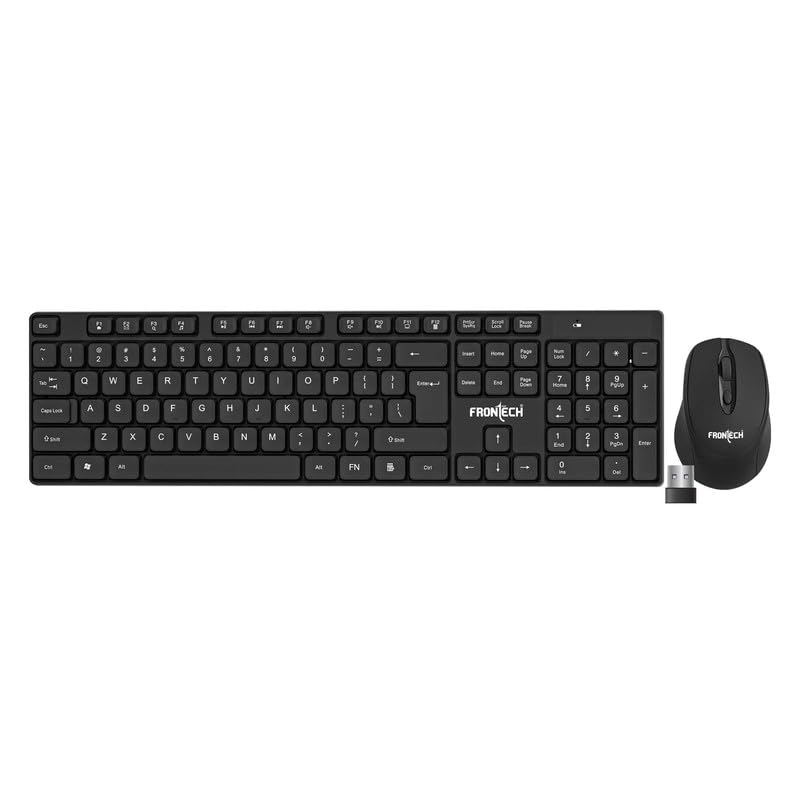
Image: Frontech Wireless Keyboard and Mouse Combo Set, showing the full-size keyboard, ergonomic mouse, and the compact USB receiver.
Setup Instructions
- Locate the USB Receiver: The compact USB 2.4GHz receiver is typically stored in the battery compartment of the wireless mouse for safe keeping during transport. Gently open the mouse's battery cover to retrieve it.
- Connect the Receiver: Plug the USB receiver into an available USB-A port on your computer (PC, Laptop, or Mac). The system should automatically detect and install the necessary drivers.
- Power On the Mouse: Locate the ON/OFF switch on the underside of the mouse. Slide the switch to the 'ON' position. The mouse should now be active.
- Power On the Keyboard: Locate the ON/OFF switch on the top right side of the keyboard. Slide the switch to the 'ON' position. The keyboard should now be active.
- Test Connectivity: Open a text editor or browser to test the keyboard and move the mouse to check cursor movement. If both devices respond, the setup is complete.
Operating Instructions
Keyboard Operation
- Typing: The keyboard features a standard 104-key QWERTY layout for comfortable and efficient typing.
- Function Keys (F1-F12): These keys provide various shortcuts. Some may require pressing the 'FN' key simultaneously for secondary functions (e.g., media control, volume adjustment). Refer to your operating system's documentation for specific function key behaviors.
- Adjustable Height: The keyboard includes adjustable feet on the underside. Flip these feet out to raise the keyboard to a more comfortable typing angle.
- Charging: When the battery is low, connect the provided USB charging cable to the keyboard's charging port and a USB power source. An indicator light may show charging status.
Mouse Operation
- Basic Functions: The mouse has left-click, right-click, and a scroll wheel for navigation.
- DPI Adjustment: The mouse features adjustable DPI (Dots Per Inch) resolution, up to 1600 DPI. This allows you to change the cursor sensitivity. A dedicated DPI button (if present, usually near the scroll wheel) can cycle through available DPI settings.
- Charging: When the battery is low, connect the provided USB charging cable to the mouse's charging port and a USB power source. An indicator light may show charging status.
- Power Saving: The mouse may enter a sleep mode after a period of inactivity to conserve battery. Move the mouse or click a button to wake it up.
Maintenance
- Cleaning: Use a soft, dry cloth to clean the surfaces of the keyboard and mouse. For stubborn dirt, a slightly damp cloth with mild soap can be used, ensuring no liquid enters the device. Do not use harsh chemicals or abrasive cleaners.
- Battery Care: To prolong battery life, avoid fully discharging the devices frequently. Charge them when the low battery indicator appears. Do not expose batteries to extreme temperatures.
- Storage: When not in use for extended periods, turn off both the keyboard and mouse to conserve battery. Store the USB receiver inside the mouse to prevent loss.
Troubleshooting
| Problem | Solution |
|---|---|
| Keyboard or mouse not responding. |
|
| Lag or intermittent connection. |
|
| Mouse cursor moves erratically. |
|
Specifications
| Feature | Detail |
|---|---|
| Brand | FRONTECH |
| Model | KB-0029 |
| Connectivity Technology | 2.4GHz Wireless |
| Keyboard Keys | 104 |
| Keyboard Layout | QWERTY |
| Mouse Buttons | 3 |
| Mouse DPI | Up to 1600 DPI (Optical) |
| Special Features | Lightweight, Rechargeable, Adjustable Height (Keyboard) |
| Compatible Devices | Laptop, PC, Mac |
| Operating System | All Windows Server Versions 2000 (and generally compatible with modern OS) |
| Power Source | Battery Powered (Rechargeable) |
| Item Weight (Keyboard & Mouse) | Approximately 635 Grams |
| Country of Origin | China |
Warranty and Support
This Frontech Wireless Rechargeable Keyboard & Mouse Combo Set (KB-0029) comes with a 1 Year Limited Warranty from the date of purchase.
For warranty claims, technical support, or any product-related inquiries, please contact Frontech customer service or visit their official website. Keep your purchase receipt as proof of purchase for warranty services.
Manufacturer/Importer Contact Information:
Frontech Private Limited, Ecocentre, Unit-801, EM-4, Sector - V, Kolkata, West Bengal, 700091


