
1. Introduction
This manual provides comprehensive instructions for the installation, operation, and maintenance of your MOES WiFi Humidity Temperature Monitor. This device allows for remote monitoring of indoor temperature and humidity, offering smart automation capabilities and compatibility with popular voice assistants.
2. Product Overview
The MOES WiFi Humidity Temperature Monitor is a smart sensor designed to provide real-time environmental data. It integrates with the Tuya Smart App for remote access and control.

Image 2.1: The MOES WiFi Smart Temperature & Humidity Sensor, highlighting its WiFi connectivity, Tuya integration, comfort indicator, humidity display, and temperature display.
Key Features:
- WiFi Connectivity: Seamless integration with your home WiFi network (2.4GHz).
- Tuya Smart App: Fast configuration and smart controls via the Tuya Smart App.
- Real-time Monitoring: Accurate perception of temperature and humidity.
- Battery Powered: Operates on batteries with low battery alarm functionality.
- Temperature Unit Conversion: Switch between Celsius (℃) and Fahrenheit (℉).
- Smart Automation: Create rules to interact with other smart devices like heaters or humidifiers.
- Comfort Indicator: Visual cues in the app to indicate environmental comfort levels.
- Data Logging: Records daily, monthly, and yearly temperature and humidity data.
- Voice Assistant Compatibility: Works with Alexa and Google Home for voice commands.
3. Setup Instructions
3.1. Battery Installation
- Gently open the back cover of the device.
- Insert two AAA (LR03-1.5V) batteries, ensuring correct polarity.
- Close the back cover securely.
3.2. App Download and Account Creation
- Download the Tuya Smart or Smart Life App from the Apple App Store or Google Play Store.
- Register for a new account or log in with an existing account.
3.3. Device Pairing
- Ensure your smartphone is connected to a 2.4GHz WiFi network. The device does not support 5GHz networks.
- Open the Tuya Smart App.
- Tap the "+" icon in the top right corner to add a device.
- Select "Sensor" or "Environmental Sensor" from the device list.
- Follow the on-screen instructions to put the device into pairing mode (usually by pressing and holding a button on the device until an indicator light flashes).
- Confirm the WiFi network and enter the password.
- Wait for the device to connect. Once connected, you can rename the device for easier identification.
4. Operating Instructions
4.1. Monitoring Temperature and Humidity
Once paired, open the Tuya Smart App and select your device. The main screen will display the current temperature and humidity readings.
4.2. Comfort Indicator
The app features an intelligent guardian mode with a facial expression comfort indicator. This helps you understand the environmental conditions at a glance, particularly useful for monitoring spaces for infants or sensitive individuals.

Image 4.1: A smartphone screen displaying the Tuya Smart App interface for the MOES sensor, showing temperature and humidity readings along with a comfort indicator, with a baby in the background.
4.3. Temperature Unit Conversion
Within the device settings in the Tuya Smart App, you can switch the temperature display unit between Celsius (℃) and Fahrenheit (℉) according to your preference.
4.4. Data Logging Review
The app records historical temperature and humidity data, allowing you to review trends over day, month, or year. This feature helps in understanding environmental changes over time.
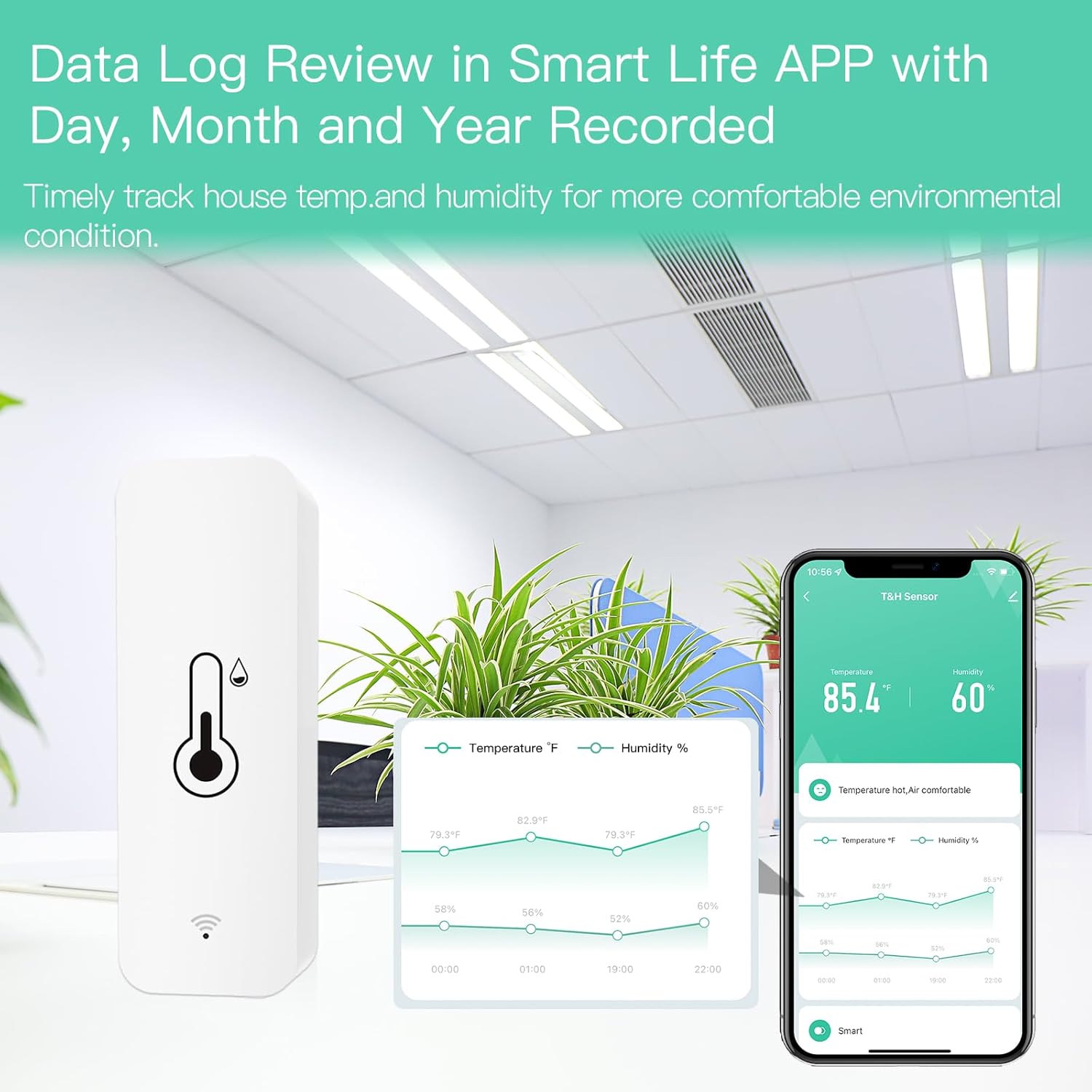
Image 4.2: The MOES sensor positioned next to a smartphone displaying the Tuya Smart App, which shows graphs of historical temperature and humidity data.
4.5. Voice Control with Alexa and Google Assistant
The MOES monitor is compatible with Amazon Alexa and Google Assistant. After linking your Tuya Smart account to your voice assistant app, you can inquire about the current temperature and humidity status using voice commands.
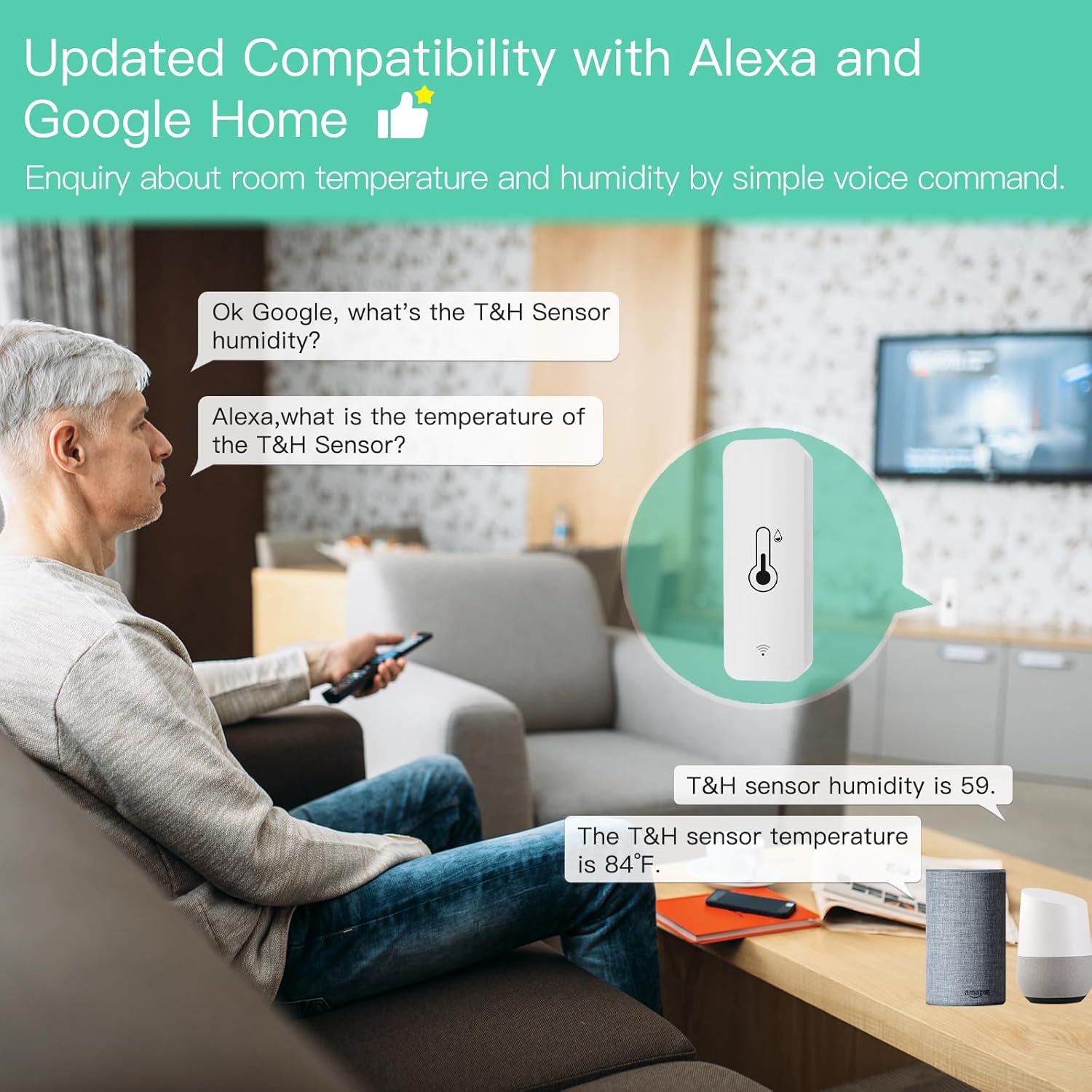
Image 4.3: A man in a living room interacting with voice assistants (Alexa and Google Home) to check the temperature and humidity reported by the MOES sensor.
4.6. Smart Automation
Leverage the Tuya Smart App to create smart scenes and automation rules. For example, you can set the monitor to trigger an electric heater or humidifier based on specific temperature or humidity thresholds, or integrate with a smart IR thermostat for automated AC control.

Image 4.4: A family relaxing in a living room, with the MOES sensor and a smart air conditioner visible, demonstrating how the sensor can be linked with other smart devices for home automation.
5. Maintenance
5.1. Battery Replacement
When the low battery alarm is triggered in the Tuya Smart App, replace the two AAA batteries promptly to ensure continuous operation and accurate readings. Follow the battery installation steps in Section 3.1.
5.2. Cleaning
Wipe the device with a soft, dry cloth. Do not use liquid cleaners or abrasive materials, as these can damage the sensor or casing.
6. Troubleshooting
| Issue | Possible Cause | Solution |
|---|---|---|
| Device not connecting to WiFi | Incorrect WiFi password; 5GHz network used; device too far from router; pairing mode not activated. | Ensure 2.4GHz WiFi, verify password, move device closer to router, re-enter pairing mode. |
| Inaccurate readings | Sensor obstructed; device placed near heat/cold sources; low battery. | Ensure clear airflow to sensor, relocate device away from extreme temperatures, replace batteries. |
| App not displaying data | Device offline; app not refreshed; internet connectivity issues. | Check device status (battery, WiFi connection), refresh app, verify internet connection. |
| Voice commands not working | Tuya account not linked to voice assistant; incorrect device name; internet issues. | Link accounts in voice assistant app, use correct device name, check internet connection. |
7. Specifications

Image 7.1: A visual representation of the MOES WiFi Humidity Temperature Monitor, detailing its physical dimensions and key specifications.
| Feature | Detail |
|---|---|
| Product Dimensions | 71mm x 25mm x 20mm (approx. 2.79 x 0.98 x 0.78 inches) |
| Product Weight | 19g |
| Material | ABS |
| Battery Type | LR03-1.5V/AAA x 2 |
| Wi-Fi Frequency | 2.4GHz IEEE 802.11 b/g/n |
| Manufacturer | Wenzhou Nova New Energy Co.,LTD |
8. Warranty and Support
This MOES product comes with a 2-year warranty and a 60-day refund guarantee for complete satisfaction. For technical support, warranty claims, or any inquiries regarding your device, please contact MOES customer support through their official channels or the retailer where the product was purchased.