
EDDBNi K12E
EDDBNi 10.1-inch Android 14 Tablet User Manual
Model: K12E
Introduction
Welcome to the user manual for your new EDDBNi 10.1-inch Android 14 Tablet. This guide provides essential information on setting up, operating, maintaining, and troubleshooting your device to ensure optimal performance and user experience. Please read this manual thoroughly before using your tablet.
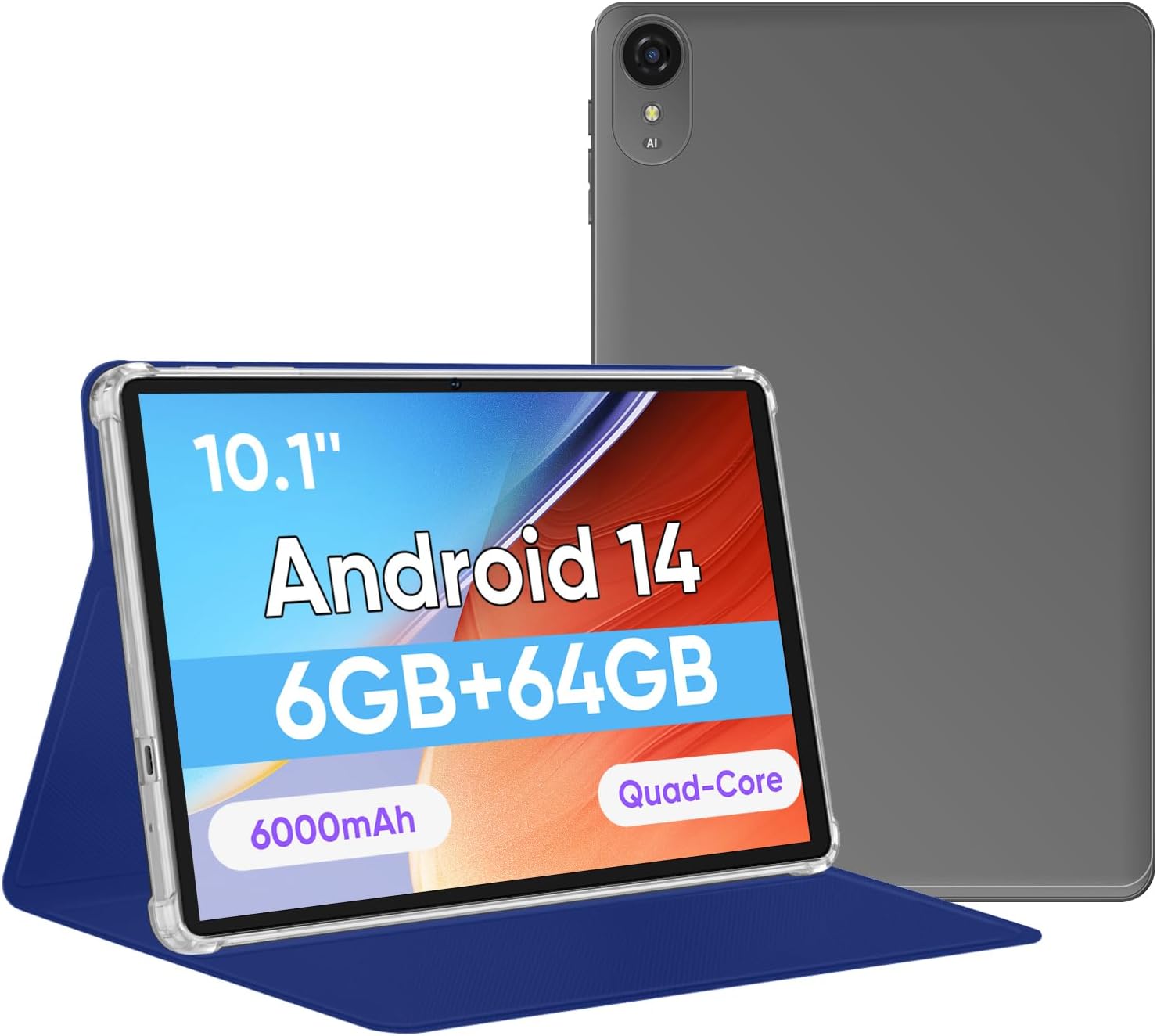
Image: The EDDBNi 10.1-inch Android 14 Tablet, shown with its included blue protective case, highlighting its sleek design and display.
Setup Guide
1. What's in the Box
Verify that all items are present in the package:
- EDDBNi 10.1-inch Android 14 Tablet
- Tablet Leather Case
- Charging Cable (USB Type-C)
- Power Adapter
- User Manual (this document)
2. Charging the Tablet
Before first use, fully charge your tablet. Connect the USB Type-C cable to the tablet's charging port and the other end to the power adapter. Plug the adapter into a wall outlet. The battery indicator on the screen will show charging status.
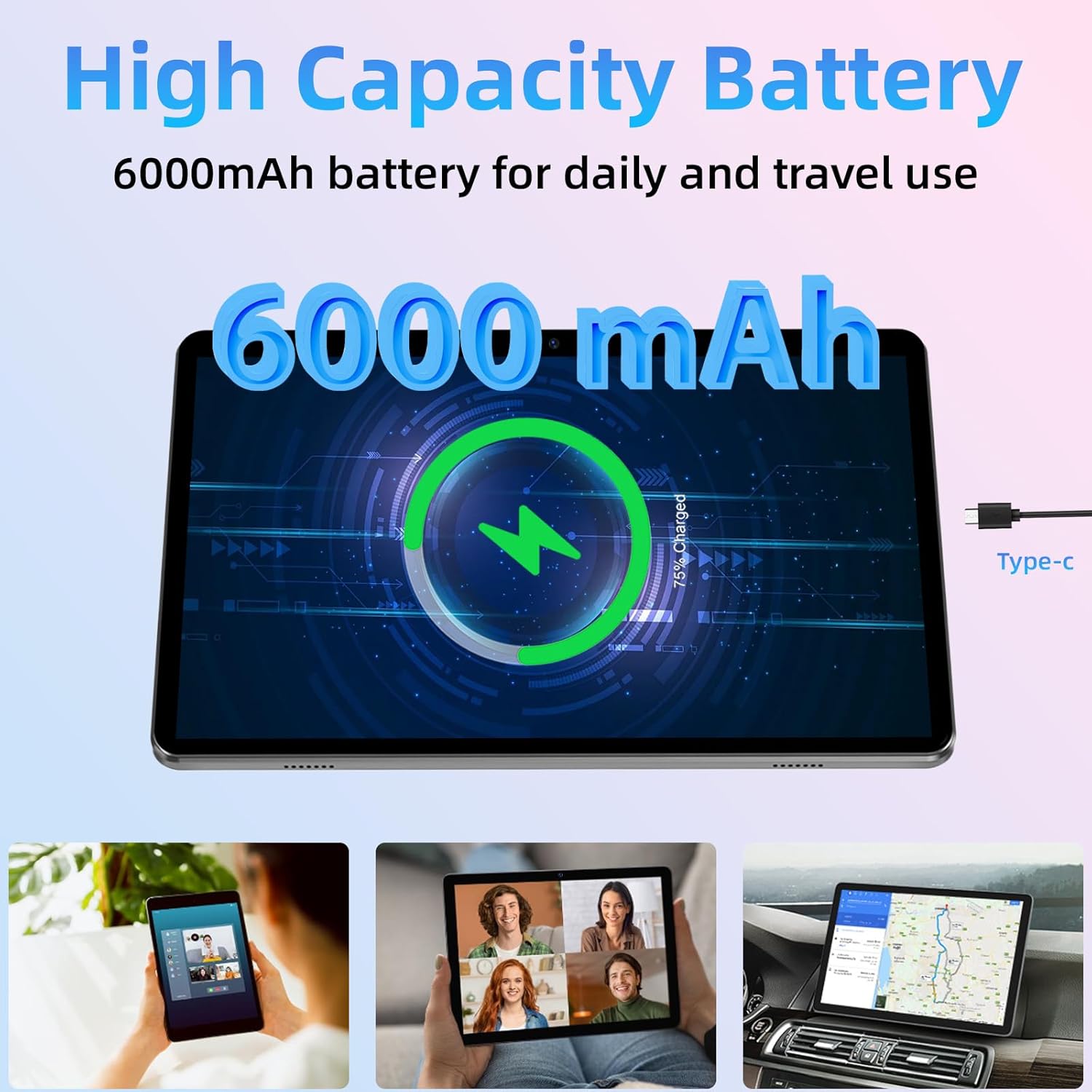
Image: A visual representation of the tablet's 6000mAh battery charging, indicating the Type-C charging port.
3. Power On/Off
- Power On: Press and hold the Power button located on the side of the tablet until the EDDBNi logo appears on the screen.
- Power Off: Press and hold the Power button until a power-off menu appears. Select "Power off" to shut down the device.
- Restart: From the power-off menu, select "Restart" to reboot the device.
4. Initial Setup
Upon first power-on, the tablet will guide you through the initial setup process:
- Select your preferred language.
- Connect to a Wi-Fi network. This is crucial for downloading updates and setting up your Google account.
- Sign in with your Google account or create a new one. This is required to access the Google Play Store and other Google services.
- Follow the on-screen prompts to set up date and time, screen lock, and other preferences.
5. Inserting a MicroSD Card (Optional)
Your tablet supports storage expansion up to 1TB using a MicroSD card (sold separately). This allows for ample space for photos, videos, and applications.
- Locate the MicroSD card slot on the side of the tablet.
- Gently insert the MicroSD card into the slot with the gold contacts facing down until it clicks into place.
- To remove, gently push the card inward until it pops out.
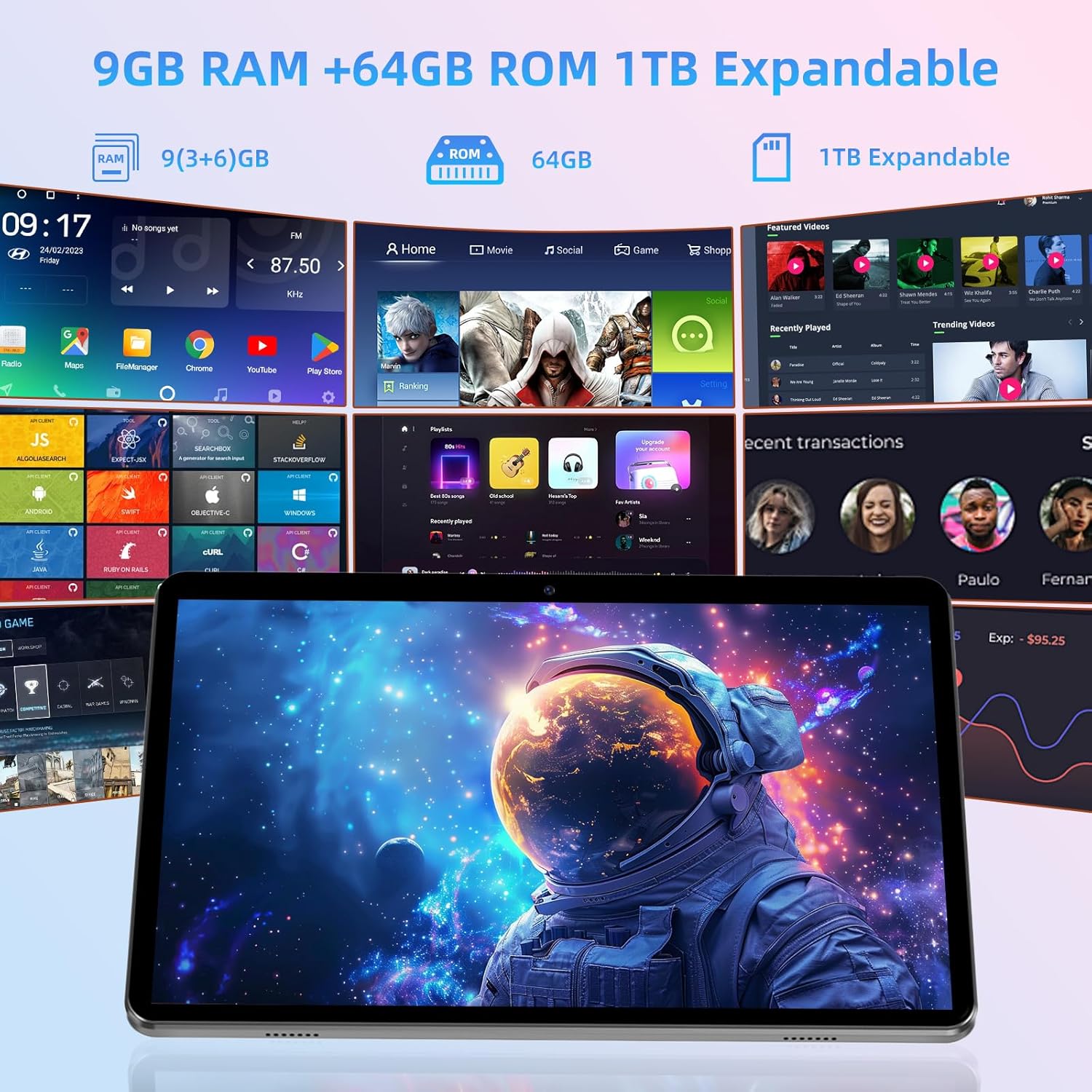
Image: A visual demonstrating the tablet's memory specifications, including 9GB RAM, 64GB ROM, and the option for 1TB expandable storage via a MicroSD card.
Operating Your Tablet
1. Basic Navigation
The tablet features a responsive 10.1-inch IPS HD touchscreen for intuitive interaction:
- Tap: To open apps, select items, or press buttons.
- Tap & Hold: To move icons, open context menus, or activate selection mode.
- Swipe: To scroll through pages, lists, or switch between home screens.
- Pinch: To zoom in or out on photos, maps, or web pages.
2. Android 14 Operating System
Your tablet runs on the latest Android 14 operating system, offering enhanced privacy features, improved app compatibility, and a smooth user experience. Enjoy a diverse selection of original apps and games via the Google Play Store, which is GMS certified.
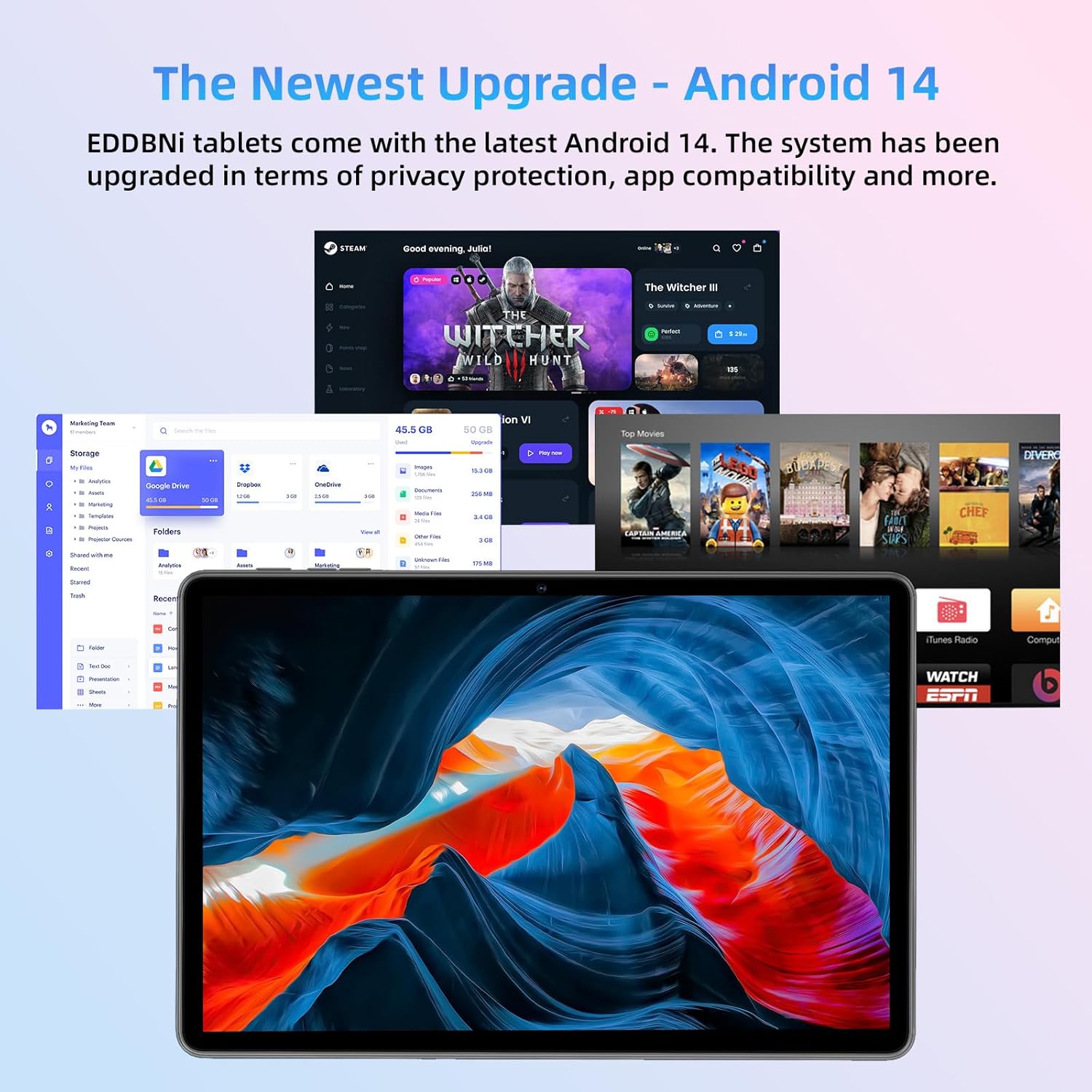
Image: The tablet's display showcasing the Android 14 interface with multiple application icons, emphasizing the latest operating system upgrade.
3. Connectivity
- Wi-Fi: To connect to a Wi-Fi network, go to Settings > Network & internet > Wi-Fi. Select your desired network and enter the password if required. The tablet supports 2.4GHz/5GHz WiFi.
- Bluetooth: To pair with Bluetooth devices (e.g., headphones, speakers), go to Settings > Connected devices > Connection preferences > Bluetooth. Turn on Bluetooth and select the device you wish to pair with from the list.
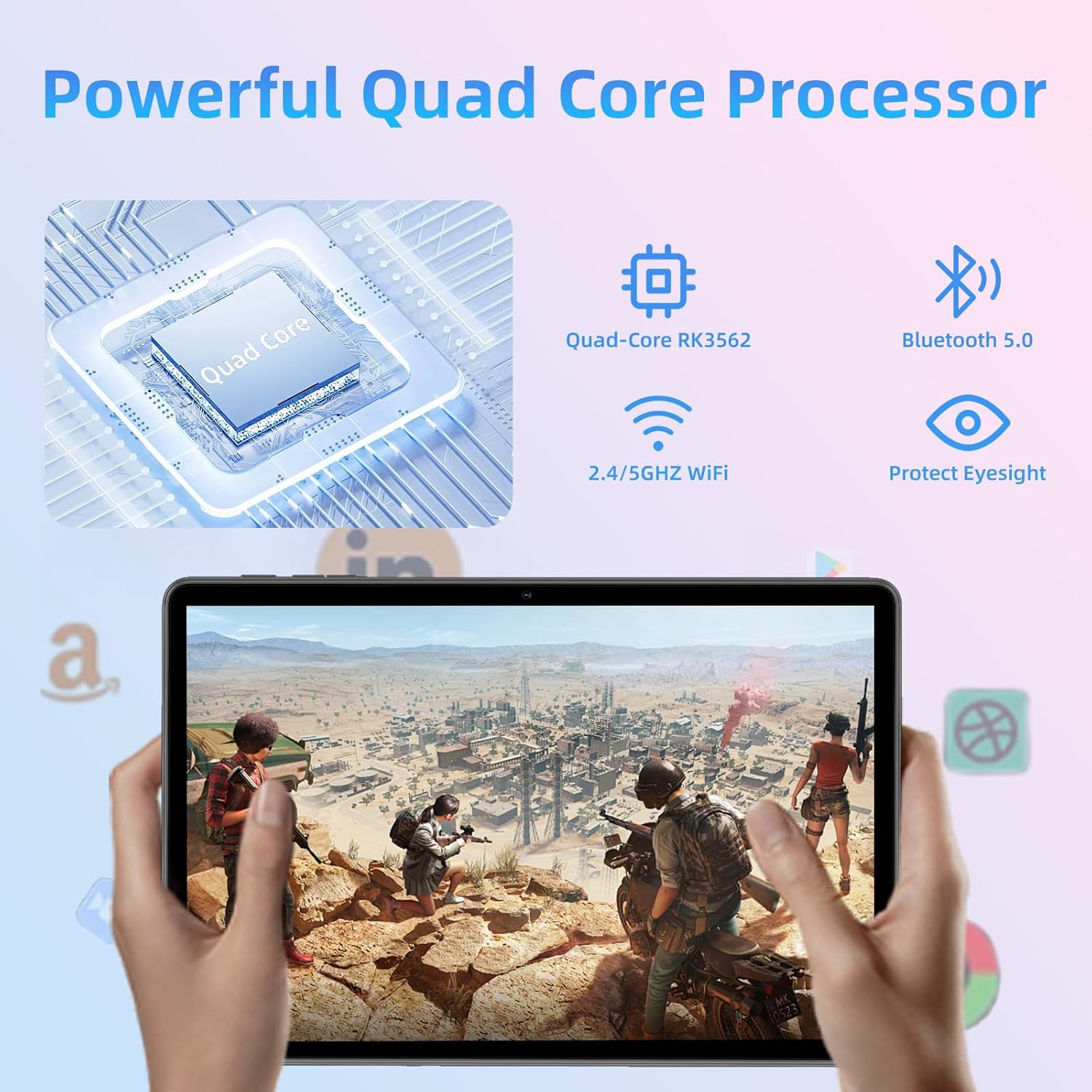
Image: An illustrative diagram highlighting the tablet's core features, including its powerful Quad-Core RK3562 processor, Bluetooth 5.0, and dual-band 2.4/5GHz WiFi connectivity.
4. Using the Cameras
The tablet is equipped with a 5.0MP front camera and an 8.0MP rear camera, suitable for video calls, photos, and scanning documents.
- Open the "Camera" app from your home screen or app drawer.
- Tap the camera icon to switch between front and rear cameras.
- Tap the shutter button to take a photo or start/stop video recording.

Image: The tablet displaying a video call, demonstrating its 10.1-inch 1280x800 IPS HD screen and the functionality of its dual cameras for communication.
Maintenance
1. Cleaning Your Tablet
To keep your tablet clean and in good condition:
- Use a soft, lint-free cloth to wipe the screen and body.
- For stubborn smudges, slightly dampen the cloth with water or a screen cleaner designed for electronics.
- Avoid using harsh chemicals, abrasive materials, or excessive moisture.
2. Software Updates
Regularly check for and install software updates to ensure your tablet has the latest features, security patches, and performance improvements. Go to Settings > System > System update to check for available updates.
3. Battery Care
To maximize the lifespan of your 6000mAh lithium battery:
- Avoid extreme temperatures.
- Do not let the battery completely drain frequently.
- Use the original charger or a certified compatible charger.
- For long-term storage, charge the tablet to about 50% and power it off.
Troubleshooting
If you encounter issues with your tablet, refer to the common solutions below:
| Problem | Possible Solution |
|---|---|
| Tablet does not turn on | Ensure the battery is charged. Connect to the charger and wait a few minutes before attempting to power on again. If unresponsive, press and hold the power button for 10-15 seconds for a forced restart. |
| Slow performance/Lagging | Close unused applications. Clear cache for frequently used apps. Restart the tablet. Check for available software updates. Consider uninstalling rarely used apps to free up storage. |
| Wi-Fi connection issues | Ensure Wi-Fi is enabled in settings. Restart your Wi-Fi router. Forget the network and reconnect. Check if other devices can connect to the same network. |
| Battery drains quickly | Reduce screen brightness. Close background apps. Turn off Wi-Fi/Bluetooth when not in use. Limit location services. Check battery usage in settings to identify power-hungry apps. |
| Apps crashing or freezing | Force close the app and reopen it. Clear the app's cache and data (Settings > Apps > [App Name] > Storage & cache). Reinstall the app. Ensure the tablet's software is up to date. |
Specifications
| Feature | Detail |
|---|---|
| Model | K12E |
| Operating System | Android 14 |
| Display | 10.1-inch IPS HD Touchscreen (1280x800 pixels) |
| Processor | Quad-Core ARM Processor |
| RAM | 9GB (3GB + 6GB virtual) |
| Internal Storage | 64GB ROM |
| Expandable Storage | Up to 1TB via MicroSD card (sold separately) |
| Cameras | Front: 5.0MP, Rear: 8.0MP |
| Battery | 6000mAh Lithium Polymer (Up to 8 hours video playback) |
| Connectivity | Wi-Fi (802.11g, 2.4GHz/5GHz), Bluetooth |
| Dimensions (LxWxH) | 9.7 x 5.62 x 0.18 inches |
| Weight | 2.44 pounds |
Warranty and Support
EDDBNi offers a 1-year warranty for this product, providing comprehensive support to ensure your peace of mind. This warranty covers manufacturing defects and issues arising from normal use.
If you have any questions, require technical assistance, or need to claim warranty service, please do not hesitate to contact our customer support team. We are committed to responding promptly and assisting you in resolving any issues you may encounter.
Please refer to the contact information provided with your purchase or visit the official EDDBNi website for the most up-to-date support details.
Ask a question about this manual
Ask about setup, troubleshooting, compatibility, parts, safety, or missing instructions. Manuals+ will review the question and use this page’s manual context to help answer it.