
1. Product Overview
This manual provides essential information for the Lenovo 15.6" FHD IdeaPad Business Laptop. It covers initial setup, operation, maintenance, troubleshooting, and technical specifications to help you maximize your laptop's performance and longevity.
The Lenovo IdeaPad Business Laptop is designed for productivity, featuring an Intel Core i5 processor, 12GB RAM, and a 512GB SSD. It includes a 15.6-inch Full HD display, an integrated camera with a privacy shutter, and a numeric keypad for enhanced usability. The laptop operates on Windows 11 Pro and comes with a Microsoft Office Lifetime Suite. It also includes PLUSERA Earphones as an accessory.

Image: The Lenovo 15.6-inch IdeaPad Business Laptop in a closed position, showcasing its sleek design.
2. Initial Setup
2.1 Unboxing and First Power On
- Carefully remove the laptop and all accessories from the packaging.
- Connect the power adapter to the laptop's power port and then to an electrical outlet.
- Open the laptop lid. The laptop may power on automatically (Flip to Start feature). If not, press the power button located on the top right of the keyboard.
- Follow the on-screen instructions to complete the Windows 11 Pro initial setup, including language, region, network connection, and user account creation.
2.2 Connecting Peripherals
Your laptop is equipped with various ports for connecting external devices:
- USB-C Port: For data transfer and power delivery.
- USB-A Ports: For connecting USB devices like mice, keyboards, or external drives.
- HDMI Port: For connecting to external displays or projectors.
- Headphone/Microphone Combo Jack: For audio input and output.
- SD Card Reader: For accessing data from SD cards.
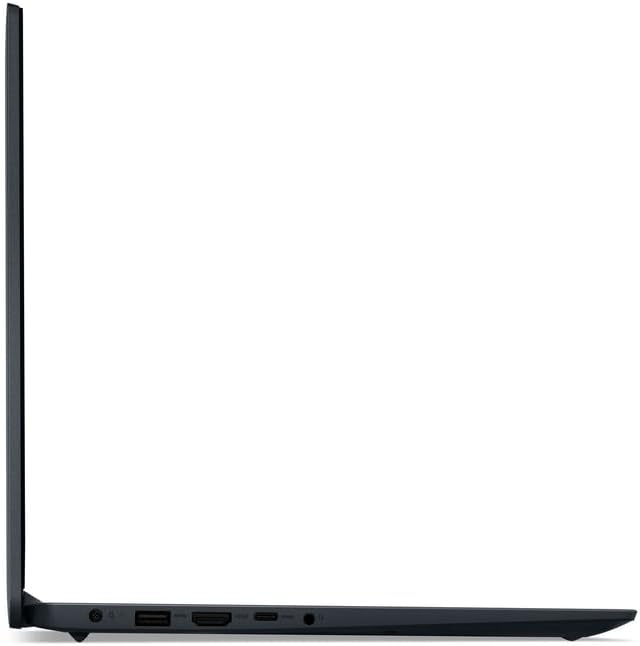
Image: Left side of the laptop showing the power input, HDMI port, USB-C port, and headphone/microphone combo jack.
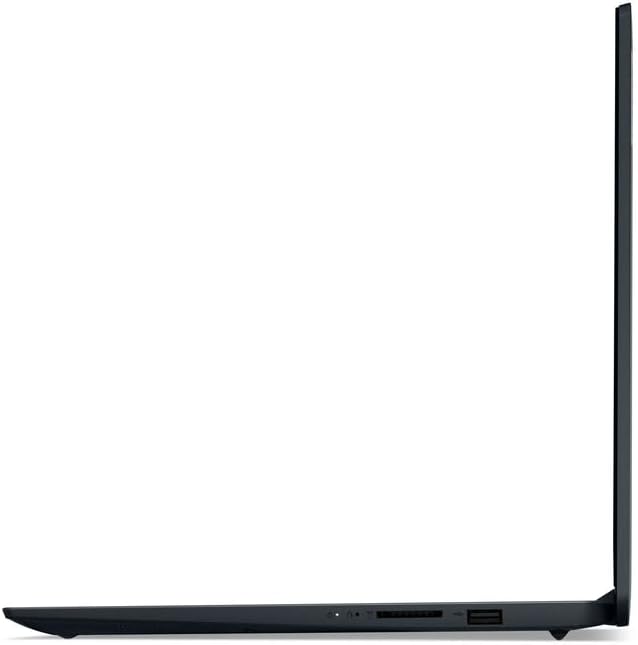
Image: Right side of the laptop showing two USB-A ports and an SD card reader.
2.3 PLUSERA Earphones Setup
The included PLUSERA Earphones can be paired via Bluetooth for wireless audio. Follow these steps:
- Ensure the earphones are charged and in pairing mode.
- On your laptop, go to Settings > Bluetooth & devices.
- Turn on Bluetooth and click Add device.
- Select the PLUSERA Earphones from the list of available devices to pair.

Image: Visual guide for one-step pairing of PLUSERA Earphones, showing the earphones in their case and a smartphone's Bluetooth settings screen.
3. Operating Your Laptop
3.1 Power Management
- Power On: Open the lid or press the power button.
- Sleep Mode: Close the lid or select 'Sleep' from the Start menu.
- Shut Down: Go to Start > Power > Shut down.
- Battery Life: The laptop offers up to 10 hours of battery life and supports rapid charging.
3.2 Keyboard and Touchpad
The laptop features a full-size keyboard with a dedicated numeric keypad for efficient data entry. The precision touchpad supports multi-touch gestures for navigation.

Image: Top-down view of the laptop, highlighting the full keyboard with numeric keypad and touchpad.
3.3 Camera and Audio
- Integrated Camera: Located above the display, suitable for video calls.
- Camera Privacy Shutter: Slide the physical shutter to cover the camera lens for privacy.
- Dolby Audio: Enhances sound quality for an immersive audio experience.
- Dual Array Microphones: For clear voice input during calls.
3.4 Operating System and Software
- Windows 11 Pro: Provides enhanced security, performance, and features for business and personal use.
- Microsoft Office Lifetime Suite: Pre-installed for productivity tasks.
4. Maintenance and Care
4.1 Cleaning Your Laptop
- Always power off the laptop and disconnect the power adapter before cleaning.
- Use a soft, lint-free cloth slightly dampened with water or a screen cleaner for the display.
- For the keyboard and chassis, use a soft cloth. Avoid harsh chemicals or abrasive materials.
4.2 Battery Care
- To prolong battery life, avoid fully discharging the battery frequently.
- Store the laptop in a cool, dry place if not used for extended periods.
- Periodically update your laptop's drivers and firmware to ensure optimal battery performance.
4.3 Software Updates
Regularly check for and install updates for Windows 11 Pro and Microsoft Office to ensure system stability, security, and access to the latest features.
5. Troubleshooting
This section addresses common issues you might encounter with your laptop.
5.1 Power Issues
- Laptop does not turn on: Ensure the power adapter is securely connected to both the laptop and a working electrical outlet. Check if the power indicator light is on. Try pressing and holding the power button for 10-15 seconds.
- Battery not charging: Verify the power adapter is functioning correctly. Try a different outlet. Ensure the charging port on the laptop is clean and free of debris.
5.2 Display Problems
- Blank screen: Connect an external monitor via HDMI to check if the display issue is with the laptop screen or the graphics output. Restart the laptop.
- Flickering screen: Update your graphics drivers. Adjust the display refresh rate in Windows settings.
5.3 Connectivity Issues
- Wi-Fi not connecting: Ensure Wi-Fi is enabled in Windows settings. Restart your router and the laptop. Check for updated Wi-Fi drivers.
- Bluetooth device not pairing: Ensure Bluetooth is enabled on both the laptop and the device. Make sure the device is in pairing mode and within range.
For more complex issues, refer to the Lenovo support website or contact customer service.
6. Technical Specifications
| Feature | Specification |
|---|---|
| Brand | Lenovo |
| Model Name | Lenovo 15 |
| Screen Size | 15.6 Inches |
| Display Resolution | 1920 x 1080 pixels (FHD) |
| Processor | Intel Core i5 (10 Cores, up to 4.4 GHz) |
| Graphics Coprocessor | Intel Iris Xe Graphics |
| RAM Memory | 12 GB DDR4 (Expandable up to 64 GB) |
| Storage | 512 GB SSD |
| Operating System | Windows 11 Pro |
| Connectivity | Wi-Fi 6 (802.11ax), Bluetooth 5 |
| Ports | 1x USB-C, 2x USB-A, 1x HDMI, 1x Headphone/Microphone Combo Jack, 1x SD Card Reader |
| Battery Life | Up to 10 Hours (42 Watt Hours) |
| Special Features | Anti-Glare Coating, Camera Privacy Shutter, HD Audio, Numeric Keypad |
| Dimensions (L x W x Th) | 14.14" x 9.31" x 0.78" |
| Weight | 4.6 Pounds |
7. Warranty and Support
7.1 Product Warranty
This Lenovo IdeaPad Business Laptop comes with a 1-Year Limited Warranty from the manufacturer. This warranty covers defects in materials and workmanship under normal use. Please retain your proof of purchase for warranty claims.
7.2 Customer Support
For technical assistance, warranty service, or further inquiries, please visit the official Lenovo support website or contact their customer service. You can typically find support contact information and resources on the Lenovo website by searching for your specific model number (Lenovo 15).
Before contacting support, it is recommended to have your laptop's serial number and proof of purchase readily available.


