
1. Introduction
The Texas Instruments TI-Nspire CX II CAS Graphing Calculator is a powerful tool designed for students in mathematics, science, and finance. It features an advanced interface with a vivid, backlit color display and a Computerized Algebra System (CAS) engine for both symbolic and numeric calculations. This calculator supports Python programming and includes a suite of built-in applications to enhance learning and problem-solving.

Figure 1: Front view of the TI-Nspire CX II CAS Graphing Calculator displaying a function graph.
2. Setup
2.1 Initial Power On
To power on the calculator, press the ON button located on the top right of the keypad. The calculator will display the home screen with various application icons.
2.2 Charging the Battery
The TI-Nspire CX II CAS comes with a rechargeable Lithium Ion battery. To charge, connect the calculator to a computer using the included USB cable or to a wall adapter (not always included) via the USB port. A full charge typically lasts several weeks with regular use. It is recommended to fully charge the battery before first use.
2.3 Attaching the Protective Cover
The calculator includes a protective cover that slides over the front to protect the screen and keypad during transport. It can also be slid onto the back of the calculator during use to prevent misplacement.

Figure 2: The TI-Nspire CX II CAS packaging, showing the calculator and included accessories.
3. Operating Instructions
3.1 Basic Navigation
The calculator features a keyboard and a computer-menu interface for intuitive navigation. Use the directional pad and central click button to select options and move the cursor. The ESC button returns to the previous screen or cancels an operation. The MENU button provides context-sensitive options.
3.2 Built-in Applications
The TI-Nspire CX II CAS comes with 8 built-in applications:
- Calculator: Perform computations and enter expressions, equations, and formulas in proper math notation.
- Graphs: Plot and explore functions, equations, and inequalities; animate points on objects and graphs; use sliders to explain their behavior.
- Lists & Spreadsheets: Perform mathematical operations on data and visualize connections between data and plots.
- Data & Statistics: Summarize and analyze data using different graphical methods such as histograms, box plots, bar and pie charts.
- Geometry: Construct and explore geometric figures and create animations.
- Notes: Enter notes, steps, instructions, and other comments on the screen alongside math.
- Vernier DataQuest: Create a hypothesis graphically and replay data collection experiments.
- Programming: Add new functionality and create rich STEM activities with Python and TI-Basic coding languages.

Figure 3: Visual representation of the calculator's built-in applications.
3.3 Computerized Algebra System (CAS)
The integrated CAS engine allows for symbolic as well as numeric calculations, providing a deeper understanding of abstract mathematical and scientific concepts. This includes visualizing function, parametric, and polar graphs in real-time with animated paths.
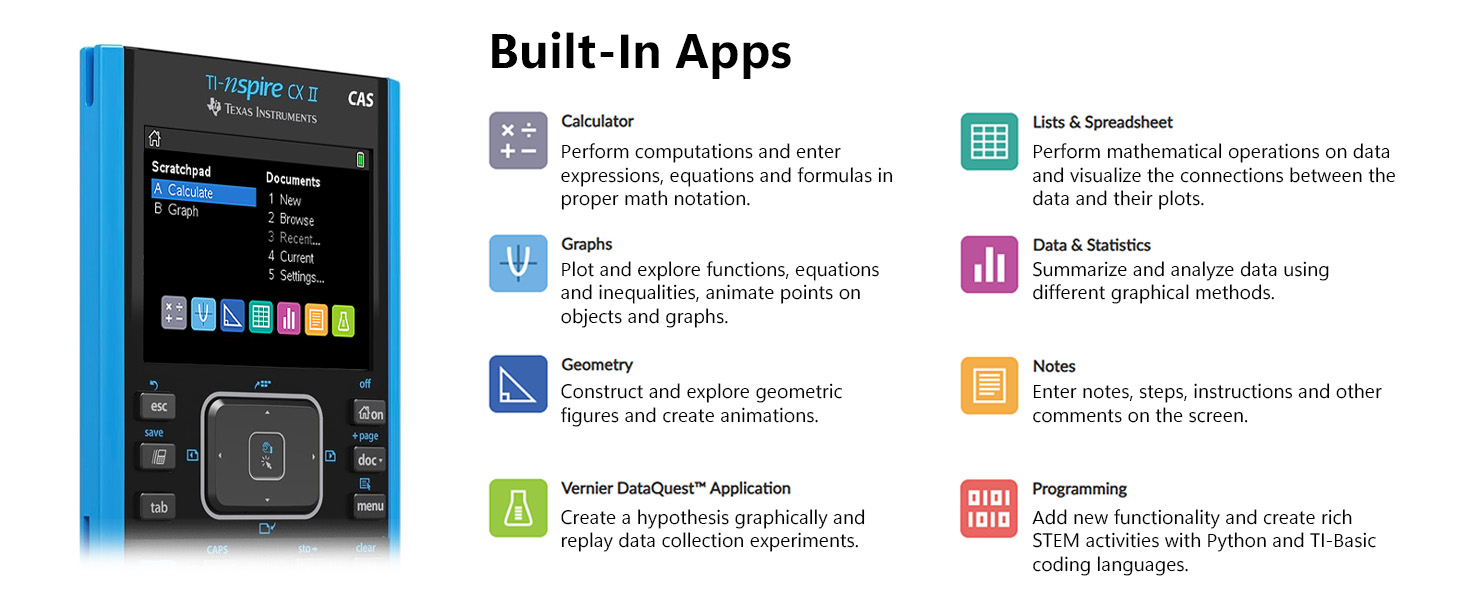
Figure 4: The CAS engine enables symbolic and numeric calculations.
3.4 Python Programming
The calculator supports Python and TI-Basic coding languages, allowing users to add new functionality and create rich STEM activities. This feature is ideal for learning and applying programming concepts in a mathematical context.
4. Display and Interface
4.1 Color Screen
The 320 x 240 pixel color screen displays graphs and data in stunning detail. It supports 6 different graph styles and uses color-coded screen tabs to improve the user experience and distinguish between different functions or data sets.
4.2 Keyboard and Trackpad
The calculator features a full QWERTY keyboard for easy text input, useful for notes and programming. The intuitive trackpad allows for precise cursor control and menu navigation, similar to a computer mouse.
5. Data Transfer and Connectivity
The integrated USB port allows for easy transfer of data to and from your computer. This enables users to update software, transfer programs, and back up their work. The calculator can also connect to other TI calculators or presentation systems for classroom use.
6. Testing and Exam Use
The TI-Nspire CX II CAS Graphing Calculator is permitted for use on standardized tests such as the SAT, ACT, and AP exams. However, it is always recommended to verify the specific calculator policies for any exam you plan to take, as regulations can change or specific functionalities (like CAS) might be restricted in certain contexts.
Video 1: An overview of the TI-Nspire CX II CAS Graphing Calculator's features and design.
7. Specifications
| Feature | Detail |
|---|---|
| Product Dimensions | 7.5 x 3.42 x 0.62 inches |
| Item Weight | 9.1 ounces |
| Calculator Type | Graphing |
| Power Source | Battery Powered (1 Lithium Ion battery included) |
| Screen Size | 2.4 Inches |
| Display Resolution | 320 x 240 pixels |
| Programming Languages | Python, TI-Basic |
| Built-in Apps | Calculator, Graphs, Lists & Spreadsheets, Data & Statistics, Geometry, Notes, Vernier DataQuest, Programming |
8. Troubleshooting
8.1 Calculator Not Turning On
- Ensure the battery is charged. Connect the calculator to a power source using the USB cable and allow it to charge for at least 30 minutes before attempting to power on again.
- If the calculator still does not turn on, the battery may need to be replaced. Contact customer support for assistance.
8.2 Screen Issues
- If the screen is dim, adjust the brightness settings.
- If the screen is unresponsive or frozen, try resetting the calculator by pressing the RESET button (usually a small hole on the back, requiring a paperclip to press).
8.3 Software or Connectivity Problems
- Ensure you have the latest TI Connect CE software installed on your computer for optimal data transfer and software updates.
- Check the USB cable for any damage and ensure it is securely connected to both the calculator and the computer.
9. Warranty and Support
For warranty information, technical support, and additional resources, please visit the official Texas Instruments education website. You can find detailed documentation, tutorials, and software updates to maximize your calculator's potential.
Relevant links:
- TI-Nspire CX II CAS Information: education.ti.com/CXIICAS-info
- Battery Care Information: education.ti.com/batterycare

