
Introduction
Thank you for choosing the NISOO 4K Projector. This manual provides essential information for setting up, operating, and maintaining your projector to ensure optimal performance and longevity. Please read these instructions carefully before use.
What's in the Box
- NISOO 4K Projector
- HDMI Cable
- Power Cord
- User Manual
- Remote Control
Key Features
Auto Focus & Keystone Correction
The NISOO projector features advanced AI auto-focus and 4D auto-correction functions. This technology automatically adjusts irregular images to a perfect rectangular shape and ensures sharp, clear pictures without manual effort. It supports a ±50° correction range.
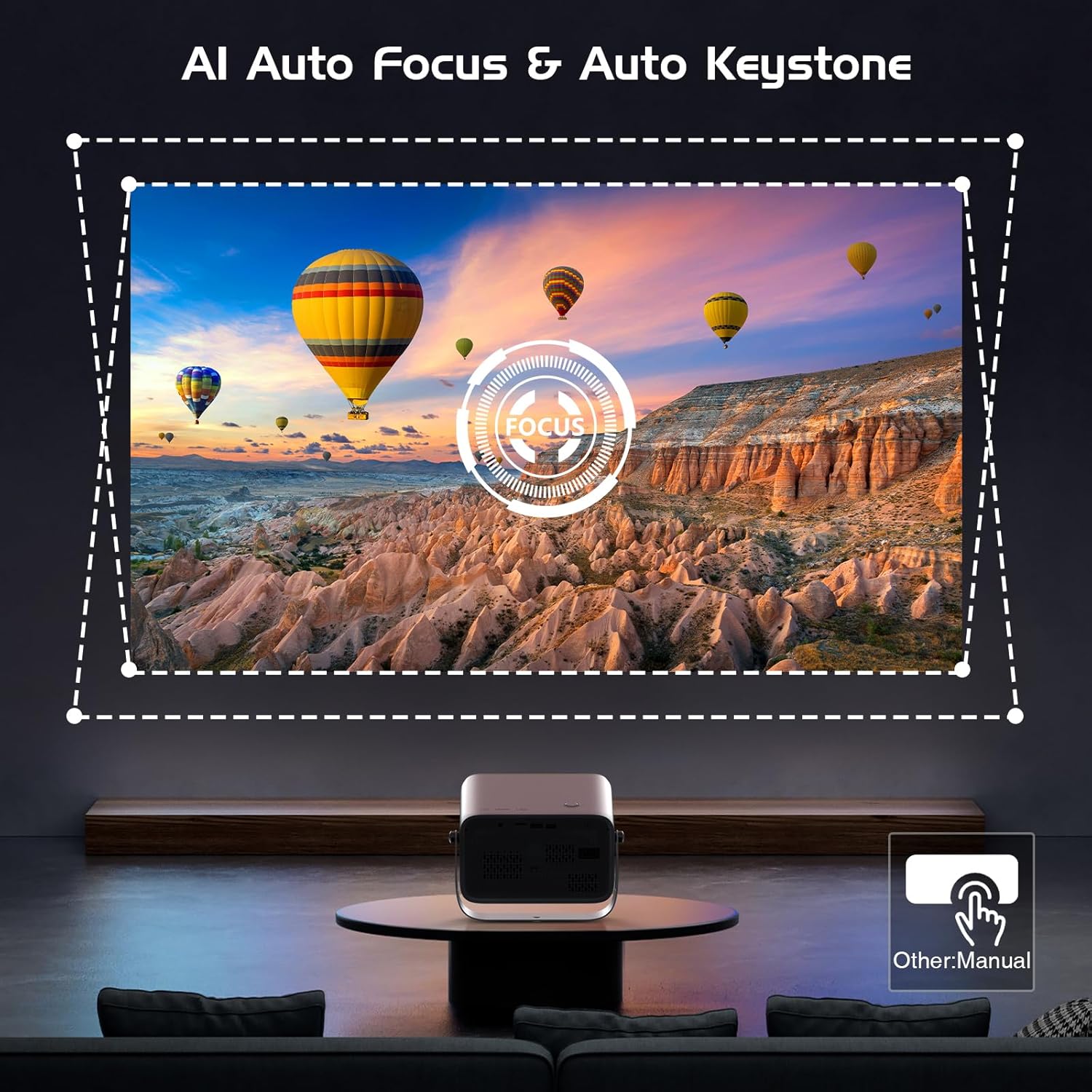
Image: The projector automatically adjusts focus and keystone for a perfectly clear and rectangular image on the wall.
Video: This video demonstrates the automatic focus and keystone correction features of the NISOO projector. It shows how the projector quickly adjusts the image for optimal clarity and shape without manual intervention, ensuring a perfect display every time.
360° Adjustable Stand
An integrated 360° gimbal stand provides exceptional flexibility, allowing you to easily rotate and tilt the projector to achieve the perfect viewing angle on any surface, including ceilings, without needing additional accessories.
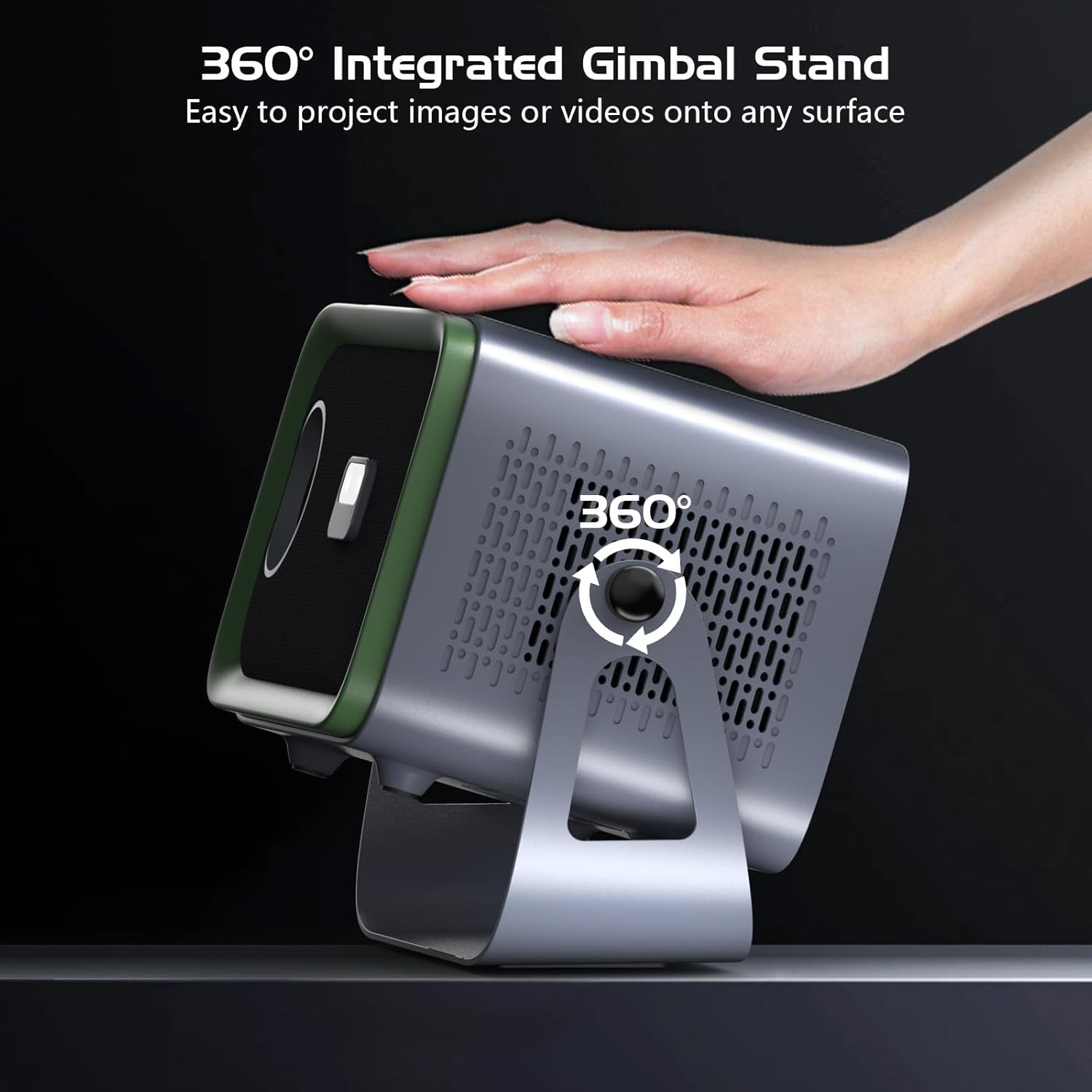
Image: The NISOO projector is shown with its 360-degree integrated gimbal stand, being adjusted by a hand to project onto a surface.
Native 1080P & 200 ANSI Brightness
Experience stunning visuals with native 1920*1080P resolution and support for up to 4K content. With 200 ANSI lumens brightness and a 20,000:1 contrast ratio, the projector delivers 60% brighter images than comparable models, providing a true cinematic experience.

Image: A vibrant image illustrating the projector's capability to produce brilliant colors with 200 ANSI lumens and native 1080P resolution, supporting 4K input.
2024 Upgrade WiFi 6 & Bluetooth 5.2
Equipped with the latest WiFi 6 technology, the projector offers faster and more stable wireless connections. Bluetooth 5.2 enables it to function as a standalone Bluetooth audio device or connect to external audio systems for immersive sound.

Image: A visual comparison demonstrating the superior speed and stability of Dual Band WiFi 6 over 5G WiFi for seamless streaming.

Image: This image shows the projector's bidirectional Bluetooth 5.2 capability, allowing it to connect to a smartphone for music playback or to an external Bluetooth speaker.
Wide Connectivity
Connect your projector to a variety of devices including TV Sticks, iPhones, Android phones, tablets, laptops, PCs, USB flash drives, PS4, and other gaming consoles. (Note: For screen mirroring services like YouTube or Hulu from a laptop, an HDMI cable may be required due to copyright restrictions).

Image: A detailed view of the projector's rear panel, highlighting its universal connectivity ports for USB, HDMI, and AUX, along with examples of compatible devices.
Video: This video provides an overview of the NISOO 4K Projector, highlighting its key features and demonstrating its use in various settings. It showcases the projector's design, connectivity, and image quality, including its ability to connect to multiple devices.
Setup
- Powering On: Connect the power cord to the projector and a power outlet. Press the power button on the projector or remote control to turn it on. The power indicator light will illuminate.
- Placement and Adjustment: Position the projector on a stable surface. Utilize the 360° adjustable stand to direct the projection onto your desired screen or wall. The auto-focus and auto-keystone features will automatically optimize the image.
- Connecting to Wi-Fi:
- Navigate to the 'Network Setting' in the projector's main menu.
- Select your Wi-Fi network and enter the password.
- Confirm the connection.
- Connecting to Bluetooth Devices:
- Go to 'Bluetooth Setting' in the main menu.
- Enable Bluetooth and search for available devices.
- Select your desired Bluetooth speaker or headphones to pair.
Operating Instructions
- Navigating the Menu: Use the remote control's arrow keys and 'OK' button to navigate through the main menu options (Home, HDMI, Movie, Music, Photo, Office Suite).
- Screen Mirroring (iOS Cast/Miracast):
- For iOS devices, select 'iOS Cast' from the main menu. Follow the on-screen instructions to enable screen mirroring on your iPhone/iPad and connect to the projector.
- For Android devices, select 'Miracast'. Enable screen mirroring (often called Smart View, Wireless Display, or Cast) on your Android phone/tablet and connect to the projector.
- Using HDMI/USB Inputs:
- Connect your device (laptop, TV stick, gaming console) to the HDMI port using an HDMI cable. Select 'HDMI' from the main menu to switch input.
- Insert a USB flash drive into the USB port. Select 'Movie', 'Music', or 'Photo' from the main menu to browse and play media files directly from the USB drive.
- Zoom Function: The projector supports 100%-50% digital zoom. Access this feature through the 'Projection Settings' menu to adjust the image size without moving the projector.
Maintenance
- Lens Cleaning: Use a soft, lint-free cloth specifically designed for optical lenses to gently wipe the projector lens. Avoid abrasive materials or harsh chemicals.
- Dust Filter: Regularly check and clean the dust filter to ensure proper airflow and prevent overheating. The projector features an easy-removable dustproof screen for convenient cleaning.
- Storage: When not in use, store the projector in a cool, dry place, away from direct sunlight and extreme temperatures.
Troubleshooting
| Problem | Possible Cause | Solution |
|---|---|---|
| No image on screen | Power cable disconnected; Incorrect input source; Device not connected properly. | Check power connection; Select correct input source (HDMI, USB, iOS Cast, Miracast); Ensure all cables are securely connected. |
| Image is blurry | Projector out of focus; Obstruction in projection path. | The projector has auto-focus; if issues persist, ensure the lens is clean and there are no obstructions. Restart the projector. |
| No sound | Volume too low; External speaker not connected; Device audio settings. | Increase projector volume; Check Bluetooth connection to external speakers; Adjust audio output settings on your connected device. |
| Cannot connect to Wi-Fi/Bluetooth | Incorrect password; Device out of range; Interference. | Verify password; Move projector closer to router/device; Reduce interference from other wireless devices. |
Specifications
- Brand: NISOO
- Model: B0DNTC74Z2
- Display Resolution: 1920 x 1080 (Native), 4K Support
- Brightness: 200 ANSI Lumens
- Connectivity Technology: Bluetooth 5.2, HDMI, Wi-Fi 6
- Special Features: 4K Support, Auto Focus, Auto Obstacle Avoidance, Auto Screen Alignment, Digital Keystone Correction, 360° Adjustable Stand, 100%-50% Zoom
- Recommended Uses: Gaming, Home Cinema
- Item Weight: 4.19 pounds
- Package Dimensions: 13.12 x 9.18 x 7.25 inches
Warranty and Support
For warranty information, technical support, or any inquiries regarding your NISOO 4K Projector, please refer to the contact details provided in the packaging or visit the official NISOO website. Keep your purchase receipt for warranty claims.
