
Introduction
Thank you for purchasing the BL Android 14.0 TV Box R69PLUS. This device is designed to transform your television into a smart entertainment hub, offering access to a wide range of streaming content, applications, and media. This manual provides detailed instructions for setup, operation, maintenance, and troubleshooting to ensure optimal performance and user experience.
Please read this manual thoroughly before using the device and retain it for future reference.
Product Overview
The BL Android 14.0 TV Box R69PLUS features advanced hardware for a smooth and responsive user experience. Key features include:
- Operating System: Android 14.0
- Memory: 4GB RAM
- Storage: 32GB ROM
- Connectivity: WIFI 6, 1000M Ethernet, Bluetooth 5.0
- Video Output: Supports 8K4K Video decoding
- Processor: Octa-core ARM Cortex-A55 with GPU ARM G57 MC1
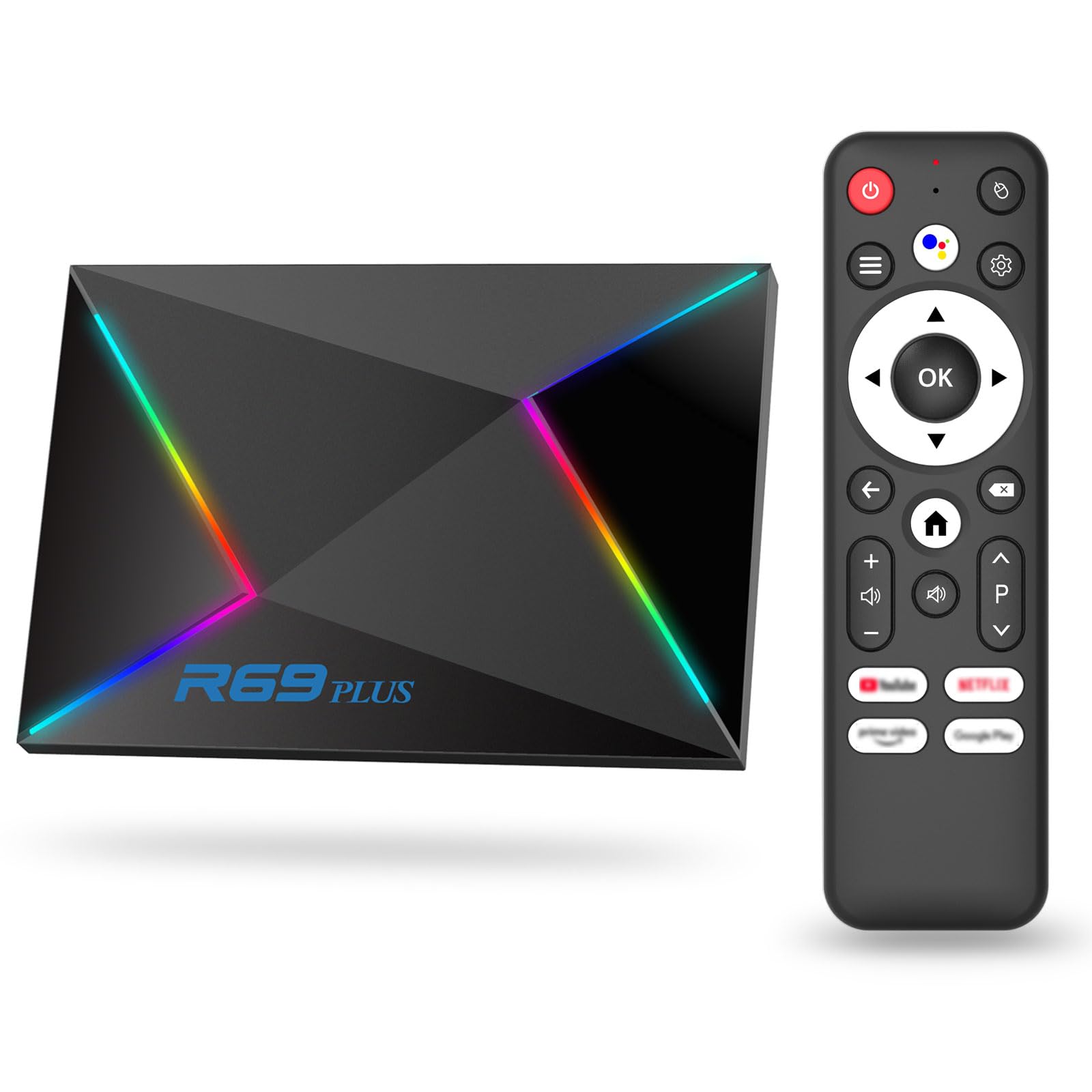
Image: The BL Android 14.0 TV Box R69PLUS, showcasing its compact design and connectivity ports.
This device is designed for high-speed internet connectivity and efficient media processing, providing a seamless streaming experience.
Setup Guide
- Unpack the Box: Carefully remove all components from the packaging. Ensure you have the TV Box, power adapter, HDMI cable, and remote control.
- Connect to TV:
a. Connect one end of the HDMI cable to the HDMI port on the TV Box.
b. Connect the other end of the HDMI cable to an available HDMI input port on your television.
- Connect to Power: Plug the power adapter into the DC IN port on the TV Box, then plug the adapter into a wall outlet. The device should power on automatically or indicate a standby mode.
- Connect to Network (Optional - Wired): For a stable and high-speed connection, connect an Ethernet cable from your router to the 1000M Ethernet port on the TV Box.

Image: The BL Android TV Box showing the 1000M Ethernet port, highlighting its high-speed network capability.
- Initial Boot-up: Turn on your television and select the correct HDMI input source. The TV Box will boot up, displaying the Android home screen.
- Remote Control Setup: Insert batteries into the remote control. Point the remote at the TV Box to navigate the initial setup screens.
- Wi-Fi Connection (If not using Ethernet):
a. From the home screen, navigate to Settings.
b. Select Network & Internet.
c. Turn on Wi-Fi and select your network from the list.
d. Enter your Wi-Fi password and connect. The device supports WIFI 6 for faster speeds and lower latency.
Image: Visual representation of the BL Android TV Box leveraging WiFi 6 for enhanced wireless performance.
- Google Account Login: Log in with your Google account to access the Google Play Store and synchronize your apps and settings.
Operating Instructions
Navigation
Use the provided remote control to navigate the Android interface. The directional pad (up, down, left, right) moves the cursor, the OK button selects items, and the Back button returns to the previous screen. The Home button takes you to the main Android home screen.
Installing Applications
- Open the Google Play Store from the home screen.
- Search for your desired applications (e.g., streaming services, games).
- Select the app and click Install.
- Once installed, the app will appear on your home screen or in the app drawer.
Media Playback
The TV Box supports various media formats. You can play media from:
- Streaming Services: Install apps like Netflix, YouTube, Hulu, etc., from the Google Play Store.
- Local Storage: Connect a USB drive to the USB 3.0 ports to play media files directly.

Image: The BL Android TV Box highlighting its USB 3.0 ports for high-speed data transfer.
- Network Storage: Access media files from network-attached storage (NAS) or shared folders on your home network.
Bluetooth Connectivity
The device features Bluetooth 5.0 for connecting wireless accessories:
- Go to Settings > Connected devices > Pair new device.
- Put your Bluetooth device (e.g., headphones, speaker, gamepad) into pairing mode.
- Select your device from the list on the TV Box screen to connect.
Maintenance
- Cleaning: Use a soft, dry cloth to clean the exterior of the TV Box. Do not use liquid cleaners or abrasive materials.
- Software Updates: Periodically check for system updates in Settings > About device > System update to ensure optimal performance and security.
- Storage Management: Regularly clear cache and uninstall unused applications to free up storage space and maintain performance. Go to Settings > Apps > select an app > Clear cache or Uninstall.
- Ventilation: Ensure the TV Box is placed in a well-ventilated area to prevent overheating. Do not cover ventilation openings.
Troubleshooting
| Problem | Possible Cause | Solution |
|---|---|---|
| No power | Power adapter not connected; power outlet faulty. | Check power connections; try a different outlet. |
| No picture on TV | Incorrect HDMI input selected; HDMI cable loose or faulty. | Ensure TV is on correct HDMI input; check HDMI cable connection; try a different HDMI cable or port. |
| No Wi-Fi connection | Incorrect password; router issues; Wi-Fi disabled. | Verify Wi-Fi password; restart router; ensure Wi-Fi is enabled in settings. |
| Remote control not working | Batteries low or incorrectly inserted; remote not paired. | Replace batteries; ensure correct polarity; re-pair remote if necessary (refer to device-specific pairing instructions). |
| Applications crashing or slow performance | Low RAM; insufficient storage; app issues. | Clear app cache; uninstall unused apps; restart the TV Box. Ensure good ventilation. |
Specifications
| Feature | Detail |
|---|---|
| Brand | BL |
| Model Name | R69PLUS |
| Operating System | Android 14.0 |
| RAM | 4GB |
| ROM | 32GB |
| Processor | Octa-core ARM Cortex-A55, GPU ARM G57 MC1 |
| Wi-Fi | WIFI 6 |
| Ethernet | 1000M Gigabit Ethernet |
| Bluetooth | Bluetooth 5.0 |
| Video Decoding | 8K4K Video decoding |
| USB Ports | 2 x USB 3.0 |
| Compatible Devices | Television, Smartphone, Personal Computer |
| Color | Black |
| Manufacturer | Shenzhen Xing he shi xun Co..Ltd |
Warranty Information
This product comes with a standard manufacturer's warranty. Please refer to the warranty card included in your product packaging for specific terms and conditions, including warranty period and coverage details. Keep your purchase receipt as proof of purchase for warranty claims.
For warranty service, please contact the retailer or manufacturer's customer support.
Customer Support
If you encounter any issues or have questions not covered in this manual, please contact our customer support team. For the most up-to-date support information, including contact details and FAQs, please visit the official BL brand store on Amazon:
When contacting support, please have your product model (R69PLUS) and purchase details ready.
