
Bettdow A1901
Bettdow Magnetic Keyboard User Manual
For iPad Air 11 inch M3 2025/M2 2024 & iPad Pro 11 inch (4th/3rd/2nd/1st) Gen 2022, iPad Air 5th/4th Gen 10.9"
Introduction
Thank you for choosing the Bettdow Magnetic Keyboard. This manual provides detailed instructions for the proper setup, operation, maintenance, and troubleshooting of your new keyboard case. Please read this manual thoroughly before use to ensure optimal performance and longevity of your device.

Image: The Bettdow Magnetic Keyboard with an iPad securely attached, demonstrating its floating cantilever design and illuminated keys.
Compatibility
This Bettdow magnetic keyboard case is specifically designed for the following iPad models. Please verify your iPad's model number on the back of the device to ensure compatibility.
- iPad Air 11 inch M3 2025 (Models: A3266/A3267/A3270)
- iPad Air 11 inch M2 2024 (Models: A2902/A2903/A2904)
- iPad Pro 11 inch (4th Gen 2022, 3rd Gen 2021, 2nd Gen 2020, 1st Gen 2018) (Models: A1980/A2013/A1934/A1979/A2228/A2068/A2230/A2231/A2301/A2377/A2459/A2460/A2435/A2759/A2761/A2762)
- iPad Air 5th Gen 10.9 inch 2022 (Models: A2588/A2589/A2591)
- iPad Air 4th Gen 10.9 inch 2020 (Models: A2316/A2324/A2325/A2072)
NOTE: Not compatible with any other devices.

Image: A visual guide on locating your iPad's model number and a comprehensive list of compatible iPad Air and iPad Pro models.
Setup
1. Attaching Your iPad
- Open the keyboard case.
- Align your compatible iPad with the magnetic back panel of the case.
- The strong magnetic suction will securely attach your iPad, ensuring stability.
2. Bluetooth Connection
- Ensure the keyboard is charged (refer to the LCD display for battery status).
- Turn on the keyboard using the power switch.
- On your iPad, go to Settings > Bluetooth and turn Bluetooth on.
- Look for "Bettdow Keyboard" or a similar name in the list of devices and tap to connect.
- The Bluetooth status light on the keyboard's LCD display will indicate a successful connection.
3. Using the Floating Cantilever Stand
The magnetic suspension design allows for an easy-set floating cantilever stand. Simply open the case, and the iPad will automatically adjust to a comfortable viewing angle, transforming your iPad into a laptop-like setup. Closing the case will put your iPad to sleep, and opening it will wake it up.

Image: The keyboard case in its floating cantilever stand configuration, providing an ergonomic viewing and typing angle for the iPad.
Operating Instructions
1. Keyboard Functions
7-Color LED Backlit Keyboard
The keyboard features 7-color LED backlighting with 3 adjustable brightness levels. To cycle through colors and adjust brightness, use the dedicated backlight keys (often found on the top row or in combination with the Fn key). This allows for comfortable typing in various lighting conditions.
Shortcut Keys
The keyboard includes a full row of shortcut keys designed for iPad functionality. Press the "Fn" key in combination with the corresponding function key to control audio, brightness, search, virtual keyboard, Siri, track navigation, and more. Refer to the keycap icons for specific functions.
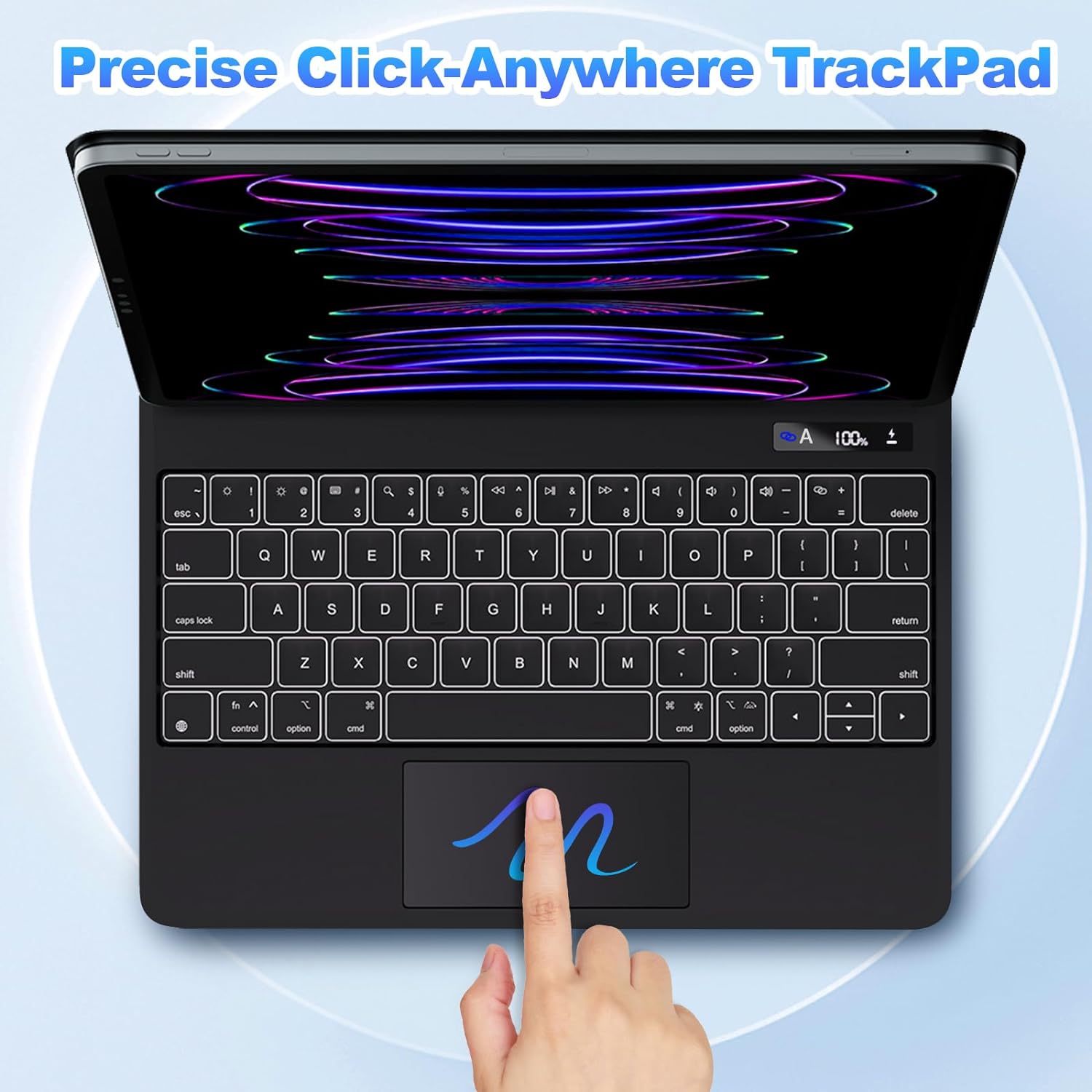
Image: The keyboard displaying its 7-color LED backlighting and highlighting the dedicated shortcut keys for enhanced iPad control.
2. Trackpad Usage
Precise Click-Anywhere Trackpad
The integrated trackpad is designed for precise navigation. The entire surface of the trackpad is clickable and pressable, allowing for intuitive control of your iPad. You can scroll, swipe, click, and press just as you would with a traditional mouse.
Palm Rejection
The trackpad features palm rejection technology. When you are typing on the keyboard, the trackpad will automatically activate palm rejection to prevent accidental touches and cursor movements, ensuring a smooth typing experience.

Image: A close-up view of the keyboard's large, precise trackpad, illustrating its full-area clickability.
3. Convenient LCD Digital Display Screen
The keyboard case incorporates an LCD digital display to provide real-time status updates. This display shows:
- Power Status: Indicates if the keyboard is on.
- Caps Lock Status: Shows whether Caps Lock is active.
- Charging Status: Displays when the keyboard is charging.
- Bluetooth Connection Status: Confirms successful Bluetooth pairing.
- Residual Power: Shows the remaining battery percentage.
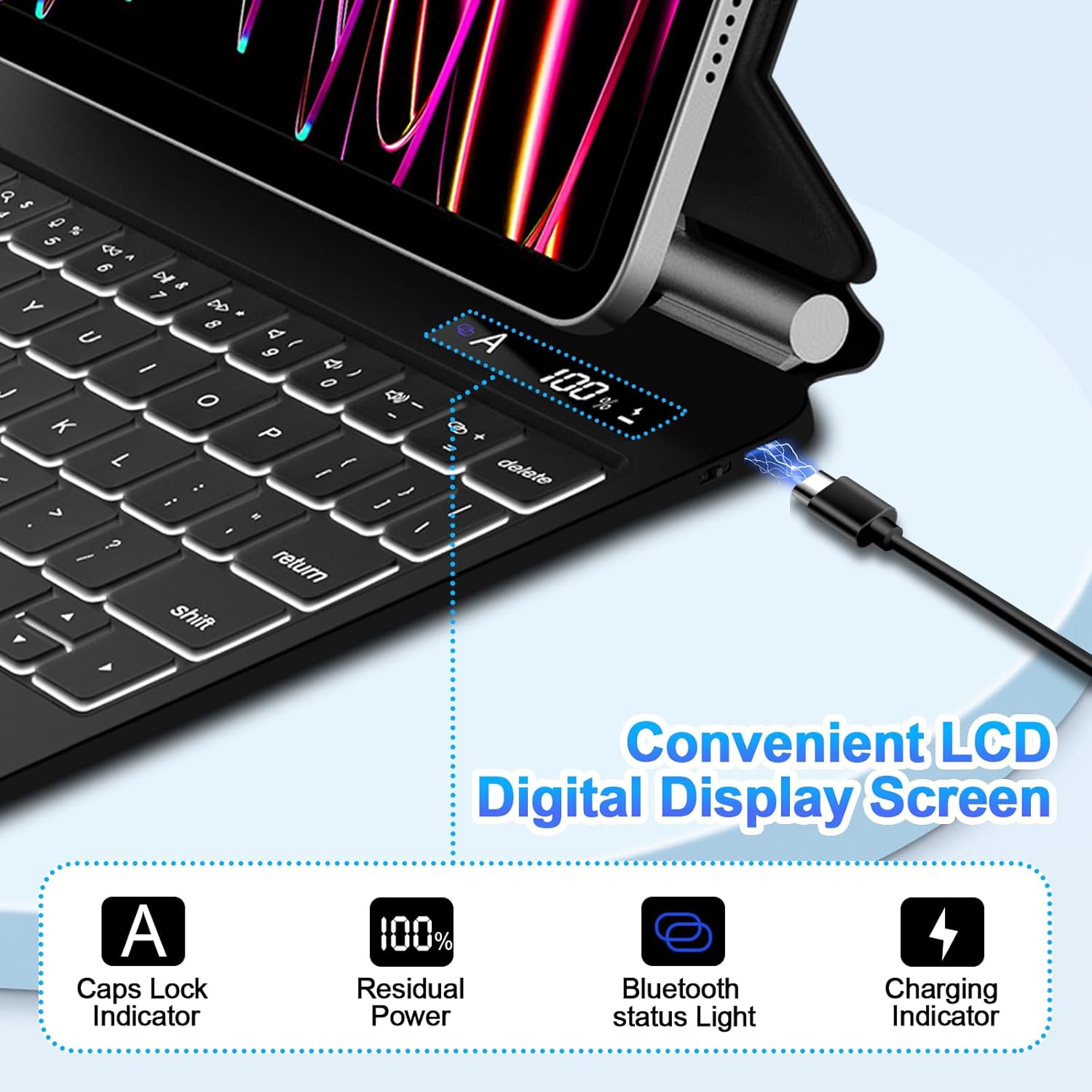
Image: The keyboard's LCD digital display, clearly showing indicators for Caps Lock, battery percentage, Bluetooth connection, and charging status.
Maintenance
- Cleaning: Use a soft, dry, lint-free cloth to clean the keyboard and case. For stubborn marks, slightly dampen the cloth with water. Avoid using harsh chemicals or abrasive materials.
- Storage: When not in use for extended periods, store the keyboard in a cool, dry place. Ensure the iPad is detached or the case is closed to protect the screen and keyboard.
- Charging: Charge the keyboard using the provided USB-C cable. Avoid overcharging or using non-compatible chargers.
- Handling: Handle the keyboard case with care. Avoid dropping it or exposing it to extreme temperatures or liquids.
Troubleshooting
| Problem | Possible Cause | Solution |
|---|---|---|
| Keyboard not connecting via Bluetooth | Keyboard is off or low battery; Bluetooth is off on iPad; incorrect pairing. | Ensure keyboard is on and charged. Turn iPad Bluetooth off and on. Forget device in iPad Bluetooth settings and re-pair. |
| Keys not responding | Low battery; connection issue; keyboard frozen. | Charge the keyboard. Reconnect Bluetooth. Turn keyboard off and on. |
| Trackpad not working | Bluetooth connection issue; trackpad disabled (if applicable); palm rejection active. | Ensure Bluetooth is connected. Check iPad settings for trackpad options. Ensure you are not accidentally triggering palm rejection. |
| Backlight not working or dim | Low battery; backlight turned off or set to lowest brightness. | Charge the keyboard. Use the backlight control keys to adjust brightness or turn it on. |
Specifications
- Model Number: A1901
- Connectivity Technology: Bluetooth
- Keyboard Description: Backlit
- Special Features: Backlit, Portable, Rechargeable, Trackpad
- Color: Black
- Number of Keys: 78
- Keyboard Backlighting Color Support: RGB (7 Colors)
- Material: Polyurethane (PU)
- Item Weight: 2.43 pounds
- Batteries: 1 Lithium Ion battery (included)
- Package Dimensions: 10.83 x 8.07 x 1.18 inches
Warranty and Support
For warranty information and customer support, please refer to the product packaging or contact Bettdow customer service through the retailer's platform where the product was purchased. Keep your purchase receipt as proof of purchase for any warranty claims.
Ask a question about this manual
Ask about setup, troubleshooting, compatibility, parts, safety, or missing instructions. Manuals+ will review the question and use this page’s manual context to help answer it.