
1. Product Overview
The Bettdow Magnetic Keyboard is designed to transform your iPad into a versatile laptop-like device, enhancing productivity and user experience. It features a magnetic floating cantilever stand, a precise click-anywhere trackpad, a 7-color LED backlit keyboard with shortcuts, and a convenient LCD digital display for status monitoring. This manual provides detailed instructions for setup, operation, maintenance, and troubleshooting.

Image 1.1: Bettdow Magnetic Keyboard with an iPad attached, showcasing its floating design and backlit keys.
2. Compatibility
This magnetic keyboard is exclusively designed for the following iPad models:
- iPad Air 11-inch M3 2025 (Models: A3266/A3267/A3270)
- iPad Air 11-inch M2 2024 (Models: A2902/A2903/A2904)
- iPad Pro 11-inch (4th/3rd/2nd/1st) Gen 2018/2020/2021/2022 (Models: A1980/A2013/A1934/A1979/A2228/A2068/A2230/A2231/A2301/A2377/A245/A246/A2460/A2435/A2759/A2761/A2762)
- iPad Air 5th/4th Gen 2022/2020 (Models: A2588/A2589/A2591/A2316/A2324/A2325/A2072)
Note: This keyboard is not compatible with any other iPad models or devices.

Image 2.1: Visual guide for checking iPad model number and compatible models.
3. Key Features
3.1. Easy-Set Floating Cantilever Stand
The keyboard features a magnetic suspension design, providing strong magnetic suction to securely hold your iPad. This allows for easy attachment and detachment, transforming your iPad into a laptop instantly. The cantilever design offers an optimal viewing angle for various tasks, from working to entertainment. It also supports automatic wake/sleep functionality when opening or closing the case.
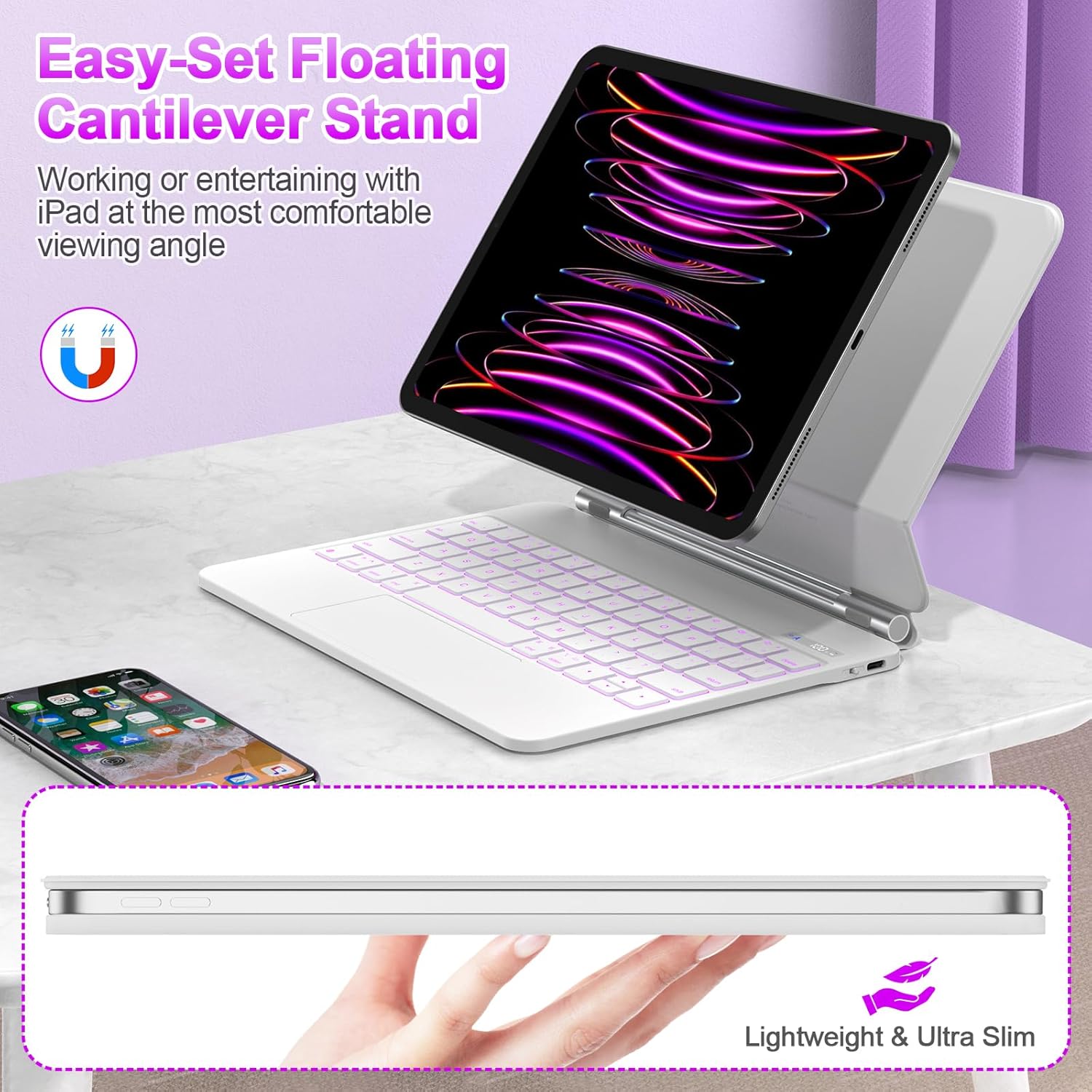
Image 3.1: The Bettdow keyboard with an iPad in the floating cantilever stand position, demonstrating its ergonomic viewing angle.
3.2. Precise Click-Anywhere Trackpad
Unlike traditional trackpads, the Bettdow keyboard's trackpad allows for clicking and pressing across its entire surface. This full-area clickability enhances navigation, supporting gestures like scrolling, swiping, tapping, and pressing for a seamless iPad experience. The trackpad is highly responsive and reliable.
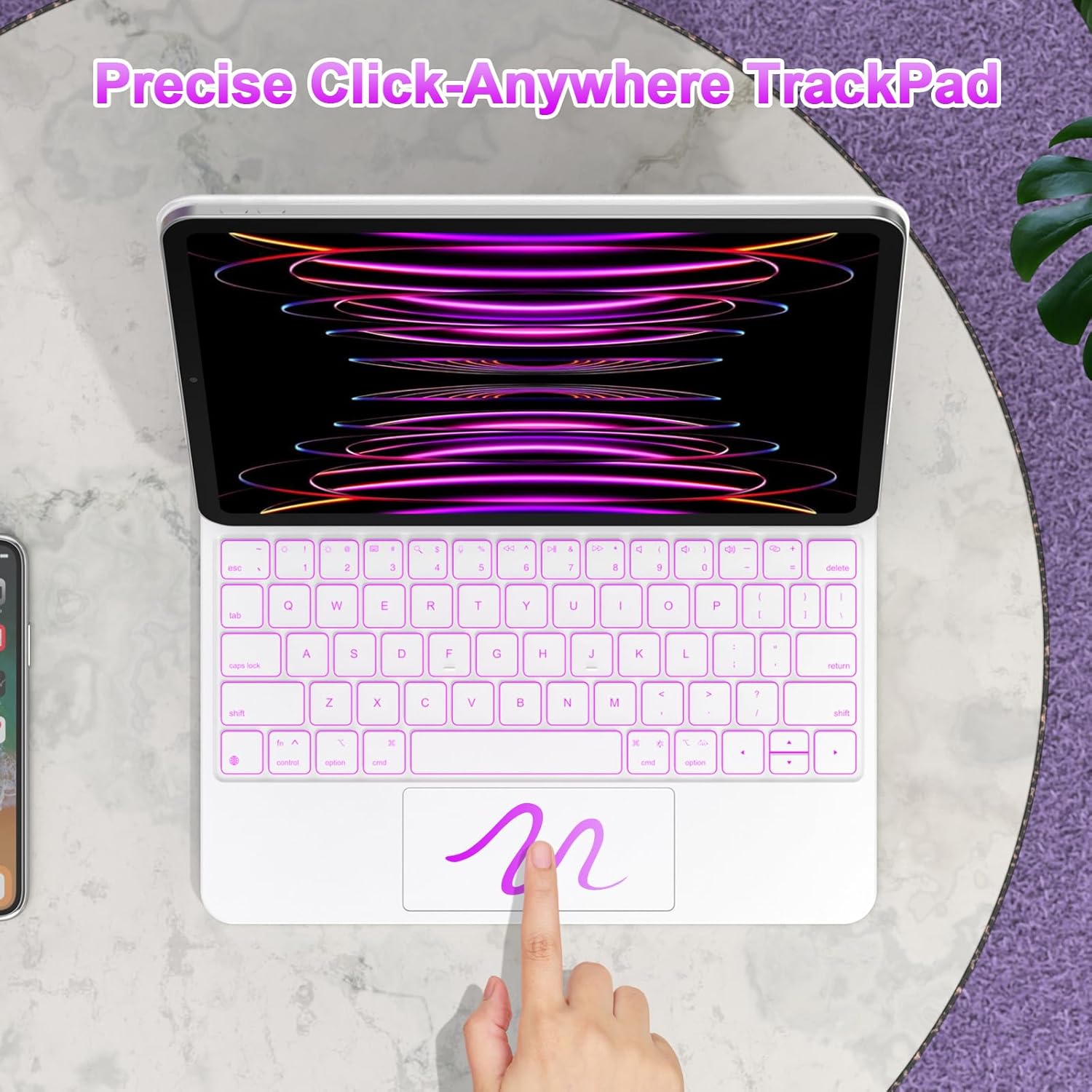
Image 3.2: Close-up of the keyboard's trackpad, highlighting its "Click-Anywhere" functionality.
The trackpad also features palm rejection technology. When you are typing on the keyboard, the trackpad automatically activates palm rejection to prevent accidental touches and ensure smooth typing.

Image 3.3: User demonstrating the palm rejection feature while typing on the keyboard.
3.3. Convenient LCD Digital Display Screen
The keyboard incorporates an LCD digital display that provides real-time status updates. This display shows the power status, Caps Lock status, charging status, and Bluetooth connection status, allowing you to easily monitor the keyboard's condition.

Image 3.4: Close-up of the keyboard's LCD digital display, showing indicators for Caps Lock, residual power, Bluetooth, and charging.
3.4. 7-Color LED Backlit Keyboard with Shortcuts
Enjoy a comfortable typing experience in any lighting condition with the 7-color LED backlit keyboard. It offers 3 adjustable brightness levels. The keyboard also includes dedicated shortcut keys for iPad functions, allowing quick control over audio, brightness, search, virtual keyboard, Siri, and media playback by pressing the "Fn" key combined with the corresponding function key.
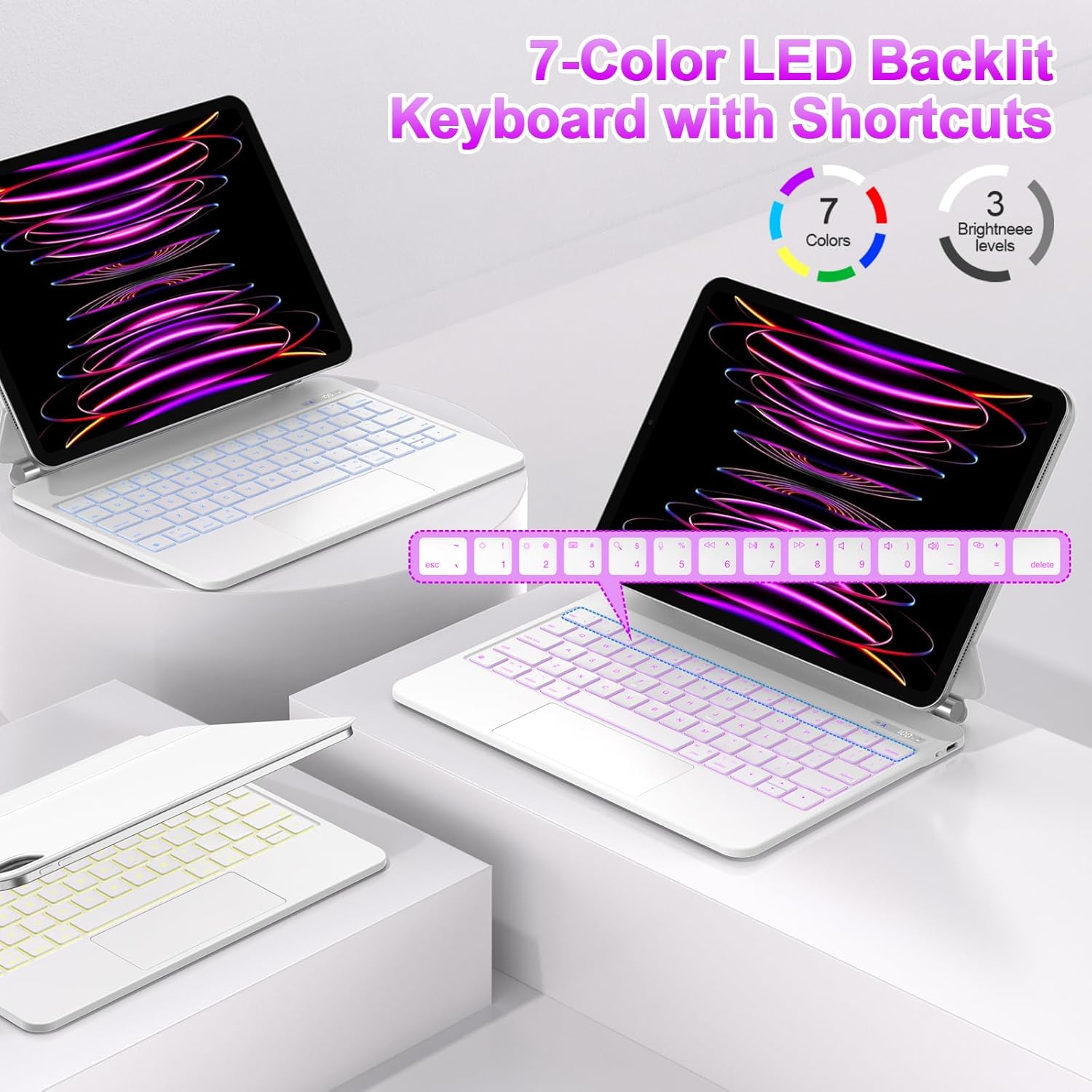
Image 3.5: The keyboard showcasing its 7-color LED backlighting and shortcut keys.
4. Setup Guide
4.1. Attaching Your iPad
- Ensure your iPad is clean and free of debris on its back surface.
- Align the back of your iPad with the magnetic surface of the keyboard's stand.
- The strong magnets will automatically snap the iPad into place, securing it firmly. Adjust the angle as desired.
4.2. Charging the Keyboard
Before first use, fully charge the keyboard. Connect the provided USB-C charging cable to the keyboard's charging port and the other end to a USB power adapter (not included). The LCD digital display will indicate the charging status.
4.3. Bluetooth Pairing
- Turn on the keyboard by pressing the power button. The Bluetooth indicator on the LCD display will start blinking, indicating it's in pairing mode.
- On your iPad, go to Settings > Bluetooth.
- Ensure Bluetooth is turned On.
- Look for "Bettdow Keyboard" or a similar name in the "Other Devices" list and tap on it to connect.
- Once connected, the Bluetooth indicator on the keyboard's LCD display will become solid.
5. Operating Instructions
5.1. Using the Trackpad
The trackpad supports multi-touch gestures for intuitive navigation:
- Single Finger Tap: Left-click.
- Two Finger Tap: Right-click (context menu).
- Two Finger Scroll: Scroll up/down or left/right.
- Pinch to Zoom: Use two fingers to zoom in or out.
- Three Finger Swipe Up: Open App Switcher.
- Three Finger Swipe Down: Return to Home Screen.
- Three Finger Swipe Left/Right: Switch between open apps.
Remember that the entire trackpad surface is clickable for precise control.
5.2. Adjusting Backlight
To adjust the keyboard backlight:
- Press the Fn key + Light Bulb icon key to cycle through 7 different backlight colors.
- Press the Fn key + Brightness Up/Down keys to adjust the 3 brightness levels.
5.3. Using Shortcut Keys
The top row of keys provides convenient shortcuts when pressed in combination with the Fn key. These include controls for:
- Home Screen
- Search
- Brightness Adjustment
- Virtual Keyboard Toggle
- Media Playback (Previous/Play-Pause/Next)
- Volume Control (Mute/Down/Up)
- Lock Screen
5.4. Understanding LCD Display Indicators
- Caps Lock Indicator: Illuminates when Caps Lock is active.
- Residual Power: Shows the remaining battery percentage.
- Bluetooth Status Light: Blinks during pairing, solid when connected.
- Charging Indicator: Shows when the keyboard is charging.
6. Maintenance
- Cleaning: Use a soft, lint-free cloth slightly dampened with water or a mild cleaning solution to wipe the keyboard and trackpad surfaces. Avoid excessive moisture.
- Battery Care: To prolong battery life, avoid fully discharging the keyboard frequently. Charge it regularly, especially if it will be stored for an extended period.
- Storage: Store the keyboard in a cool, dry place away from direct sunlight and extreme temperatures.
- Handling: Avoid dropping the keyboard or exposing it to strong impacts, which can damage internal components.
7. Troubleshooting
| Problem | Possible Cause | Solution |
|---|---|---|
| Keyboard not connecting via Bluetooth. | Low battery, Bluetooth off on iPad, not in pairing mode, interference. | Charge the keyboard. Ensure iPad Bluetooth is on. Put keyboard in pairing mode. Move closer to iPad. Forget device on iPad and re-pair. |
| Keys not responding. | Low battery, connection issue, keyboard frozen. | Charge the keyboard. Reconnect Bluetooth. Restart the keyboard. |
| Trackpad not working. | Connection issue, software glitch, palm rejection active. | Ensure keyboard is connected. Restart iPad. Ensure you are not accidentally triggering palm rejection. |
| Backlight not changing colors/brightness. | Incorrect key combination, software issue. | Ensure you are pressing Fn + correct shortcut key. Restart keyboard. |
8. Specifications
| Brand | Bettdow |
| Model Number | A1901 |
| Color | White |
| Connectivity Technology | Bluetooth |
| Keyboard Description | Multifunctional |
| Recommended Use | Office |
| Special Feature | Portable, Rechargeable, Backlit, Trackpad |
| Number of Keys | 78 |
| Backlight Color Support | RGB (7 Colors) |
| Power Source | Battery |
| Batteries Included | Yes (1 Lithium Ion) |
| Lithium Battery Weight | 8 g |
| Product Dimensions | 27.51 x 20.5 x 3 cm; 1.1 kg |
9. Warranty and Support
Bettdow products are designed for quality and reliability. For any issues or questions regarding your Bettdow Magnetic Keyboard, please refer to the following:
- Returns: This product is eligible for a 30-day free return period from the date of purchase. Please refer to your retailer's return policy for detailed instructions.
- Protection Plans: Additional protection plans may be available for purchase through your retailer to cover accidental damages for extended periods.
- Customer Support: For technical assistance or further inquiries, please visit the official Bettdow website or contact their customer service through the contact information provided with your purchase.
For the latest information and support resources, please visit the Bettdow Brand Store on Amazon.