Introduction
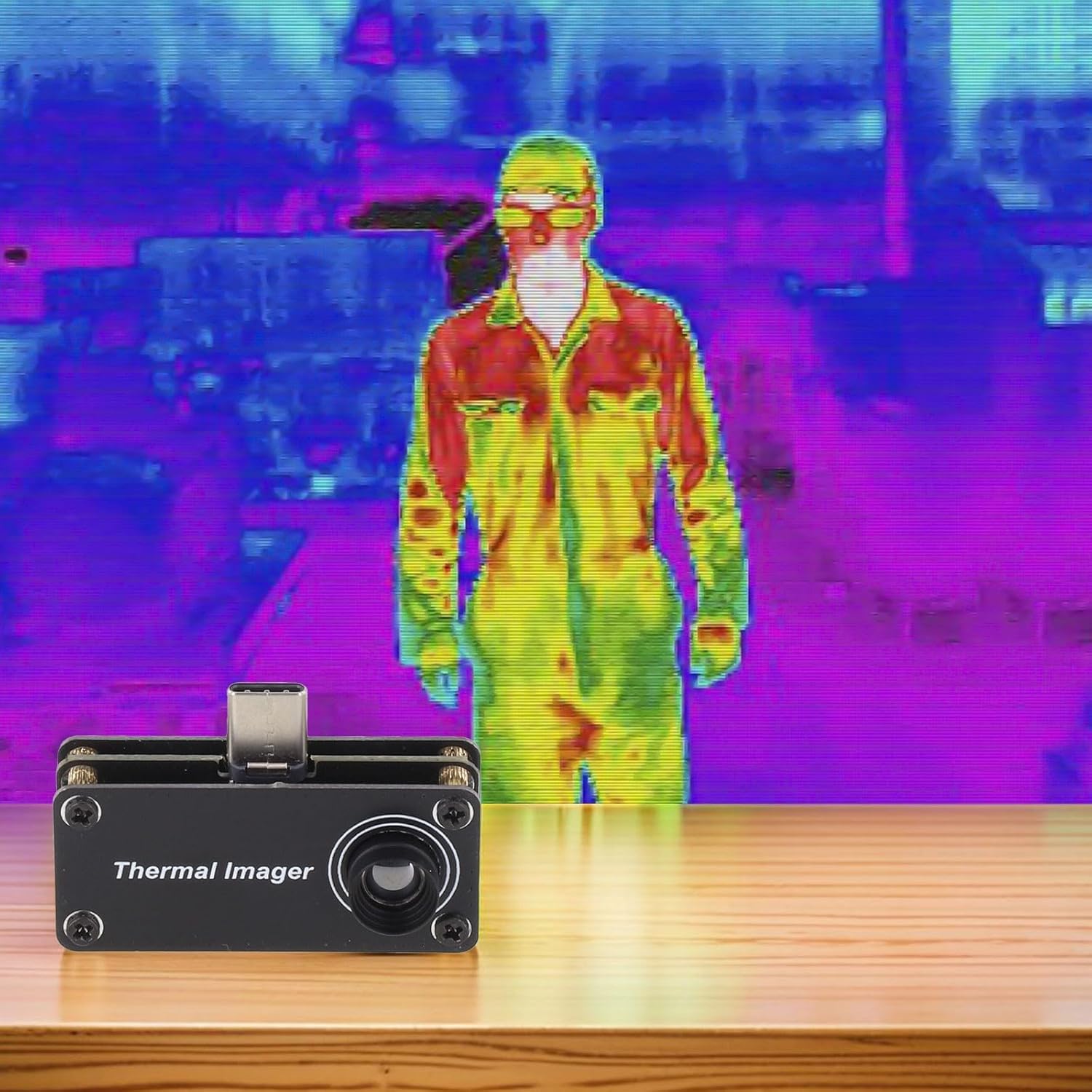
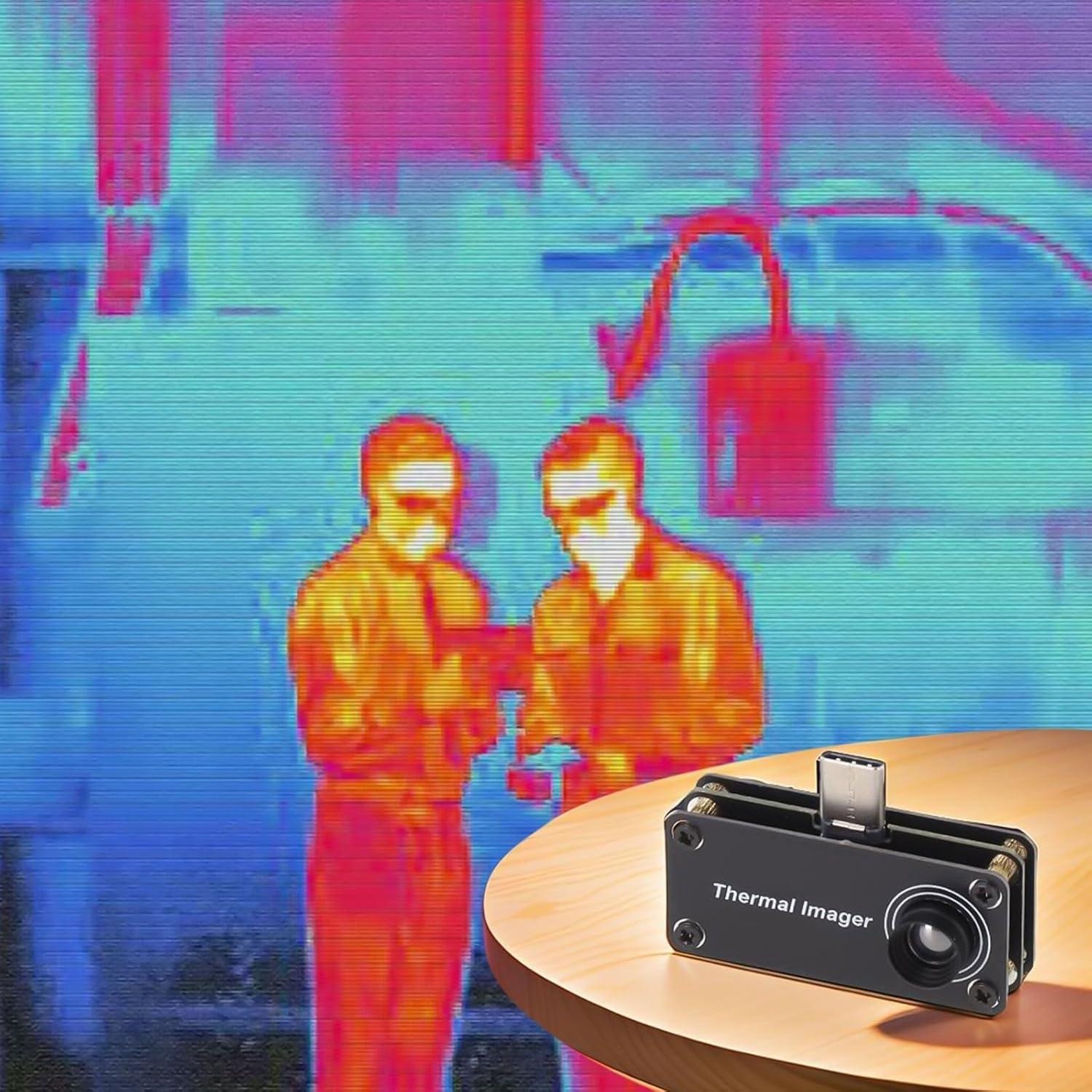
This manual provides essential information for the safe and effective use of your Cloudpower Infrared Thermal Imaging Camera. This compact device transforms your Android smartphone into a powerful thermal imager, capable of detecting temperature differences across a wide range. Please read this manual thoroughly before operation.
Key Features:
- Precision Temperature Measurement: Accurately detects hot spots or temperature gradients from -20°C to 1000°C with ±3°C accuracy.
- Android Compatibility: Connects via Type-C to Android 8–12 devices for real-time analysis and image storage.
- Adjustable Color Palettes: Choose from 5 pseudo-color schemes and auto/manual temperature limits for clear visualization.
- Compact and Portable Design: PCB build in 44×29.2×19mm size with a 33° viewing angle and 5FPS frame rate.
- Custom Emissivity Settings: Fine-tune emissivity based on object material for enhanced reading precision.
1. Setup
Follow these steps to set up your Infrared Thermal Imaging Camera with your Android phone:
- Install the Application: The thermal imaging software is not available on standard Android app stores. Scan the QR code provided in the product packaging or refer to the instruction manual for the download URL to obtain the APK file. Install the APK file on your Android device (Android 8-12 supported). You may need to allow installation from unknown sources in your phone's settings.
- Connect the Device: Plug the Type-C connector of the thermal imager into the USB-C port at the bottom of your Android phone.
- Grant Permissions: When prompted by the app, allow it to access and control the thermal imaging device.
- Initial Settings: Upon first launch, the app may default to Simplified Chinese. Navigate to the menu (usually in the upper right corner) to select your preferred language (English is supported).

Setup Video:
2. Operating Instructions
Once the device is connected and the app is running, you can begin thermal imaging. The app provides several features to enhance your experience:
- Temperature Readings: The main interface displays maximum temperature (mintemp), minimum temperature (maxtemp), and center temperature (Centem) values corresponding to the current measurement screen.
- ColorPalette: Select from 5 pseudo-color plate schemes to visualize temperature differences. Different palettes are suitable for various scenarios and can highlight specific temperature ranges more effectively.
- PaletteScale: This feature allows you to set the upper and lower temperature limits for the color scheme. You can choose to automatically follow the current screen temperature limits or manually set specific values.
- Landrevert: If you need to hold your phone upside down (e.g., for better thermal imager positioning), enable the Landrevert option to reverse the mobile phone layout. Note that some phone models have automatic rotation.
- Emissivity: For accurate temperature measurements, adjust the emissivity setting based on the material of the object you are scanning. If you only need to observe temperature distribution, the default emissivity is usually sufficient.
3. Maintenance
To ensure the longevity and optimal performance of your thermal imager, follow these maintenance guidelines:
- Cleaning: Use a soft, dry cloth to clean the device. Avoid using abrasive cleaners or solvents that could damage the lens or casing.
- Storage: Store the device in a cool, dry place away from direct sunlight and extreme temperatures. The recommended storage temperature is -40°C to 80°C.
- Handling: Handle the device with care to prevent physical damage. Avoid dropping it or exposing it to excessive force.
4. Troubleshooting
If you encounter issues with your thermal imager, refer to the following common troubleshooting tips:
- Device Not Connecting: Ensure the Type-C connector is fully inserted into your phone's port. Verify that the app has been granted necessary permissions to access the device. Restart the app and reconnect the imager.
- Incorrect Temperature Readings: Check the emissivity setting in the app and adjust it according to the material being scanned. Ensure the device lens is clean and free from obstructions.
- App Crashing/Freezing: Ensure your Android device meets the system requirements (Android 8-12). Clear the app's cache or reinstall the app if the issue persists.
- Image Orientation Issues: Use the