
1. Introduction
Thank you for choosing the DeLUX Full Size Thin Ergonomic Keyboard and Wireless Vertical Mouse Combo. This manual provides essential information for setting up, operating, and maintaining your new devices. Designed for comfort and efficiency, this combo aims to enhance your productivity while promoting a natural and healthy posture.

Image: The DeLUX ergonomic keyboard and vertical mouse combo displayed on a wooden desk, highlighting its sleek design and ergonomic features.
2. Product Overview
2.1. Ergonomic Keyboard (Model: GM909)
The GM909 keyboard features a full-size layout with an ultra-thin ergonomic split design. Its natural arc and slight arch promote a comfortable typing posture, reducing wrist pain and muscle strain. The integrated cushioned palm rest provides additional support for extended use.
- Full-size Layout: Enhances productivity and typing accuracy with dedicated function keys and shortcuts.
- Ultra-thin Ergonomic Design: Natural arc and slight arch improve typing posture and comfort.
- Leather Cushioned Palm Rest: Soft to touch and easy to clean, providing all-day comfort.
- Quiet Scissor Switches: Stable and quiet clicks for precise and responsive typing.
- Magnetic Receiver Storage: Conveniently store the 2.4G USB receiver within the keyboard's base.
- Indicator Lights: Provides visual status for connectivity and charging.

Image: Side profile of the DeLUX GM909 ergonomic keyboard, illustrating its ultra-thin design and natural curve.

Image: A close-up view of the keyboard keys, highlighting the quiet scissor switches for stable and precise typing.
Video: This video demonstrates the DELUX Ultra-thin Ergonomic Split Wireless Keyboard (GM909), showcasing its design and features.
2.2. Wireless Vertical Mouse (Model: M618mini)
The M618mini vertical mouse features a natural handshake design and skin-friendly material for a comfortable grip. Its ergonomic shape reduces hand fatigue and includes a concave area for the thumb and an extended bottom edge for the pinky finger, ensuring smoother movement and better control.
- Natural Handshake Design: Provides a comfortable grip, reducing hand fatigue.
- Quiet Clicks: Allows for a less distracting work environment.
- Compact Design: Features a concave area for the thumb and an extended bottom edge for the pinky finger for improved control.

Image: The DeLUX M618mini vertical mouse demonstrating its natural handshake posture for ergonomic comfort.
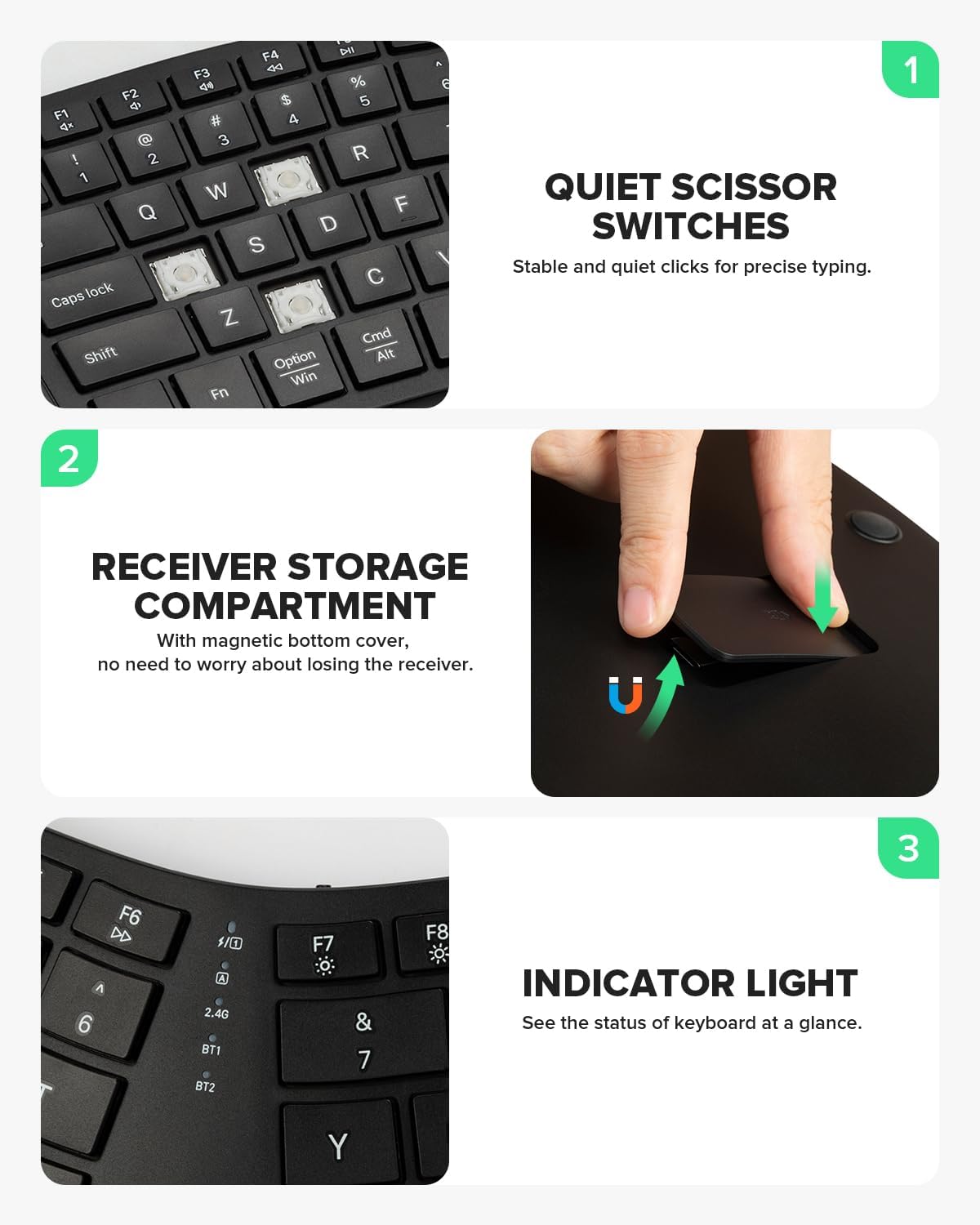
Image: The DeLUX M618mini vertical mouse, emphasizing its quiet click functionality for reduced noise.
Video: This video provides a brief overview of the DELUX M618MINI Wireless Ergonomic Mouse, highlighting its compact design.
Video: This video showcases the DELUX M618mini Wireless Vertical Mouse, focusing on its ergonomic benefits for carpal tunnel prevention.
3. Setup Instructions
3.1. Unpacking
Carefully remove the keyboard and mouse from their packaging. Ensure all components are present: keyboard, mouse, USB-C charging cable, and 2.4G USB receiver.
3.2. Powering On/Off
Locate the power switch on the keyboard (usually on the top edge) and the mouse (on the bottom). Slide the switch to the 'ON' position to power on the devices.
3.3. Connecting Your Devices
The combo supports dual-mode connectivity: 2.4G Wireless and Bluetooth (BT1, BT2). You can easily switch between up to three devices.
3.3.1. 2.4G Wireless Connection
- Locate the USB Receiver: The 2.4G USB receiver for the keyboard is magnetically stored in a compartment on the underside of the keyboard. For the mouse, the receiver is typically stored in a slot on its bottom.
- Insert Receiver: Plug the USB receiver into an available USB port on your computer.
- Select 2.4G Mode: On the keyboard, press the dedicated 2.4G button or switch to the 2.4G channel. On the mouse, ensure it is in 2.4G mode (refer to mouse-specific instructions if available). The devices should connect automatically.

Image: A hand removing the magnetic 2.4G USB receiver from its storage compartment on the underside of the DeLUX GM909 keyboard.
3.3.2. Bluetooth Connection
- Select Bluetooth Mode: On the keyboard, press the BT1 or BT2 button to select a Bluetooth channel. On the mouse, switch to the desired Bluetooth mode. The indicator light will flash, indicating pairing mode.
- Enable Bluetooth on Your Device: Go to your computer's (Windows, Mac, iOS, Android) Bluetooth settings.
- Pair Devices: Search for "DeLUX Keyboard" or "DeLUX Mouse" in the list of available devices and click to pair. Follow any on-screen prompts.
- Successful Connection: The indicator light on the device will stop flashing and remain solid, indicating a successful connection.
4. Operating Instructions
4.1. Switching Between Devices
To switch between connected devices (2.4G, BT1, BT2), simply press the corresponding channel button on your keyboard or mouse. The active channel's indicator light will illuminate.

Image: The DeLUX keyboard displaying its multi-device connection capabilities, with indicators for 2.4G, BT1, and BT2.
4.2. Keyboard Multimedia Functions
The keyboard includes multimedia function buttons (F1-F12) that can be accessed by pressing the Fn key in combination with the desired function key. For example, Fn + F7 might control media playback.

Image: A close-up of the DeLUX keyboard highlighting the multimedia function buttons (F1-F12) and the Fn key for combined use.
5. Charging
Both the keyboard and mouse are equipped with built-in 500mAh Li-Ion rechargeable batteries. Use the provided USB-C charging cable to charge the devices.
- Charging Port: The charging port is located on the top edge of the keyboard and the front of the mouse.
- Charging Indicator: A red indicator light will illuminate during charging and turn off or change color when fully charged.
- Battery Life: A full charge provides extended working hours, allowing you to focus on your tasks without frequent recharging.

Image: The DeLUX keyboard being charged via its USB-C port, with the charging indicator light visible.

Image: The DeLUX M618mini vertical mouse connected to a charging cable, showing its rechargeable battery feature.
6. Maintenance
- Cleaning: Use a soft, dry cloth to clean the surfaces of the keyboard and mouse. For stubborn dirt, a slightly damp cloth with mild soap can be used, ensuring no liquid enters the device.
- Storage: When not in use for extended periods, store the devices in a cool, dry place. Ensure the USB receiver is securely stored in its compartment to prevent loss.
- Avoid Extreme Conditions: Do not expose the devices to extreme temperatures, direct sunlight, or excessive moisture.
7. Troubleshooting
- Device Not Connecting:
- Ensure devices are powered on and fully charged.
- For 2.4G, ensure the USB receiver is properly inserted and the device is in 2.4G mode.
- For Bluetooth, ensure Bluetooth is enabled on your computer and the device is in pairing mode. Try re-pairing the device.
- Try connecting to a different USB port or another device to rule out port or computer issues.
- Keys/Buttons Not Responding:
- Check battery level and recharge if necessary.
- Ensure the device is connected to the correct channel.
- Restart your computer and the devices.
- Lag or Intermittent Connection:
- Move the devices closer to the receiver/computer.
- Avoid interference from other wireless devices.
8. Specifications
| Feature | Description |
|---|---|
| Brand | DELUX |
| Keyboard Model | GM909 |
| Mouse Model | M618mini |
| Color | Black |
| Connectivity Technology | Bluetooth, 2.4G Wireless |
| Special Feature | Ergonomic Design (Keyboard & Mouse) |
| Compatible Devices | Laptop, Personal Computer, Tablet (Windows, Mac, iOS, Android) |
| Battery | Built-in 500mAh Li-Ion (rechargeable) |
9. Warranty and Support
DeLUX products come with a standard manufacturer's warranty. For detailed warranty information, product support, or technical assistance, please refer to the warranty card included in your product packaging or visit the official DeLUX website. You may also contact our customer service team through the retailer where you purchased the product.
Contact Information:
- Manufacturer: DeLUX
- Website: DeLUX Official Store
