
1. Product Overview
Thank you for choosing the BOBOPAI LED Rechargeable Light Bulbs with Remote. These versatile bulbs offer cordless operation, multiple color temperatures, RGB color options, dimming capabilities, and a timer function, all controllable via a remote or integrated button. They are designed for convenience and adaptability in various lighting scenarios.
Key Features:
- Rechargeable Battery: Equipped with a 2600mAh battery, providing 10-40 hours of use on a single charge.
- USB Charging: Convenient charging via a USB port.
- Magnetic Design: Bulb detaches easily from its E26 base for charging or portable use.
- Dual Control Modes: Operate with the included remote control or the manual button switch on the bulb.
- Adjustable Brightness: Dimmable from 10% to 100%.
- Multiple Color Temperatures: Select from 3000K (warm white), 4000K (natural light), and 6000K (cool white).
- RGB Colors: 9 distinct RGB colors with breathing and jumping modes.
- Timer Function: Set auto-off for 30 or 120 minutes.
- Memory Function: Retains last used brightness and color temperature settings.
Package Contents:
- 2 x BOBOPAI LED Rechargeable Light Bulbs
- 2 x E26 Magnetic Bases
- 2 x Remote Controls
- 2 x USB Charging Cables
- 2 x 3M Adhesive Pads
2. Safety Information
- Do not expose the bulbs to water or excessive moisture.
- Avoid disassembling the bulb; this may void the warranty and cause damage.
- Keep out of reach of children.
- Use only the provided USB cable for charging.
- Ensure the bulb is securely attached to its magnetic base or a metal surface to prevent falling.
3. Setup and Installation
3.1 Charging the Bulbs
Before first use, fully charge the bulbs. The charging process takes approximately 4-6 hours.
- Detach the bulb from its magnetic base.
- Connect the provided USB charging cable to the bulb's USB port and to a standard USB power adapter (not included).
- The charging indicator light will be red during charging.
- Once fully charged, the indicator light will turn green.
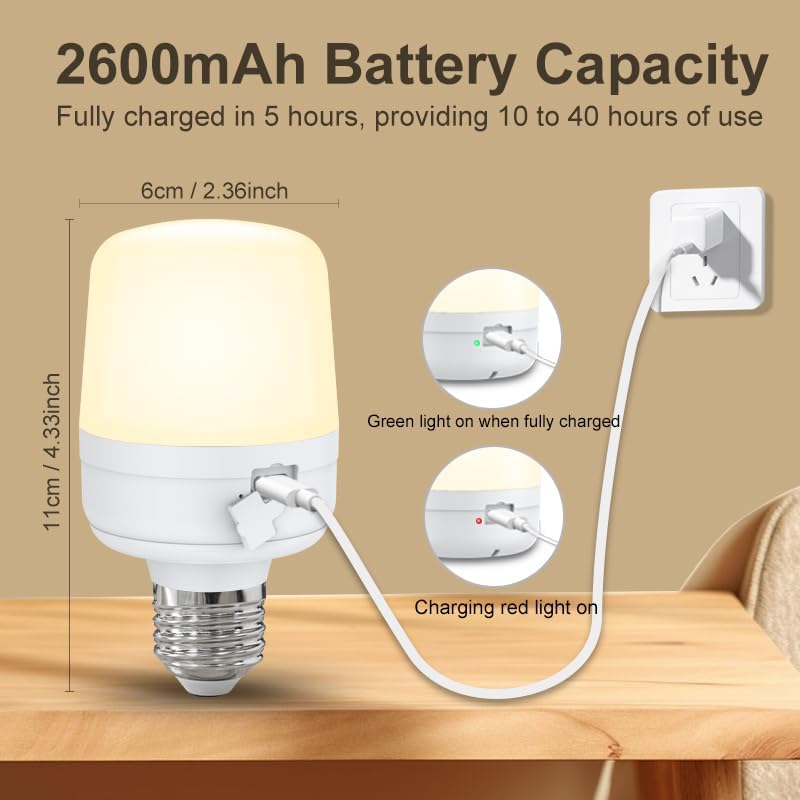
3.2 Installing the Bulbs
The bulbs can be used in standard E26 sockets or attached to metal surfaces using their magnetic design.
- For E26 Sockets: Screw the E26 magnetic base into any compatible E26 lamp fixture. Then, magnetically attach the bulb to the base.
- For Metal Surfaces: The bulb itself has a strong magnet and can be directly attached to suitable metal surfaces.
- For Non-Metal Surfaces: Use the included 3M adhesive pad. Peel off the protective film from one side of the adhesive pad and stick it to the desired clean, dry, non-metal surface. Then, attach the E26 magnetic base to the adhesive pad, and finally, magnetically attach the bulb to the base.

4. Operating Instructions
4.1 Power On/Off
- Manual Button: Press the power button on the bulb to turn it on or off.
- Remote Control: Press the 'ON' or 'OFF' button on the remote control.
4.2 Remote Control Functions
The remote control allows for comprehensive adjustment of the bulb's settings within a 10-meter range.

- Brightness Adjustment: Use the 'Increase Brightness' and 'Reduced Brightness' buttons to adjust light intensity from 10% to 100%.
- Color Temperature Selection: Press the '3000K', '4000K', or '6000K' buttons for warm white, natural light, or cool white, respectively.
- RGB Color Selection: Choose from 9 distinct colors using the colored buttons.
- RGB Modes: Select 'Breathing Mode' or 'Jumping Mode' for dynamic color changes.
- Timer Function: Press the '30min' or '120min' button to set the bulb to automatically turn off after the selected duration.


4.3 Memory Function
The bulb features a built-in memory function that automatically saves the last used brightness and color temperature settings. When the bulb is turned on again, it will resume these settings.
4.4 Video Demonstration
For a visual guide on operating the BOBOPAI LED Rechargeable Light Bulbs, please watch the following video:
5. Maintenance
5.1 Charging Guidelines
- Charge the bulbs regularly to maintain optimal battery performance.
- Avoid overcharging for extended periods.
- If storing the bulbs for a long time, charge them periodically to prevent deep discharge.
5.2 Cleaning
- Ensure the bulb is turned off and disconnected from any power source before cleaning.
- Wipe the bulb and base with a soft, dry cloth.
- Do not use abrasive cleaners or solvents.
6. Troubleshooting
- Bulb not turning on:
- Check if the bulb is charged. Connect it to a USB power source and observe the charging indicator.
- Ensure the bulb is securely attached to its magnetic base or a metal surface.
- If using the remote, ensure the remote's battery is functional and there are no obstructions between the remote and the bulb.
- Remote control not responding:
- Ensure the remote is pointed directly at the bulb.
- Check the remote's battery and replace if necessary.
- Ensure you are within the 10-meter operating range.
- Bulb not charging:
- Verify the USB cable is properly connected to both the bulb and the power adapter.
- Try a different USB cable or power adapter to rule out faulty accessories.
- Ensure the charging port on the bulb is clean and free of debris.
- Magnetic attachment is weak or bulb falls:
- Ensure the surface the bulb is attached to is flat and clean.
- If using the 3M adhesive pad, ensure the surface was clean and dry before application, and allow sufficient time for the adhesive to bond.
- Avoid placing the bulb in positions where vibrations or impacts could dislodge it.
7. Specifications
| Feature | Specification |
|---|---|
| Brand | BOBOPAI |
| Model Number | 2PACK-66220069 |
| Bulb Shape Size | A19 |
| Light Color Options | Warm white, daylight white, white, red, green, blue, yellow, cyan, magenta (9 RGB colors) |
| Unit Count | 2 Count |
| Color Temperature | 3000K (Warm), 4000K (Natural), 6000K (Cool) |
| Light Output Maximum | 400 lumens |
| Light Source Wattage | 8 watts |
| Accepted Voltage Frequency | 100 to 120 Volts and 60 Hertz |
| Battery Capacity | 2600mAh |
| Charging Time | 4-6 hours |
| Usage Time (Fully Charged) | 10-40 hours (depending on brightness/mode) |
| Remote Control Range | Up to 10 meters |
8. Warranty and Support
BOBOPAI products are manufactured to high-quality standards. For any product-related inquiries, technical support, or warranty claims, please refer to the contact information provided at the point of purchase or visit the official BOBOPAI website. Please retain your proof of purchase for warranty purposes.