
Introduction
The YHKEMA EB10 Electronic Shooting Earbuds are designed to provide advanced hearing protection and enhanced situational awareness. Featuring a Noise Reduction Rating (NRR) of 28dB, Bluetooth 5.3 connectivity, active noise cancellation, and sound amplification, these earbuds are suitable for various high-decibel environments such as shooting ranges, hunting expeditions, and construction sites.
The advanced sound technology and seamless Bluetooth integration allow for clear communication and media enjoyment while maintaining awareness of your surroundings. The ergonomic design ensures a comfortable and secure fit, accommodating various headwear and movements. The included charging case provides extended battery life for on-the-go use.
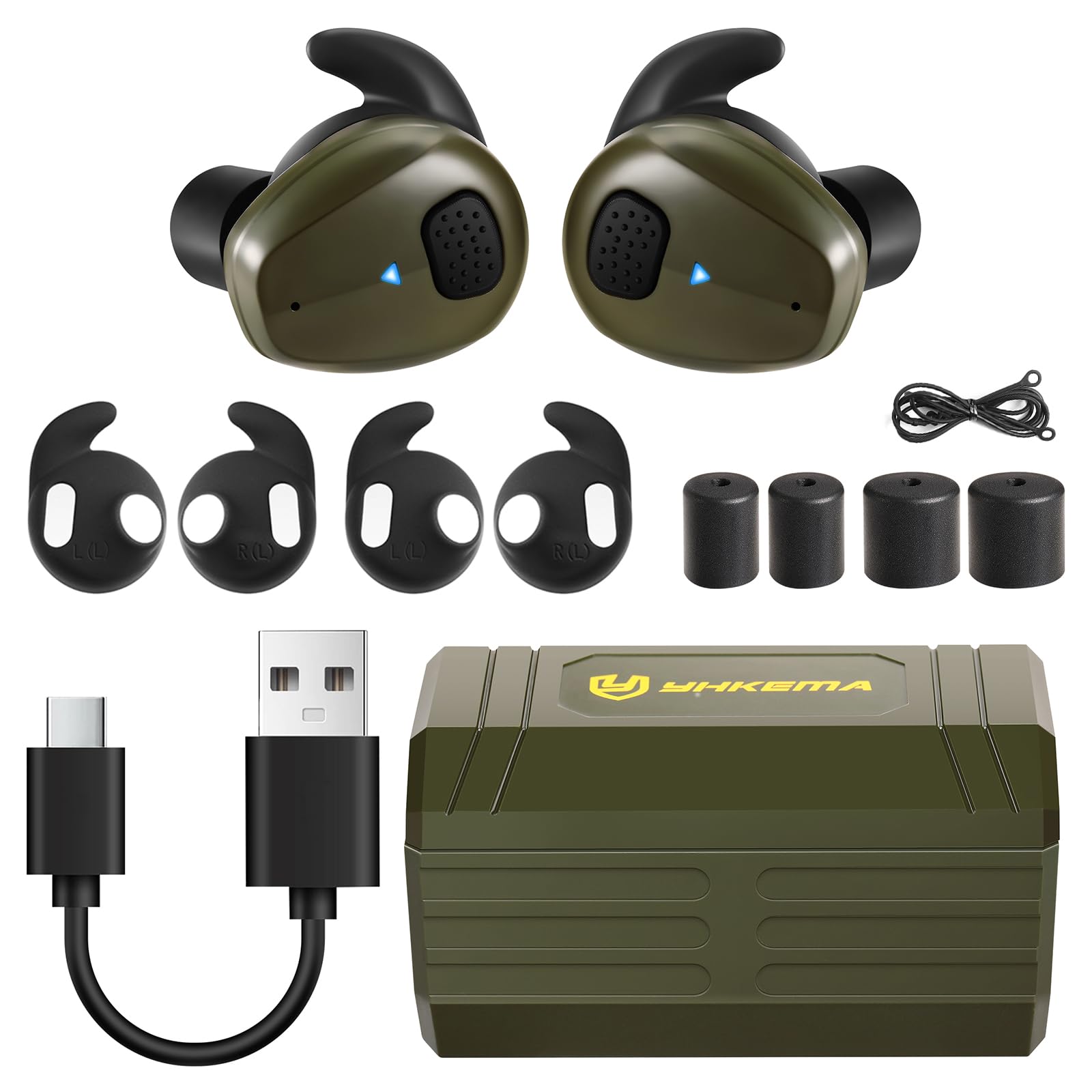
Image: YHKEMA EB10 Electronic Shooting Earbuds in their open charging case, showing the left and right earbuds.
Setup
1. Initial Charging
Before first use, place both earbuds into the charging case and connect the case to a power source using the provided USB-C cable. Ensure the earbuds and case are fully charged. The indicator lights on the case will show the charging status. A full charge provides up to 8 hours of continuous use for the earbuds, with the case offering up to 3 additional full charges for a total of 30 hours.

Image: Illustration of the charging case with earbuds, showing battery life indicators and continuous use time.
2. Selecting and Installing Ear Tips
The EB10 earbuds come with three different ear tip sizes and two pairs of replacement earmuffs to ensure a proper and comfortable fit. A good seal is crucial for effective noise reduction and sound quality.
- Choose the ear tip size that best fits your ear canal. Experiment with different sizes to find the most comfortable and secure fit.
- Gently remove the pre-installed ear tip by twisting and pulling.
- Align the new ear tip with the earbud nozzle and push it on firmly until it is securely attached.
Video: Demonstration of how to change the ear tips on the YHKEMA EB10 Electronic Shooting Earbuds.

Image: Close-up of the YHKEMA EB10 earbuds showing the ear tip and ear hook design.
3. Bluetooth Pairing
To connect your earbuds to a Bluetooth-enabled device:
- Open the charging case. The earbuds will automatically enter pairing mode, indicated by a flashing light on the earbuds.
- On your device (e.g., smartphone), go to Bluetooth settings and enable Bluetooth.
- Search for available devices and select "YHKEMA EB10" from the list.
- Once connected, the earbud indicator light will stop flashing, and you will hear a confirmation tone.
Operating Instructions
Power On/Off
- Power On: Open the charging case, and the earbuds will automatically power on. Alternatively, press and hold the button on each earbud for 3 seconds.
- Power Off: Place the earbuds back into the charging case and close the lid. They will automatically power off and begin charging. Alternatively, press and hold the button on each earbud for 5 seconds. The earbuds also feature an automatic power-off function after several hours of no operation.
Mode Selection
The EB10 earbuds offer three distinct modes for various environments. Press the button on either earbud to cycle through the modes.
- Outdoor Mode: Suitable for quiet environments where you need to pick up more ambient sound.
- Interior Mode: Ideal for indoor or target shooting, providing balanced noise reduction and sound amplification.
- Noise Reduction Mode: Primarily for Bluetooth music or phone calls, offering maximum noise cancellation.

Image: Diagram illustrating the button operation and the three available sound modes: Outdoor, Interior, and Noise Reduction.
Volume Control
The earbuds feature one-handed volume adjustment. Specific controls may vary slightly depending on the mode. Refer to the quick start guide for detailed button press sequences for volume up/down.
Call Handling
When connected via Bluetooth, you can answer, end, or reject calls using the earbud buttons.
- Answer/End Call: Single press the button on either earbud.
- Reject Call: Press and hold the button on either earbud for 2 seconds.

Image: A person wearing the YHKEMA EB10 earbuds in a tactical setting, highlighting noise reduction and sound amplification features.
Maintenance
Cleaning
- Regularly clean the ear tips with a soft, damp cloth. Ensure they are completely dry before reattaching to the earbuds.
- Wipe the earbuds and charging case with a dry, soft cloth to remove dust and debris.
- Do not use harsh chemicals, cleaning solvents, or strong detergents.
Storage
When not in use, store the earbuds in their charging case to protect them from dust, moisture, and physical damage. Store in a cool, dry place away from direct sunlight and extreme temperatures.

Image: The YHKEMA EB10 charging case, closed, protecting the earbuds inside.
Troubleshooting
- No Sound/Poor Sound Quality:
- Ensure earbuds are properly seated in your ears and ear tips provide a good seal.
- Check if the earbuds are connected via Bluetooth to your device.
- Verify the volume level on both the earbuds and your connected device.
- Ensure earbuds are charged.
- Earbuds Not Pairing:
- Make sure Bluetooth is enabled on your device.
- Place earbuds back in the case, close the lid, then open it again to re-enter pairing mode.
- Forget the device from your phone's Bluetooth settings and try pairing again.
- Ensure earbuds are charged.
- Charging Issues:
- Verify the USB-C cable and power adapter are working correctly.
- Ensure the charging contacts on both the earbuds and the case are clean and free of debris.
- Make sure the earbuds are correctly seated in the charging case.
- High-Pitched Feedback:
- This can sometimes occur if the ear tips do not form a proper seal. Try a different size ear tip.
- Ensure the earbuds are correctly inserted into your ear canal.
- If feedback persists in a specific mode, try switching modes.
- Buttons Difficult to Press:
- Ensure your fingers are dry and clean.
- Apply firm, direct pressure to the center of the button.
Specifications
| Model Number | EB10 |
| Brand | YHKEMA |
| Noise Reduction Rating (NRR) | 28dB |
| Bluetooth Version | 5.3 |
| Battery Type | Lithium Ion (1 required, included) |
| Continuous Use Time (Earbuds) | Up to 8 hours |
| Total Use Time (with Charging Case) | Up to 30 hours |
| Charging Port | USB-C |
| Material | Acrylonitrile Butadiene Styrene, Polycarbonate |
| Recommended Uses | Noise Protection (Hunting, Shooting, Construction) |
| Package Dimensions | 4.21 x 4.17 x 2.44 inches |
| Item Weight | 6.74 ounces |
Warranty and Support
Warranty Information
YHKEMA products are manufactured to high-quality standards. For specific warranty details regarding your EB10 Electronic Shooting Earbuds, please refer to the warranty card included in your product packaging or visit the official YHKEMA website. Keep your proof of purchase for warranty claims.
Customer Support
If you encounter any issues or have questions about your YHKEMA EB10 Electronic Shooting Earbuds, please contact our customer support team.
- Website: www.yhkema.com (Note: This is a placeholder URL, please refer to actual product documentation for correct website.)
- Email: support@yhkema.com (Note: This is a placeholder email, please refer to actual product documentation for correct contact.)
Please have your model number (EB10) and purchase date ready when contacting support.