
1. Introduction
The GPD Pocket 4 is a compact, high-performance mini laptop designed for portability and versatility. This device integrates an 8.8-inch touchscreen display with a physical keyboard, offering both laptop and tablet functionalities. It is powered by an AMD Ryzen 7 8840U processor with integrated Radeon 780M graphics, making it suitable for a range of tasks from productivity to gaming.
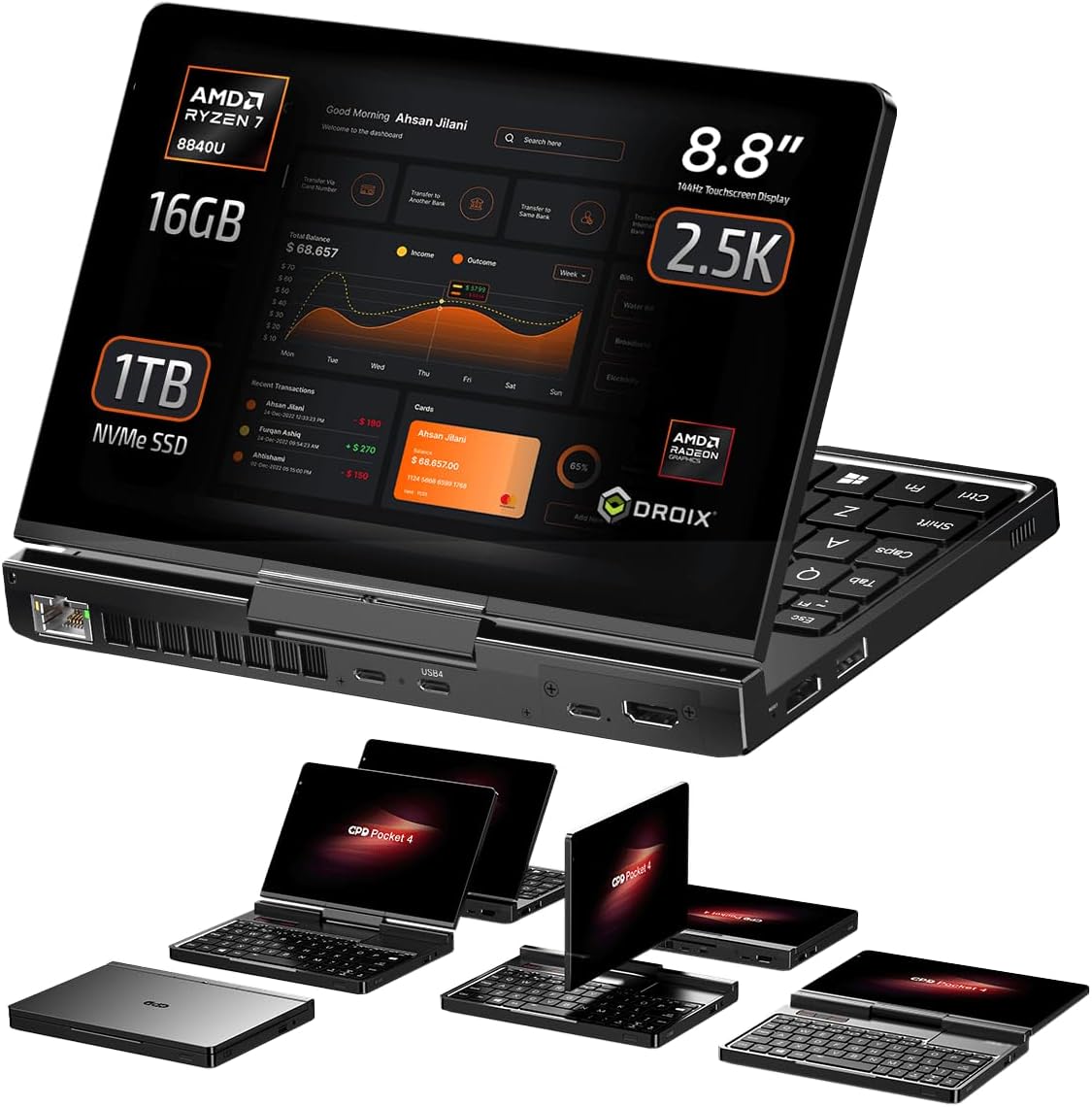
Image 1.1: The GPD Pocket 4 mini laptop.
Video 1.1: An overview of the GPD Pocket 4's features and design.
2. Product Overview
2.1. Dimensions and Weight
The GPD Pocket 4 measures approximately 8.11 x 5.67 x 0.87 inches (20.68 x 14.45 x 2.22 cm) and weighs around 1.6 pounds (785g). This compact form factor enhances its portability.

Image 2.1: Dimensions and weight of the GPD Pocket 4.
2.2. Display
The device features an 8.8-inch LTPS high-refresh-rate IPS touchscreen display with a 2.5K resolution (2560 x 1600 pixels), 144Hz refresh rate, 343 PPI, and 500 nits brightness. It supports 10-point multi-touch input. The display also includes an improved camera with 2592 x 1944 resolution, offering automatic framing and video brightness adjustments.
2.3. Keyboard and Touchpad
The GPD Pocket 4 is equipped with a backlit chocolate-style chiclet keyboard. The keyboard backlight can be toggled on/off via a key combination and automatically deactivates after a period of inactivity. The touchpad is located on the right, with three dedicated mouse buttons on the left. The touchpad itself is not clickable; mouse actions are performed using the physical buttons.

Image 2.2: Keyboard and touchpad layout.
3. Ports and Connectivity
The GPD Pocket 4 offers a comprehensive selection of ports for various connectivity needs:
- Left Side: HDMI 2.1 port, USB-A 3.2 Gen 2 port.
- Right Side: 3.5mm Audio Jack, USB-A 2.0 port.
- Rear Side: 2.5Gbps Ethernet port, USB-C port (for charging), USB 4 port (for high-speed peripherals like eGPUs), Modular Port.
The power button, which includes an integrated fingerprint sensor, is located on the front side of the device.
4. Modular Port System
A key feature of the GPD Pocket 4 is its modular port system, allowing users to customize functionality based on their needs. The device comes standard with a MicroSD card reader module. Additional modules available include:
- RS-232 Module: For industrial equipment connectivity.
- 4G LTE Module: For mobile internet access.
- KVM Module: For remote server access and control.
To switch modules, simply remove the two fixing screws, detach the current module, insert the new module, and secure it with the screws. GPD Pocket 3 modules are not compatible with the Pocket 4.

Image 4.1: Overview of the modular port system.


Image 4.2: Various modular port options.
5. 2-in-1 Design
The GPD Pocket 4 features a 2-in-1 design, allowing it to function as both a mini laptop and a tablet. The display can be rotated 180 degrees to face an opposite user or folded down over the keyboard to transform the device into a tablet. This design provides flexibility for presentations, media consumption, and touch-based interactions.

Image 5.1: GPD Pocket 4 in 2-in-1 configuration.
6. Technical Specifications
| Feature | Specification |
|---|---|
| Processor | AMD Ryzen 7 8840U (5.1 GHz) |
| Graphics | AMD Radeon™ 780M |
| RAM | 16 GB LPDDR5X |
| Storage | 1 TB PCIe Gen4 NVMe SSD (upgradable to 4TB) |
| Display | 8.8 Inches, 2560 x 1600 pixels, 144Hz, 10-point Touch |
| Operating System | Windows 11 Home |
| Wireless Connectivity | Wi-Fi 6E, Bluetooth 5.3 |
| Battery | 44.8 Wh Lithium Polymer, 100W PD Fast Charging |
| Dimensions (LxWxH) | 8.11 x 5.67 x 0.87 inches |
| Weight | 1.6 pounds |
7. Battery Life and Thermal Management
The GPD Pocket 4 is equipped with a 44.8Wh Lithium Polymer battery, supporting 100W PD fast charging. Under full load (28W TDP, full brightness, 144Hz), the device can operate for approximately 1 hour and 1 minute. For average day-to-day usage, such as web browsing, video playback, or office document work, expect around 5 hours of battery life.
During battery tests, fan noise was measured at 43dB when idle and 67dB under full load. Temperatures reached 30°C idle and 49°C under full load. These temperatures are generally cooler than typical laptops, though fan speeds are high under load.

Image 7.1: Battery and dimensions overview.
8. Performance Benchmarks
The GPD Pocket 4, especially with the AMD Ryzen 7 8840U processor, delivers strong performance for its size. Benchmarks indicate a significant improvement over previous generations, making it capable for demanding applications and multitasking.
9. Gaming Performance
The integrated AMD Radeon 780M GPU provides robust gaming capabilities for a mini laptop. While specific frame rates vary by game and settings, the device is capable of running many modern titles at playable frame rates, particularly at 720p resolution. Performance can be further enhanced with an external GPU.
10. GPD G1 eGPU Docking Station
For users requiring enhanced graphics performance, the GPD Pocket 4 is compatible with the GPD G1 eGPU Docking Station via its USB 4 port. The GPD G1, featuring an AMD Radeon RX 7600M XT, provides a substantial boost in graphics processing power, ideal for high-end gaming, 3D rendering, and video editing tasks.

Image 10.1: GPD Pocket 4 connected to GPD G1 eGPU.
11. Setup
11.1. Initial Power On
- Charge the Device: Before first use, connect the GPD Pocket 4 to a power source using the provided USB-C charger. Ensure the device is fully charged.
- Power On: Press and hold the power button (located on the front side) until the display lights up.
- Windows Setup: Follow the on-screen instructions to complete the initial Windows 11 Home setup, including language selection, network connection, and user account creation.
11.2. Network Connection
- Wi-Fi: During Windows setup or via the Windows Settings, select your Wi-Fi network and enter the password.
- Ethernet: Connect an Ethernet cable to the 2.5Gbps Ethernet port on the rear side for a wired network connection.
12. Operating
12.1. Keyboard and Touchpad Usage
- Typing: Use the physical keyboard for text input. The backlight can be toggled using a dedicated key combination.
- Mouse Control: Use the touchpad for cursor movement. Left-click and right-click actions are performed using the three dedicated mouse buttons on the left side of the touchpad area.
12.2. Touchscreen and 2-in-1 Modes
- Touch Input: Interact with the display directly using your fingers for navigation, selection, and gestures.
- Laptop Mode: Use the device with the display open and the keyboard accessible for traditional computing tasks.
- Tablet Mode: Fold the display back over the keyboard to use the device as a tablet. The operating system will automatically adjust to tablet mode.
12.3. External Display Support
The GPD Pocket 4 supports up to triple external monitors via its HDMI 2.1 and two USB-C ports. Connect external displays to expand your workspace for multitasking.
13. Maintenance
13.1. Cleaning
- Screen: Use a soft, lint-free cloth slightly dampened with water or a screen cleaner. Avoid harsh chemicals.
- Body and Keyboard: Wipe with a soft, dry cloth. Use compressed air to remove debris from keyboard keys.
13.2. Software Updates
Regularly check for and install Windows updates to ensure optimal performance and security. Driver updates for components like the GPU may also be available from the GPD support website.
13.3. Battery Care
To prolong battery life, avoid fully discharging the battery frequently. Store the device in a cool, dry place when not in use for extended periods.
14. Troubleshooting
14.1. Touchscreen Not Responding
If the touchscreen becomes unresponsive after waking from sleep or hibernation, it may be due to a driver issue. Restarting the device often resolves this. If the problem persists, check for updated drivers or consult GPD support.
14.2. Charging Issues
Ensure you are using the original 100W PD fast charger or a compatible charger that supports the required power delivery specifications. If the device is not charging, try a different USB-C port or power adapter. Check the charging cable for damage.
14.3. Device Overheating or Loud Fan Noise
Under heavy load, the fan may run at high speeds, producing noticeable noise. Ensure the air vents are not obstructed. If overheating occurs during normal use, check background processes or consider adjusting power settings.
15. Warranty and Support
For warranty information and technical support, please refer to the official GPD website or contact your retailer. Keep your proof of purchase for warranty claims. Support resources typically include FAQs, driver downloads, and contact information for customer service.

