
1. Introduction
The FCAR F802 is a professional heavy-duty truck diagnostic scanner designed for comprehensive system analysis, DPF regeneration, and various service functions. This tool provides efficient and accurate diagnostics for a wide range of heavy-duty vehicles, ensuring optimal performance and compliance with emission standards. This manual will guide you through the setup, operation, and maintenance of your FCAR F802 scanner.
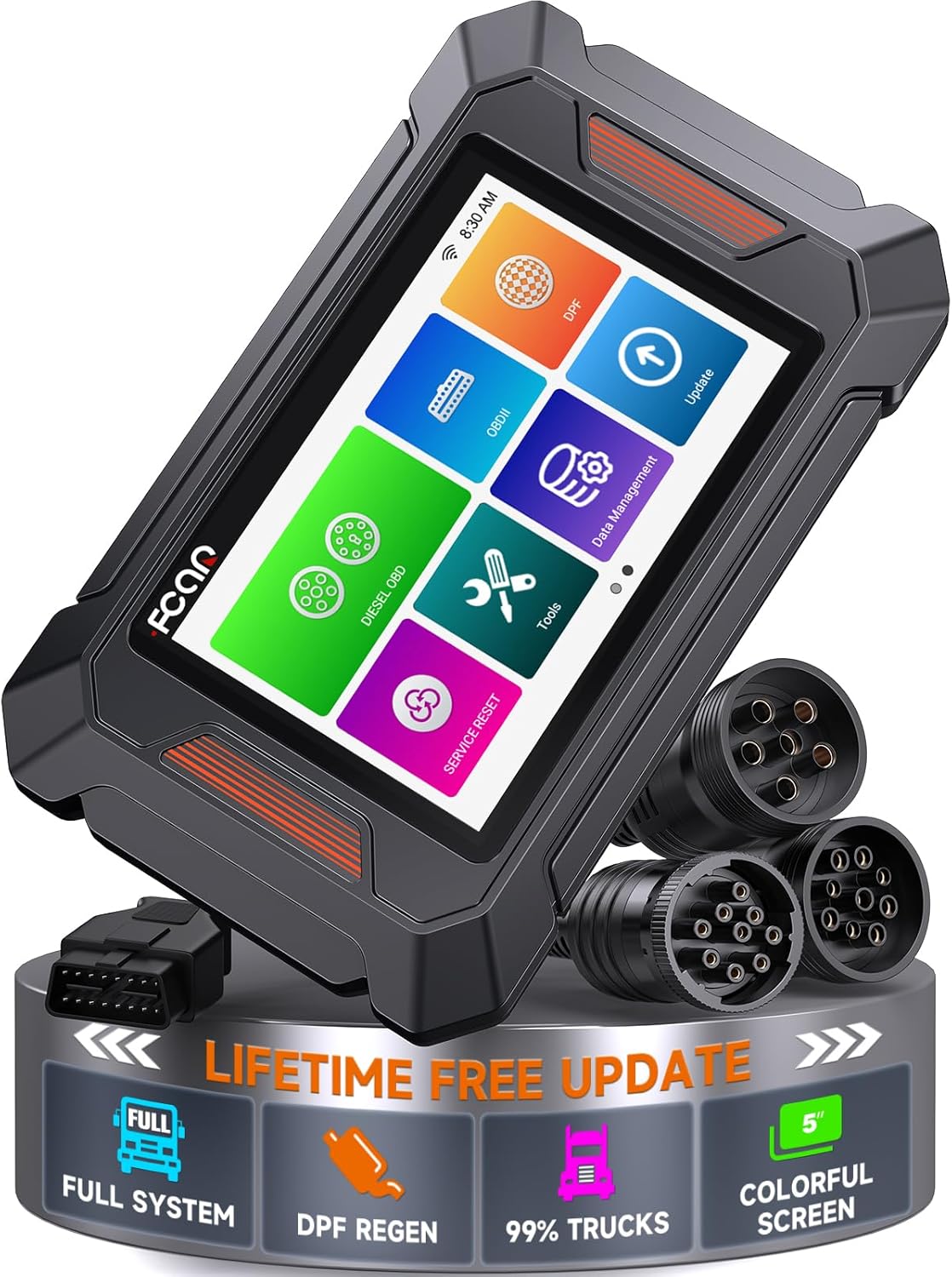
Figure 1: FCAR F802 Heavy Duty Truck Scanner device.
2. What's in the Box
Upon opening the package, please verify that all the following items are included:
- FCAR F802 Heavy Duty Truck Scanner Unit
- OBD Diagnostic Cable
- 6/9/16-pin Diesel OBD Cable
- CAT-9 Connector
- Storage Box
- User's Manual

Figure 2: All components included in the FCAR F802 package.
3. Key Features
3.1 Professional DPF Regeneration
The FCAR F802 is specifically designed to perform Diesel Particulate Filter (DPF) regeneration for various heavy-duty engines, including Cummins, CAT, Detroit, Paccar, International, and Hino. This function helps clear DPF soot, ensuring optimal exhaust flow, reducing emissions, and preventing potential engine issues. Regular regeneration contributes to enhanced fuel efficiency and extends the DPF lifespan, avoiding costly repairs and ensuring compliance with emissions standards.

Figure 3: Illustration of DPF forced regeneration and reset capabilities.
3.2 Comprehensive Heavy-Duty Diagnostic Solution
This versatile scanner supports a wide array of heavy-duty vehicles, including trucks, buses, trailers, and construction equipment. It is compatible with major protocols such as J1587, J1939, J1708, and J27145, and works seamlessly with brands like Autocar, Terex, and Komatsu, in addition to major truck manufacturers like Freightliner, Volvo, International, Isuzu, Hino, Peterbilt, and Kenworth. This ensures reliable diagnostics and performance optimization across diverse fleets.

Figure 4: Examples of heavy-duty vehicles and equipment supported by the FCAR F802.
3.3 Oil Reset Function for Isuzu and Fuso
The F802 allows users to reset oil maintenance lights quickly and efficiently. This function is compatible with Isuzu and Fuso vehicles, providing a user-friendly way to ensure timely maintenance and contribute to extending engine life.

Figure 5: Visual representation of the oil reset function and dashboard indicators.
3.4 Full System Diagnostic Capabilities
The device offers full HDOBD/EOBD/OBD2 functionality, enabling quick and accurate diagnostics. Users can read and clear trouble codes, monitor live data streams, check Malfunction Indicator Lamp (MIL) status for truck engines, and verify I/M readiness. This comprehensive diagnostic capability helps optimize vehicle performance, improve fuel efficiency, prevent costly repairs, and maintain adherence to regulatory standards.

Figure 6: Overview of the various truck systems diagnosable by the FCAR F802.
3.5 User-Friendly Interface & Connectivity
The FCAR F802 features a highly intuitive and user-friendly interface. It supports convenient one-click functions for activation, software upgrades, and voltage measurement (Pin Detect function). Additional features include report creation and emailing, feedback submission, and screenshot capture, all designed to enhance the user experience and streamline diagnostic workflows.

Figure 7: Depiction of the FCAR F802's user-friendly interface and one-click features.
4. Setup
- Unpacking: Carefully remove all components from the packaging. Refer to Section 2, "What's in the Box," to ensure all items are present.
- Initial Charge: While the device may have some charge, it is recommended to fully charge the FCAR F802 before first use. Connect the scanner to a power source using the provided USB cable.
- Power On: Press and hold the power button located on the side of the device until the screen illuminates.
- Language and Region Settings: Follow the on-screen prompts to select your preferred language and region settings.
- Network Connection: Connect the device to a Wi-Fi network to enable software updates and online features. Navigate to 'Settings' and select 'Wi-Fi' to connect.
- Software Update: After connecting to Wi-Fi, perform a software update to ensure you have the latest diagnostic software and vehicle compatibility. Use the 'One-Click Upgrade' function for convenience.
5. Operating Instructions
- Connecting to Vehicle: Locate the diagnostic port on your heavy-duty truck. Select the appropriate diagnostic cable (OBD, 6/9/16-pin Diesel, or CAT-9) from the kit and connect it to the FCAR F802 scanner and the vehicle's diagnostic port. Ensure a secure connection.
- Vehicle Identification: Once connected, the scanner will attempt to automatically identify the vehicle. If automatic identification fails, you may need to manually select the vehicle make, model, and year from the menu.
- Diagnostic Functions:
- Read Codes: Select 'Read Codes' to retrieve Diagnostic Trouble Codes (DTCs) from the vehicle's various systems.
- Clear Codes: After addressing any issues, select 'Clear Codes' to erase the stored DTCs from the vehicle's ECU.
- Live Data: Access 'Live Data' to view real-time sensor data, parameters, and system status. This can be displayed in text or graph format for easier analysis.
- DPF Regeneration: Navigate to the 'DPF' menu and follow the on-screen instructions to initiate a DPF forced regeneration cycle. Ensure the vehicle meets the necessary conditions (e.g., engine temperature, fuel level) before starting.
- Oil Reset: For compatible Isuzu and Fuso vehicles, select 'Service Reset' and then 'Oil Reset' to reset the oil maintenance light after an oil change.
- Other Service Functions: Explore the 'Service Reset' and 'Tools' menus for additional maintenance and special functions supported by your vehicle.
- Generating Reports: After completing diagnostics, you can generate a diagnostic report. Use the 'Report' function to create a summary of the findings, which can then be emailed or printed.
- Screenshot: Use the 'Screenshot' function to capture important diagnostic screens for later review or sharing.
6. Maintenance
- Cleaning: Regularly clean the device with a soft, dry cloth. Avoid using abrasive cleaners or solvents that could damage the screen or casing.
- Software Updates: Utilize the 'Lifetime Free Updates' feature to keep your scanner's software current. Connect to Wi-Fi and check for updates periodically to ensure compatibility with the latest vehicle models and diagnostic protocols.
- Storage: Store the FCAR F802 in its original storage box in a cool, dry place when not in use. Avoid extreme temperatures and direct sunlight.
- Cable Care: Inspect diagnostic cables regularly for any signs of wear or damage. Replace damaged cables immediately to ensure reliable connections and prevent potential electrical issues.
7. Troubleshooting
7.1 Device Not Powering On
- Ensure the device is fully charged. Connect it to a power source and allow it to charge for at least 30 minutes before attempting to power on again.
- Verify the power button is pressed and held for a few seconds.
7.2 Communication Error with Vehicle
- Check all cable connections between the scanner and the vehicle's diagnostic port. Ensure they are secure and not damaged.
- Verify the vehicle's ignition is in the 'ON' position (engine off or running, as required by the specific diagnostic procedure).
- Ensure the correct diagnostic cable is being used for the vehicle's specific port type.
- Confirm the vehicle supports the diagnostic protocols (J1587, J1939, J1708, J27145) that the F802 is attempting to use.
- Try restarting both the scanner and the vehicle.
7.3 Software Freezes or Slow Performance
- Restart the device.
- Ensure the software is up to date. Perform a 'One-Click Upgrade' if available.
- Close any unnecessary applications running in the background (if applicable).
7.4 DPF Regeneration Fails
- Ensure all vehicle conditions required for DPF regeneration (e.g., engine temperature, coolant temperature, fuel level, parking brake engaged) are met. Refer to the vehicle's service manual for specific requirements.
- Check for any active DTCs that might prevent regeneration. Clear them first if possible.
- Verify the DPF system components (sensors, injectors) are functioning correctly.
If you encounter issues not covered here or require further assistance, please contact FCAR technical support.
8. Specifications

Figure 8: Detailed view of the FCAR F802's hardware components and specifications.
| Feature | Specification |
|---|---|
| Model Name | FCAR F802 |
| Visible Screen Diagonal | 5" / 13 cm |
| Screen Resolution | 800 * 480 |
| CPU | Quad-Core ARM Cortex-A7 |
| Memory | 1GB RAM + 8GB Storage |
| Connectivity Technology | USB, Wi-Fi (802.11b/g/n 2.4GHz) |
| Operating Voltage | 10V - 36V / 3A |
| Operating Temperature | -20°C to 60°C (-4°F to 140°F) |
| Storage Temperature | -30°C to 70°C (-22°F to 158°F) |
| Item Weight | 3.32 pounds |
| Package Dimensions | 10.79 x 7.17 x 4.02 inches |
| Minimum System Requirements | Windows, macOS, Linux (for PC software/updates) |
9. Warranty and Support
FCAR is committed to providing high-quality products and excellent customer service. The FCAR F802 DPF Regeneration Heavy Duty Truck Scanner comes with the following:
- Lifetime Free Updates: Enjoy continuous software updates for the lifespan of the product, ensuring compatibility with new vehicle models and diagnostic features without additional costs.
- 36 Months Warranty: The device is covered by a 36-month warranty from the date of purchase, protecting against manufacturing defects.
- 30-Day Return & Replace: If you are not satisfied with your purchase, you may return or replace the product within 30 days of receipt, subject to terms and conditions.
- 24/7 Technical Support: Access dedicated technical support around the clock for any operational queries, troubleshooting assistance, or technical guidance.
For support, please refer to the contact information provided in the product packaging or visit the official FCAR website.