
Karolama R69
Contents
Karolama R69 Pro H728 Android 14.0 TV Box User Manual
1. Introduction
This manual provides comprehensive instructions for the setup, operation, and maintenance of your Karolama R69 Pro H728 Android 14.0 TV Box. This device is designed to deliver a high-performance multimedia experience, featuring an Octa-core processor, 4GB RAM, 64GB ROM, Dual WiFi 6.0, Gigabit Ethernet, and 8K video output capabilities.
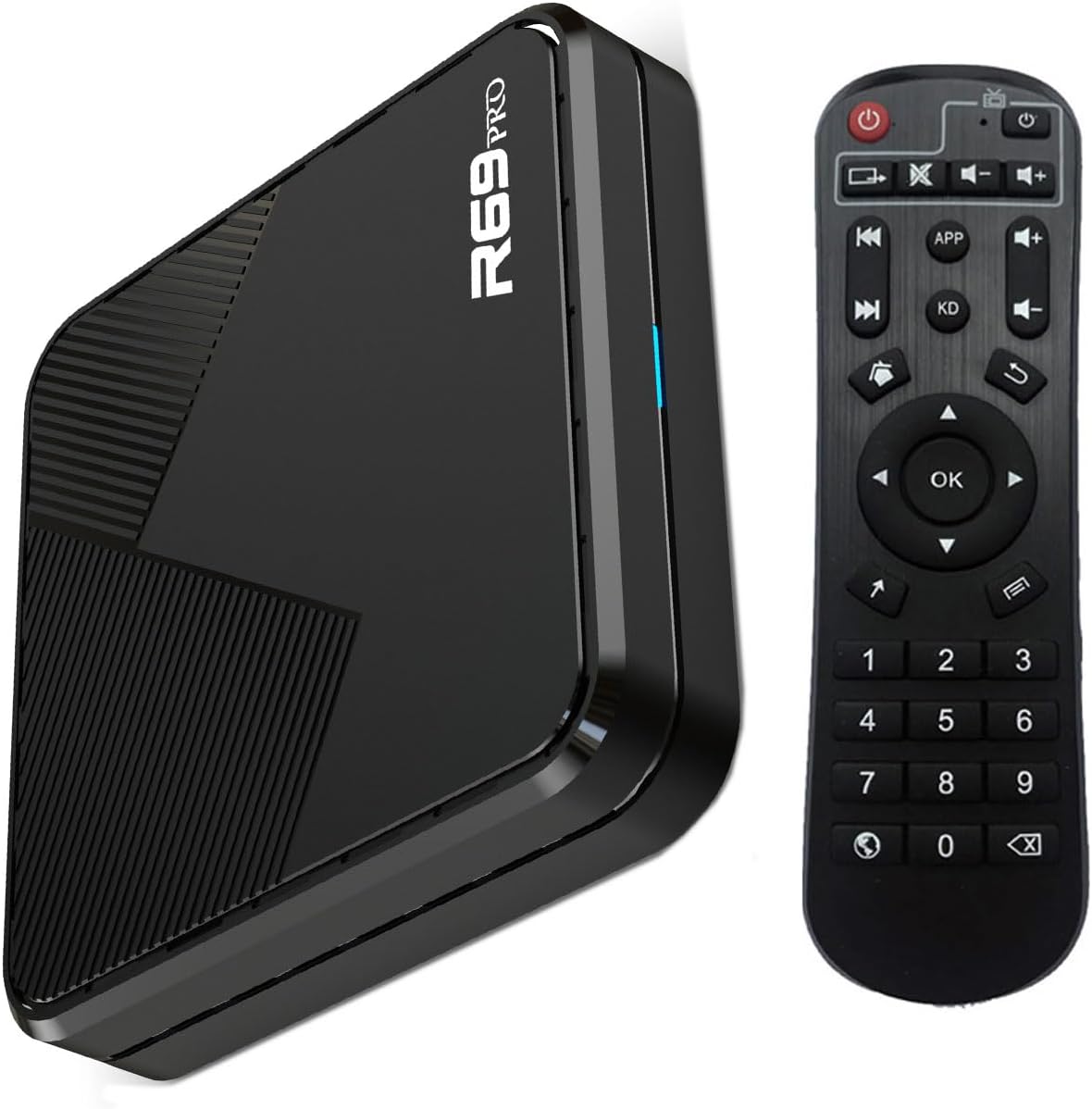
Image 1.1: The Karolama R69 Pro TV Box and its accompanying remote control. The TV box is a compact, black rectangular device with a textured top surface and the 'R69 Pro' logo. The remote control is black with various navigation and number buttons.
2. Package Contents
Please verify that all items are present in your package:
- Karolama R69 Pro H728 Android 14.0 TV Box
- Remote Control
- Power Adapter
- HDMI Cable (may vary by region)
- User Manual (this document)
3. Setup Guide
Follow these steps to set up your Karolama R69 Pro TV Box:
- Connect to Power: Plug the power adapter into the DC 5V port on the TV Box, then connect the adapter to a wall outlet.
- Connect to TV: Use an HDMI cable to connect the HDMI OUT port on the TV Box to an HDMI input port on your television.
- Connect to Network (Optional):
- Wired Connection: Connect an Ethernet cable from your router to the LAN port on the TV Box.
- Wireless Connection: During initial setup, you will be prompted to connect to a Wi-Fi network.
- Power On: Press the power button on the remote control or the TV Box. The device will boot up, and the initial setup wizard will appear on your TV screen.
- Initial Configuration: Follow the on-screen instructions to select your language, connect to Wi-Fi (if not using Ethernet), and log in with your Google account.
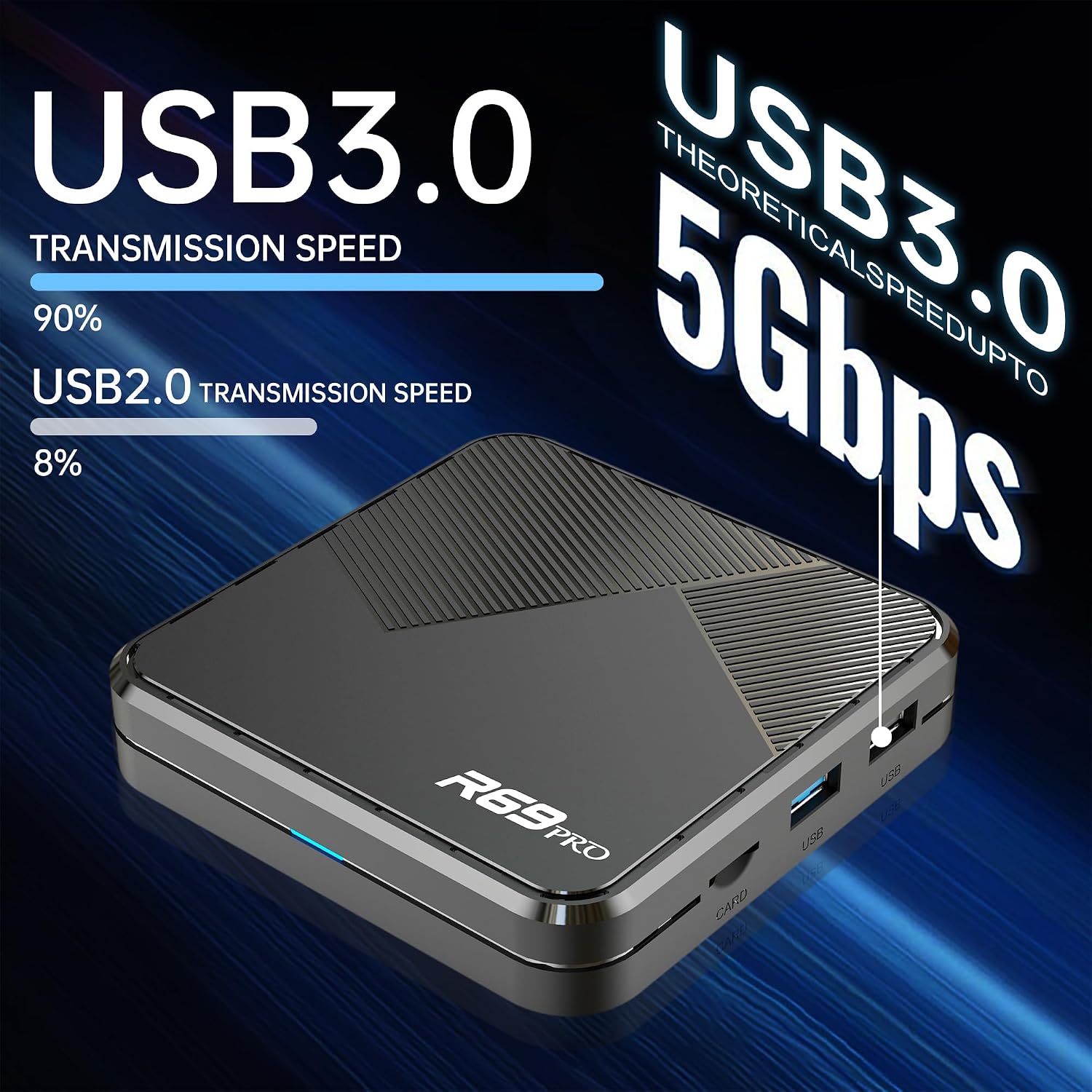
Image 3.1: A close-up view of the Karolama R69 Pro TV Box, emphasizing its USB 3.0 ports. These ports offer high-speed data transfer for external storage devices.

Image 3.2: The Karolama R69 Pro TV Box showcasing its Gigabit Ethernet port. This port allows for a stable and high-speed wired internet connection, supporting up to 1000Mbps.
4. Operating Instructions
4.1 Remote Control Navigation
Use the provided remote control to navigate the Android interface. The directional pad (up, down, left, right) is used to move between items, and the 'OK' button confirms selections. The 'Back' button returns to the previous screen, and the 'Home' button takes you to the main Android home screen.
4.2 Connecting to Wi-Fi
- From the home screen, navigate to Settings.
- Select Network & Internet.
- Turn on Wi-Fi if it's off.
- Select your desired Wi-Fi network from the list.
- Enter the network password and select Connect.

Image 4.1: The Karolama R69 Pro TV Box highlighting its support for WiFi 6 technology. This next-generation wireless standard offers faster speeds, lower latency, and improved network efficiency compared to previous Wi-Fi versions.
4.3 Installing Applications
You can download and install applications from the Google Play Store. Ensure you are logged in with your Google account.
- Open the Google Play Store app from the home screen or app drawer.
- Search for the desired application.
- Select the app and click Install.
4.4 8K Video Playback
The R69 Pro supports 8K video output, providing a high-resolution viewing experience. Ensure your television or display device also supports 8K resolution and is connected via an appropriate HDMI cable to fully utilize this feature.

Image 4.2: A visual comparison demonstrating the enhanced clarity and vibrancy of HDR10 with 8K resolution versus a standard display. The image illustrates how 8K HDR provides a more vivid and detailed picture.
5. Specifications
Detailed technical specifications for the Karolama R69 Pro H728 TV Box:
| Feature | Specification |
|---|---|
| Operating System | Android 14.0 |
| CPU | H728 Octa-core ARM Cortex A55 |
| GPU | Mali G57-MC1 |
| RAM | 4GB DDR3 |
| ROM | 64GB EMMC |
| Wi-Fi | WiFi 6.0 (2.4G/5.8G Dual Band) |
| Bluetooth | BT 5.0 |
| Ethernet | 10/1000M Gigabit RJ-45 |
| USB Host | High speed USB 3.0 |
| Video Output | 8K Resolution, H.265 Decoding, HDR10 |
| Dimensions | 5 x 5 x 35 inches (Product Dimensions) |
| Weight | 14.1 ounces |

Image 5.1: A diagram illustrating the high-performance System-on-Chip (SOC) within the Karolama R69 Pro. It highlights key components such as the Allwinner H728 CPU, G57 MC1 GPU, 8K video processing, and 1000M Ethernet capabilities.

Image 5.2: A graphical representation showing the performance evolution of Android versions, emphasizing Android 14.0 as a higher system with improved performance and compatibility with high-performance applications.
6. Maintenance
To ensure the longevity and optimal performance of your TV Box, follow these maintenance guidelines:
- Cleaning: Use a soft, dry cloth to clean the exterior of the device. Do not use liquid cleaners or abrasive materials.
- Ventilation: Ensure the device is placed in a well-ventilated area to prevent overheating. Do not block the ventilation holes.
- Software Updates: Periodically check for and install system updates to benefit from performance improvements and security enhancements. These can usually be found in the device's Settings menu under "About device" or "System updates."
- Power Cycle: If the device becomes unresponsive, disconnect the power adapter for 10 seconds, then reconnect it to perform a power cycle.
7. Troubleshooting
If you encounter issues with your Karolama R69 Pro TV Box, refer to the following common problems and solutions:
- No Power:
- Ensure the power adapter is securely connected to both the TV Box and a working wall outlet.
- Try a different power outlet.
- No Display on TV:
- Verify the HDMI cable is securely connected to both the TV Box and your TV.
- Ensure your TV is set to the correct HDMI input source.
- Try a different HDMI cable or TV input port.
- No Internet Connection:
- Wi-Fi: Go to Settings > Network & Internet and ensure Wi-Fi is enabled and connected to the correct network. Re-enter the password if necessary.
- Ethernet: Check if the Ethernet cable is properly connected to both the TV Box and your router. Verify your router has an active internet connection.
- Restart your router and the TV Box.
- Remote Control Not Responding:
- Replace the batteries in the remote control.
- Ensure there are no obstructions between the remote and the TV Box.
- Slow Performance or App Crashes:
- Close unnecessary background applications.
- Clear the cache of problematic applications (Settings > Apps > [App Name] > Storage > Clear cache).
- Restart the TV Box.
- Ensure sufficient free storage space.
8. Warranty and Support
For warranty information, please refer to the documentation provided at the time of purchase or consult the official Karolama website. For technical support or further assistance, please visit the Karolama brand store or contact their customer service channels as specified on their official website.
You can visit the Karolama Store for additional product information and support: Karolama Store on Amazon
Documents and downloads
Ask a question about this manual
Ask about setup, troubleshooting, compatibility, parts, safety, or missing instructions. Manuals+ will review the question and use this page’s manual context to help answer it.