
1. Introduction
The XTOOL D6S OBD2 Scanner Diagnostic Tool is a professional-grade automotive diagnostic device designed for comprehensive vehicle system scanning and maintenance. This tool provides OE-level diagnostics, covering a wide range of vehicle makes and models, and offers numerous special functions to assist in vehicle repair and maintenance. It supports modern protocols like CAN FD and FCA AutoAuth, making it suitable for a broad spectrum of vehicles.

Figure 1: The XTOOL D6S OBD2 Scanner Diagnostic Tool, showcasing its compact design and user interface.
2. What's in the Box
Verify that all components are present upon unboxing:
- D6S Tablet: The main diagnostic unit with a 5.45-inch HD touchscreen.
- OBD2 Main Cable: Used to connect the D6S tablet to the vehicle's OBD2 port.
- Charging Cable: For recharging the device's internal Lithium Ion battery.
3. Setup
- Charging the Device: Before first use, ensure the D6S tablet is fully charged using the provided charging cable. Connect the charging cable to the device and a suitable power adapter.
- Power On: Press and hold the power button located on the side of the tablet until the screen illuminates.
- Initial Setup: Follow the on-screen prompts to configure the device. This includes selecting your preferred language (23 languages supported, English is default) and connecting to a Wi-Fi network for updates. A stable Wi-Fi connection is crucial for downloading software updates and vehicle data.
- Connecting to Vehicle: Locate your vehicle's OBD2 port, typically found under the dashboard on the driver's side. Connect the OBD2 Main Cable to the D6S tablet and then to the vehicle's OBD2 port. Ensure the vehicle's ignition is in the ON position (engine off or running, depending on the diagnostic task).

Figure 2: Overview of the XTOOL D6S hardware, highlighting the charging port and OBD2 cable connection.
4. Operating Instructions
4.1. Full System Diagnostics (OE-Level)
The D6S performs comprehensive diagnostics across all available vehicle modules, similar to dealership-level tools. This includes systems such as Engine, ABS, SRS, Transmission, EPB, and HVAC.
- AutoVIN Scan: The device can automatically identify the vehicle's VIN for accurate and quick diagnosis.
- Read/Clear DTCs: Retrieve and clear Diagnostic Trouble Codes (DTCs) from all supported systems. This helps in identifying and resolving issues, and turning off warning lights.
- Live Data Stream: View real-time data parameters in text or graph format (up to 4 PIDs graphing). This is crucial for monitoring sensor readings, component status, and overall system performance.
- Freeze Frame: Access a snapshot of sensor values at the moment a DTC was set, aiding in pinpointing the conditions under which a fault occurred.

Figure 3: The D6S performing OE-level all systems diagnostics, illustrating its comprehensive coverage.
4.2. 30+ Maintenance Services
The D6S offers over 30 common maintenance and reset functions, enabling users to perform various service tasks without needing specialized dealership equipment. Key functions include:
- ABS Bleeding: Bleed the brake system after component replacement.
- Oil Reset: Reset the oil life reminder after an oil change.
- EPB Reset: Reset the electronic parking brake after brake pad replacement.
- SAS Adjustment: Calibrate the steering angle sensor.
- TPMS Reset: Reset tire pressure monitoring system sensors.
- Injector Coding: Code new injector numbers to the ECU.
- Throttle Body Relearn: Re-adapt the throttle body after cleaning or replacement.
- BMS Reset: Register a new battery to the vehicle's system.
- Gearbox Match: Adapt the transmission after repair or replacement.
- Crank Sensor Relearn: Perform crankshaft position sensor relearn.
- A/C Relearn: Perform AC system relearn procedures.
- And many more, including Headlight, Suspension, Seat Match, Tire Size Reset, Windows Initialization, AdBlue Reset, Clutch Adaption, Power Balance, Coolant Bleeding, NOX Reset, Stop/Start Reset.
Note: The availability of specific functions may vary by vehicle make, model, and year. Always verify compatibility before attempting a service function.
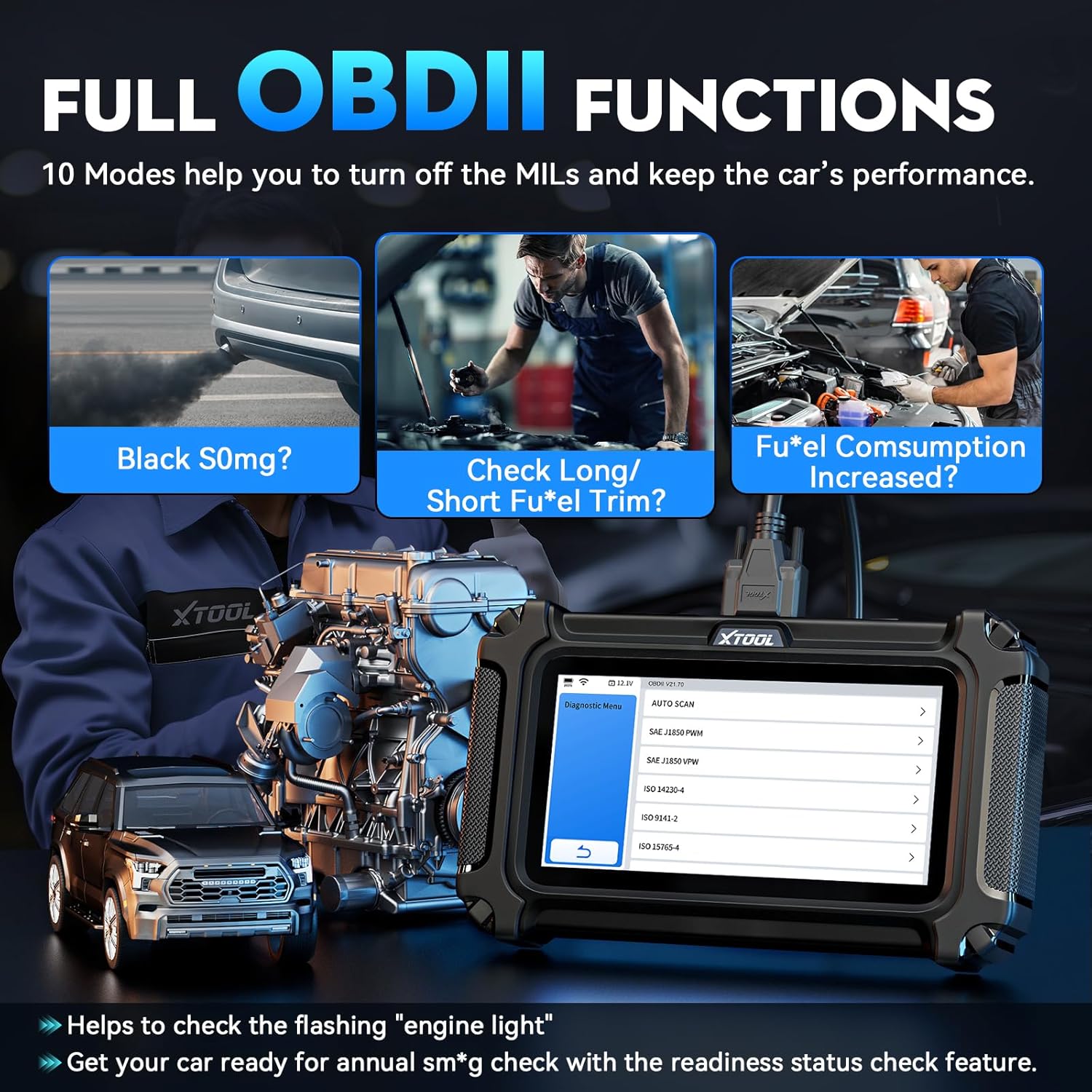
Figure 4: A visual representation of some of the 30+ special functions available on the D6S.
4.3. Full OBDII Functions
The D6S supports all 10 OBDII test modes, allowing for quick and efficient emission-related diagnostics:
- Read/Clear Generic & Manufacturer-Specific DTCs
- Live Data Stream
- Freeze Frame Data
- I/M Readiness Status (Emissions Test)
- O2 Sensor Test
- On-Board Monitor Test
- Component Test
- Vehicle Information (VIN, CID, CVN)

Figure 5: The D6S displaying full OBDII functions, useful for checking engine lights and emissions readiness.
4.4. Additional Diagnostic Features
- DTC Library: Provides detailed explanations of Diagnostic Trouble Codes, assisting in understanding fault origins.
- Diagnostic Report: Generate and share diagnostic reports in PDF format for record-keeping or sharing with clients/mechanics.
- Battery Voltage Display: Monitor the vehicle's battery health in real-time.
- FCA AutoAuth & CAN FD Support: Compatible with modern FCA vehicles (2018+) and vehicles using the CAN FD protocol (e.g., GM 2020+), expanding vehicle coverage. Note: Personal AutoAuth account and active subscription are not included with the device.

Figure 6: The D6S showcasing additional features like diagnostic report generation and AutoVIN for streamlined use.
5. Maintenance
- Software Updates: The XTOOL D6S offers lifetime free updates via Wi-Fi. Regularly check for updates to ensure the latest vehicle coverage, bug fixes, and new features. Connect the device to a stable Wi-Fi network and navigate to the "Update" section on the main menu to perform a one-click update.
- Cleaning: Use a soft, damp cloth to clean the device. Avoid harsh chemicals or abrasive materials.
- Storage: Store the device in a cool, dry place, away from direct sunlight and extreme temperatures.
- Battery Care: To prolong battery life, avoid fully discharging the battery frequently. Charge the device regularly, even if not in active use for extended periods.

Figure 7: The D6S update process, emphasizing the importance of regular software updates for optimal performance.
6. Troubleshooting
| Problem | Possible Cause | Solution |
|---|---|---|
| Device won't power on. | Low battery; faulty charging cable/adapter. | Charge the device for at least 30 minutes. Try a different charging cable or adapter. |
| No communication with vehicle. | OBD2 cable not properly connected; ignition off; vehicle not supported; blown fuse in vehicle's OBD2 port. | Ensure cable is securely connected. Turn ignition ON. Verify vehicle compatibility. Check vehicle's OBD2 port fuse. |
| Software update failure. | Unstable Wi-Fi connection; insufficient storage. | Ensure strong Wi-Fi signal. Clear unnecessary files or expand storage with a microSD card. Retry update. |
| Specific function not available. | Function not supported for the specific vehicle model/year; outdated software. | Check vehicle compatibility with XTOOL support. Ensure software is up to date. |
7. Specifications
- Manufacturer: XTOOL
- Model: D6S (Item model number: XD-D6S)
- Item Weight: 1.74 pounds
- Package Dimensions: 9.61 x 6.1 x 3.39 inches
- Screen: 5.45-inch HD (1440x720 resolution)
- Storage: 32GB ROM (expandable via microSD)
- Battery: 1 Lithium Ion battery (included, 3150mAh)
- Operating System: Linux
- Automotive Fit Type: Universal Fit (for 12V OBD2 vehicles)
- Supported Protocols: OBD2/EOBD/JOBD & CAN/CAN-FD/FCA protocols
- Vehicle Coverage: 10,000+ models across US, European, Asian, Australia 12V sedans, light duty trucks, SUVs, mini vans.

Figure 8: A comparison table highlighting key features and specifications of the XTOOL D6S.

Figure 9: Illustrates the extensive vehicle coverage of the XTOOL D6S across various regions.
8. Warranty and Support
The XTOOL D6S automotive scan tool comes with a 2-year warranty. For technical assistance, compatibility checks, or any product-related inquiries, please contact XTOOL's professional and responsive tech service. Provide your VIN for compatibility checks when contacting support.
Contact information for support is typically found on the manufacturer's official website or within the device's "About" section.


