1. Introduction
This user manual provides detailed instructions for the setup, operation, and maintenance of your AOBOCAM 4K Mini Wireless WiFi Security Camera (Model A12). Please read this manual thoroughly before using the product to ensure proper functionality and safety. This camera is designed for indoor home security and surveillance, offering high-definition video, motion detection, and app control.
2. Product Overview
2.1 Package Contents
Upon opening the package, please verify that all the following items are included:
- AOBOCAM 4K Mini Wireless WiFi Security Camera (Model A12)
- USB Cable
- User Manual
2.2 Key Features
- Compact Design: Small and unobtrusive, allowing for discreet placement in various indoor environments.
- 4K HD Video Quality: Provides clear and vivid images with precise detail capture.
- Automatic Night Vision: Automatically switches to night vision mode in low-light conditions, ensuring continuous monitoring.
- Mobile App Control: Manage camera settings, view live feeds, and control recording remotely via a smartphone application.
- Long Battery Life: Built-in 1500mAh battery for extended continuous operation, reducing the need for frequent recharging.
- Motion Detection: Sends instant notifications to your phone upon detecting movement within its range.
- Versatile Placement: Can be placed freestanding, wall-mounted, or attached via its magnetic body.

Figure 2.1: AOBOCAM 4K Mini Camera and its 4K live feed on a smartphone.
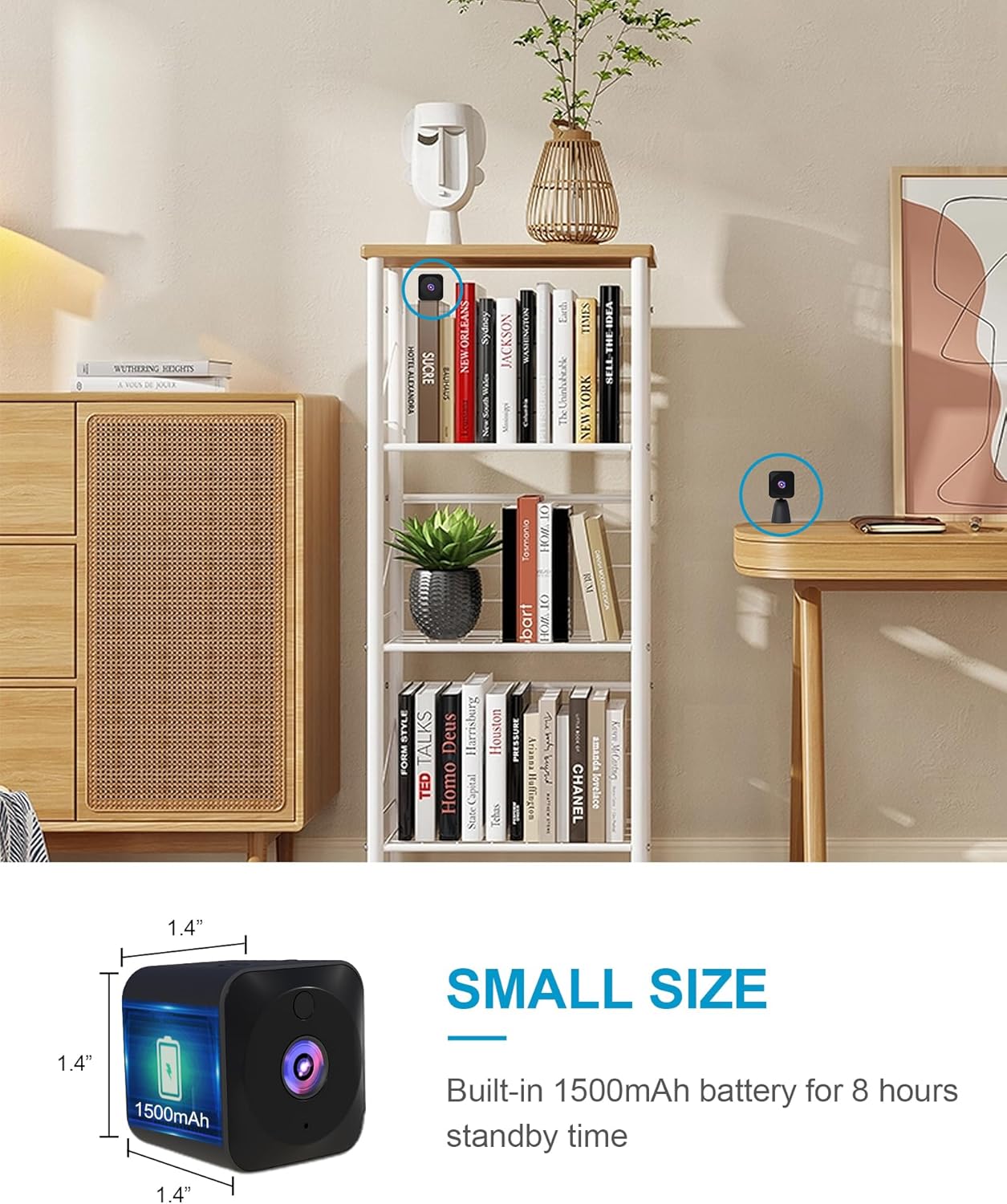
Figure 2.2: The compact dimensions of the AOBOCAM Mini Camera, approximately 1.4 x 1.4 x 0.91 inches.
3. Setup Guide
Follow these steps to set up your AOBOCAM 4K Mini Wireless WiFi Security Camera:
- Charge the Camera: Before first use, fully charge the camera using the provided USB cable. Connect the USB cable to the camera's charging port and a standard USB power adapter (not included). The charging indicator light will show the charging status.
- Download the App: Search for the official AOBOCAM application in your smartphone's app store (iOS or Android) and install it.
- Power On: Press and hold the power button on the camera until the indicator light turns on.
- Connect to Wi-Fi: Open the AOBOCAM app on your smartphone. Follow the in-app instructions to add a new device and connect the camera to your 2.4GHz Wi-Fi network. Ensure your phone is connected to the same Wi-Fi network during the initial setup.
- Placement: Position the camera in your desired indoor location. Its small size and included bracket allow for versatile placement options, such as on a shelf, desk, or wall-mounted.

Figure 3.1: Examples of camera placement in different indoor environments.
4. Operating Instructions
4.1 App Control and Live Viewing
Once connected, you can control and monitor your camera remotely through the AOBOCAM app:
- Live Feed: Access the live video stream from your camera anytime, anywhere.
- Settings Adjustment: Modify camera settings such as video resolution, recording modes, and notification preferences.
- Zoom and Angle: Adjust the digital zoom and viewing angle directly from the app.
- Recording: Start or stop video recording manually, or set up continuous recording or event-triggered recording.
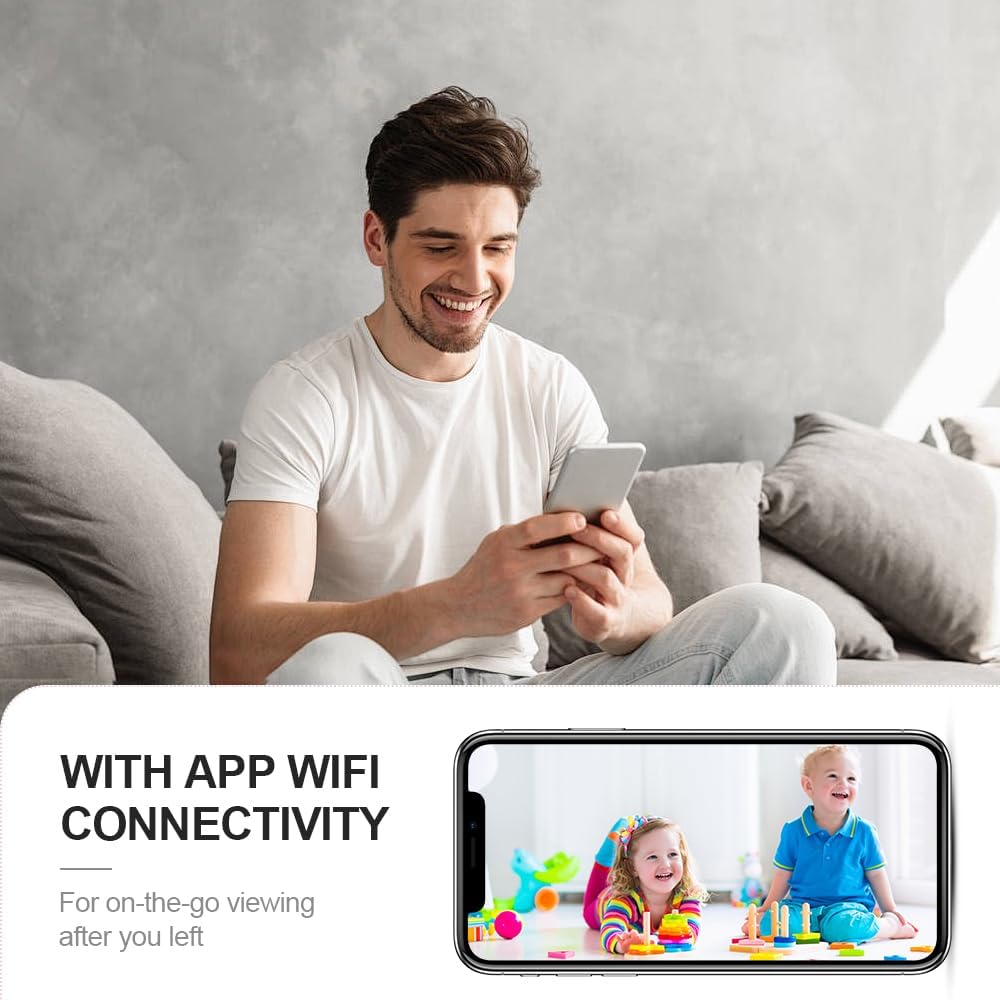
Figure 4.1: Remote viewing of live camera feed via the mobile app.
4.2 Motion Detection and Alerts
The camera features an advanced motion detection system:
- Automatic Alerts: When motion is detected, the camera will automatically send a notification to your smartphone.
- Event Recording: Motion-triggered events can be recorded and stored, allowing you to review incidents.
- Sensitivity Adjustment: Adjust the motion detection sensitivity in the app to minimize false alarms.

Figure 4.2: Motion detection alerts sent to your smartphone.
4.3 Night Vision
The camera is equipped with automatic night vision for 24-hour surveillance:
- Infrared LEDs: Integrated infrared lights enable clear black-and-white video recording in complete darkness.
- Automatic Switching: The camera automatically switches between day and night modes based on ambient light conditions.

Figure 4.3: Day and night vision comparison.
4.4 Video Playback and Storage
The camera supports local storage via a MicroSD card (up to 128GB, not included) and cloud storage (subscription may be required):
- MicroSD Card: Insert a formatted MicroSD card into the designated slot for continuous or event-based recording.
- Playback: View recorded footage directly from the app.
4.5 Official Product Video
Video 4.1: An official product video demonstrating the AOBOCAM Mini Home Security Camera's features, including its compact design, ease of use, battery life, app connectivity for live viewing of pets and babies, alarm messages, and various customer usage scenarios.
5. Maintenance
To ensure optimal performance and longevity of your AOBOCAM camera, follow these maintenance guidelines:
- Cleaning: Use a soft, dry cloth to clean the camera lens and body. Avoid using liquid cleaners or abrasive materials.
- Battery Care: Recharge the camera regularly, especially if it will be stored for an extended period. Avoid extreme temperatures that can affect battery life.
- Firmware Updates: Check the app periodically for available firmware updates to ensure your camera has the latest features and security enhancements.
- Placement: Ensure the camera is placed in a stable location to prevent accidental falls. Avoid direct exposure to water or excessive humidity.
6. Troubleshooting
If you encounter issues with your AOBOCAM camera, refer to the following common problems and solutions:
| Problem | Possible Cause | Solution |
|---|---|---|
| Camera fails to connect to Wi-Fi. | Incorrect Wi-Fi password, 5GHz network, weak signal, or router issues. | Ensure correct password. Verify your Wi-Fi is 2.4GHz. Move camera closer to router. Restart router and camera. |
| Poor video quality. | Insufficient lighting, dirty lens, or weak Wi-Fi signal. | Ensure adequate lighting. Clean the camera lens. Improve Wi-Fi signal strength. |
| Motion detection not working or too many false alarms. | Incorrect sensitivity settings, or camera placement. | Adjust motion detection sensitivity in the app. Ensure camera is placed correctly to avoid unnecessary triggers. |
| Battery drains quickly. | Frequent live viewing, continuous recording, or extreme temperatures. | Reduce live viewing time. Use event-triggered recording instead of continuous. Avoid extreme temperatures. |
| App not responding. | Outdated app version, network issues, or phone memory. | Update the app to the latest version. Check your phone's network connection. Close other apps to free up memory. |
If the issue persists after trying these solutions, please contact AOBOCAM customer support for further assistance.
7. Specifications
Detailed technical specifications for the AOBOCAM 4K Mini Wireless WiFi Security Camera (Model A12):
| Feature | Specification |
|---|---|
| Model Name | Q18 Pro (A12) |
| Indoor/Outdoor Usage | Indoor |
| Connectivity Technology | 2.4G WiFi |
| Power Source | Battery Powered (1 A battery included) |
| Video Capture Resolution | 4K (Effective Video Resolution: 4000) |
| Viewing Angle | 120 Degrees |
| Night Vision Range | 20 Meters |
| Flash Memory Supported Size Maximum | 128 GB |
| Control Method | App |
| Alert Type | Motion Only |
| Material | Plastic |
| Item Dimensions (L x W x H) | 1.73 x 1.73 x 0.91 inches |
| Item Weight | 5.9 ounces |
8. Warranty and Support
For warranty information and customer support, please refer to the contact details provided with your product packaging or visit the official AOBOCAM website. Keep your purchase receipt as proof of purchase for any warranty claims.


