
1. Introduction
This manual provides essential information for the safe and efficient use of your Litime 12V 100Ah Xtra-Mini LiFePO4 Lithium Battery. This battery features Bluetooth connectivity for real-time monitoring and a robust 100A Battery Management System (BMS) for enhanced protection. Designed for various applications including RVs, marine, trolling motors, and off-grid systems, it offers high performance in a compact form factor.

Figure 1: Litime 12V 100Ah Xtra-Mini LiFePO4 Lithium Battery with Bluetooth and 100A BMS. This image shows the compact battery unit with its integrated handle and a smartphone displaying the LiTime app interface, indicating real-time battery status.
2. Safety Information
Please read and understand all safety warnings before operating the battery. Failure to follow these instructions may result in fire, burns, or other potential damage.
- DO NOT open, disassemble, or modify the battery.
- DO NOT puncture, drop, crush, burn, penetrate, shake, or strike the battery.
- DO NOT heat the battery above 158°F / 70°C.
- DO NOT expose metal terminals or connectors to direct contact.
- DO NOT touch the exposed electrolyte or powder if the battery casing is damaged.
- This battery is not suitable for starting batteries, golf cart batteries, or jacks.

Figure 2: Important safety warnings and incompatible applications. This image illustrates common misuses and safety precautions, such as not using the battery for golf carts or as a starting battery, and highlights the importance of proper terminal connection.
3. Setup and Installation
3.1 Unboxing and Initial Power On
Upon receiving your battery, it will be in a powered-off state for shipping safety. To power it on, connect it to a lithium-activation charger or an MPPT charger for 3-10 seconds. This will activate the battery and its Bluetooth function.
3.2 What's in the Box
- LiTime 12V 100Ah Mini Battery
- Terminal Bolts
- Insulating Caps for Bolts
3.3 Physical Installation
The battery is designed for multi-directional and flexible installation, allowing side-mount for tight spaces. Ensure terminals are securely fastened. If OT terminals are attached directly with screws and their thickness is less than 2mm, add gaskets for lock attachment to prevent loosening and overheating.

Figure 3: Multi-direction and flexible installation options. This image demonstrates how the battery can be mounted from the front or side, highlighting its adaptability for various space constraints. It also shows the integrated handle for easy transport.
3.4 Compatibility and Incompatibility
This battery is compatible with most popular brands of 12V 30-70lb trolling motors (less than 100A current), and is ideal for RV, marine, travel trailers, boats, home energy storage, solar power storage, and backup power applications.
Important: This battery is NOT suitable for starting batteries, golf cart batteries, or jacks.

Figure 4: Compatibility with various trolling motor brands. This image displays several popular trolling motor brands (Minn Kota, MotorGuide, Newport, Haswing, Haibo) that are compatible with the Litime battery.
3.5 Series and Parallel Connection
To connect batteries in series or parallel, they must be identical (same brand, type, voltage, capacity, and BMS) and purchased within 1 month.
4. Operating Instructions (LiTime App)
4.1 Downloading and Registering the App
- After powering on the battery, scan the QR code printed on the battery or in the manual to download the LiTime App.
- Register an account and log in.
- Ensure Bluetooth is enabled on your mobile device before adding the battery.
Video 1: Bluetooth Connection Guide and Troubleshooting. This video provides a step-by-step guide on how to connect your Litime battery to the mobile app via Bluetooth, including troubleshooting tips for common connection issues.
4.2 Adding Batteries to the App
You can add batteries using one of the following methods:
- Scan QR Code: Scan the QR code located on the battery.
- Search Bluetooth: The app can search for nearby Bluetooth devices.
- Enter Serial Number: Manually enter the serial number printed on the battery.
You can add batteries even without a network connection by scanning or entering the serial number.
4.3 Battery Information Monitoring
After adding the battery, the app provides an overview of battery information, including the default battery name, serial number, and remaining battery capacity. You can connect or disconnect Bluetooth by tapping the Bluetooth icon.
Tap on a battery to view detailed information, such as:
- Remaining Battery Capacity (SOC)
- Power (W)
- Current (A)
- Voltage (V)
- Inner Temperature of Battery
- Serial Number
- Cycle Times
The app also displays real-time status for internal cell balancing, cell health, and BMS status.

Figure 5: LiTime App interface showing real-time battery monitoring. This image displays a smartphone screen with the LiTime app, illustrating various monitoring features like viewing data/status, monitoring multi-system, checking battery system, switching discharge, and controlling battery off.
4.4 App Operation Guidelines
- Customize Icon: Edit the battery name by tapping the customized icon.
- Bluetooth Icon: Control the Bluetooth connection (connect/disconnect).
- Control Icon: Manage and control batteries.
- Discharge Switch Button: Control whether the battery powers the load.
- Power Off Button: Turns off the battery (voltage drops to 0V, Bluetooth disconnects). Note: If connected to a charging source, the power off function cannot be enabled.
- Remove Device Button: Deletes the battery from the app's list.
4.5 Battery System Monitoring
The LiTime app also supports monitoring battery systems. Before adding a battery system, confirm all individual batteries are added to the app. You can then add a battery system, name it, set the system configuration (e.g., 2S2P for 2 series, 2 parallel), and choose the application type (e.g., Household, RV & Van, Boat).
Ensure the connection order and structure in the app match your actual physical connection. The data center will automatically collect all battery information. Individual battery status is indicated by colored dots (green for normal, red/orange for issues) and alert icons.
5. Charging
The Litime battery can be charged using various methods:
- 14.6V 20A AC-DC Charger: Approximately 5 hours for a full recharge.
- Solar Panel + MPPT (≥400W): Approximately 5 hours on a sunny day.
- Generator + 14.6V 20A AC-DC Charger: Approximately 5 hours.
- Alternator + 40A DC-DC Charger: Approximately 2.5 hours.
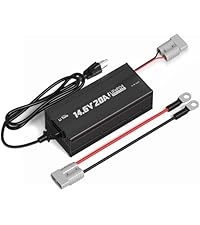
Figure 6: Various charging methods for Litime LiFePO4 battery. This image displays four common charging scenarios: AC-DC charger, solar panel with MPPT controller, generator with AC-DC charger, and alternator with DC-DC charger, along with their estimated charging times.
5.1 Low-Temperature Cut-Off Protection
The battery features smart low-temperature protection to safeguard its health and durability. Charging is automatically cut off below 32°F (0°C) and recovers at 41°F (5°C). Discharging is cut off below -4°F (-20°C).

Figure 7: Low-temperature cut-off protection for Litime LiFePO4 battery. This image illustrates the temperature thresholds for charging and discharging, showing that charging is off below 0°C, charging recovery at 5°C, and discharging off below -20°C.
6. Maintenance
Regular inspection of battery terminals for corrosion and tightness is recommended. Keep the battery clean and dry. For long-term storage, ensure the battery is charged to approximately 50% State of Charge (SOC) and stored in a cool, dry place.
7. Troubleshooting
7.1 Bluetooth Disconnection
Bluetooth may automatically disconnect in the following situations:
- No Power: The battery is completely discharged or in under-voltage protection. Charge the battery to power it on, then reconnect Bluetooth.
- App Closed: Bluetooth will disconnect when the app is closed.
- Out of Range: If the distance to the battery exceeds the Bluetooth communication range (normal unobstructed distance needs to be less than 10 meters).
For any other abnormal disconnections, please contact customer support.
7.2 Abnormal Data Acquisition
If the app fails to acquire battery information (indicated by an alert icon), tap the battery card in the app for troubleshooting steps. This may involve searching for the signal or rebooting the device. If issues persist, contact customer support with the battery's serial number.
8. Specifications
| Specification | Value |
|---|---|
| Nominal Voltage | 12.8V |
| Battery Cell Composition | Lithium-Phosphate (LiFePO4) |
| Battery Capacity | 100 Amp Hours |
| Rated Energy | 1280Wh |
| Max Continuous Charge/Discharge Current | 100A |
| Max Continuous Output Power | 1280W |
| Surge Discharge Current | 500A (1-second surge) |
| Charging Voltage | 14.4V ± 0.2V |
| Product Dimensions | 9.02" x 5.43" x 8.19" (Group 22NF case) |
| Item Weight | 19.13 pounds |
| Cycle Life | 4,000 cycles @ 100% DOD; 6,000 cycles @ 80% DOD; 15,000 cycles @ 60% DOD |
| Model Number | L12V100-100-MINI-BT-16-A60 |
9. Warranty and Support
9.1 5-Year Service
Litime offers a 5-year service commitment for this product. For any inquiries or support, please refer to the contact information below or use the in-app features.
9.2 Contact and Feedback
If you have any questions, suggestions, or require technical assistance, you can:
- Email: service@litime.com
- In-App: Use the 'Comments and Feedbacks' section on the personal center page of the LiTime App.
- User Guidelines: The 'User Guidelines' section in the app provides important operation tips and troubleshooting information.


