1. Introduction
This manual provides detailed instructions for the safe and effective use of your RUYAGE ZL20 Radio. Please read this manual thoroughly before operating the device to ensure optimal performance and longevity. The RUYAGE ZL20 is a versatile Push-to-Talk (PTT) radio featuring a 1.7-inch screen, WiFi hotspot capabilities, and Android operating system, designed for long-range communication.
2. Product Overview
2.1 Included Components
Upon unpacking, please verify that all the following items are present:
- 1 x RUYAGE ZL20 Host Unit
- 1 x Rechargeable Battery (6500 mAh)
- 1 x User Manual (this document)
- 1 x Attached Clip
- 1 x Lanyard
- 1 x Charger
2.2 Key Features
- Push-to-Talk (PTT) App Compatibility: Works seamlessly with PTT applications like Zello for private and group calls.
- High Capacity Battery: Equipped with a 6500 mAh battery, providing 3-6 days of standby time and 2-3 days of continuous use.
- WiFi Connectivity: Supports WiFi for internet access and communication.
- 1.7-inch Screen: Clear display for navigation and information.
- Android Operating System: Provides a familiar and flexible user experience.
- Long Range Communication: Designed for extended communication distances.
2.3 Device Layout
Familiarize yourself with the various parts of your RUYAGE ZL20 radio:

Figure 1: Front view of the RUYAGE ZL20 radio, showing the screen, PTT button, and navigation keys.

Figure 2: Side view of the RUYAGE ZL20 radio, illustrating the Push-to-Talk (PTT) button and volume up/down buttons.

Figure 3: Bottom view of the RUYAGE ZL20 radio, featuring the USB-C charging port for convenient power replenishment.

Figure 4: Angled front view of the RUYAGE ZL20 radio, indicating the location of the SIM card slot for network connectivity.
3. Setup
3.1 Battery Installation and Charging
- Ensure the radio is powered off.
- Locate the battery compartment cover on the back of the device.
- Open the cover and insert the 6500 mAh battery, aligning the contacts correctly.
- Replace the battery compartment cover securely.
- Connect the provided charger to the USB-C port at the bottom of the radio (refer to Figure 3).
- Plug the charger into a power outlet. The charging indicator light will illuminate.
- Allow the battery to fully charge before first use (approximately 4-6 hours).
3.2 Initial Power-On and Network Connection
- Press and hold the Power button until the screen illuminates.
- Follow the on-screen prompts to select your language and region.
- To connect to WiFi:
- Navigate to Settings > Network & Internet > Wi-Fi.
- Select your desired WiFi network from the list and enter the password if prompted.
- To use cellular data, insert a compatible SIM card into the SIM card slot (refer to Figure 4).
3.3 PTT Application Setup (e.g., Zello)
The RUYAGE ZL20 radio is designed to work with Push-to-Talk applications. For Zello, follow these steps:
- Ensure the device is connected to the internet via WiFi or cellular data.
- Locate and open the pre-installed PTT application (e.g., Zello) on the device.
- If you are a new user, select "Sign Up" and follow the instructions to create an account. If you have an existing account, select "Sign In".

Figure 5: Zello application interface on the ZL20, showing options for account creation or login.
- Once logged in, you can join existing channels or create new ones for group communication.
4. Operating Instructions
4.1 Basic Push-to-Talk (PTT) Communication
- Ensure the PTT application is running and you are connected to a channel or contact.
- To transmit, press and hold the dedicated PTT button on the side of the radio (refer to Figure 2). Speak clearly into the microphone.
- Release the PTT button to stop transmitting and listen for a response.
- The screen will display communication status, such as "Talk to..." or "echo" for testing.

Figure 6: Active PTT communication screen on the ZL20, indicating an ongoing conversation.
Video 1: Demonstration of Push-to-Talk functionality on the RUYAGE ZL20 radio, showing how to transmit and receive messages.
4.2 Call Modes
The PTT application supports various call modes:
- Single Call Mode: Communicate directly with an individual contact.
- Group Call Mode: Engage in conversations with multiple members simultaneously within a designated group or channel.
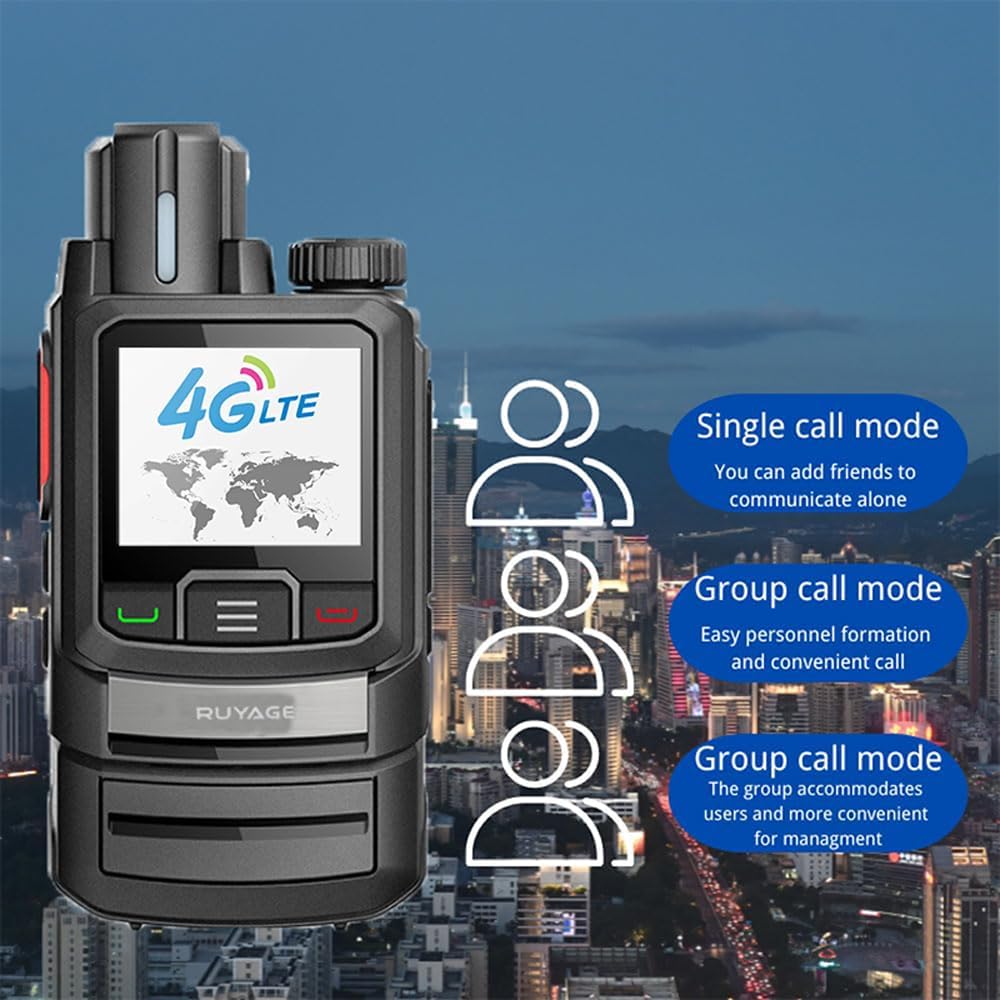
Figure 7: Illustration of different call modes available on the ZL20 radio, including single and group communication options.
4.3 WiFi Hotspot Function
The ZL20 can function as a WiFi hotspot to share its internet connection with other devices:
- Ensure the radio has an active internet connection (via SIM card data).
- Navigate to Settings > Network & Internet > Hotspot & tethering.
- Tap on Wi-Fi hotspot and toggle it On.
- You can configure the hotspot name (SSID) and password in this menu.
- Other devices can now connect to the ZL20's WiFi hotspot using the configured credentials.
5. Maintenance
5.1 Battery Care
- To prolong battery life, avoid fully discharging the battery frequently.
- Charge the battery using only the provided charger.
- Store the radio and battery in a cool, dry place when not in use for extended periods.
5.2 Cleaning
- Wipe the device with a soft, damp cloth. Do not use harsh chemicals or abrasive cleaners.
- The device is Not Water Resistant. Avoid exposure to water or excessive moisture.
6. Troubleshooting
| Problem | Possible Cause | Solution |
|---|---|---|
| Device does not power on. | Battery is depleted or not installed correctly. | Charge the battery. Ensure the battery is properly seated in its compartment. |
| Cannot connect to WiFi. | Incorrect password, out of range, or WiFi network issue. | Verify the WiFi password. Move closer to the WiFi router. Restart the radio and router. |
| PTT app not transmitting/receiving. | No internet connection, app not logged in, or incorrect channel/contact selected. | Check internet connectivity. Log into the PTT app. Ensure you are on the correct channel or have selected the right contact. |
| Poor audio quality. | Weak signal, microphone/speaker obstruction, or app settings. | Move to an area with better network coverage. Ensure microphone and speaker are clear. Check audio settings within the PTT app. |
7. Specifications
| Feature | Detail |
|---|---|
| Brand | RUYAGE |
| Model Number | ZL20 |
| Screen Size | 1.7 Inch |
| Battery Capacity | 6500 mAh |
| Number of Channels | 100 |
| Talking Range Maximum | 100 Miles (network dependent) |
| Special Feature | Long Range, WiFi Hotspot, PTT Button |
| Voltage | 4.2 Volts (DC) |
| Water Resistance Level | Not Water Resistant |
| Compatible Devices | Smartphones, RUYAGE two-way radios |
| Color | Black |
| Manufacturer | Quanzhou Leiji Technology Co., Ltd. |
8. Warranty and Support
The RUYAGE ZL20 radio comes with a standard manufacturer's warranty. For specific warranty details, please refer to the warranty card included with your product or contact RUYAGE customer support. For technical assistance, troubleshooting beyond this manual, or service inquiries, please visit the official RUYAGE website or contact their customer service department.
You can visit the RUYAGE Store on Amazon for more information and support resources.