
1. Product Overview
The Grandstream GCC6011 is an all-in-one solution designed to converge unified communications and networking functionalities onto a single platform. This device integrates the capabilities of a VPN router, a next-generation firewall, an IP PBX, and a network switch, providing a comprehensive solution for various network requirements.
Key features include:
- Built-in IP PBX for voice & video communications with advanced collaboration features.
- Integrated firewall offering anti-virus, Layer 3-7 IDS/IPS, DPI, and SSL detection.
- VPN router supporting 2.5Gbps or 3Gbps for secure remote access.
- Network switch with 10 Gigabit ports, 4x PoE out ports, and 2x 2.5 SFP ports.
- Advanced security protection with encrypted traffic, secure boot, and unique security certificates.
- Multiple WAN ports with load balancing and failover for connection reliability.
- Managed through the cloud (GDMS), mobile app, local WEB UI, SSH, and SNMP.
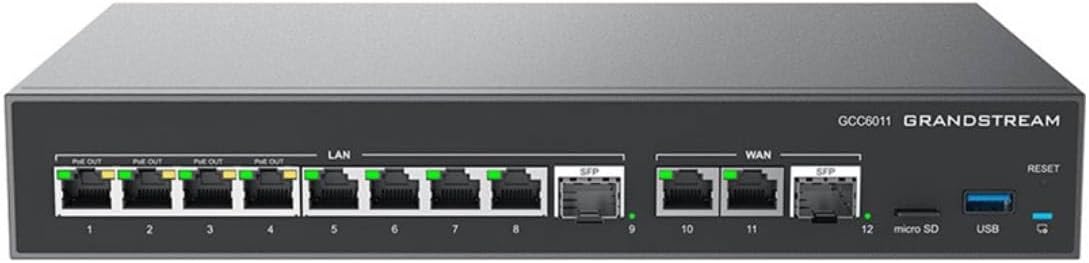
Figure 1: Front view of the Grandstream GCC6011, highlighting its various ports including LAN, WAN, SFP, micro SD, and USB.
2. Initial Setup
2.1 Package Contents
Before proceeding, ensure all components are present:
- Grandstream GCC6011 Unit
- Power Adapter
- Ethernet Cable
- Quick Installation Guide
2.2 Physical Installation
- Placement: Position the GCC6011 on a stable, flat surface or mount it in a rack. Ensure adequate ventilation around the device to prevent overheating.
- Power Connection: Connect the provided power adapter to the DC 48V port on the rear of the GCC6011 and then plug it into a power outlet.
- Network Connections:
- WAN Ports: Connect your internet service provider's modem or router to the WAN ports (ports 10 and 11) using Ethernet cables. The device supports multiple WAN ports for load balancing and failover.
- LAN Ports: Connect your local network devices (computers, IP phones, cameras, wireless access points) to the LAN ports (ports 1-8). Ports 1-4 support PoE out for compatible devices.
- SFP Ports: For fiber optic connections, insert compatible SFP modules into the SFP ports (ports 9 and 12) and connect fiber cables.
- USB and Micro SD: Optionally, insert a USB drive into the USB port or a micro SD card into the micro SD slot for storage or configuration backups.

Figure 2: Rear view of the Grandstream GCC6011, illustrating the power input and switch.
2.3 Initial Configuration Access
- Connect a PC: Connect a computer directly to one of the LAN ports (e.g., port 5) of the GCC6011 using an Ethernet cable.
- Obtain IP Address: Ensure your PC is configured to obtain an IP address automatically (DHCP). The GCC6011 will assign an IP address to your PC.
- Access Web UI: Open a web browser and enter the default IP address of the GCC6011 (refer to the Quick Installation Guide or device label for the default IP, typically 192.168.X.X).
- Login: Enter the default username and password (usually "admin" for both). You will be prompted to change the password upon first login for security purposes.
3. Operation
The Grandstream GCC6011 offers a unified management interface for its various functions. This section provides a general overview of its operational capabilities.
3.1 Network Management
- WAN Configuration: Configure WAN interfaces for internet connectivity, including static IP, DHCP, PPPoE, and cellular (if supported via USB modem). Set up load balancing and failover policies for multiple WAN connections.
- LAN Configuration: Manage LAN segments, DHCP server settings, and VLANs.
- Switching: Configure port settings, QoS, and PoE power management for connected devices.
3.2 IP PBX Functions
- Extension Management: Create and manage SIP extensions for users and devices.
- Call Features: Configure call routing, IVR (Interactive Voice Response), call queues, conference bridges, and voicemail.
- Trunks: Set up SIP trunks to connect to external telephone networks.
3.3 Security Features (Firewall & VPN)
- Firewall Rules: Define access control lists (ACLs), port forwarding, and NAT rules to secure your network.
- IDS/IPS: Enable Intrusion Detection/Prevention System to protect against network attacks.
- VPN: Configure various VPN types (e.g., IPsec, OpenVPN, L2TP) for secure remote access to your network.
3.4 System Management
- Firmware Upgrade: Regularly check for and apply firmware updates to ensure optimal performance and security.
- Backup & Restore: Create backups of your configuration settings and restore them if needed.
- Monitoring: Utilize system logs, traffic monitoring, and status dashboards to oversee device performance and network activity.
4. Maintenance
Regular maintenance ensures the longevity and optimal performance of your Grandstream GCC6011.
- Keep Firmware Updated: Periodically check the Grandstream website or the device's web interface for the latest firmware versions. Firmware updates often include security patches, bug fixes, and new features.
- Physical Cleaning: Ensure the device's vents are free from dust and obstructions to maintain proper airflow and prevent overheating. Use a soft, dry cloth for cleaning the exterior. Do not use liquid cleaners.
- Configuration Backup: Regularly back up your device's configuration settings. This allows for quick restoration in case of accidental misconfiguration or device replacement.
- Monitor System Logs: Periodically review system logs for any unusual activity or error messages that might indicate potential issues.
- Secure Passwords: Ensure all administrative passwords are strong and changed regularly.
5. Troubleshooting
This section addresses common issues you might encounter with the Grandstream GCC6011.
5.1 No Power
- Check Power Cable: Ensure the power adapter is securely connected to the device and the power outlet.
- Verify Outlet: Test the power outlet with another device to confirm it is functional.
- Power Switch: Ensure the power switch on the rear of the device is in the "ON" position.
5.2 No Internet Connectivity
- WAN Connection: Verify that the Ethernet cable from your modem/router is correctly plugged into the WAN port(s) of the GCC6011. Check the link/activity LEDs on the WAN port.
- Modem/ISP Status: Confirm that your internet service provider (ISP) is operational and your modem is working correctly.
- WAN Configuration: Log into the web UI and check the WAN settings (IP address, subnet mask, gateway, DNS). Ensure they are correctly configured for your ISP.
- Firewall Rules: Temporarily disable firewall rules to see if they are blocking internet access. If so, reconfigure them appropriately.
5.3 Devices Not Connecting to LAN
- Cable Connection: Ensure Ethernet cables are securely connected to both the GCC6011 LAN ports and the client devices. Check link/activity LEDs.
- DHCP Server: Verify that the DHCP server on the GCC6011 is enabled and correctly configured to assign IP addresses to LAN clients.
- IP Address Conflict: Check for any IP address conflicts on your network.
- PoE Issues: If using PoE, ensure the connected device is PoE compatible and that PoE is enabled and providing sufficient power on the specific port.
5.4 Cannot Access Web UI
- IP Address: Ensure you are using the correct IP address for the GCC6011. If the IP address was changed, try the new one.
- Network Connection: Confirm your computer is on the same network segment as the GCC6011 (e.g., connected to a LAN port).
- Browser Cache: Clear your browser's cache and cookies, or try a different browser.
- Reset: If all else fails, a factory reset may be necessary. Warning: A factory reset will erase all configurations. Use the reset button on the device (refer to Figure 1 for location) by pressing and holding it for approximately 10 seconds.
6. Technical Specifications
| Feature | Detail |
|---|---|
| Model | GCC6011 |
| Brand | Grandstream |
| Interface Type | PoE, SFP |
| Data Transfer Rate | 10 Gigabits Per Second |
| Number of Ports | 10 (Gigabit ports) + 2 (2.5 SFP ports) |
| Color | Black |
| Compatible Devices | Camera, Desktop, IP phone, Laptop, Printer, Wireless access point |
| Case Material | Plastic |
| Item Weight | 4.09 pounds (1.85 kg) |
| Package Dimensions | 14.57 x 8.43 x 2.17 inches (37 x 21.4 x 5.5 cm) |
| First Available Date | December 7, 2024 |
7. Warranty and Support
7.1 Limited Warranty
Grandstream products are covered by a limited warranty from the date of purchase. The specific terms and duration of the warranty may vary by region and product. Please refer to the official Grandstream website or your purchase documentation for detailed warranty information.
The warranty typically covers defects in materials and workmanship under normal use. It does not cover damage caused by misuse, accidents, unauthorized modifications, or external factors such as power surges.
7.2 Technical Support
For technical assistance, product inquiries, or troubleshooting beyond the scope of this manual, please contact Grandstream technical support. Support resources include:
- Online Support Portal: Visit the official Grandstream website for FAQs, knowledge base articles, and support ticket submission.
- Community Forums: Engage with other users and Grandstream experts on the official community forums.
- Contact Information: Refer to the Grandstream website for regional contact numbers and email addresses for direct support.
When contacting support, please have your product model (GCC6011) and serial number ready, along with a detailed description of the issue.


