
ECHTPower B0DNN27RS5
ECHTPower Wireless Switch Controller User Manual
Model: B0DNN27RS5
This manual provides instructions for the setup, operation, and maintenance of your ECHTPower Wireless Switch Controller.
Introduction
Thank you for purchasing the ECHTPower Wireless Switch Controller. This controller is designed to provide a versatile and immersive gaming experience across multiple platforms, including Nintendo Switch, Switch Lite, iOS, Android, and PC. Its unique design combines nostalgic retro aesthetics with modern performance features.

Image: The ECHTPower Wireless Switch Controllers in purple and starry sky blue, showcasing their distinct designs.
1. Setup
1.1 Initial Charging
Before first use, fully charge the controller. Connect the provided USB cable to the controller's charging port and the other end to a USB power source (e.g., console, PC, or USB wall adapter). The indicator lights on the controller will show charging status and turn off when fully charged.
1.2 Pairing with Nintendo Switch/Switch Lite
- Turn on your Nintendo Switch/Switch Lite console.
- From the HOME Menu, select "Controllers" > "Change Grip/Order".
- On the controller, press and hold the SYNC button (usually a small button on the top or back) for 3-5 seconds until the indicator lights start flashing rapidly.
- Once paired, the corresponding player indicator light(s) on the controller will remain solid.
1.3 Connecting to PC (Wired/Wireless)
Wired Mode: Connect the controller to your PC using the USB cable. The PC should automatically detect and install the necessary drivers.
Wireless Mode (Bluetooth):
- Ensure your PC has Bluetooth enabled.
- Go to "Bluetooth & other devices" settings on your PC.
- Select "Add Bluetooth or other device" > "Bluetooth".
- On the controller, press and hold the SYNC button until the indicator lights flash rapidly.
- Select the controller from the list of available devices on your PC to pair.
1.4 Connecting to iOS/Android Devices
- Enable Bluetooth on your iOS/Android device.
- On the controller, press and hold the SYNC button until the indicator lights flash rapidly.
- Search for and select the controller from the list of available Bluetooth devices on your mobile device to pair.
2. Operating Instructions
2.1 Basic Controls
The controller features standard gaming buttons including A/B/X/Y, D-pad, Left/Right Analog Sticks, L/R/ZL/ZR shoulder buttons, Home, Capture, Plus (+), Minus (-), and a Turbo button.

Image: A detailed view of the purple controller, highlighting its button layout and ergonomic design.
2.2 Turbo Function
The controller supports both manual and auto turbo functions, allowing for rapid button presses. The manual turbo function can achieve up to 25 shots per second.
- Setting Turbo: Press and hold the button you wish to set for turbo (e.g., A) then press the Turbo button once. The button will now rapidly repeat when held down.
- Setting Auto Turbo: Press and hold the turbo-enabled button (e.g., A) and press the Turbo button a second time. The button will now automatically repeat without being held down.
- Clearing Turbo: Press and hold the turbo-enabled button and press the Turbo button a third time to clear the turbo setting for that button. To clear all turbo settings, press and hold the Turbo button for 5 seconds.
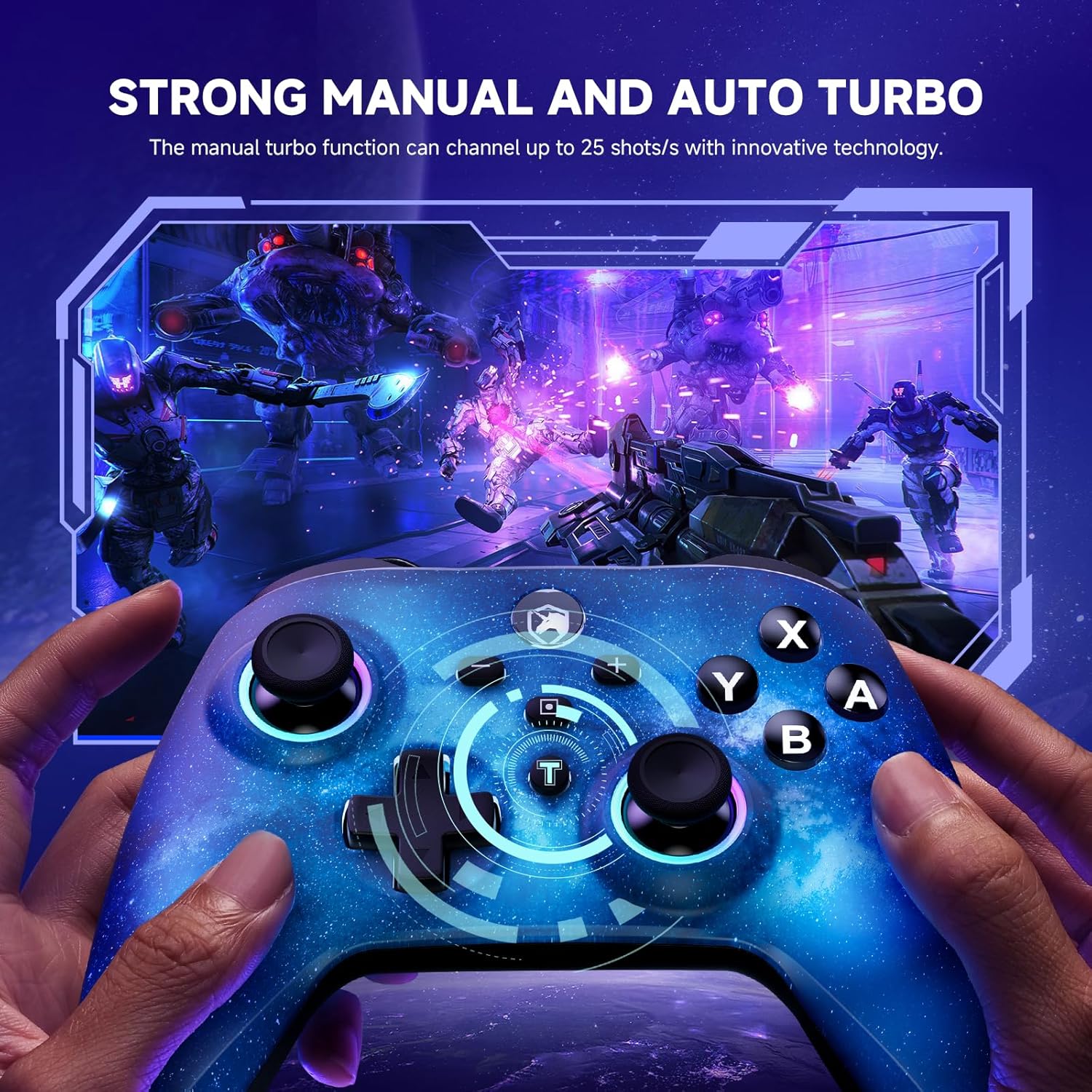
Image: The starry sky blue controller in use, demonstrating the rapid fire capability of the turbo function in a gaming scenario.
2.3 Dual Vibration
The controller features adjustable dual vibration motors, offering 4 vibration speed intensities for a more realistic gaming experience.
- Adjusting Vibration: While connected, press the Turbo button and the Up/Down direction on the D-pad simultaneously to cycle through vibration intensities.
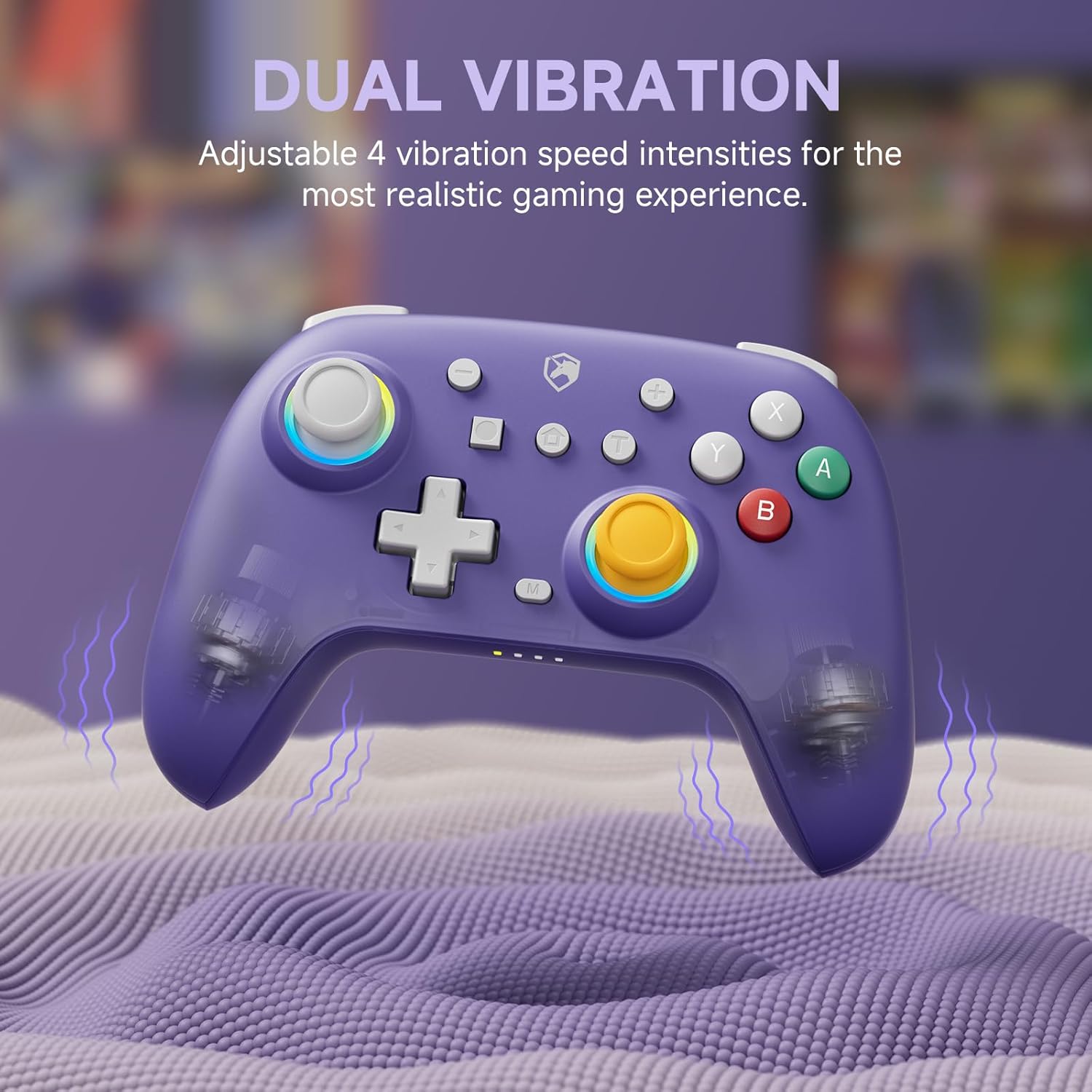
Image: The purple controller illustrating its dual vibration feature, enhancing tactile feedback during gameplay.
2.4 RGB Lighting
The controller features sparkly 9 RGB lighting colors and 4 light modes, adding a visual flair to your gaming setup.

Image: The starry sky blue controller showcasing its customizable RGB lighting, creating an immersive visual effect.
2.5 Hall Effect Sticks
Equipped with Hall Effect sticks, the controller offers precise and durable position detection, reducing stick drift and extending lifespan.

Image: A diagram explaining the Hall Effect stick technology, emphasizing its precision and durability for accurate input.
3. Maintenance
- Cleaning: Use a soft, dry cloth to clean the controller. For stubborn dirt, slightly dampen the cloth with water. Do not use harsh chemicals or abrasive cleaners.
- Storage: Store the controller in a cool, dry place away from direct sunlight and extreme temperatures.
- Battery Care: To prolong battery life, avoid fully discharging the controller frequently. Charge it regularly, even if not in use for extended periods.
- Avoid Drops: Protect the controller from drops and impacts, which can damage internal components.
4. Troubleshooting
| Problem | Possible Cause | Solution |
|---|---|---|
| Controller won't turn on. | Low battery. | Charge the controller for at least 30 minutes. |
| Unable to pair with device. | Controller not in pairing mode; device Bluetooth off; interference. | Ensure controller is in pairing mode (flashing lights). Check device Bluetooth settings. Move closer to the device. Try resetting the controller (if applicable, usually a small pinhole button). |
| Input lag or disconnection. | Distance from device; low battery; wireless interference. | Move closer to the device. Charge the controller. Reduce other wireless device interference. |
| Buttons/sticks not responding correctly. | Calibration issue; physical damage; software glitch. | Try recalibrating sticks/buttons via console/PC settings. Reset the controller. If issues persist, contact support. |
5. Specifications
- Brand: ECHTPower
- Model: B0DNN27RS5
- Connectivity: Wireless (Bluetooth), Wired (USB)
- Compatible Devices: Nintendo Switch, Nintendo Switch Lite, iOS, Android, PC
- Color: Purple, Starry Sky Blue
- Power Source: Battery Powered
- Controller Type: Gamepad
- Special Features: Dual Vibration, Turbo Function, Hall Effect Sticks, RGB Lighting
6. Warranty and Support
ECHTPower products come with a standard manufacturer's warranty. For specific warranty details, please refer to the product packaging or contact ECHTPower customer support.
If you encounter any issues not covered in this manual or require further assistance, please contact ECHTPower customer support via their official website or the retailer where you purchased the product.
Online Support: Visit the ECHTPower Store on Amazon
Ask a question about this manual
Ask about setup, troubleshooting, compatibility, parts, safety, or missing instructions. Manuals+ will review the question and use this page’s manual context to help answer it.