
ECHTPower Wireless Switch Controller & PS-4 Controller
ECHTPower Wireless Controller User Manual
Model: Wireless Switch Controller & PS-4 Controller
1. Introduction
Thank you for choosing the ECHTPower Wireless Controller. This versatile controller is designed to enhance your gaming experience across multiple platforms, including Nintendo Switch, Switch Lite, PS4 (Slim/Pro), PC, iOS, and Android devices. It combines a nostalgic retro design with modern features such as dual vibration, RGB lighting, a 1000 mAh battery, 6-axis motion sensing, a touchpad, and a headphone jack.
This manual provides detailed instructions on setting up, operating, and maintaining your controller to ensure optimal performance and longevity.
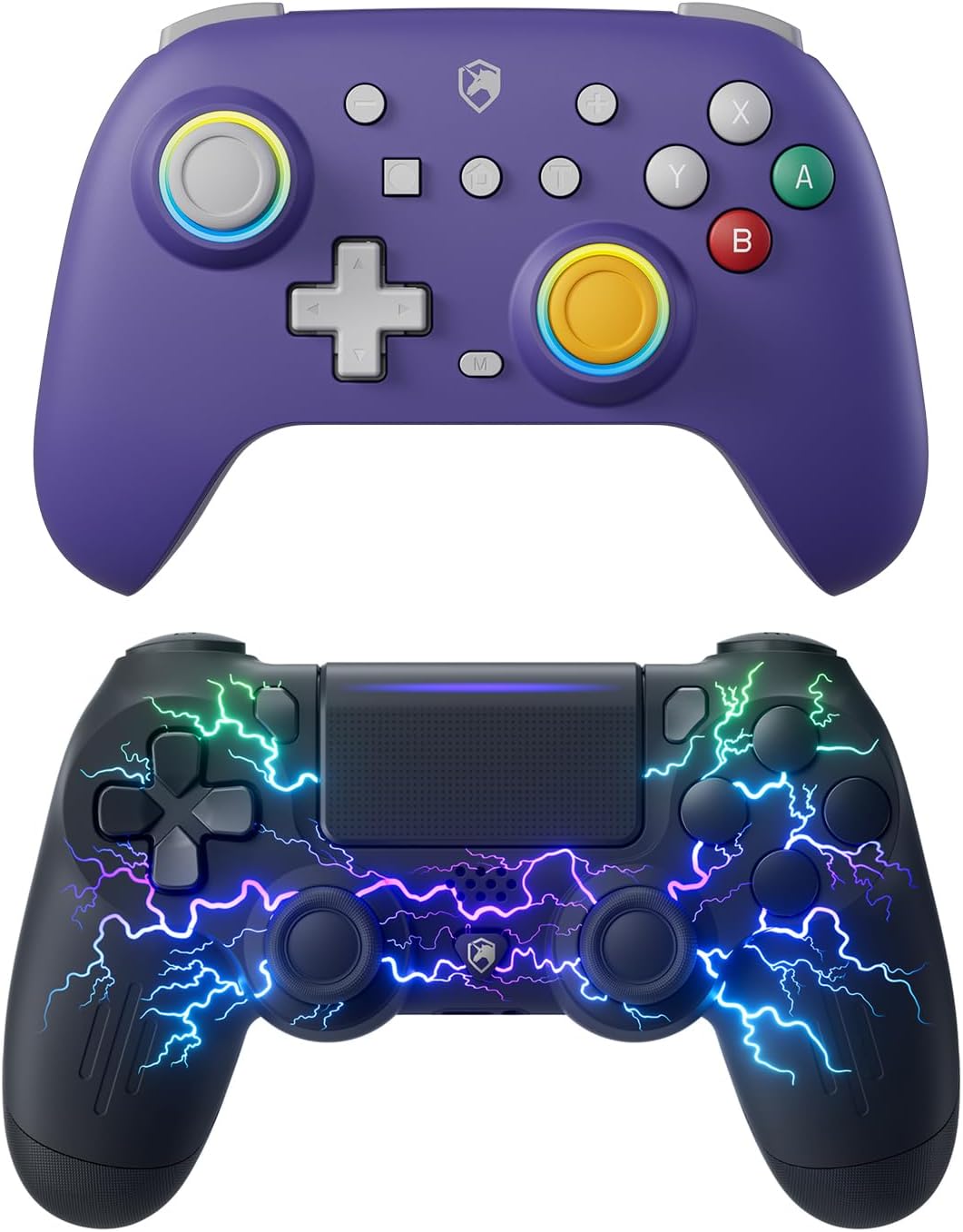
Figure 1.1: ECHTPower Wireless Switch Controller (top) and PS-4 Controller (bottom).
2. Product Features
- Multi-Platform Compatibility: Seamlessly connects with Nintendo Switch, Switch Lite, PS4 (Slim/Pro), PC, iOS, and Android devices.
- Dual Connectivity: Supports both wireless (Bluetooth) and wired (USB) modes for flexible gaming.
- Retro-Inspired Design: Blends classic aesthetics with ergonomic comfort for extended play sessions.
- Immersive Feedback: Features dual vibration motors for realistic haptic feedback.
- Dynamic Lighting: Equipped with RGB lighting offering 9 colors and 7 LED modes for personalized aesthetics.
- Enhanced Control: Includes 6-axis motion sensing (gyroscope) for precise control in compatible games.
- Integrated Touchpad: (PS4 Controller) Provides additional input options for PS4 games.
- Audio Jack: (PS4 Controller) Built-in headphone jack for private audio.
- Screenshot Function: Dedicated button for capturing in-game moments.
- Long-lasting Battery: Powered by a 1000 mAh rechargeable battery for extended playtime.
- Hall Effect Sticks: Utilizes Hall Effect technology for durable and precise joystick input, reducing drift.

Figure 2.1: Hall Effect Stick for precise and durable control.

Figure 2.2: Illustration of the controller's vibration feedback feature.
3. Setup and Connection
3.1 Charging the Controller
Before first use, fully charge the controller. Connect the supplied USB cable to the controller's charging port and the other end to a USB power source (e.g., console, PC, USB wall adapter). The LED indicator will show charging status and turn off or change color when fully charged.
3.2 Connecting to Nintendo Switch/Switch Lite (Wireless)
- From the Switch HOME Menu, select 'Controllers' > 'Change Grip/Order'.
- On the controller, press and hold the SYNC button (usually a small button on the top or back) for 3-5 seconds until the LED indicators start flashing rapidly.
- Once connected, the player indicator LED(s) on the controller will light up solid.

Figure 3.1: ECHTPower Wireless Switch Controller.
3.3 Connecting to PS4/PS4 Slim/PS4 Pro (Wireless)
- Ensure your PS4 console is powered on.
- On the controller, press and hold the PS button and SHARE button simultaneously until the light bar starts flashing rapidly.
- On your PS4, go to 'Settings' > 'Devices' > 'Bluetooth Devices'.
- Select the controller from the list of available devices. Once paired, the light bar will turn solid.
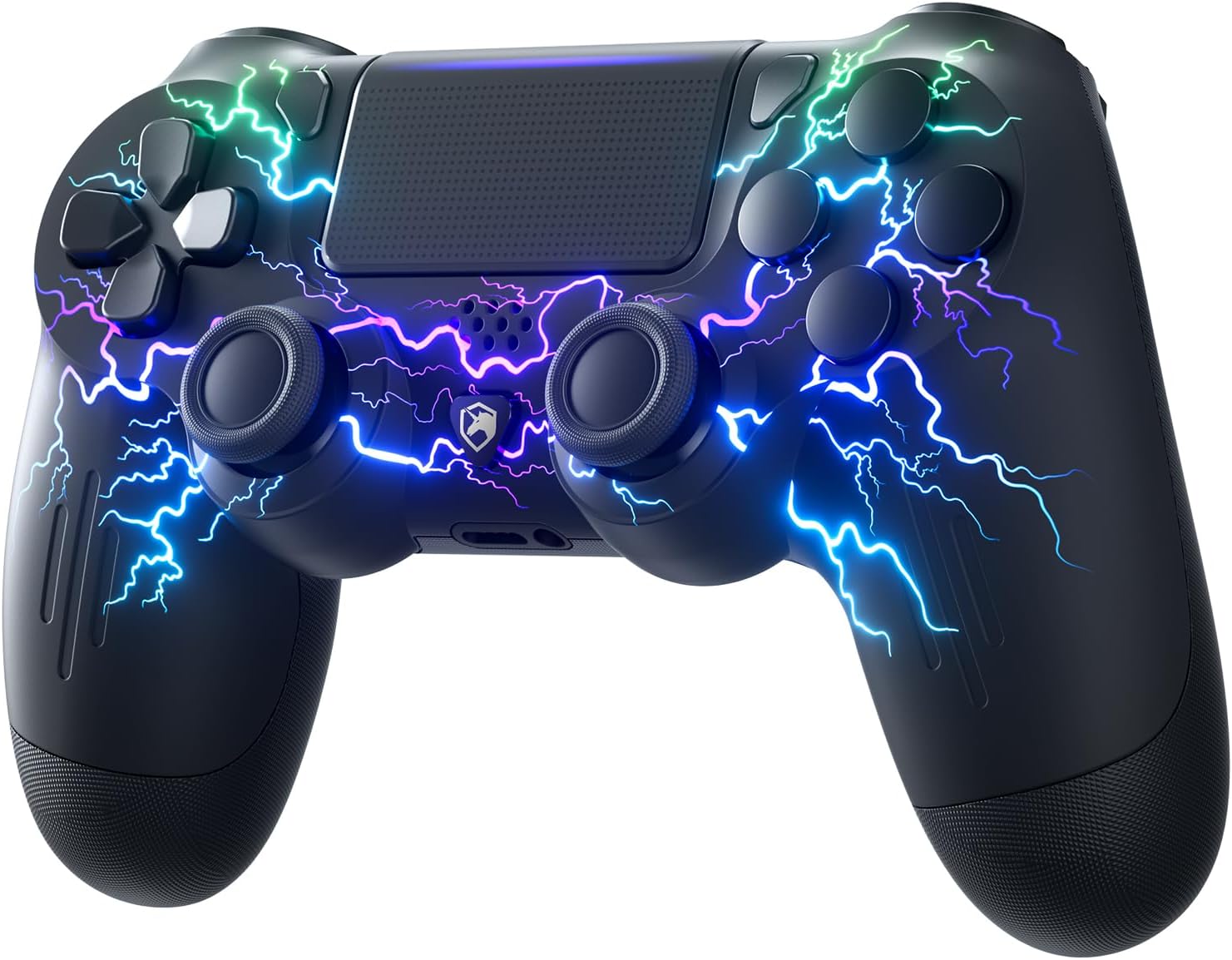
Figure 3.2: ECHTPower Wireless PS-4 Controller.
3.4 Connecting to PC (Wired/Wireless)
Wired Connection: Connect the controller to your PC using a USB cable. The controller should be automatically recognized as a gamepad.
Wireless Connection (Bluetooth):
- Ensure your PC has Bluetooth enabled.
- Go to 'Bluetooth & other devices' settings on your PC and select 'Add Bluetooth or other device'.
- Put the controller into pairing mode (refer to Switch or PS4 pairing instructions depending on the controller type).
- Select the controller from the list of detected devices.
3.5 Connecting to iOS/Android Devices (Wireless)
- Enable Bluetooth on your iOS or Android device.
- Put the controller into pairing mode (refer to Switch or PS4 pairing instructions depending on the controller type).
- On your device, search for Bluetooth devices and select the controller from the list.
4. Operating Instructions
4.1 Basic Controls
The controller features standard gamepad buttons including directional pad, action buttons (A/B/X/Y or Cross/Circle/Square/Triangle), shoulder buttons (L/R, ZL/ZR or L1/R1, L2/R2), analog sticks, and system buttons (Home/PS, Share/Screenshot, Plus/Minus, M).
4.2 Dual Vibration
The controller provides haptic feedback through dual vibration motors. Vibration intensity may vary based on game support and controller settings.
4.3 RGB Lighting Modes (PS4 Controller)
The PS4-compatible controller features customizable RGB lighting. Specific button combinations or software (if available) can be used to cycle through 9 colors and 7 LED modes. Refer to the quick start guide included with your specific controller for detailed instructions on changing lighting modes.

Figure 4.1: RGB lighting feature on the PS4 controller.
4.4 6-Axis Motion Sensing (Switch Controller)
The Switch-compatible controller includes a 6-axis gyroscope for motion control in games that support it. This allows for intuitive aiming, steering, and other in-game actions by tilting the controller.
4.5 Touchpad (PS4 Controller)
The integrated touchpad on the PS4 controller allows for additional input, such as swiping, tapping, and clicking, in games and system menus that utilize this feature.
4.6 Headphone Jack (PS4 Controller)
Connect a standard 3.5mm headset to the headphone jack on the PS4 controller for in-game audio and voice chat.
4.7 Screenshot Function
Press the dedicated Screenshot button (or Share button on PS4 controller) to capture screenshots of your gameplay.
5. Maintenance
5.1 Battery Care
- Avoid fully discharging the battery frequently.
- Charge the controller regularly, even if not in use, to maintain battery health.
- Do not expose the controller to extreme temperatures.
5.2 Cleaning
Use a soft, dry cloth to clean the controller. For stubborn dirt, slightly dampen the cloth with water or a mild, non-abrasive cleaner. Do not use harsh chemicals or allow liquids to enter the controller.
6. Troubleshooting
6.1 Controller Not Connecting/Pairing
- Ensure the controller is fully charged.
- Verify that Bluetooth is enabled on your device/console.
- Try restarting your console/device and the controller.
- For Switch, ensure 'Pro Controller Wired Communication' is enabled in system settings if using wired mode.
- If issues persist, try resetting the controller (a small reset button may be located in a pinhole on the back; use a paperclip).
6.2 Input Lag or Disconnections
- Ensure there are no strong wireless interference sources nearby (e.g., Wi-Fi routers, other Bluetooth devices).
- Move closer to the console/device.
- Ensure the controller's battery is not low.
6.3 Controller Not Charging
- Try a different USB cable and/or charging port/adapter.
- Ensure the charging port on the controller is clean and free of debris.
7. Specifications
| Attribute | Detail |
|---|---|
| Brand | ECHTPower |
| Compatible Devices | Android, iOS, Nintendo Switch, Nintendo Switch Lite, PC, PS4, PS4 Slim, PS4 Pro |
| Controller Type | Gamepad |
| Connectivity Technology | USB, Bluetooth |
| Color | Purple (Switch Controller), Black (PS4 Controller) |
| Power Source | Battery Powered |
| Battery Capacity | 1000 mAh |
| Special Features | Dual Vibration, RGB Lighting, 6-Axis Gyro, Touchpad, Headphone Jack, Screenshot, Hall Effect Sticks |
8. Warranty and Support
For warranty information and technical support, please refer to the warranty card included with your product or visit the official ECHTPower website. You may also contact ECHTPower customer service directly for assistance with product issues or inquiries.
ECHTPower Official Store: Visit ECHTPower Store on Amazon
Related documentsWireless Switch Controller & PS-4 Controller


Ask a question about this manual
Ask about setup, troubleshooting, compatibility, parts, safety, or missing instructions. Manuals+ will review the question and use this page’s manual context to help answer it.