
1. Introduction
This manual provides detailed instructions for the setup, operation, and maintenance of your ECHTPower Wireless Switch Controller. Please read this manual thoroughly before using the product to ensure proper functionality and to maximize your gaming experience. This controller is designed for use with Nintendo Switch, PC, iOS, and Android devices.

Image 1.1: ECHTPower Wireless Switch Controller in purple. This image displays the front view of the controller, highlighting its ergonomic design and button layout.
2. Product Overview
2.1 Package Contents
- ECHTPower Wireless Switch Controller
- USB-C Charging Cable
- User Manual (this document)
2.2 Controller Layout
Familiarize yourself with the buttons and features of your controller:

Image 2.1: Front view of the ECHTPower Wireless Switch Controller. This image shows the left and right analog sticks, D-pad, A/B/X/Y buttons, Home button, Capture button, Plus/Minus buttons, and shoulder buttons.
- Left Analog Stick: For movement and camera control. Features Hall Effect technology for precision.
- Right Analog Stick: For camera control and aiming. Features Hall Effect technology for precision.
- D-Pad: Directional input.
- A/B/X/Y Buttons: Action buttons.
- L/R Buttons: Shoulder buttons.
- ZL/ZR Triggers: Analog triggers.
- HOME Button: Returns to the system home screen.
- CAPTURE Button: Takes screenshots or records video clips.
- +/- Buttons: Start/Select functions.
- M Button: Macro/Customization button (refer to advanced settings for programming).
- LED Indicators: Player number and charging status.

Image 2.2: Close-up view of the Hall Effect joystick. This image highlights the advanced sensor technology used in the analog sticks for enhanced durability and drift-free performance.
The controller features Hall Effect joysticks, which utilize electromagnetic induction for precise, drift-free control and extended lifespan compared to traditional potentiometers.
3. Setup and Connection
3.1 Charging the Controller
Before first use, fully charge the controller. Connect the supplied USB-C cable to the controller's charging port and the other end to a USB power source (e.g., console, PC, USB wall adapter). The LED indicators will show charging status and turn off when fully charged.
3.2 Connecting to Nintendo Switch
- From the HOME Menu, select "Controllers" > "Change Grip/Order".
- On the next screen, press and hold the SYNC button on the top of the ECHTPower controller for a few seconds until the player LEDs begin to flash.
- Once paired, the player LED(s) corresponding to the controller number will remain lit.
Note: The SYNC button is usually a small, recessed button on the top edge of the controller.
3.3 Connecting to PC (Windows)
The controller supports both wired and wireless connections to PC.
3.3.1 Wired Connection
- Connect the controller to your PC using the USB-C cable.
- The PC should automatically detect and install the necessary drivers.
- The controller will be recognized as an XInput device.
3.3.2 Wireless Connection (Bluetooth)
- Ensure your PC has Bluetooth enabled.
- Go to "Settings" > "Devices" > "Bluetooth & other devices" and select "Add Bluetooth or other device".
- Choose "Bluetooth".
- Press and hold the SYNC button on the controller until the LEDs flash rapidly.
- Select the "Pro Controller" or similar device name from the list on your PC.
- Once paired, the controller LEDs will stop flashing and remain lit.
3.4 Connecting to iOS/Android Devices

Image 3.1: The ECHTPower Wireless Switch Controller shown alongside various devices, including a tablet, smartphone, and laptop, illustrating its multi-device compatibility.
- Enable Bluetooth on your iOS or Android device.
- Go to Bluetooth settings and search for new devices.
- Press and hold the SYNC button on the controller until the LEDs flash rapidly.
- Select the "Pro Controller" or similar device name from the list on your mobile device.
- Once paired, the controller LEDs will stop flashing and remain lit.
Compatibility may vary with specific games and applications on mobile platforms.
4. Operating Instructions
4.1 Basic Controls
The controller functions similarly to standard gaming controllers. Refer to the in-game instructions for specific button mappings.
- Analog Sticks: Used for movement, camera control, and menu navigation.
- D-Pad: Used for directional input, often for menu navigation or specific game actions.
- A/B/X/Y Buttons: Primary action buttons, typically for jumping, attacking, interacting, etc.
- L/R/ZL/ZR Buttons: Used for various in-game actions such as aiming, shooting, or special abilities.
- HOME Button: Returns to the console's home screen or main menu.
- CAPTURE Button: Captures screenshots or video clips (Nintendo Switch specific).
- +/- Buttons: Often used for pausing games, opening menus, or selecting options.
4.2 Advanced Features (Hall Effect Joysticks)
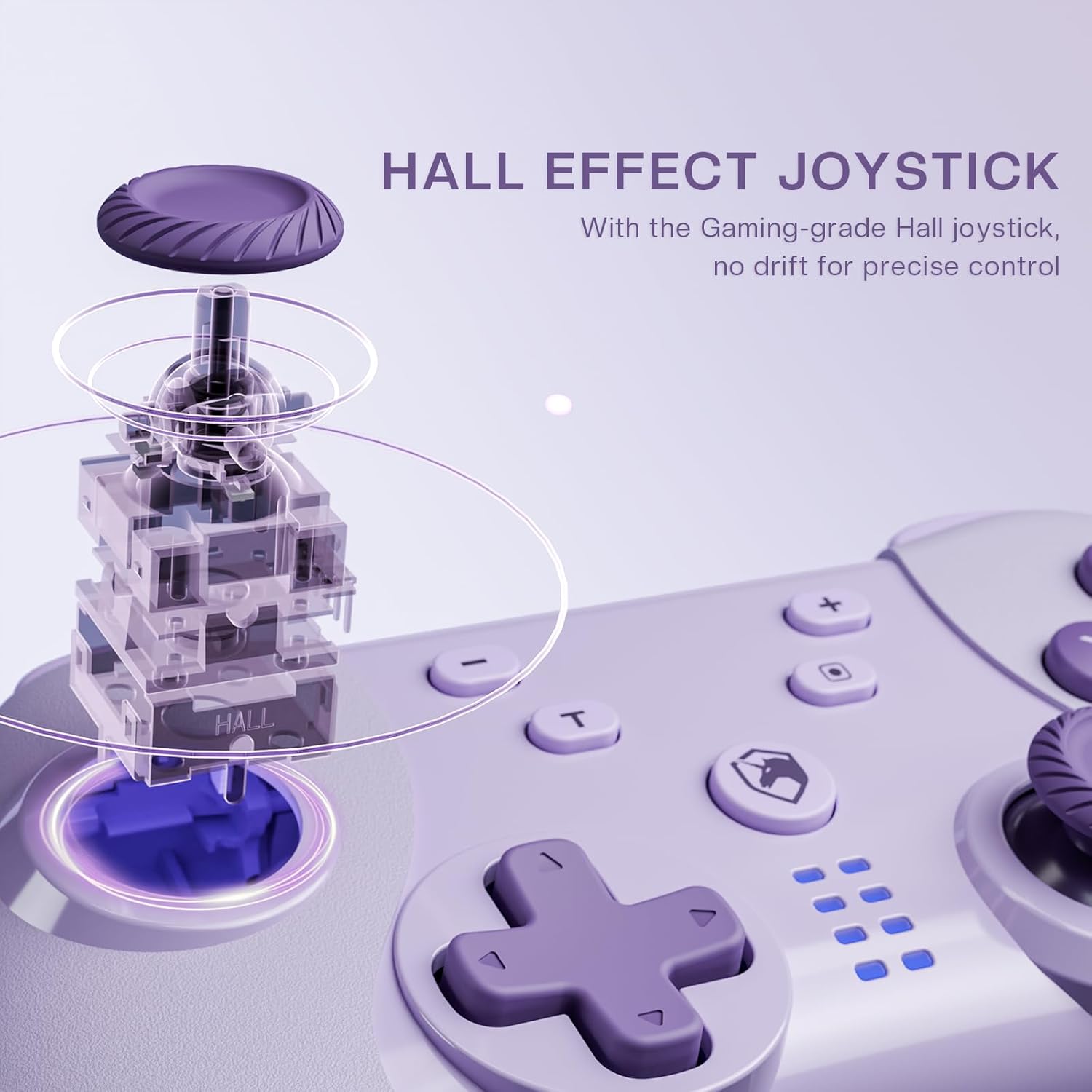
Image 4.1: Diagram illustrating the internal mechanism of a Hall Effect joystick. This image demonstrates how magnetic fields are used for position detection, contributing to drift-free and precise control.
The Hall Effect joysticks provide enhanced precision and durability. This technology uses magnetic fields instead of physical contact, virtually eliminating stick drift and extending the lifespan of the joysticks. No special operation is required; simply enjoy the improved responsiveness and accuracy.
4.3 Macro Function (M Button)
The 'M' button can be programmed for macro functions. Refer to the ECHTPower official website or advanced user guides for detailed instructions on how to program and utilize macro functions for specific gaming scenarios.
5. Maintenance
- Cleaning: Use a soft, dry cloth to clean the controller. Do not use harsh chemicals or abrasive materials.
- Storage: Store the controller in a cool, dry place away from direct sunlight and extreme temperatures.
- Battery Care: To prolong battery life, avoid fully discharging the controller frequently. Charge it regularly, even if not in use for extended periods.
- Avoid Drops: Protect the controller from drops and impacts, which can damage internal components.
6. Troubleshooting
| Problem | Possible Cause | Solution |
|---|---|---|
| Controller does not turn on. | Low battery. | Charge the controller using the USB-C cable. |
| Cannot connect to device. | Not in pairing mode; Bluetooth interference; device's Bluetooth off. | Ensure controller is in pairing mode (flashing LEDs). Check device's Bluetooth settings. Try restarting both controller and device. |
| Input lag or disconnection. | Distance from device; low battery; wireless interference. | Move closer to the device. Charge the controller. Reduce other wireless devices nearby. |
| Joystick drift. | Rare with Hall Effect, but possible calibration issue or extreme wear. | Try recalibrating the joysticks through your device's settings (e.g., Nintendo Switch system settings). If issue persists, contact support. |
7. Specifications
- Model: Wireless Switch Controller
- Connectivity: Bluetooth Wireless, USB-C Wired
- Compatibility: Nintendo Switch, PC (Windows), iOS, Android
- Joystick Technology: Hall Effect
- Power Source: Built-in Rechargeable Battery
- Charging Port: USB-C
- ASIN: B0DNN1BP4F
8. Warranty and Support
ECHTPower products come with a standard manufacturer's warranty. For specific warranty terms and conditions, please refer to the warranty card included with your product or visit the official ECHTPower website.
If you encounter any issues or have questions not covered in this manual, please contact ECHTPower customer support:
- Website: ECHTPower Official Store on Amazon
- Email: Refer to product packaging or official website for contact email.


