
1. Introduction
Thank you for choosing GetD AI Smart Glasses. This manual provides essential information for the safe and efficient use of your device. Please read it thoroughly before operation and retain it for future reference.
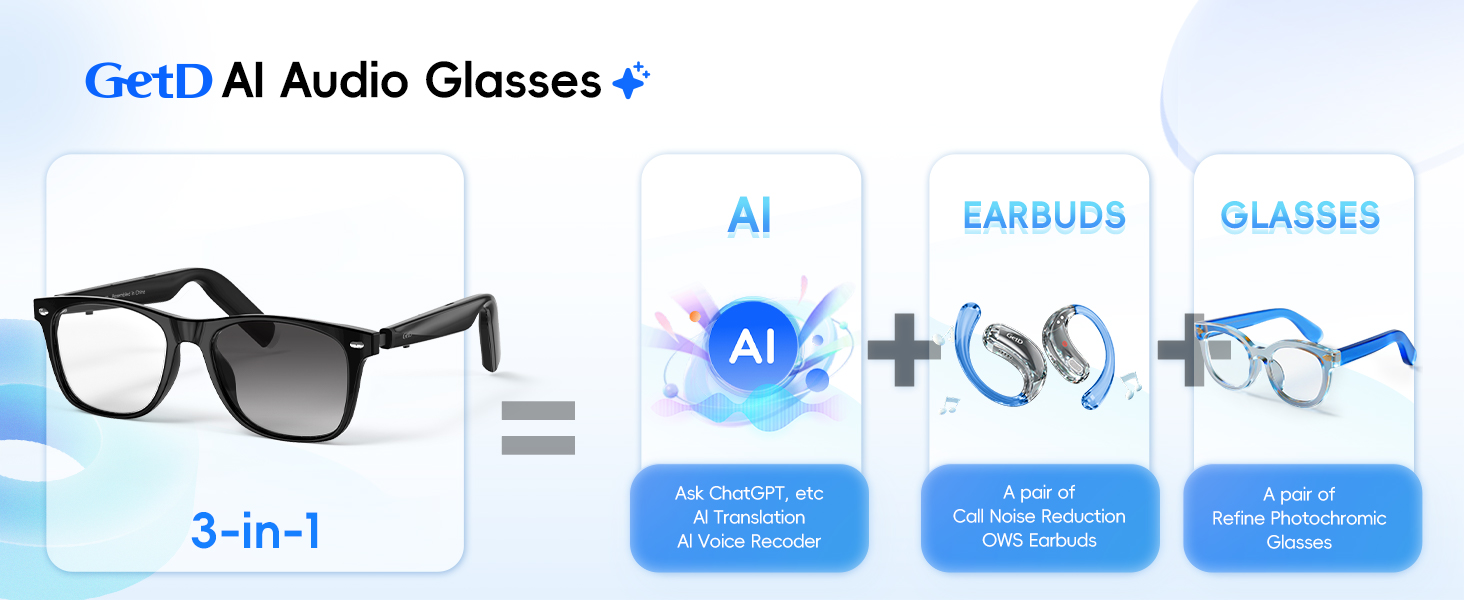
The GetD AI Smart Glasses integrate advanced technology into a stylish eyewear design, offering features such as AI assistance, real-time translation, open-ear audio, and eye protection. This device is designed to enhance daily communication and entertainment while providing comfort and clarity.
2. Product Overview
The GetD AI Smart Glasses combine three core functionalities:
- AI Assistant: Powered by advanced AI models like ChatGPT and DeepSeek for intelligent conversations, quick answers, and voice recording with speech-to-text conversion.
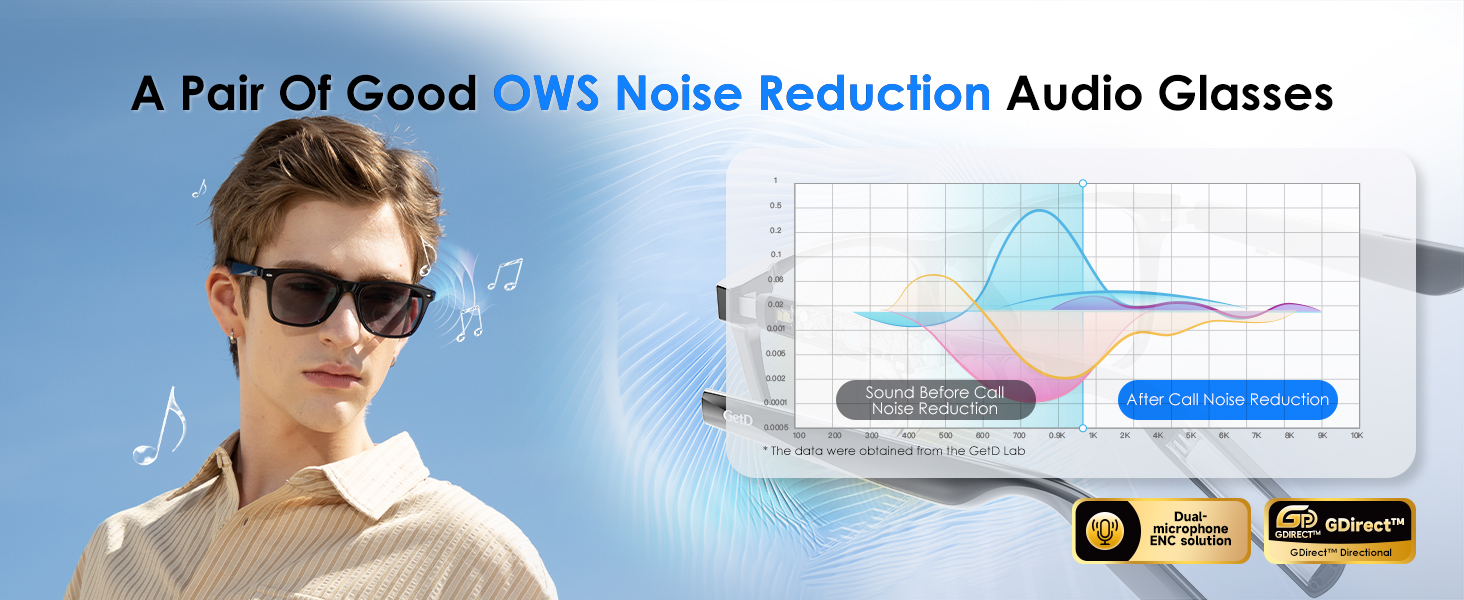
- Open-Ear Audio: Features GDirect Directional Open-Ear Design for superior stereo sound, hands-free crystal-clear calls with dual noise-reduction microphones, and Bluetooth 5.4 for stable connections.
- High-Quality Lenses: Available with photochromic lenses (100% UV protection, anti-glare, impact resistance) that adapt to light conditions, or anti-blue light lenses for reduced eye strain.
3. What's in the Box
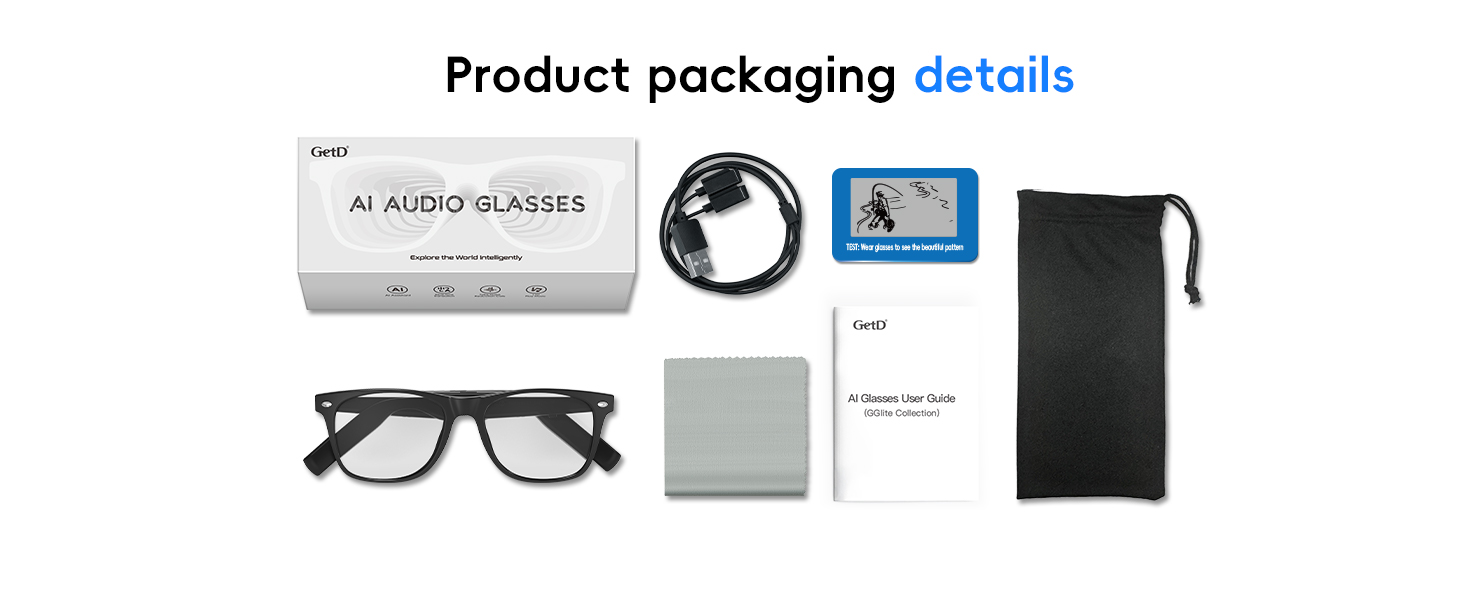
Verify that all items are present upon unboxing:
- GetD AI Smart Glasses
- Charging Cable
- Cleaning Cloth
- User Manual
- Carrying Pouch
4. Setup
4.1 Power On/Off
To power on the glasses, long press both buttons on the temples for 3 seconds until you hear "Power on, pairing." To power off, long press any button until you hear "Power off."
Video 1: Tutorial on turning on and charging smart glasses.
4.2 Bluetooth Pairing
- Ensure the glasses are powered on and in pairing mode (indicated by a voice prompt).
- On your smartphone, open Settings and navigate to Bluetooth.
- Locate and select "GetD GGlite" from the list of available devices.
- Confirm pairing when prompted. You will hear "Connected" from the glasses upon successful pairing.
4.3 App Download & Setup
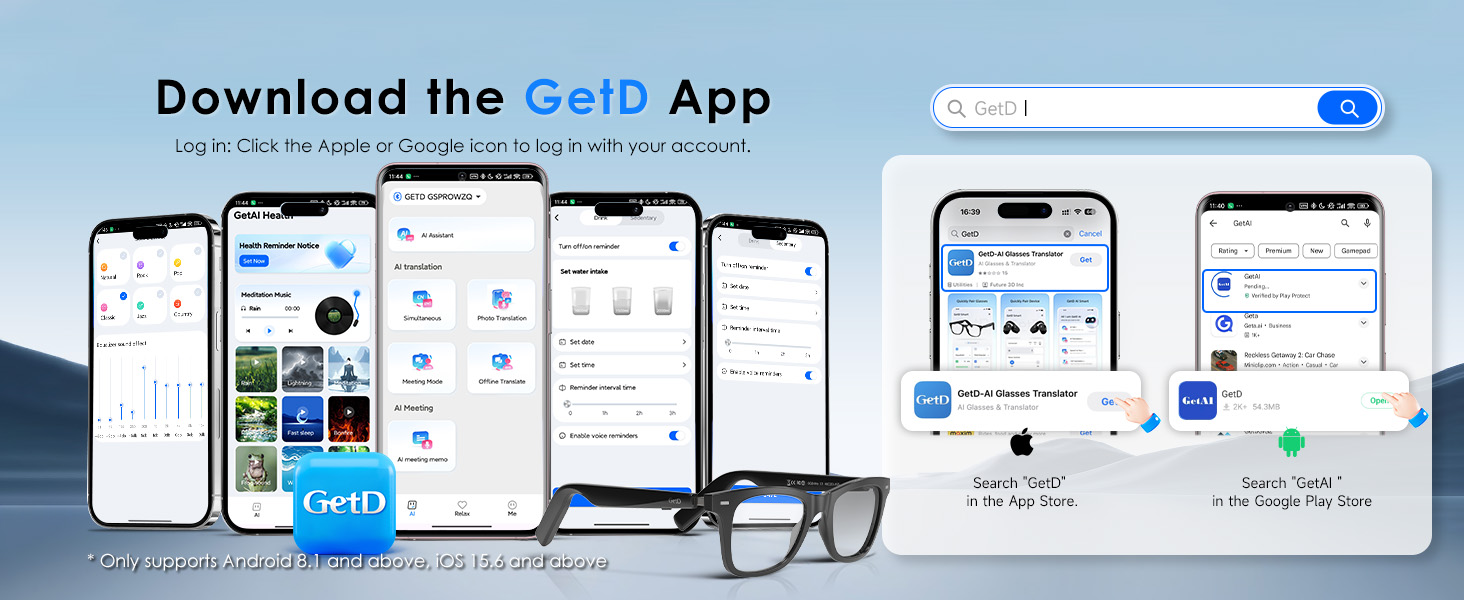
To unlock the full potential of your GetD AI Smart Glasses, download the companion app:
- Scan the QR code provided on the product packaging or in the quick start guide using your smartphone's camera.
- Follow the link to download the "GetD AI Glasses & Earbuds" app from your device's app store (Apple App Store or Google Play Store).
- Open the app and complete the quick sign-up and login process using your Apple ID or Gmail.
- Within the app, navigate to the device connection section, find "GGlite," and connect your glasses.
Video 2: Detailed tutorial on using the GetD app features.
5. Operating Instructions
5.1 Music Playback
Enjoy up to 11 hours of music playback on a full charge. Use the touch controls on the temples for seamless audio management.
- Play/Pause: Single-click either button on the temple.
- Volume Control: Swipe forward on the left temple to increase volume, swipe back to decrease volume.
- Track Control: Swipe forward on the right temple for the next song, swipe back for the previous song.
5.2 Phone Calls
The integrated microphones with environmental noise reduction ensure clear calls.
- Answer Call: Single-click either button when an incoming call is received.
- End Call: Double-click either button during a call.
- Reject Call: Long press either button when an incoming call is received.
5.3 AI Assistant
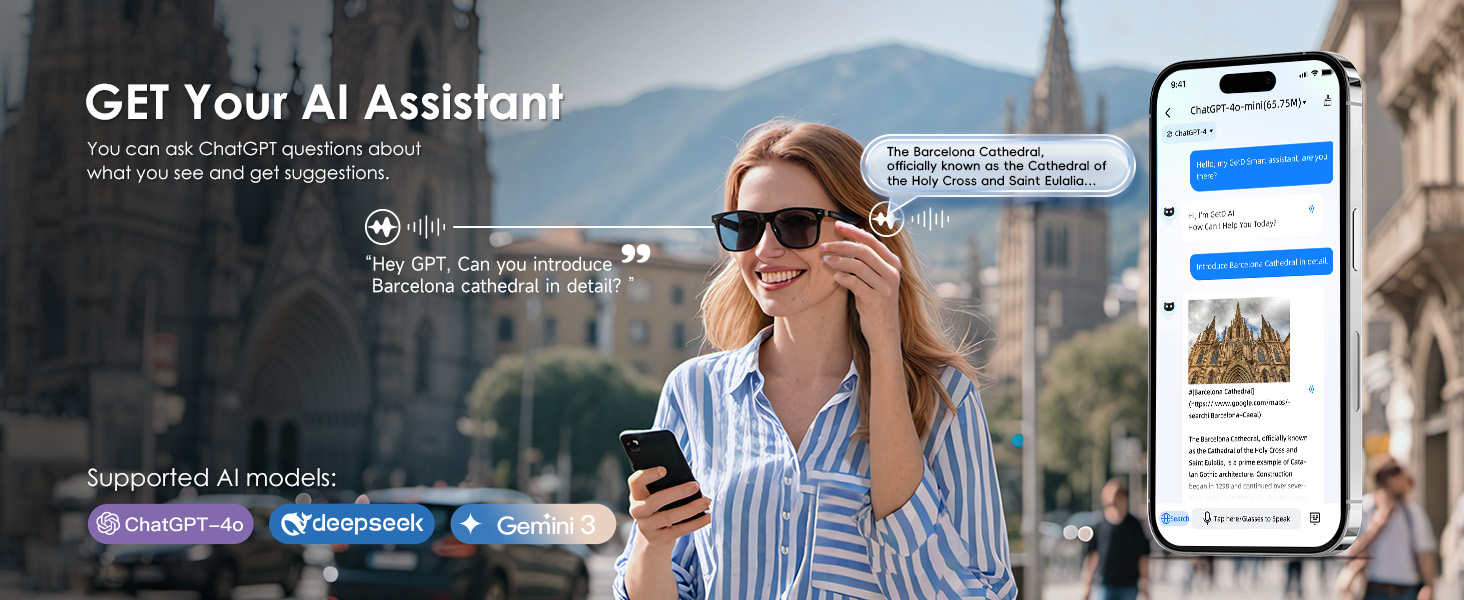
Access your AI assistant via the GetD app. It supports various AI models like ChatGPT, DeepSeek, and Gemini.
- Activate: Single-click any button on the glasses or tap the microphone icon in the app to start a conversation.
- Interact: Ask questions, get information, or request tasks. The AI will respond audibly through the glasses and display text in the app.
5.4 Real-time Translation
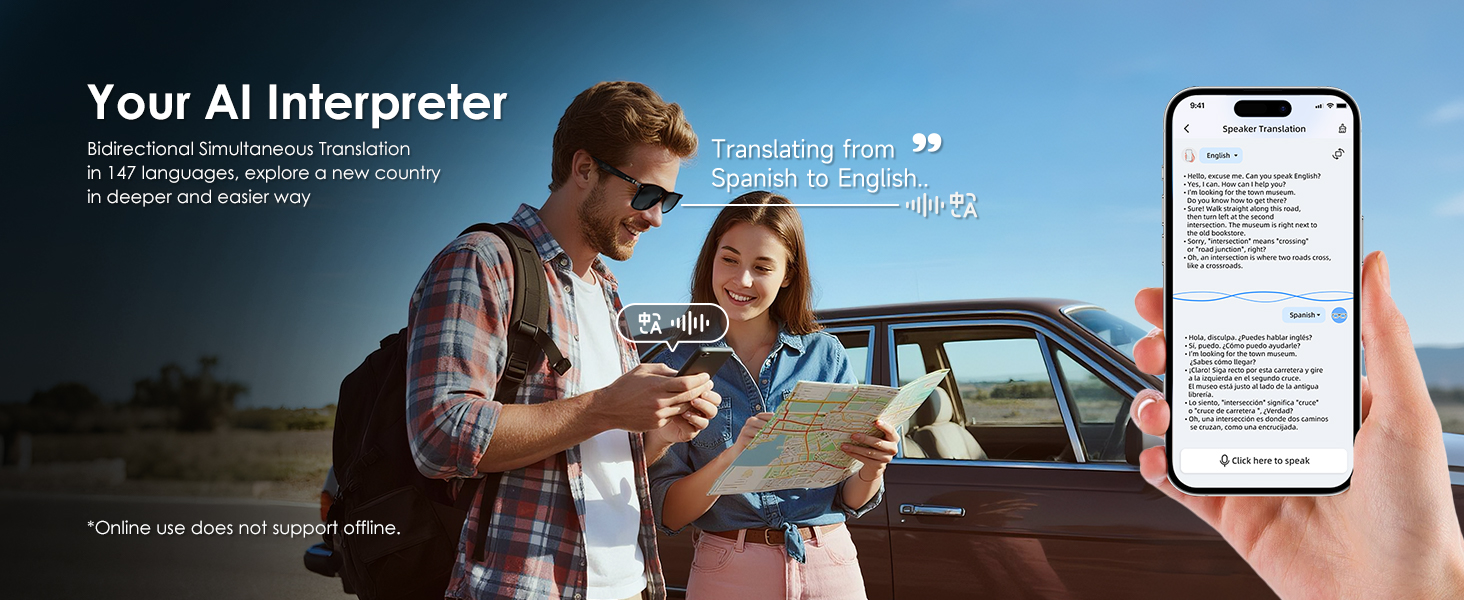
The glasses support high-precision bi-directional simultaneous translation for 147 languages in over 170 countries.
- Simultaneous Mode: Select this mode in the app. Choose your desired languages. Speak into the glasses, and the translation will be heard by the other party and displayed in the app.
- Photo Translation: Use the app's photo translation feature to translate text from images.
5.5 Voice Recorder
Quickly convert speech to text with high accuracy for meeting notes and quick memos.
- Activate: Select the Voice Recorder feature in the GetD app.
- Record: Speak naturally, and the app will transcribe your speech into text.
5.6 Camera Control (iOS only)
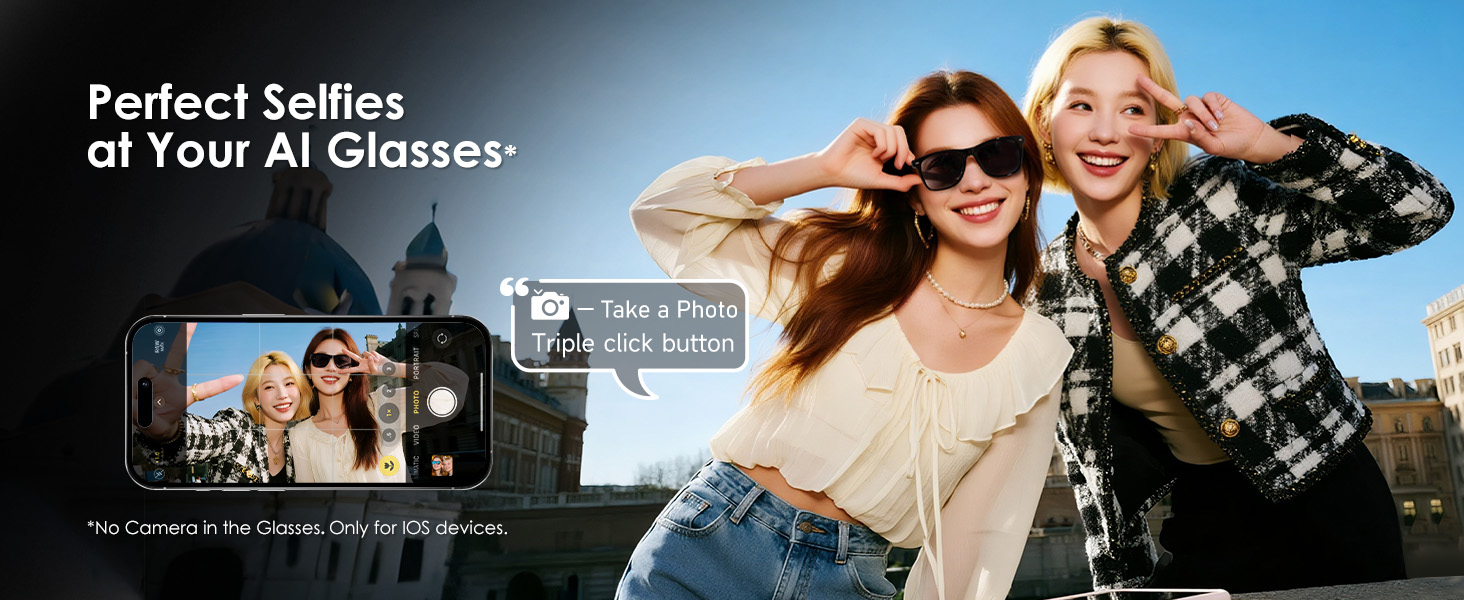
For iOS devices, you can use the glasses to remotely control your phone's camera.
- Take Photo: Triple-click any button on the glasses while your phone's camera app is open.
6. Maintenance
- Cleaning: Use the provided cleaning cloth to gently wipe the lenses and frame. Avoid harsh chemicals or abrasive materials.
- Charging: Charge the glasses using the magnetic charging cable. A full charge offers 15 days of standby, 11 hours of music, or 9 hours of calling (at 50% volume). A 10-minute charge provides 1 hour of use.
- Water Resistance: The glasses are IP54 water-resistant, protecting against splashes and light rain. Do not submerge them in water.
- Storage: Store the glasses in the provided carrying pouch when not in use to prevent scratches and damage.
7. Troubleshooting
| Problem | Possible Cause | Solution |
|---|---|---|
| Glasses not powering on | Low battery; Incorrect power-on procedure | Charge the glasses fully; Long press both temple buttons for 3 seconds. |
| Unable to pair via Bluetooth | Bluetooth off on phone; Glasses not in pairing mode; Interference | Ensure phone Bluetooth is on; Power cycle glasses to enter pairing mode; Move closer to phone; Clear previous pairings. |
| No audio/poor audio quality | Volume too low; Glasses not connected; Obstruction of speakers | Adjust volume via touch control or phone; Reconnect glasses to phone; Ensure speakers are not blocked. |
| AI features not responding | App not open/connected; Internet connectivity issues | Ensure GetD app is open and connected; Check phone's internet connection. |
| Magnetic charging not working | Improper alignment; Dirty contacts | Ensure magnetic cable is correctly aligned; Clean charging contacts on glasses and cable. |
8. Specifications
- Model: B0DNMZJS1K
- Brand: GetD
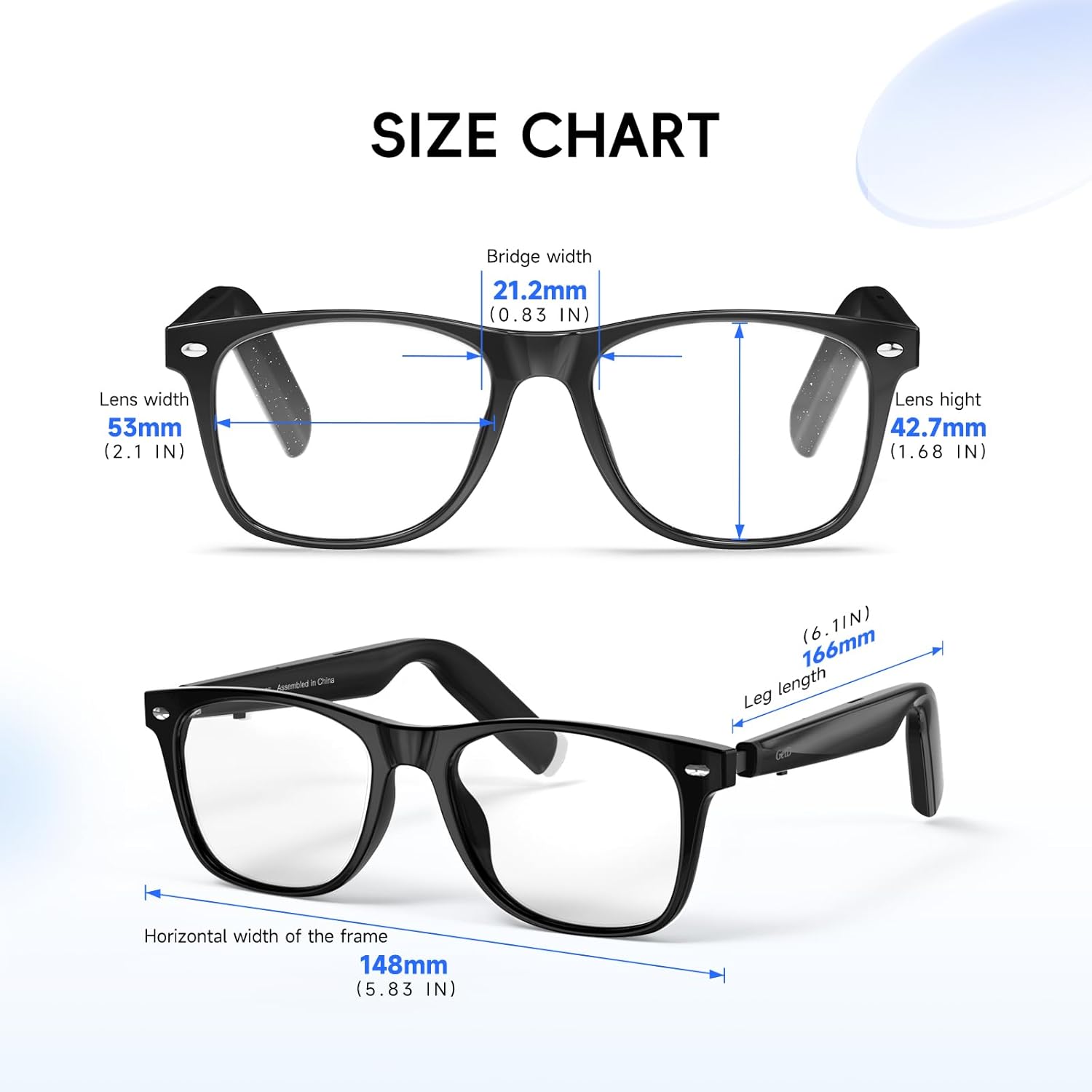
- Product Dimensions: 7.9 x 3.2 x 2.7 inches
- Item Weight: 5.6 ounces
- Bluetooth Version: 5.4
- Battery: 2 x 115mAh (included)
- Battery Life: Up to 15 days standby, 11 hours music, 9 hours calling (at 50% volume)
- Charging Time: 10 minutes for 1 hour use (fast charge)
- Water Resistance: IP54
- Lens Type: Photochromic (100% UV protection, anti-glare, impact resistance)
- Frame Material: Lightweight TR90
- AI Integration: ChatGPT, DeepSeek, Gemini
- Translation Languages: 147 languages
9. Warranty and Support
GetD products are designed and manufactured to the highest quality standards. For warranty information, technical support, or service inquiries, please refer to the contact information provided in your product packaging or visit the official GetD website.
Please retain your proof of purchase for warranty claims.
