
GetD B0DNMYKTDL
GetD AI Smart Glasses User Manual
Model: B0DNMYKTDL | Brand: GetD
Introduction
The GetD AI Smart Glasses are an innovative 3-in-1 device combining an AI assistant, open-ear audio earbuds, and polarized sunglasses. Designed for daily use, travel, and outdoor activities, these glasses offer advanced features such as real-time translation, voice recording, and seamless Bluetooth connectivity.
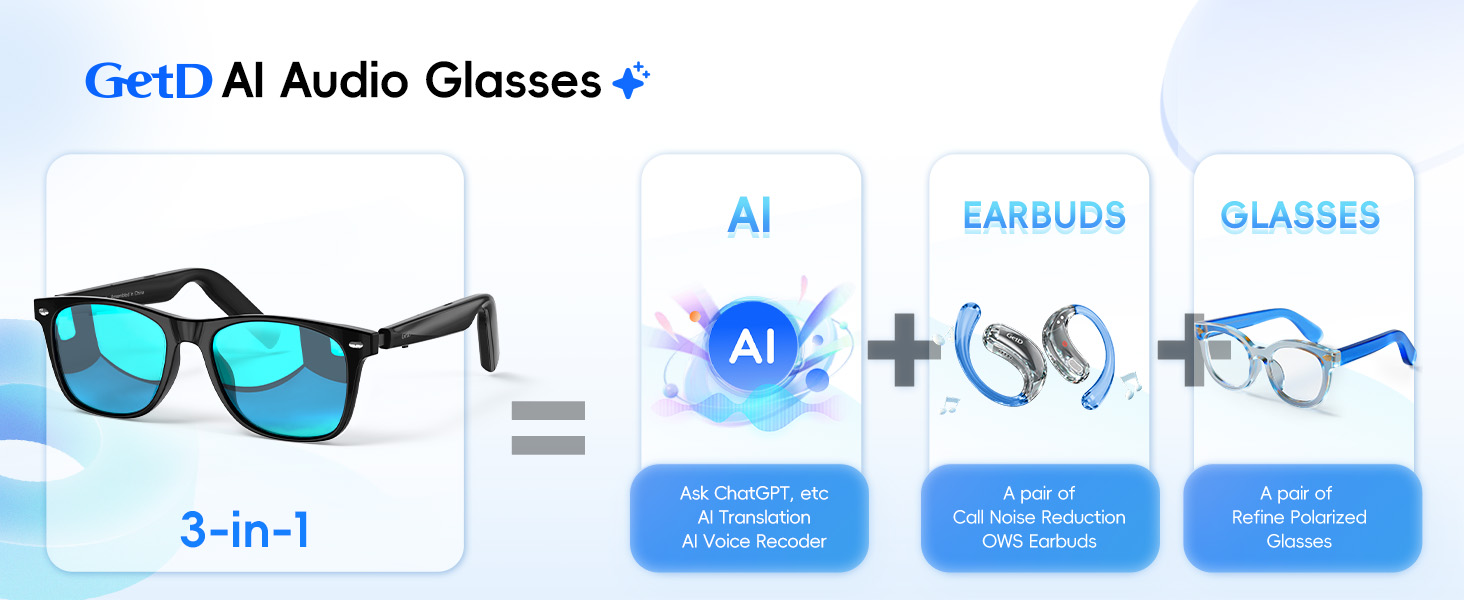
Figure 1: The GetD AI Audio Glasses integrate AI capabilities, open-ear audio, and polarized lenses into a single device.
What's in the Box
Upon opening your GetD AI Smart Glasses package, you should find the following items:
- GetD AI Audio Glasses
- Charging Cable (USB)
- Cleaning Cloth
- User Guide
- Carrying Pouch
- Quick Start Card

Figure 2: All components included in the GetD AI Audio Glasses package.
Setup
1. Charging the Glasses
Before initial use, fully charge your GetD AI Smart Glasses. The glasses feature magnetic charging for convenience.
- Connect the magnetic charging cable to the charging points on both temples of the glasses.
- Connect the USB end of the cable to a compatible power source (e.g., computer USB port, wall adapter).
- A full charge provides approximately 11 hours of music playback or 9 hours of call time. A 10-minute charge can provide 1 hour of use.

Figure 3: Magnetic charging and battery life details for the GetD AI Audio Glasses.
2. Power On/Off
To power on the glasses, locate the button on each temple. Press and hold the button until the light indicator illuminates. Ensure both sides are powered on for full functionality.
To power off, press and hold the button again until the light indicator turns off.
3. App Download and Connection
The GetD AI Smart Glasses require the GetD app for full AI functionality and advanced features. The app is compatible with iOS (15.6 and above) and Android (8.1 and above) devices.
- Download the "GetD" app from your device's app store (Apple App Store for iOS, or search for "GetD" in APKPure for Android).
- Enable Bluetooth on your smartphone.
- Open the GetD app and follow the on-screen instructions to pair your glasses. The glasses utilize Bluetooth 5.4 for stable connections.

Figure 4: Steps to download the GetD app and establish a Bluetooth connection.
Operating Instructions
1. AI Assistant (ChatGPT Integration)
Your GetD AI Smart Glasses are powered by AI models like ChatGPT and DeepSeek, acting as your personal AI assistant. Through the GetD app, you can ask questions and receive intelligent, accurate responses read back to you.
- Activate the AI assistant via the GetD app or a designated gesture/button press on the glasses (refer to app for specific controls).
- Speak your question clearly. The AI will process your query and provide an audible response.

Figure 5: Interacting with the AI Assistant for instant answers.
2. Real-time Translation
Experience seamless communication with the high-precision bi-directional simultaneous translation feature, supporting 147 languages across over 170 countries. This feature requires an active internet connection.
- Select the desired source and target languages within the GetD app's translation interface.
- Speak into the glasses' microphone. The translation will be provided audibly and displayed in the app.

Figure 6: Real-time bi-directional translation in action.
3. Voice Recorder
The integrated voice recorder quickly converts spoken words to text with high accuracy, making it ideal for meeting notes or quick memos. It supports 17 languages for transcription.
- Access the voice recorder function through the GetD app.
- Begin speaking. The glasses will capture your audio, and the app will transcribe it into text.

Figure 7: Utilizing the AI Voice Recorder for efficient note-taking.
4. Music Playback
Enjoy your favorite music with the GDirect Directional Open-Ear Design, delivering superior stereo sound without blocking your ears from ambient sounds.
- Ensure your glasses are connected to your phone via Bluetooth.
- Play music from your preferred audio application on your phone.
- Control playback (play/pause, skip tracks) using the controls on the glasses or through your phone.

Figure 8: Overview of various smart features, including music playback.
5. Call Management
Make and receive calls hands-free with crystal-clear audio, thanks to two beam-forming environment noise reduction microphones.
- When a call comes in, answer or reject using the designated button on the glasses (refer to app for specific controls).
- Speak normally. The noise reduction technology will ensure clear communication.

Figure 9: Open-ear audio with noise reduction for calls.
6. Taking Photos (iOS Only)
For iOS users, the glasses can trigger your phone's camera to take photos with a simple triple-click of a button. Note that the glasses themselves do not have a camera.
- Ensure your iPhone is connected and the GetD app is running.
- Triple-click the designated button on the glasses to remotely trigger your iPhone's camera shutter.

Figure 10: Remote photo capture feature for iOS devices.
Maintenance
- Cleaning: Use the provided cleaning cloth to gently wipe the lenses and frame. Avoid harsh chemicals or abrasive materials.
- Storage: Store the glasses in the provided carrying pouch when not in use to protect them from scratches and dust.
- Water Resistance: The glasses are rated IP54 water resistant, meaning they are protected from dust and splashing water from any direction. Do not submerge them in water.
- Temperature: Avoid exposing the glasses to extreme temperatures, both hot and cold, as this can affect battery life and electronic components.
Troubleshooting
| Problem | Possible Cause | Solution |
|---|---|---|
| Glasses won't power on. | Low battery; only one side powered on. | Charge the glasses fully. Ensure both temples are powered on by pressing their respective buttons. |
| Cannot connect to phone via Bluetooth. | Bluetooth off; glasses not in pairing mode; interference. | Ensure phone Bluetooth is on. Restart glasses and phone. Try pairing again. Move closer to the phone. |
| No audio or poor audio quality. | Volume too low; glasses not properly positioned; connection issue. | Increase volume on glasses and phone. Adjust glasses position on your head. Reconnect Bluetooth. |
| AI features not working. | No internet connection; app not running; outdated app version. | Ensure stable internet connection. Open and log into the GetD app. Update the app to the latest version. |
| Translation accuracy issues. | Unclear speech; background noise; language mismatch. | Speak clearly and at a moderate pace. Reduce background noise. Verify correct source and target languages in the app. |
Specifications
| Feature | Detail |
|---|---|
| Model | B0DNMYKTDL |
| Dimensions | 6.46 x 2.64 x 2.01 inches (Package) |
| Item Weight | 5 ounces |
| Batteries | 2 Lithium Ion batteries (included) |
| Bluetooth Version | 5.4 |
| AI Integration | ChatGPT, DeepSeek (via GetD app) |
| Translation Languages | 147 (bi-directional) |
| Voice Recorder Languages | 17 |
| Music Playback | Up to 11 hours (at 50% volume) |
| Call Time | Up to 9 hours (at 50% volume) |
| Standby Time | 15 days |
| Charging Time | 10 mins for 1 hour use; full charge time not specified but implied fast. |
| Water Resistance | IP54 |
| Lens Type | Polarized, 100% UV400 protection |
| Frame Material | Lightweight TR90 |
| Human Interface Input | Microphone |
| Color | Black Frame + Polarized Blue Lenses |
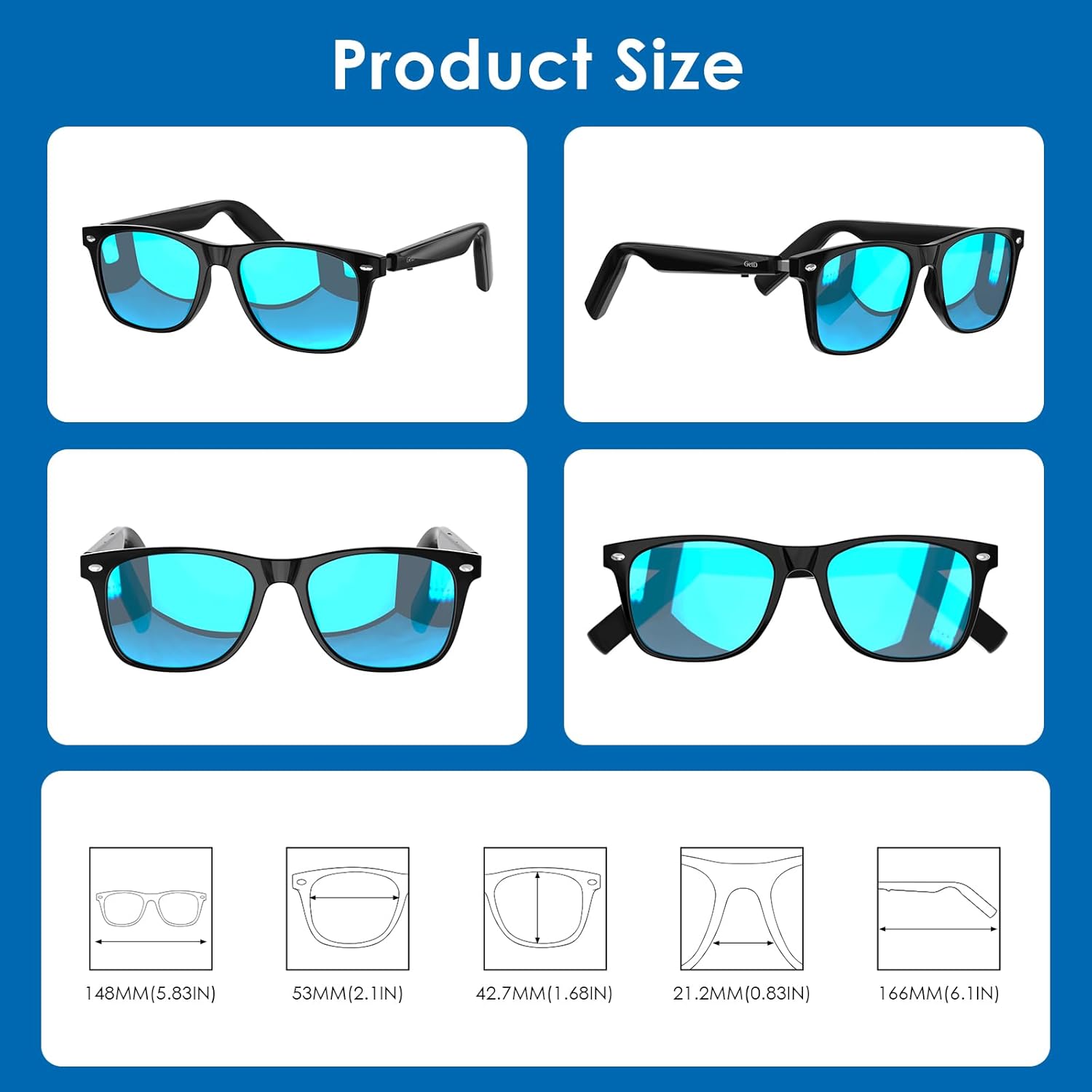
Figure 11: Detailed product dimensions.
Warranty and Support
GetD products are designed with quality and reliability in mind. For specific warranty information and customer support, please refer to the warranty card included in your product packaging or visit the official GetD website. Keep your purchase receipt for warranty claims.
For technical assistance or further inquiries, please contact GetD customer service through the contact information provided in the GetD app or on their official website.
Related documentsB0DNMYKTDL

Ask a question about this manual
Ask about setup, troubleshooting, compatibility, parts, safety, or missing instructions. Manuals+ will review the question and use this page’s manual context to help answer it.