
1. Introduction
The ORICO K20MINI Magnetic External SSD is a portable solid-state drive designed for high-speed data transfer and storage. Featuring an aluminum alloy casing and magnetic attachment, it offers a compact and durable solution for expanding storage on various devices, including smartphones, tablets, and computers. This manual provides instructions for setup, operation, and maintenance to ensure optimal performance.
2. Package Contents
Please verify that all items are present in your package:
- 1 x ORICO K20MINI External SSD
- 1 x 0.13m USB-C to USB-C Data Cable
- 1 x Magnetic Attractor Ring
- 1 x User Manual
- 1 x Packaging Box
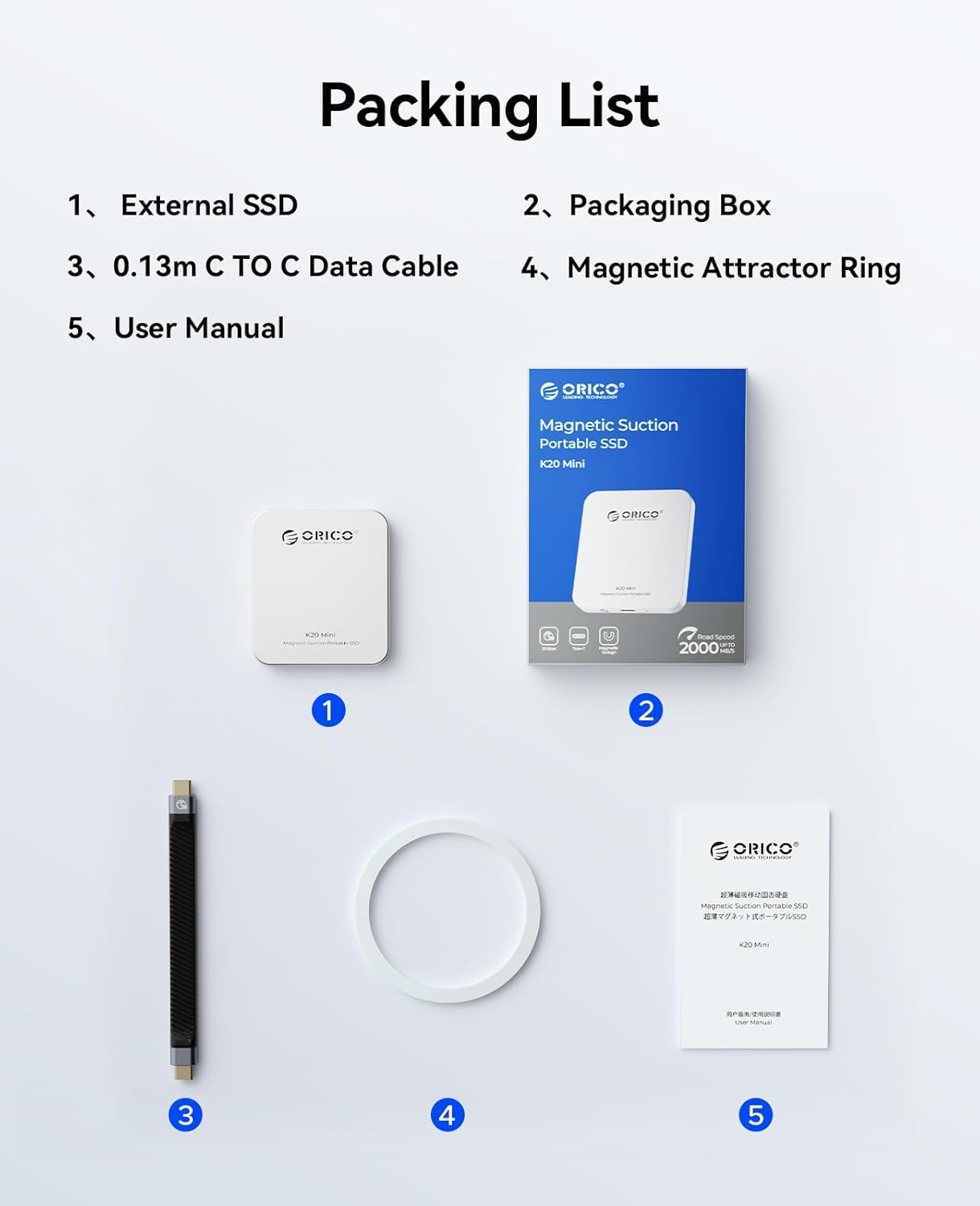
Image: Contents of the ORICO K20MINI SSD package.
3. Setup and Operation
3.1 Magnetic Attachment
The ORICO K20MINI features a strong magnetic design for convenient attachment to compatible devices. If your device or case does not have built-in magnetic attraction, use the included magnetic attractor ring. Adhere the ring to the back of your device or case to enable magnetic attachment.
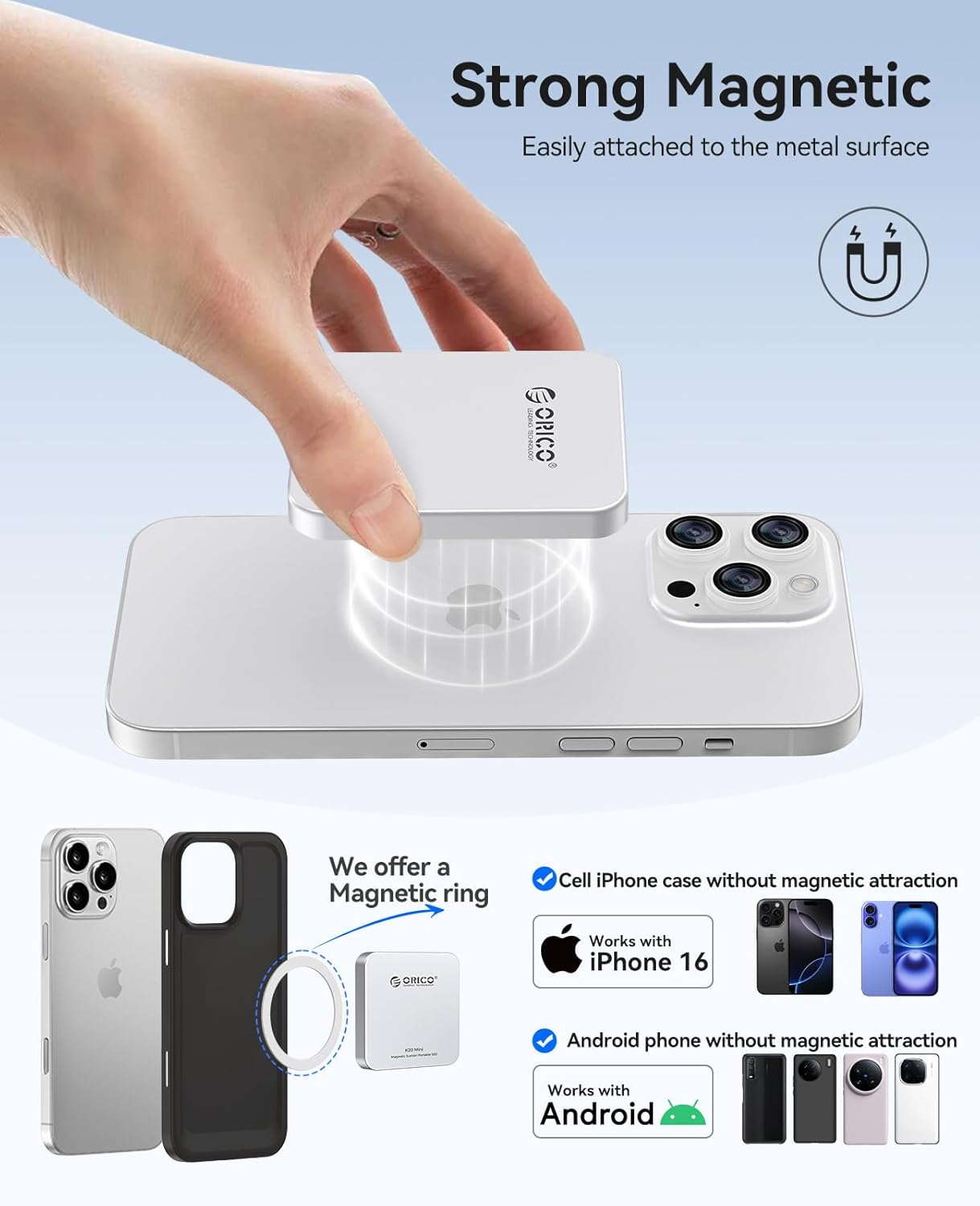
Image: Magnetic attachment method for the SSD.
3.2 Connecting to Devices
Connect the ORICO K20MINI to your device using the provided USB-C to USB-C data cable. The SSD is plug-and-play for most compatible devices.
3.2.1 iPhone (iOS 15/16 Series and above)
For iPhone 15/16 series and newer models with USB-C, the SSD supports direct connection for file transfer and 4K ProRes HDR video recording. For iPhone 14 and earlier models, the ORICO LC10 Lightning adapter is required (sold separately).
- Connect the SSD to your iPhone using the USB-C cable.
- To transfer photos/videos: Open the Photos app, select desired items, tap the Share icon, then 'Save to Files'. Choose the ORICO SSD as the destination.
- To record 4K ProRes HDR video directly: Open the Camera app, select Video mode, ensure ProRes is enabled, and begin recording. The video will automatically save to the connected SSD.

Image: iPhone file transfer steps.
3.2.2 Android Phones
Android devices with USB-C support plug-and-play functionality for file management.
- Connect the SSD to your Android phone using the USB-C cable.
- Access your phone's file manager (e.g., 'My Files'). The SSD will appear as an external storage device (e.g., 'USB storage 1' or 'OTG').
- You can now copy, move, or access files directly from the SSD.

Image: Android file transfer steps.
3.2.3 Computers and Tablets
Connect the ORICO K20MINI to your computer or tablet via the USB-C cable. The device will be recognized as an external drive, allowing you to drag and drop files, edit directly, or use it for backup.
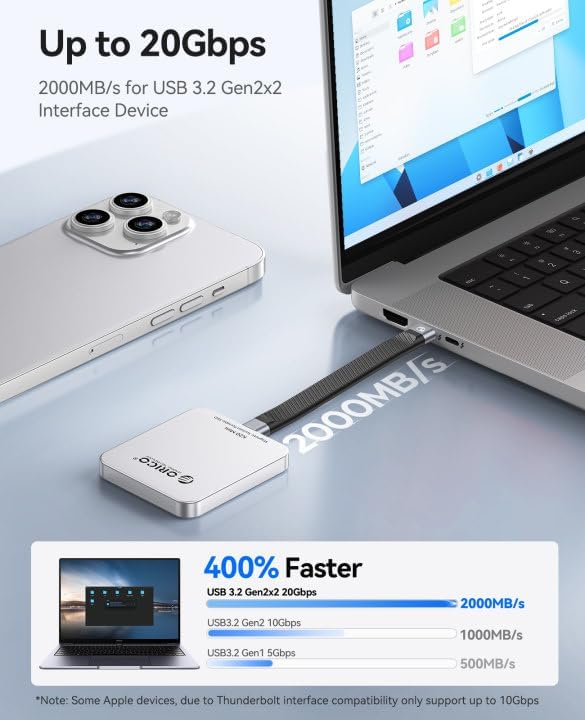
Image: SSD connected to a laptop.
3.3 Video Demonstrations
Video: Demonstrates file transfer and 4K recording with iPhone and Android devices.
Video: Shows connecting the SSD to an iPhone and a MacBook for file management.
Video: Highlights the magnetic design and direct 4K ProRes recording feature.
4. Key Features
4.1 High-Speed Data Transfer
The K20MINI supports USB 3.2 Gen2x2, offering transfer speeds of up to 2000MB/s. This enables rapid transfer of large files, making it suitable for professional use and high-resolution media.
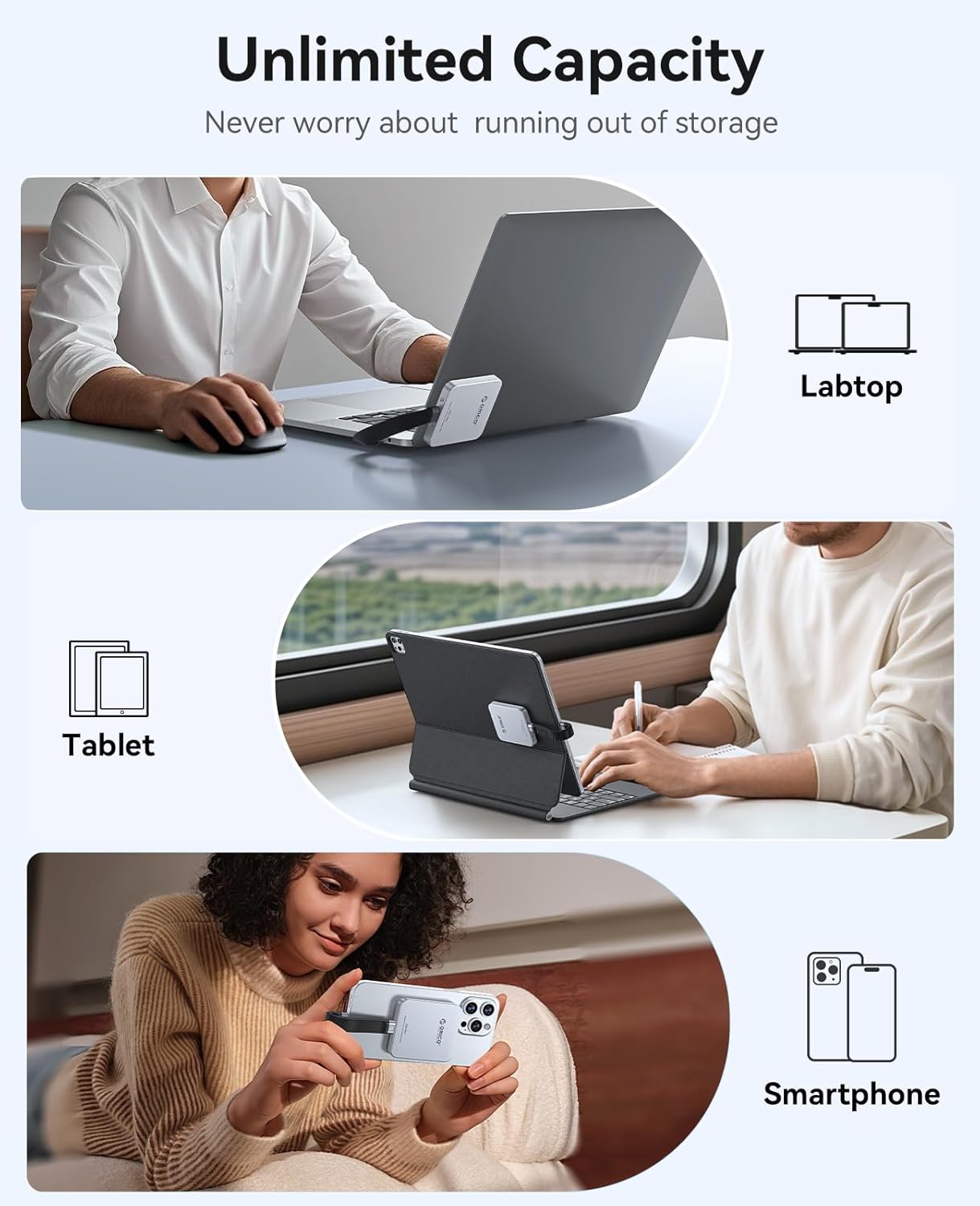
Image: High-speed data transfer capability.
4.2 4K 120fps ProRes HDR Recording
Directly record 4K 120 frames per second ProRes HDR video from compatible devices like the iPhone 16 Pro/Pro Max. This feature allows for saving and editing high-quality video content without intermediate transfers.
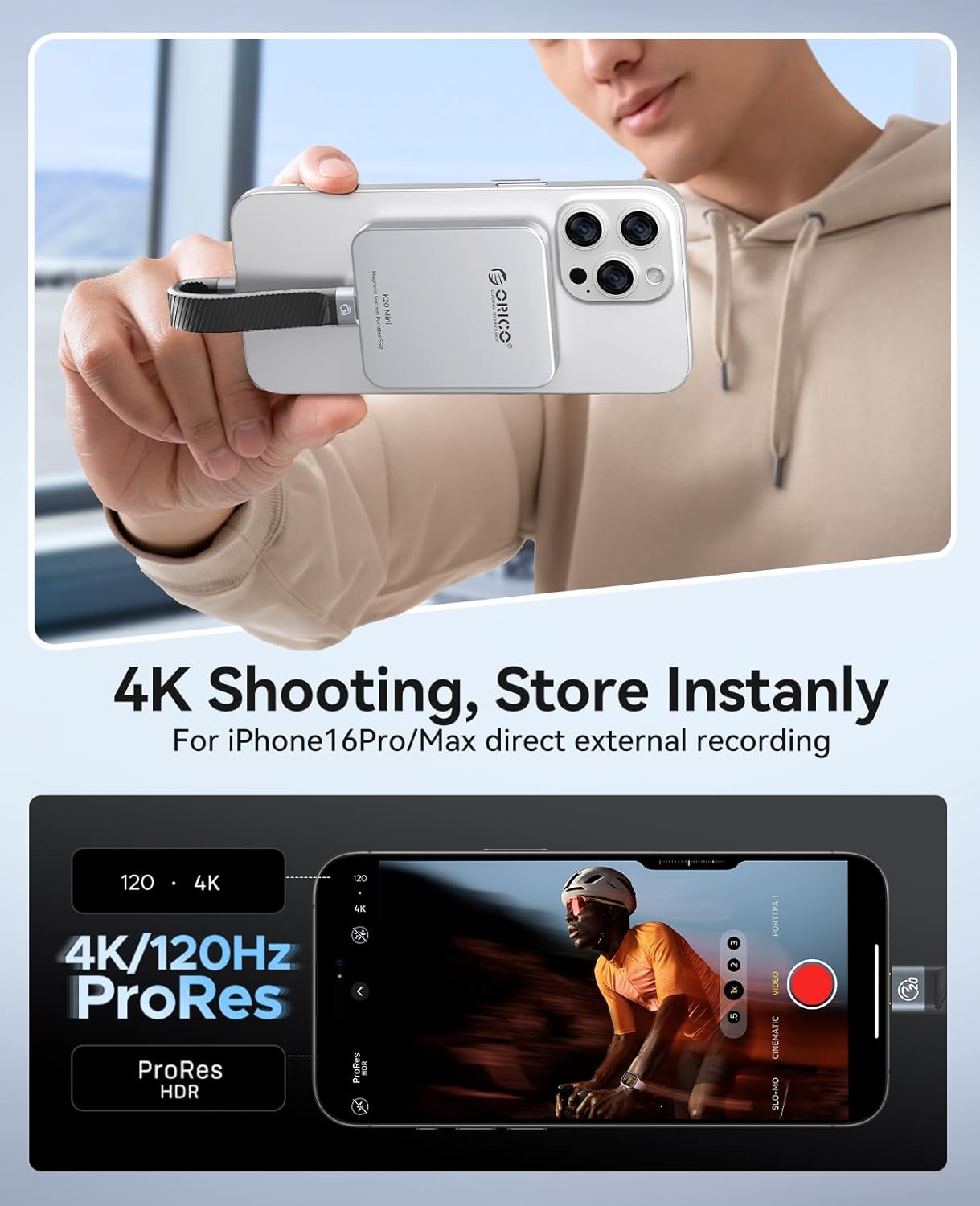
Image: 4K ProRes HDR video recording.
4.3 Compact and Durable Design
The SSD features an ultra-small (2.36 x 2.68 x 0.29 inches) and lightweight (0.09 lbs) aluminum alloy body. This design facilitates rapid heat dissipation, enhances durability, and ensures data security.
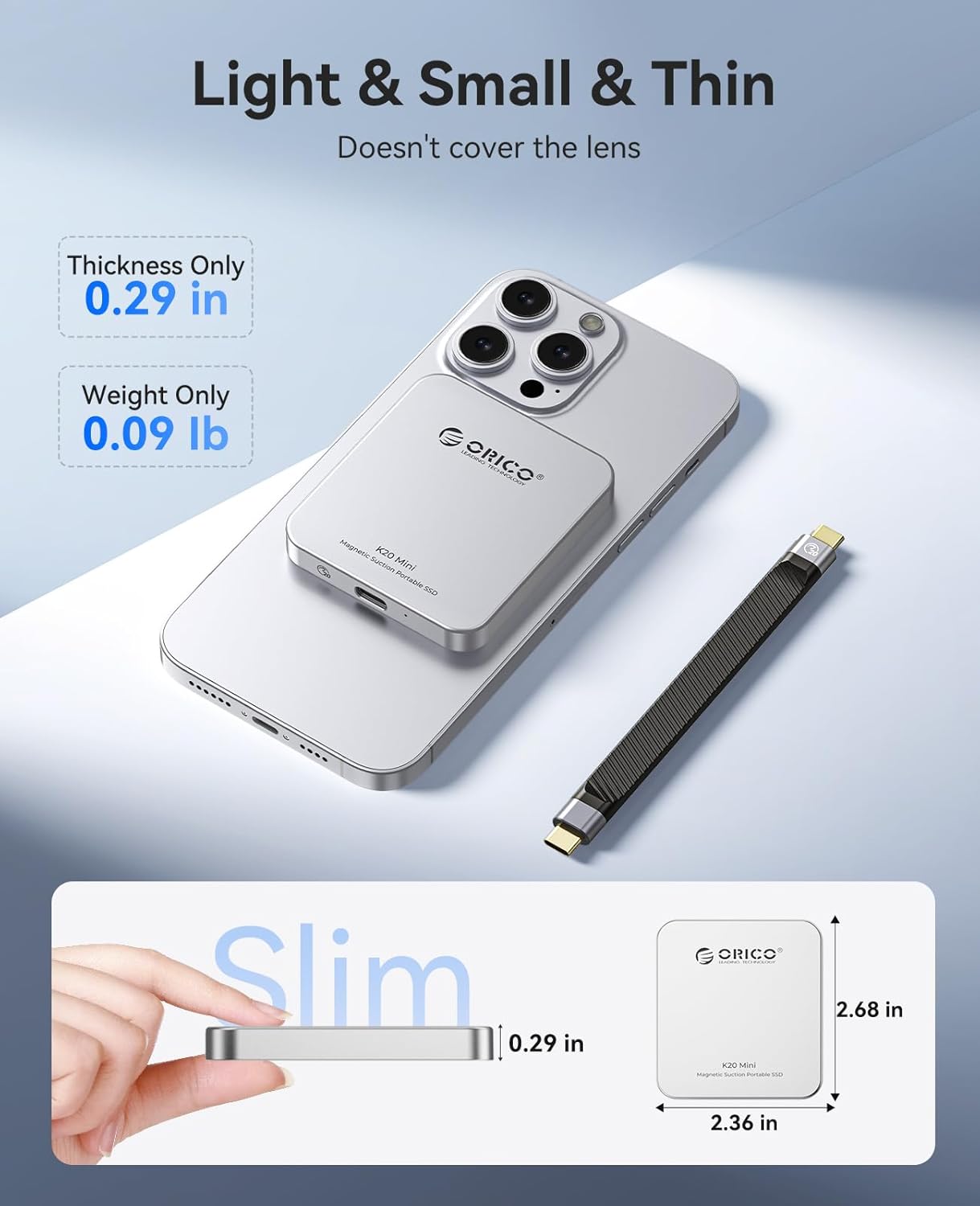
Image: Compact dimensions of the SSD.
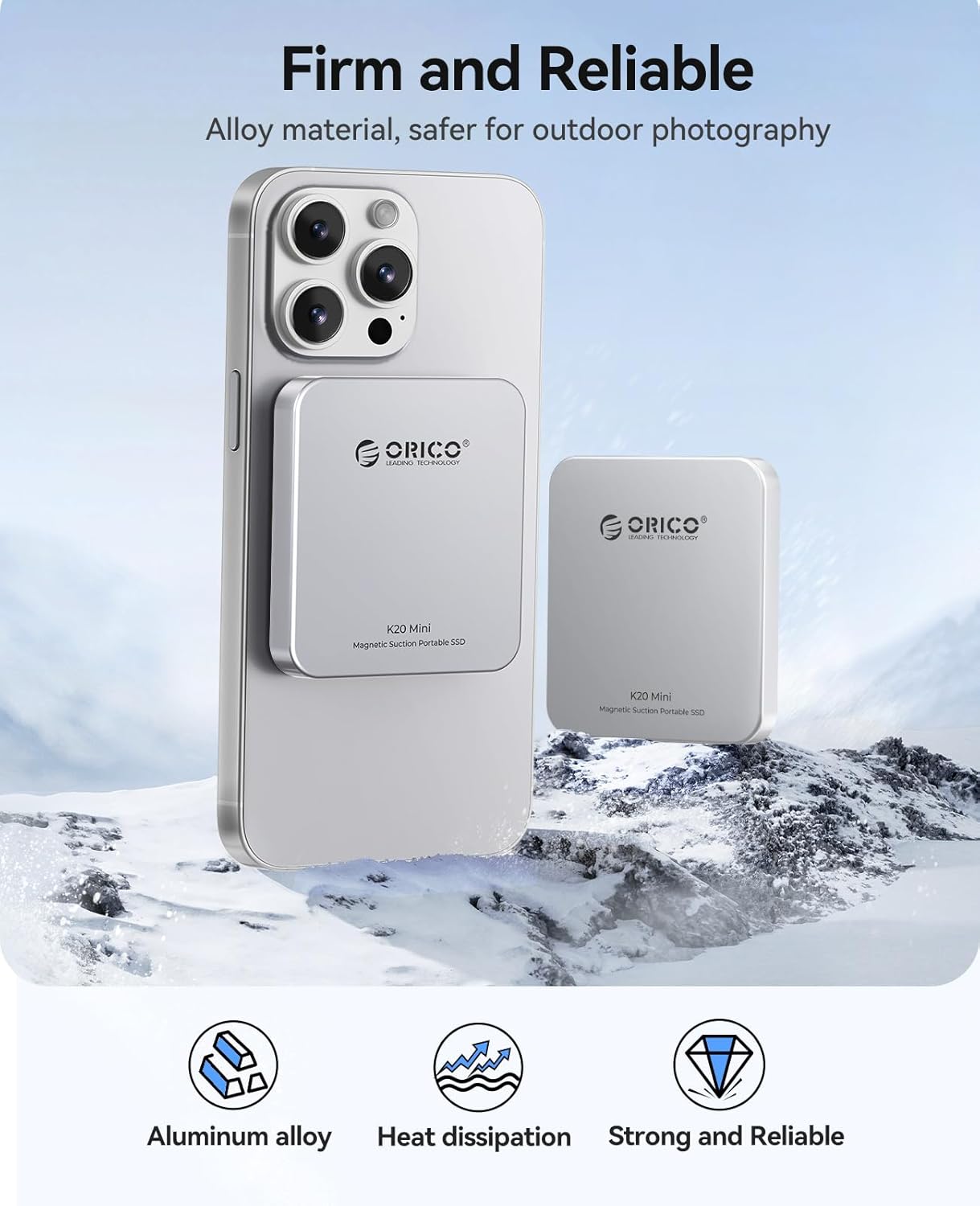
Image: Aluminum alloy construction for durability and heat dissipation.
5. Usage Scenarios
The ORICO K20MINI is versatile for various storage needs:
- Expand Device Capacity: Instantly solve insufficient memory problems on smartphones, tablets, and computers.
- Backup Large Files: Securely store and extract important data for work or personal use.
- Store Photos and Videos: Ideal for photographers and videographers to save high-resolution media.

Image: Diverse applications of the SSD.
6. Specifications
| Feature | Specification |
|---|---|
| Brand | ORICO |
| Model | K20Mini |
| Digital Storage Capacity | 1 TB |
| Hard Disk Interface | USB 3.0 (USB 3.2 Gen2x2 for 2000MB/s) |
| Connectivity Technology | USB-C |
| Max Transfer Speed | Up to 2000MB/s |
| Special Feature | Portable, Magnetic Suction |
| Hard Disk Form Factor | 2.5 Inches |
| Compatible Devices | Smartphones (iPhone 15/16 Pro Max, Android), Tablets, Computers |
| Item Weight | 3.17 ounces (approx. 0.09 lbs) |
| Package Dimensions | 5.91 x 4.29 x 0.83 inches |
7. Troubleshooting
- Device Not Recognized: Ensure the USB-C cable is securely connected to both the SSD and your device. Try connecting to a different USB-C port or device to rule out port issues.
- Slow Transfer Speeds: Verify that your device supports USB 3.2 Gen2x2 for optimal speeds. Older USB standards will result in lower transfer rates. Ensure no other high-bandwidth operations are running simultaneously.
- Magnetic Attachment Issues: If the magnetic attachment is weak, ensure your device or case is compatible with magnetic accessories, or use the provided magnetic attractor ring.
- Formatting: If the SSD is not recognized or you wish to use it with a different operating system, you may need to format it. Refer to your device's operating system instructions for disk formatting. (Note: Formatting will erase all data on the drive).
8. Warranty and Support
For warranty information, technical support, or further assistance, please refer to the official ORICO website or contact ORICO customer service directly. Keep your purchase receipt for warranty claims.


