
1. Introduction
This manual provides detailed instructions for the Dcolor TV Remote Control, Model EU014ABB. This universal remote is designed to control various multimedia devices, including TVs, decoders, and Blu-ray players, offering intuitive control over essential functions. Please read this manual carefully before use to ensure proper operation and to maximize the lifespan of your device.
2. Package Contents
Verify that all items are present in the package:
- Dcolor TV Remote Control (Model EU014ABB)
- Instruction Manual (This document)

The image shows the Dcolor TV Remote Control alongside its brown cardboard packaging box, indicating the product as received.
3. Product Overview
The Dcolor TV Remote Control features an ergonomic design with clearly labeled buttons for easy operation. Its compact and lightweight build ensures comfortable handling.
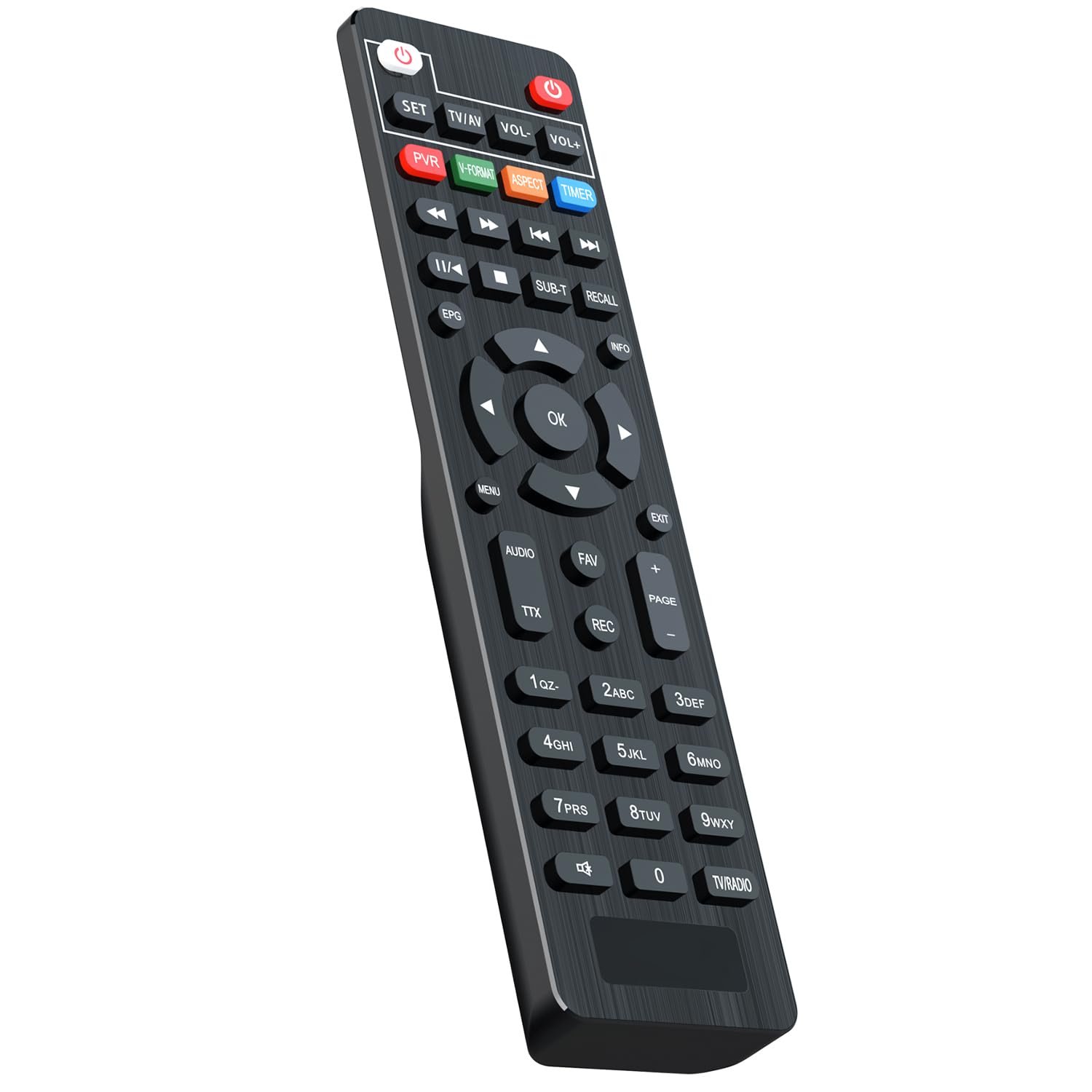
This image displays the Dcolor TV Remote Control, Model EU014ABB, resting within its open cardboard box. The front face of the remote is visible, showcasing its 45 buttons, including power, volume, channel, navigation, and numeric keys. The remote has a black finish with white and red button labels.

The back of the Dcolor TV Remote Control is shown, highlighting the textured surface for grip and the battery compartment cover at the bottom. The CE marking is visible on the upper part.
Button Functions
The remote control is equipped with 45 intuitive buttons to manage various functions of your connected devices. Key functions include:
- POWER: Turns the connected device on or off.
- VOL +/-: Adjusts the volume level.
- CH +/-: Changes the channel.
- OK / Navigation Buttons: Confirms selections and navigates menus (Up, Down, Left, Right arrows).
- MENU: Accesses the device's main menu.
- EXIT: Exits the current menu or function.
- MUTE: Mutes or unmutes the audio.
- Numeric Keys (0-9): Direct channel input and other numerical selections.
- BACKLIGHT: Activates button backlighting for low-light conditions.
4. Setup
Installing Batteries
- Locate the battery compartment on the back of the remote control.
- Slide the battery compartment cover downwards to open it.
- Insert two AAA batteries (not included), ensuring correct polarity (+ and −) as indicated inside the compartment.
- Slide the battery compartment cover back into place until it clicks securely.
Note: The remote requires 2 AAA batteries. Ensure batteries are inserted correctly for proper functionality.
5. Operating Instructions
Basic Operation
To operate your device, point the remote control directly at the device's infrared (IR) receiver.
- Power On/Off: Press the POWER button to turn your connected device on or off.
- Channel Selection: Use the CH +/- buttons to cycle through channels. Alternatively, enter a channel number directly using the numeric keys (0-9).
- Volume Control: Use the VOL +/- buttons to adjust the audio volume.
- Mute Function: Press the MUTE button to temporarily silence the audio. Press it again to restore the sound.
- Menu Navigation: Press the MENU button to access your device's settings or main menu. Use the navigation (arrow) buttons and the OK button to browse and select options. Press EXIT to leave the menu.
Backlight Function
The remote features backlit buttons for improved visibility in dark environments. Press the dedicated backlight button (if present, or a specific key combination) to activate or deactivate this feature.
6. Maintenance
Cleaning
To clean the remote control, use a soft, dry cloth. Do not use liquid cleaners, solvents, or abrasive materials, as these may damage the surface or internal components of the remote.
Battery Replacement
Replace batteries when the remote's response becomes sluggish or it stops functioning. Always replace both batteries simultaneously with new AAA batteries. Remove batteries if the remote will not be used for an extended period (e.g., more than a month) to prevent potential leakage and damage.
7. Troubleshooting
| Problem | Possible Cause | Solution |
|---|---|---|
| Remote not responding | Dead or incorrectly inserted batteries | Check battery polarity, replace batteries with new ones. |
| Remote range is poor | Obstruction between remote and device; low batteries | Ensure a clear line of sight to the device's IR receiver; replace batteries. |
| Specific buttons not working | Button stuck or dirty | Gently clean around the button; ensure it is not physically stuck. |
| Remote not controlling device | Remote not compatible or device not in range | Verify compatibility with your specific device model; ensure remote is pointed directly at the device's IR receiver within the maximum range. |
If issues persist after attempting these solutions, please refer to the support information provided by your retailer or DCOLOR.
8. Specifications
- Brand: DCOLOR
- Model: EU014ABB
- Product Dimensions: 18 x 4.5 x 2 cm
- Weight: 60 grams (without batteries)
- Power Source: 2 x AAA Batteries (not included)
- Connectivity Technology: Infrared
- Compatible Devices: Television, Decoder, Blu-ray players (universal compatibility)
- Special Features: Volume Control, Backlit buttons
- Number of Buttons: 45
- Maximum Range: 10 meters
A close-up of a barcode label on the product packaging. The label includes the text 'Dcolor Tel. oni Audio/Video', 'X0026GIPFL', 'NEW', 'MADE IN CHINA', and 'EU014ABB', confirming the model and origin.
9. Warranty and Support
DCOLOR products are designed for durability and performance. For warranty information or technical support, please refer to the retailer's return policy or visit the official DCOLOR website. Specific warranty terms may vary by region and retailer.
For further assistance, you may contact DCOLOR customer service through their official channels or the point of purchase.


