
Introduction
Thank you for choosing the ProtoArc XK01 TP Foldable Keyboard with Touchpad. This portable Bluetooth keyboard is designed for convenience and productivity on the go, offering a full-size typing experience with an integrated multi-touch trackpad. Please read this manual carefully to ensure proper setup and operation of your device.
Package Contents
Verify that all items are present in your package:
- Folding keyboard with touchpad
- PU Leather Bag
- Phone Stand
- USB C Charge Cable
- User Manual

Image: The ProtoArc XK01 TP keyboard shown with its included accessories: a phone stand, USB-C charging cable, and a protective PU leather bag.
Setup & Pairing
Follow these steps to connect your keyboard to your device:
- Charge the Keyboard: Before first use, connect the keyboard to a power source using the provided USB-C cable. The charging indicator will show its status.
- Power On: Unfold the keyboard to automatically power it on.
- Enter Pairing Mode: Press and hold one of the Bluetooth channel keys (BT1, BT2, or BT3) for 3 seconds until the corresponding indicator light flashes, indicating it's in pairing mode.
- Enable Bluetooth on Your Device: On your laptop, PC, smartphone, or tablet, go to Bluetooth settings and turn on Bluetooth.
- Select Keyboard: Look for 'ProtoArc XK01 TP' in the list of available devices and select it to pair.
- Confirm Connection: Once paired, the indicator light for the selected Bluetooth channel will stop flashing and remain solid.
- Switch Devices: To switch between paired devices, simply short press the corresponding Bluetooth channel key (BT1, BT2, or BT3).
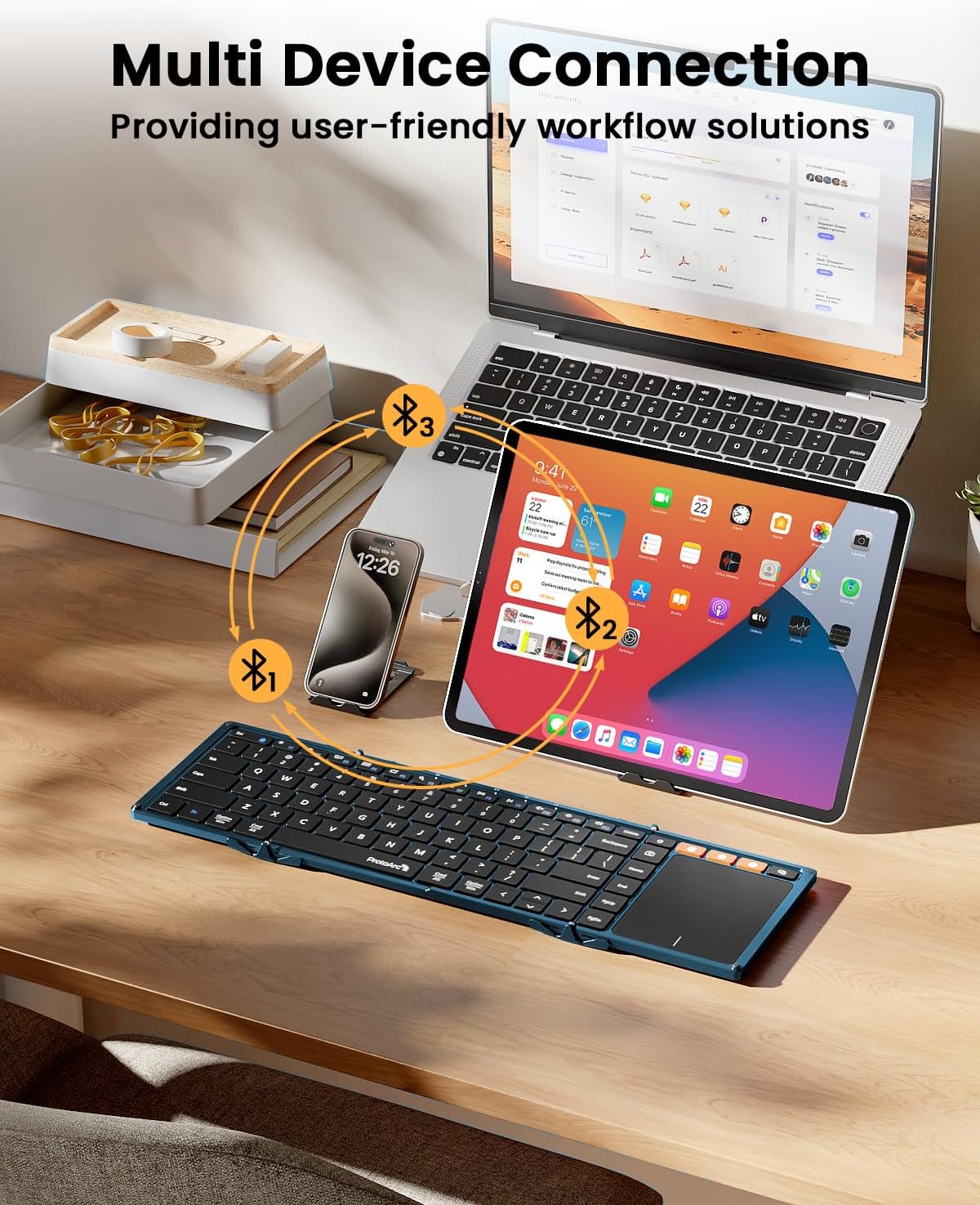
Image: The keyboard demonstrating multi-device Bluetooth connectivity to a smartphone, tablet, and laptop.
Video: A demonstration of the ProtoArc XK01 TP keyboard's portability and ease of setup for travel and business use.
Operating Instructions
Keyboard Layout and Keys
The XK01 TP features an 88-key QWERTY layout with 16.5mm keycaps, providing a comfortable and familiar typing experience similar to a full-size laptop keyboard. It includes a full row of shortcut keys for various functions.

Image: User's hands typing on the ProtoArc XK01 TP keyboard, highlighting its standard full-size keys and integrated trackpad.
Trackpad Gestures
The multi-touch trackpad supports various gestures for efficient navigation:
- Single Finger Tap: Mouse Left Click
- Two Fingers Tap: Mouse Right Click
- Pinch with Two Fingers: Zoom In or Out
- Three Fingers Tap: Windows 10/11 Search
Note: For iPad users, please enable "AssistiveTouch" in your device settings for full trackpad functionality. Some gestures may not be available depending on the application. You can adjust scroll direction in your device settings.

Image: A close-up view of the keyboard's large, smooth trackpad, demonstrating precise navigation and scrolling.
Charging
The keyboard has a built-in 300mAh battery. It takes approximately 2 hours for a full charge and offers up to 120 days of standby time. It will enter sleep mode after 60 minutes of inactivity to conserve power. Press any key to reactivate. To power off, simply fold the keyboard. Unfolding it will power it on.

Image: Visual representation of the keyboard's 300mAh battery, 2-hour charge time, and 150-day standby time.
Maintenance
To ensure the longevity and optimal performance of your ProtoArc XK01 TP keyboard, please follow these maintenance guidelines:
- Cleaning: Use a soft, dry cloth to wipe the keyboard surface and trackpad. For stubborn dirt, slightly dampen the cloth with water or a mild, non-abrasive cleaner. Avoid excessive moisture.
- Storage: When not in use, fold the keyboard to protect the keys and trackpad. Store it in the provided PU leather bag to prevent scratches and dust accumulation.
- Avoid Extreme Conditions: Do not expose the keyboard to extreme temperatures, direct sunlight, or high humidity. Keep it away from liquids and corrosive substances.
- Handle with Care: Avoid dropping the keyboard or applying excessive force to the keys or hinges. While durable, rough handling can cause damage.
- Charging: Use only the provided USB-C cable for charging. Do not use damaged cables or chargers.
Troubleshooting
If you encounter issues with your keyboard, try the following solutions:
- Keyboard not connecting:
- Ensure the keyboard is charged and powered on (unfolded).
- Verify Bluetooth is enabled on your device.
- Put the keyboard into pairing mode by long-pressing a BT channel key.
- Forget the device from your device's Bluetooth settings and try pairing again.
- Trackpad not responding or gestures not working:
- For iPad users, ensure "AssistiveTouch" is enabled in Accessibility settings.
- Some applications may not fully support all trackpad gestures.
- Ensure the trackpad surface is clean and dry.
- Keys not responding:
- Check battery level and recharge if necessary.
- Ensure the keyboard is properly unfolded and locked into position.
- Reconnect the Bluetooth connection.
- Unstable typing experience:
- The keyboard is designed for use on flat surfaces. Using it on uneven surfaces may affect stability due to the fold hinge.
Specifications
| Model Number | XK01 TP |
| Brand | ProtoArc |
| Connectivity | Bluetooth 5.1 (3 channels) |
| Unfolded Dimensions | 15.19"L x 4.68"W x 0.78"H |
| Folded Dimensions | 8.46"L x 4.68"W x 0.78"H |
| Item Weight | 10.5 ounces |
| Battery Capacity | 300mAh |
| Standby Time | Up to 120 days |
| Charging Time | Approx. 2 hours |
| Keycaps | 16.5mm, 88-key QWERTY layout |
| Material | Plastic |
| Compatible Devices | Laptop, PC, Smartphone, Tablet (Android, Windows, iOS) |

Image: The keyboard shown in both folded and unfolded states, illustrating its compact design for portability.
Warranty & Support
The ProtoArc XK01 TP keyboard comes with a 5-year warranty. For any product inquiries, technical support, or warranty claims, please contact ProtoArc customer service. Contact information is typically provided in the included warranty card or user manual.
You can also visit the official ProtoArc website for additional support resources and FAQs: ProtoArc Store


