
Uckazy F25NBT-LIN
Ultra Narrow 12.3-inch Car Radio User Manual
Model: F25NBT-LIN | Brand: Uckazy
1. Introduction
This manual provides comprehensive instructions for the installation, operation, and maintenance of your Uckazy Ultra Narrow 12.3-inch Car Radio. This multimedia audio stereo upgrade is designed specifically for BMW X3 F25 and X4 F26 models with the NBT system, enhancing your driving experience with Carplay, Android Auto, and a high-resolution touch screen.
2. Compatible Models & Year
This device is suitable for the following BMW models:
- BMW X3 F25 (2010-2013 Original CIC System)
- BMW X4 F26 (NBT System)
Note: Before purchase, please ensure your car system is an NBT system. If you are unsure, please contact us for assistance.

Image: Compatible Models & Year for BMW X3 F25 (2013-2017) and X4 F26 (2014-2017).

Image: Visual guide to identify NBT System (6pin LVDS Port) versus CIC System (4pin LVDS Port).
3. What's in the Box
Upon opening the package, please verify that all the following components are included:
- Plug and play power Cable
- Ultra narrow 12.3" in-cell display screen
- USB/AUX/RCA Cable
- Frame
- Installation tools and touch pen
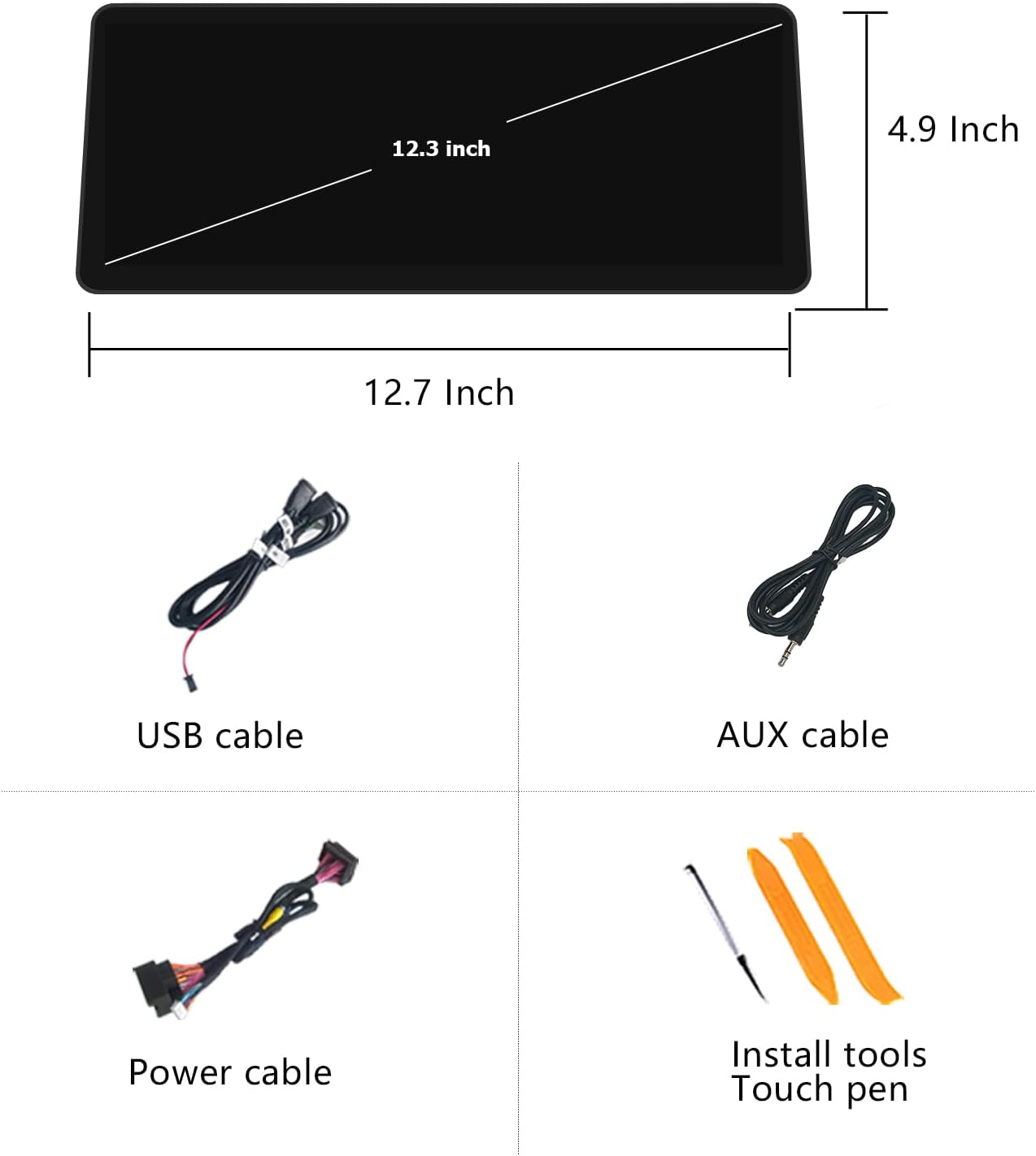
Image: Visual representation of included components: 12.3-inch screen, USB cable, AUX cable, Power cable, and installation tools with touch pen.
4. Setup and Installation Guide
4.1. Pre-Installation Check
Ensure your vehicle is compatible with the NBT system. The unit is designed for plug-and-play installation. If you have any doubts about compatibility or installation steps, please consult a professional or contact our technical support.
4.2. Wiring Diagram and Connections
Carefully refer to the wiring diagram to connect the cables correctly. Ensure all connections are secure to prevent operational issues.

Image: Detailed wire definition and linking diagram. Includes instructions for connecting with fiber optic by unplugging the 2P fiber optic harness from the original car CD and inserting it into the Linux system harness.
4.3. USB Connection for Carplay/Android Auto
For wired Carplay or Android Auto functionality, connect your device to USB1. USB2 is primarily for read storage.

Image: Diagram showing USB1 for data link (Carplay/Android Auto) and USB2 for read storage. Also illustrates a solution for sound noise by connecting AB.
4.4. AUX Setup
To ensure proper audio output, especially for Carplay sound, the AUX input must be correctly configured.

Image: Instructions for automatic AUX switching (via setup > car settings > auto switch to aux) and manual AUX setting method (go to main menu > multimedia > external devices, then long press button 8).

Image: Shows the location of the stock AUX port (manual gear position or passenger side storage box) and the setting to turn off AUX auto switching.
5. Operating Instructions
5.1. Dual System Switching
The device supports a dual system, allowing for one-click switching between the Linux system and your original car system. This retains all original functions while adding new features.

Image: Illustrates the seamless one-click conversion between the original car CCC system and the new Linux system.
5.2. Wireless Carplay & Android Auto
The unit supports wireless (and wired) Apple Carplay and Android Auto, as well as wireless Mirrorlink for iOS and Android phones. Access navigation, contacts, music, and more via voice commands (Siri or Google Voice Assistant).

Image: Shows the user interface for Wireless Carplay and Wireless Android Auto, allowing access to various applications.

Image: Steps for Wireless Carplay connection: 1. Connect Bluetooth, 2. Allow all permissions and wait for connection.
5.3. Day and Night Mode
The system features automatic light sensitivity, adjusting the display's day and night mode based on your car's original headlights for optimal visibility.

Image: Comparison of the display in day mode (bright sunlight) and night mode (darkness), showing automatic light sensitivity adjustment.
5.4. OEM System Integration
The upgraded screen seamlessly integrates with your original BMW system, retaining functions such as steering wheel control, iDrive control, original car radio, amplifier, and original reverse camera.
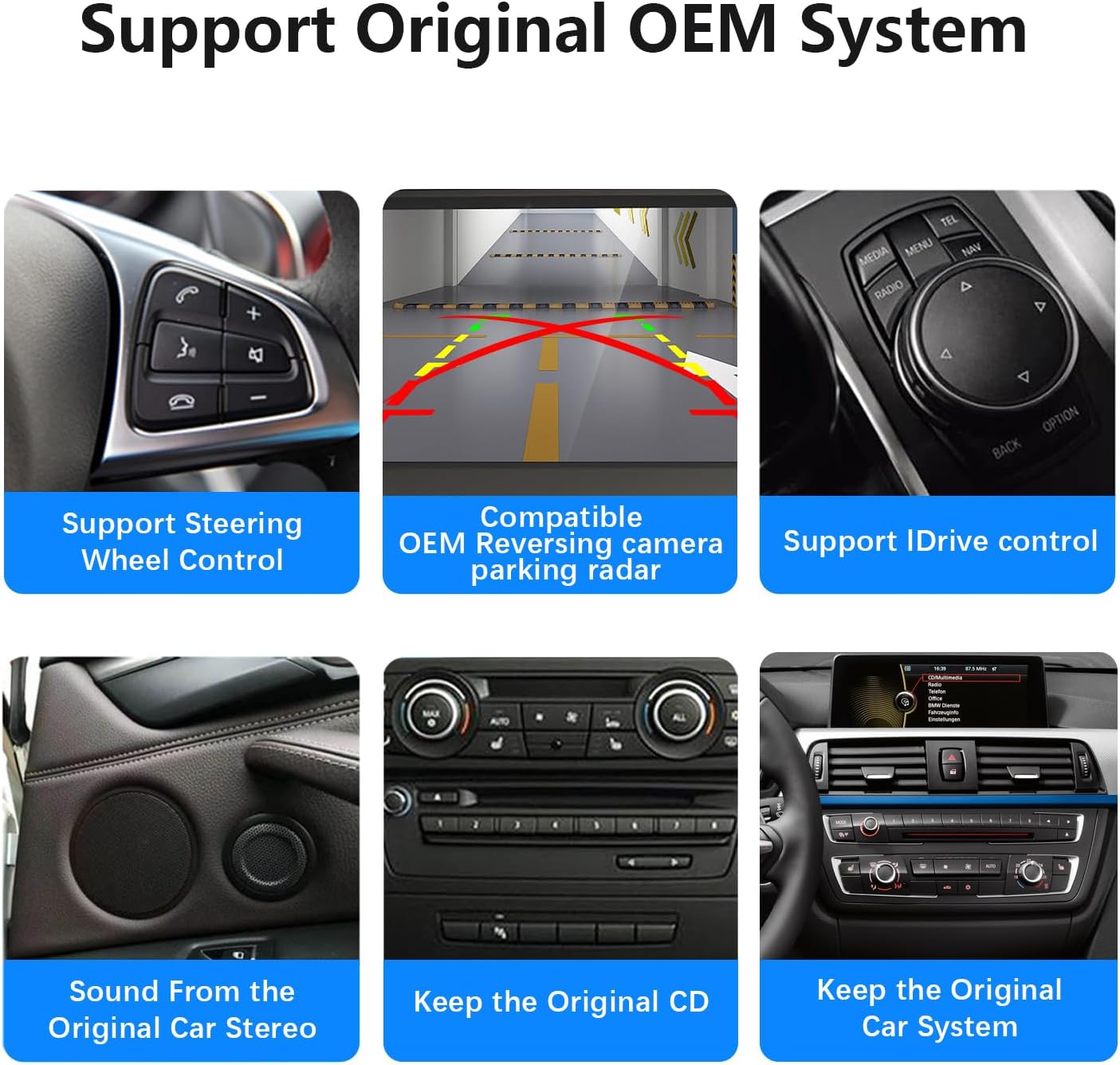
Image: Displays various OEM features supported: Steering Wheel Control, Compatible OEM Reversing camera parking radar, iDrive control, Sound From the Original Car Stereo, Keep the Original CD, Keep the Original Car System.
5.5. DSP and Audio Settings
The built-in DSP (Digital Signal Processor) with 16 EQ segments allows for various tuning methods and EQ presets, enhancing the overall sound quality and allowing for detailed adjustment of speaker positioning.
5.6. Screen Resolution and Camera Settings
It is crucial to set the correct OEM resolution and camera type in the settings to ensure proper display and functionality of your original car information and reverse camera.

Image: Instructions on how to set the OEM resolution (e.g., 1920x720) and how to set OEM cameras (Original Camera or Aftermarket Camera) via the setup menu.
6. Maintenance
To ensure the longevity and optimal performance of your car radio, follow these maintenance guidelines:
- Cleaning: Use a soft, lint-free cloth to gently wipe the screen and exterior. Avoid abrasive cleaners or solvents.
- Temperature: Do not expose the device to extreme temperatures.
- Moisture: Keep the device dry. Avoid contact with liquids.
- Physical Damage: Protect the screen from impacts and scratches.
7. Troubleshooting
7.1. Sound Issues (Muffled/No Sound)
If you experience muffled sound or no audio from navigation and Apple Carplay, ensure the AUX connection is correctly set up as described in Section 4.4. If there is noise in the sound, ensure the AB connection is made as shown in the USB connection diagram (Section 4.3).
7.2. Software Lag
While the system is designed for smooth operation, occasional software lag, especially on boot, may occur. If persistent, try restarting the system. Ensure all connections are secure.
7.3. OEM Camera/Display Issues
If your original car's display information or reverse camera is not working correctly, verify that the OEM resolution and camera type settings are accurately configured in the system's setup menu (refer to Section 5.6).
7.4. General Technical Support
Many issues, such as incorrect setup or wiring, can lead to problems. If you encounter difficulties with installation, sound, Carplay, or the original car UI not displaying, please contact our technical support team for assistance.

Image: Guide on how to contact technical support via the seller's store page on Amazon.
8. Specifications
| Feature | Detail |
|---|---|
| Product Dimensions | 16 x 20 x 22 inches |
| Item Weight | 3.59 pounds |
| Item Model Number | F25NBT-LIN |
| Screen Size | 12.3-inch |
| Screen Resolution | 1920 x 720 (HD) |
| Screen Type | IN-CELL, Full Lamination Technology |
| Operating System | Linux |
| Connectivity Technology | Bluetooth, WI-FI |
| Controller Type | Capacitive Touchscreen |
| Special Features | DSP (16 EQ segments), Wired/Wireless Android Auto, Wired/Wireless Apple CarPlay, Mirrorlink, Automatic Light Sensitivity |
| Compatible Devices | Smartphone |
| Connector Type | 3.5mm Jack, USB |
| Audio Output Mode | Stereo |
| Video Encoding | H.264, H.265/HEVC |

Image: Comparison showing the narrow bezel and lightweight design of the Uckazy 12.3-inch screen versus older, heavier designs with wider bezels.
9. Warranty and Support
Your Uckazy car radio comes with a 30-day refund/replacement policy. For any technical support or warranty claims, please contact the seller, Uckazy Factory Outlet, directly through the Amazon platform. Our team is ready to assist you with any installation or operational queries.
Ask a question about this manual
Ask about setup, troubleshooting, compatibility, parts, safety, or missing instructions. Manuals+ will review the question and use this page’s manual context to help answer it.