
Wildgame Innovations FC-CR1_K289
Wildgame Innovations Encounter 20MP Cellular Trail Camera User Manual
Model: FC-CR1_K289
Introduction
The Wildgame Innovations Encounter 20MP Cellular Trail Camera is designed to capture images and videos of wildlife and transmit them directly to your mobile device or desktop computer via a cellular network. This manual provides detailed instructions for setting up, operating, and maintaining your trail camera to ensure optimal performance.
The camera features a 20-megapixel resolution, fast trigger speed, and an 80-foot flash range, making it an effective tool for scouting. Its seamless QR code setup and integration with the HuntSmart app simplify management and data analysis.
Package Contents
Before beginning, please verify that all items listed below are included in your package:
- Wildgame Innovations Encounter 20MP Cellular Trail Camera (Brown)
- 32GB Ultra SDHC UHS-I Memory Card
- 4-In-1 USB 2.0 Card Reader

Image: The Wildgame Innovations Encounter 20MP Cellular Trail Camera, bundled with a 32GB SD card and a 4-in-1 USB card reader, as typically found in the product packaging.
Setup Guide
1. Battery Installation
The Encounter camera requires 8 AA batteries (not included). For best performance, use high-quality alkaline or lithium batteries. Ensure correct polarity when inserting batteries into the compartment located at the bottom of the camera.
2. SD Card Insertion
Insert the provided 32GB Ultra SDHC UHS-I Memory Card into the SD card slot on the side of the camera. Ensure the card is inserted correctly until it clicks into place. The camera supports SD cards up to 32GB.
3. QR Code Activation and App Setup
The Wildgame Innovations Encounter camera utilizes a streamlined QR code setup for activation. Follow these steps:
- Download the HuntSmart app from your mobile device's app store.
- Create an account or log in to your existing HuntSmart account.
- Power on the camera.
- Within the HuntSmart app, select the option to add a new camera and scan the unique QR code located on your Encounter camera.
- Follow the on-screen prompts in the app to complete the activation and data plan selection.
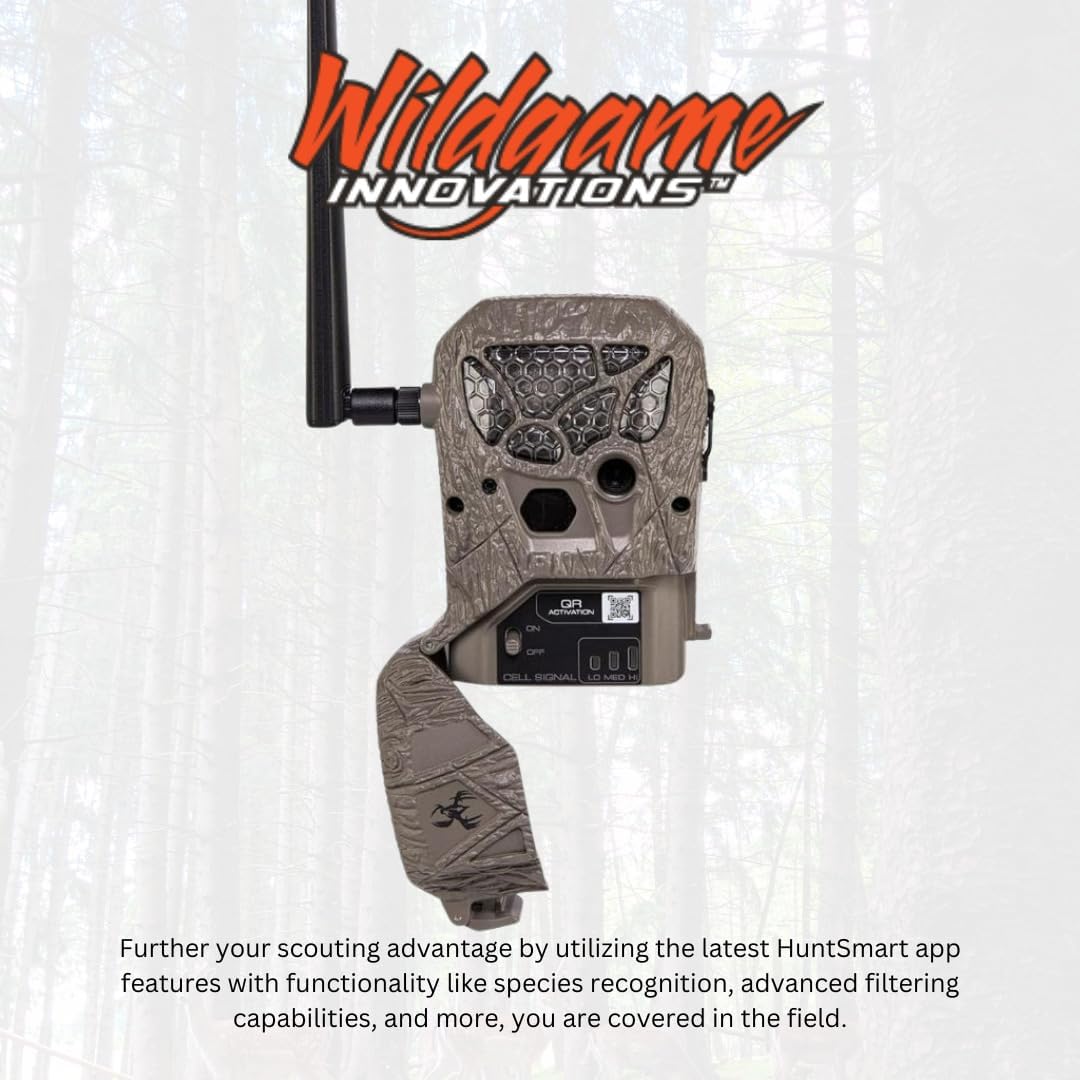
Image: Close-up view of the Wildgame Innovations Encounter camera, highlighting the QR Activation label and the red, yellow, and green indicator lights for cellular signal strength.
4. Cellular Signal Check
After activation, observe the red, yellow, and green indicator lights on the camera. These lights reflect the camera's cellular signal strength. Green indicates a strong signal, yellow a moderate signal, and red a weak or no signal. Position the camera in an area with good cellular coverage for reliable image transmission.
5. Camera Placement and Mounting
Mount the camera to a tree or post using the included strap. Ensure the camera is stable and pointed towards the desired area of surveillance. Adjust the height to approximately 3-6 feet off the ground, depending on the terrain and target animals.
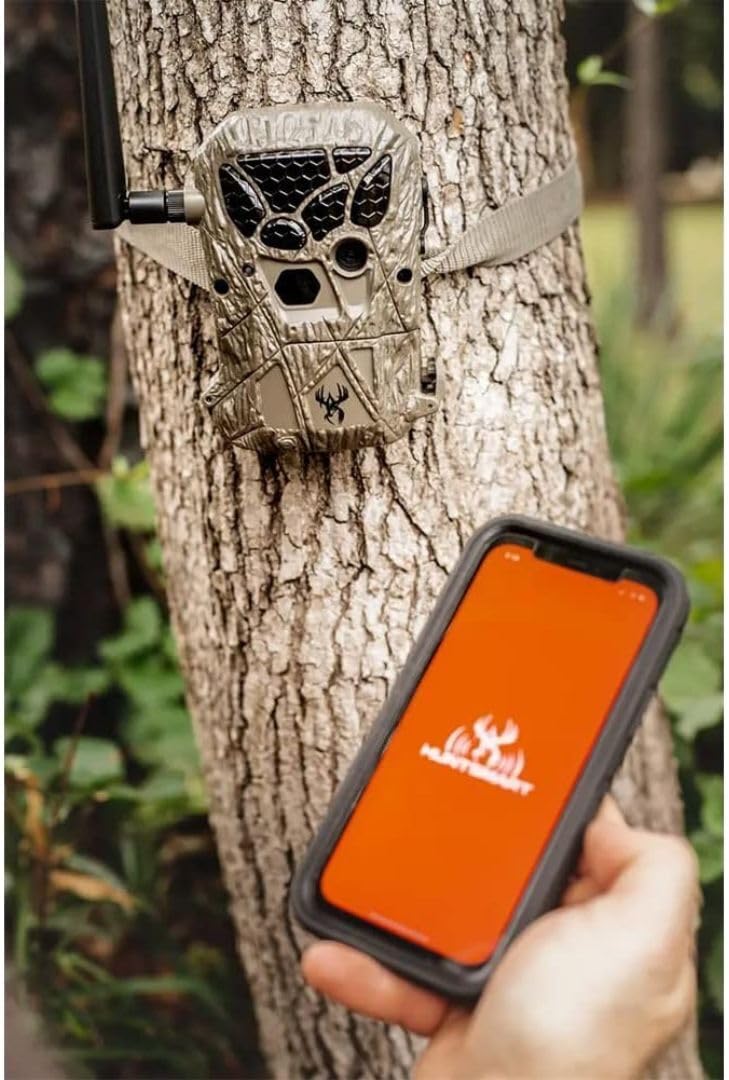
Image: The Wildgame Innovations Encounter camera securely mounted to a tree, demonstrating typical field deployment. A user is shown interacting with the HuntSmart app on a smartphone, indicating remote management capabilities.
Operating Instructions
Image and Video Capture
The Encounter camera automatically captures images or videos when motion is detected within its detection range. The captured media is saved to the SD card and, if cellular service is active, transmitted to your HuntSmart app.

Image: An example of an image captured by the Wildgame Innovations camera, featuring a deer in its natural habitat, as viewed on a mobile device, demonstrating the camera's ability to transmit images.
HuntSmart App Features
Utilize the HuntSmart app to manage your camera and analyze captured data. Key features include:
- Species Recognition: Advanced algorithms help identify and categorize animals in your captured images.
- Advanced Filtering: Sort and filter images based on various criteria for efficient scouting.
- Remote Management: Adjust camera settings, check battery life, and monitor SD card capacity remotely.
- On-Demand Photos: A push of a button in the app provides a real-time photo capture, allowing you to see what is happening in your hunting ground instantly.
External Power Compatibility
The camera includes an input jack for use with an external battery source or a compatible solar panel (sold separately). This allows for extended operation without frequent battery changes.
Maintenance
General Care
- Keep the camera lens and PIR sensor clean. Use a soft, dry cloth to wipe away dust or debris.
- Ensure the battery compartment and SD card slot covers are securely closed to prevent moisture ingress.
- Avoid exposing the camera to extreme temperatures or prolonged direct sunlight when not in use.
Battery Replacement
When the battery indicator in the HuntSmart app shows low power, replace all 8 AA batteries simultaneously. Do not mix old and new batteries or different battery types.
SD Card Management
Regularly check the SD card capacity via the HuntSmart app. It is recommended to format the SD card periodically (after backing up important data) to maintain optimal performance and prevent data corruption. Use the provided 4-in-1 USB 2.0 Card Reader to transfer images and videos to your computer.
Troubleshooting
Camera Not Powering On
- Ensure batteries are inserted correctly with proper polarity.
- Check if batteries are fully charged or replace with new ones.
- Verify the power switch is in the 'ON' position.
No Images Transmitting
- Check the cellular signal indicator lights on the camera. If red or yellow, relocate the camera to an area with better signal.
- Confirm your data plan is active and not expired through the HuntSmart app.
- Ensure the SD card is properly inserted and has sufficient free space.
- Verify the camera is correctly activated via the QR code setup in the HuntSmart app.
Poor Image Quality
- Clean the camera lens and PIR sensor with a soft cloth.
- Ensure the camera is not pointed directly into the sun or strong light sources.
- Check for obstructions in front of the camera.
Specifications
| Model Number | FC-CR1_K289 |
| Photo Resolution | 20 Megapixels |
| Trigger Speed | <0.7 seconds |
| Flash Range | 80 feet |
| Detection Range | 80 feet |
| Recovery Time | 5s - 180s Timeout |
| Power Source | 8 AA Batteries (not included), External 12V DC input |
| Memory Card Support | SDHC up to 32GB |
| Cellular Network | Nationwide compatibility |
| Dimensions (L x W x H) | 9.1 x 9.1 x 9.1 inches |
| Item Weight | 1.5 pounds |
| UPC | 196271149002 |

Image: Visual representation of the Wildgame Innovations Encounter camera highlighting key performance specifications such as 20 MP resolution, sub-second trigger speed, 80-foot flash range, and HD video capability.

Image: The Wildgame Innovations Encounter camera with additional performance details, including recovery time, precise trigger speed, photo resolution, and detection/IR range.
Warranty and Support
Wildgame Innovations products are manufactured to high standards and are backed by a limited warranty. For specific warranty details, please refer to the warranty card included with your product or visit the official Wildgame Innovations website.
For technical support, troubleshooting assistance, or inquiries regarding your Wildgame Innovations Encounter camera, please contact Wildgame Innovations customer service. Contact information can typically be found on their official website or in the product packaging.
Online Resources:
- Visit the Wildgame Innovations Store on Amazon for product information and updates.
- Check the Official Wildgame Innovations Website for FAQs, support articles, and contact details.
Ask a question about this manual
Ask about setup, troubleshooting, compatibility, parts, safety, or missing instructions. Manuals+ will review the question and use this page’s manual context to help answer it.