1. Product Overview
This manual provides comprehensive instructions for the HP Pavilion 15.6" FHD Laptop. This device is designed for general computing tasks, offering a balance of performance and portability. It features an Intel Core i3-N305 processor, 16GB of DDR4 RAM, and a 1TB storage solution comprising a 512GB PCIe SSD and an additional 500GB HP P500 Portable SSD. The laptop includes a 15.6-inch Full HD anti-glare display, Wi-Fi 6 connectivity, and runs on Windows 11.

Figure 1: HP Pavilion 15.6" FHD Laptop with included HP P500 Portable SSD.
Key Features:
- Processor: Intel Core i3-N305 (8 Cores, 8 Threads, up to 3.80 GHz)
- Graphics: Intel UHD Graphics
- Display: 15.6" Full HD (1920x1080) IPS Anti-glare
- Memory: 16GB DDR4 RAM
- Storage: 512GB PCIe SSD + 500GB HP P500 Portable SSD (1TB total)
- Operating System: Windows 11
- Connectivity: Wi-Fi 6, Bluetooth 5.3
- Ports: USB-C, USB Type-A (x2), HDMI, Headphone/Microphone Combo
- Security: Built-in Fingerprint Reader
- Webcam: HD 720p with Privacy Shutter
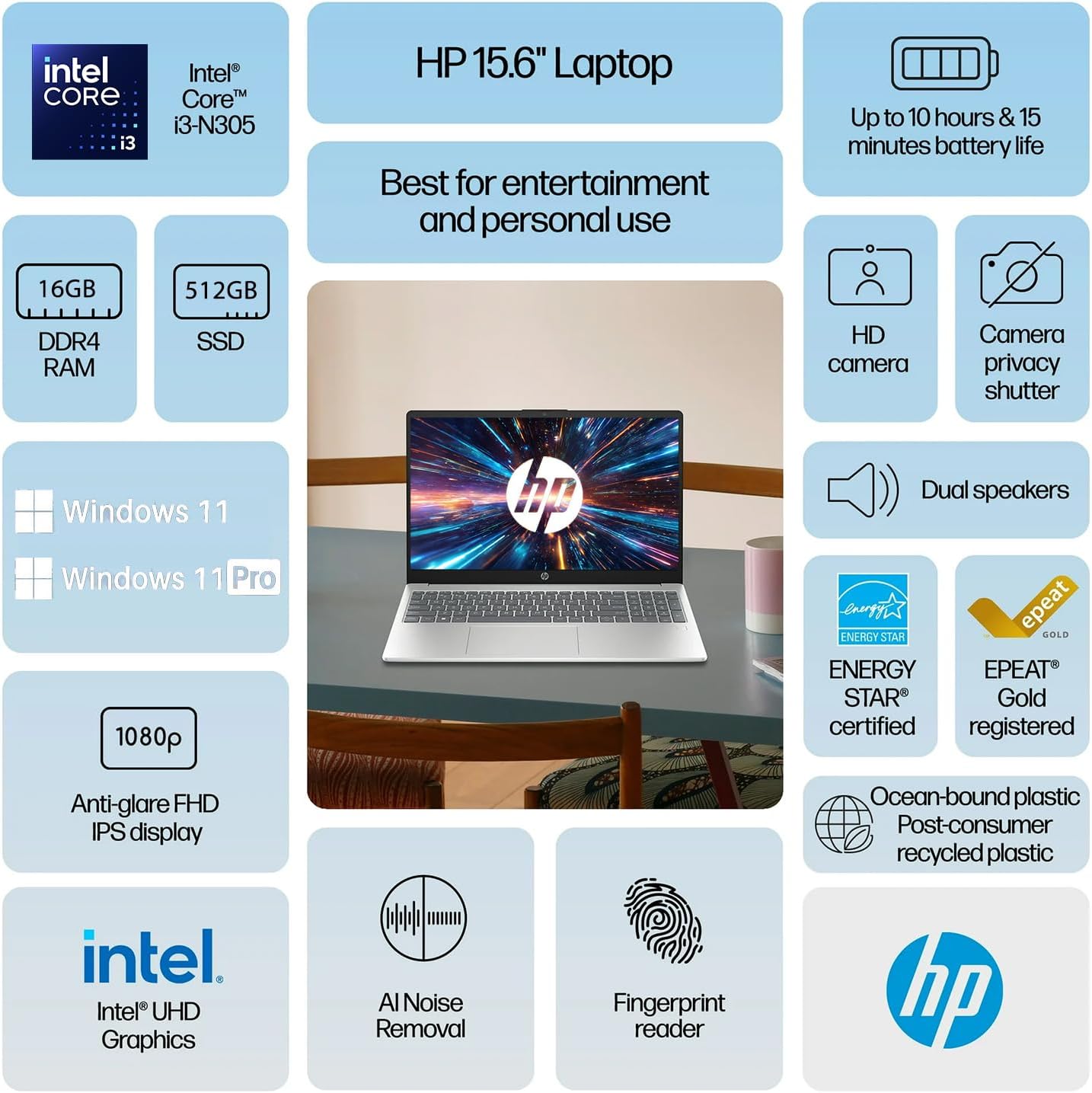
Figure 2: Overview of HP Pavilion 15.6" Laptop features.
2. Initial Setup
2.1 Unpacking and First Power On
- Carefully remove the laptop and all accessories from the packaging.
- Connect the power adapter to the laptop's power connector and then to a power outlet.
- Open the laptop lid. The laptop may power on automatically, or you may need to press the power button located on the keyboard.
- Follow the on-screen instructions to complete the initial Windows 11 setup, including language selection, network connection, and user account creation.
2.2 Connecting the HP P500 Portable SSD
The HP P500 Portable SSD is an external storage device included with your laptop. To connect it:
- Locate the USB-C cable provided with the portable SSD.
- Connect one end of the USB-C cable to the HP P500 Portable SSD.
- Connect the other end of the USB-C cable to an available USB-C port on your HP Pavilion laptop.
- The operating system will automatically detect and configure the drive. You can access it through File Explorer.

Figure 3: HP P500 Portable SSD and its connection cable.
3. Operating Your Laptop
3.1 Keyboard and Touchpad
The laptop features a full-size English (US) keyboard and a multi-touch touchpad. Refer to the HP Support website for detailed information on keyboard shortcuts and touchpad gestures.
3.2 Fingerprint Reader
The built-in fingerprint reader allows for secure and quick login. To set up your fingerprint:
- Go to Settings > Accounts > Sign-in options.
- Under "Ways to sign in," select Fingerprint recognition (Windows Hello) and follow the on-screen instructions to register your fingerprints.

Figure 4: Fingerprint reader for secure access.
3.3 Connectivity (Wi-Fi 6 and Bluetooth 5.3)
Your laptop supports Wi-Fi 6 for high-speed wireless internet and Bluetooth 5.3 for connecting wireless peripherals.
- Wi-Fi: Click the Wi-Fi icon in the taskbar, select your desired network, and enter the password if prompted.
- Bluetooth: Go to Settings > Bluetooth & devices to pair new Bluetooth devices.

Figure 5: Laptop demonstrating Wi-Fi 6 and audio capabilities during a video call.
3.4 External Ports
The laptop is equipped with various ports for connecting external devices:
- USB-C (1x): For data transfer and connecting USB-C compatible devices.
- USB Type-A (2x): For connecting standard USB devices like mice, keyboards, or external drives.
- HDMI (1x): For connecting to external displays or projectors.
- Headphone / microphone combo jack (1x): For connecting headphones or a headset with a microphone.
- Power connector (1x): For connecting the AC adapter.
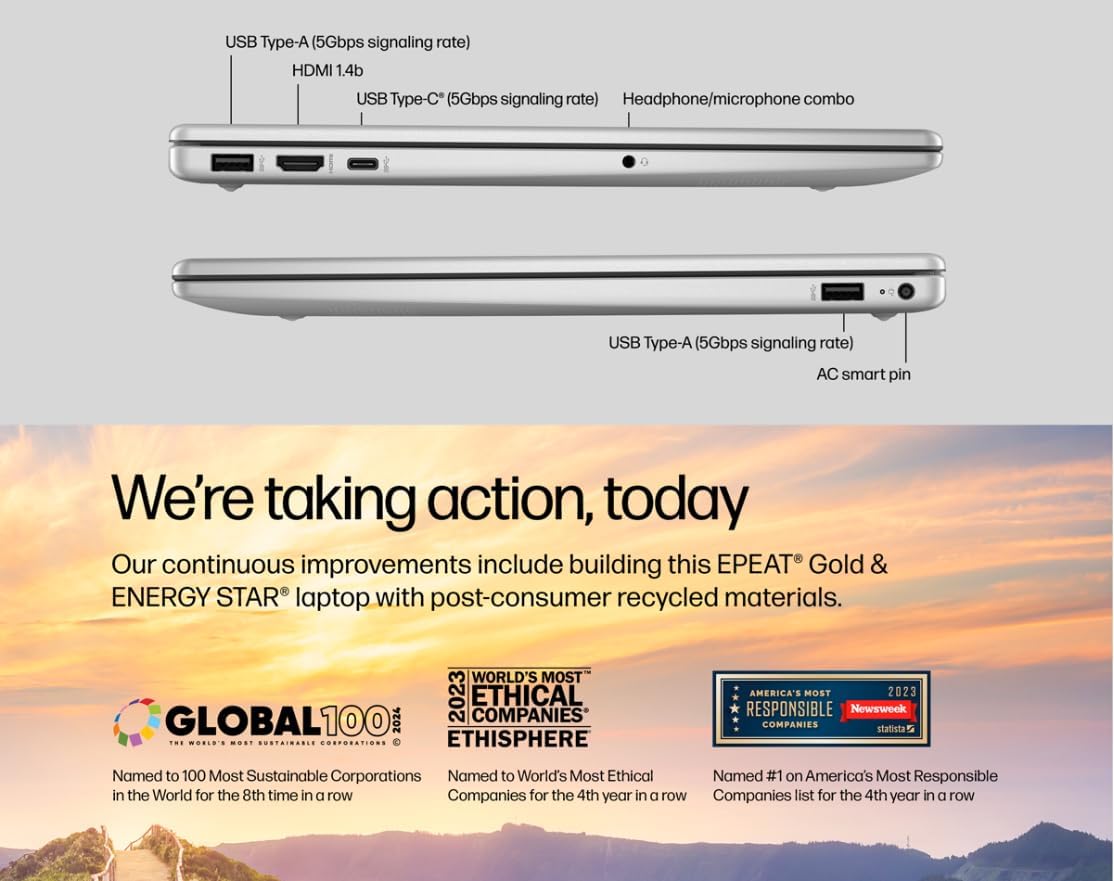
Figure 6: Laptop ports for external connections.
4. Maintenance and Care
4.1 Battery Care
- To maximize battery lifespan, avoid extreme temperatures.
- For optimal performance, allow the battery to discharge partially before recharging.
- The laptop supports HP Fast Charge, allowing it to charge 0 to 50% in approximately 45 minutes.
4.2 Cleaning Your Laptop
- Use a soft, lint-free cloth slightly dampened with water or a screen cleaner to clean the display.
- For the keyboard and chassis, use a soft, dry cloth. Avoid harsh chemicals.
- Ensure the laptop is powered off and unplugged before cleaning.
4.3 Software Updates
Regularly update your Windows 11 operating system and drivers to ensure optimal performance and security.
- Windows Updates: Go to Settings > Windows Update and check for updates.
- Driver Updates: HP provides driver updates through its support website or HP Support Assistant software.
5. Troubleshooting Common Issues
5.1 Power Issues
- Laptop does not turn on: Ensure the power adapter is securely connected to both the laptop and a working power outlet. Try a different outlet.
- Battery not charging: Verify the power adapter is functioning correctly. Check for any physical damage to the adapter or charging port.
5.2 Display Problems
- No display on screen: Connect an external monitor via HDMI to check if the issue is with the laptop's internal display. If the external monitor works, the internal display may require service.
- Flickering or distorted display: Update your graphics drivers. Adjust display resolution in Windows settings.
5.3 Connectivity Problems
- Wi-Fi not connecting: Ensure Wi-Fi is enabled. Restart your router and modem. Forget the network and reconnect.
- Bluetooth device not pairing: Ensure the Bluetooth device is in pairing mode and within range. Restart the laptop and the Bluetooth device.
5.4 Performance Issues
- Slow performance: Close unnecessary applications. Check Task Manager for high CPU/RAM usage. Ensure sufficient free space on the primary SSD.
- System freezes: Perform a system restart. Check for recent software installations or updates that might be causing conflicts.
6. Technical Specifications
| Feature | Specification |
|---|---|
| Processor | Intel Core i3-N305 (8 Cores, 8 Threads, up to 3.80 GHz, 6 MB Intel Smart Cache) |
| Graphics | Intel UHD Graphics |
| Operating System | Windows 11 Home |
| Memory (RAM) | 16GB DDR4 |
| Internal Storage | 512GB PCIe NVMe M.2 SSD |
| External Storage | HP P500 500GB Portable SSD (Red) |
| Display | 15.6" FHD (1920x1080) IPS Anti-glare |
| Audio | Stereo speakers |
| Keyboard | English (US) with Numeric Keypad |
| Fingerprint Reader | Built-in |
| Webcam | HD 720p with Privacy Shutter |
| Battery Life | Up to 10 Hours |
| Wireless Connectivity | Wi-Fi 6 (802.11ax), Bluetooth 5.3 |
| Ports | 1x USB-C, 2x USB Type-A, 1x HDMI, 1x Headphone / microphone combo jack, 1x Power connector |
| Color | Natural Silver |
| Dimensions (L x W x H) | 14.2 x 9.51 x 0.7 inches |
| Weight | 3.59 lbs |

Figure 7: The laptop's 15.6-inch anti-glare display.
7. Warranty and Support
For warranty information, technical support, and driver downloads, please visit the official HP Support website. It is recommended to register your product to receive updates and support notifications.
- HP Support Website: support.hp.com
- Product Registration: Register your HP product online to access personalized support and warranty details.
Please have your product model number (HP Pavilion 15.6" Laptop) and serial number ready when contacting support.