
Introduction
The CAMWORLD 4K Digital Camera is a compact and versatile device designed to capture high-quality photos and videos. With its 4K UHD video recording and 64MP photo resolution, it ensures clear and vibrant imagery. The camera features a unique dual-screen design, 18x digital zoom, and a built-in fill light, making it adaptable for various shooting scenarios, from everyday moments to vlogging and live streaming. Its portable design and comprehensive accessory kit make it an ideal choice for users of all experience levels.

The CAMWORLD AC20XE camera is designed for portability, easily fitting into pockets or bags.
What's in the Box
Upon opening your CAMWORLD 4K Digital Camera package, you will find the following items:
- Camera Body & Accessories
- 32G SD Card *1
- Battery*1
- Storage Bag *1 & Manual*1
- Type-C Cable*1 & Lanyard *1

All included accessories for the CAMWORLD AC20XE camera.
Setup
Inserting Battery and SD Card
Before first use, ensure the battery is fully charged using the provided Type-C cable. Insert the charged battery and the 32GB SD card into their respective slots on the camera. The SD card slot is typically located under a small flap on the side or bottom of the camera, and the battery compartment is usually on the bottom.
This video demonstrates the process of inserting the battery and SD card into the CAMWORLD AC20XE camera, as well as initial power-on and menu navigation.
Powering On/Off
To power on the camera, press and hold the power button located on the top or side of the device until the screen illuminates. To power off, press and hold the same button until the screen turns off.
Operating the Camera
Dual Screen Functionality
The camera is equipped with a 1.4-inch front HD display and a 2.8-inch rear display. The front screen is ideal for taking selfies. To switch to the front screen selfie mode, press and hold the "OK" button for 3 seconds.
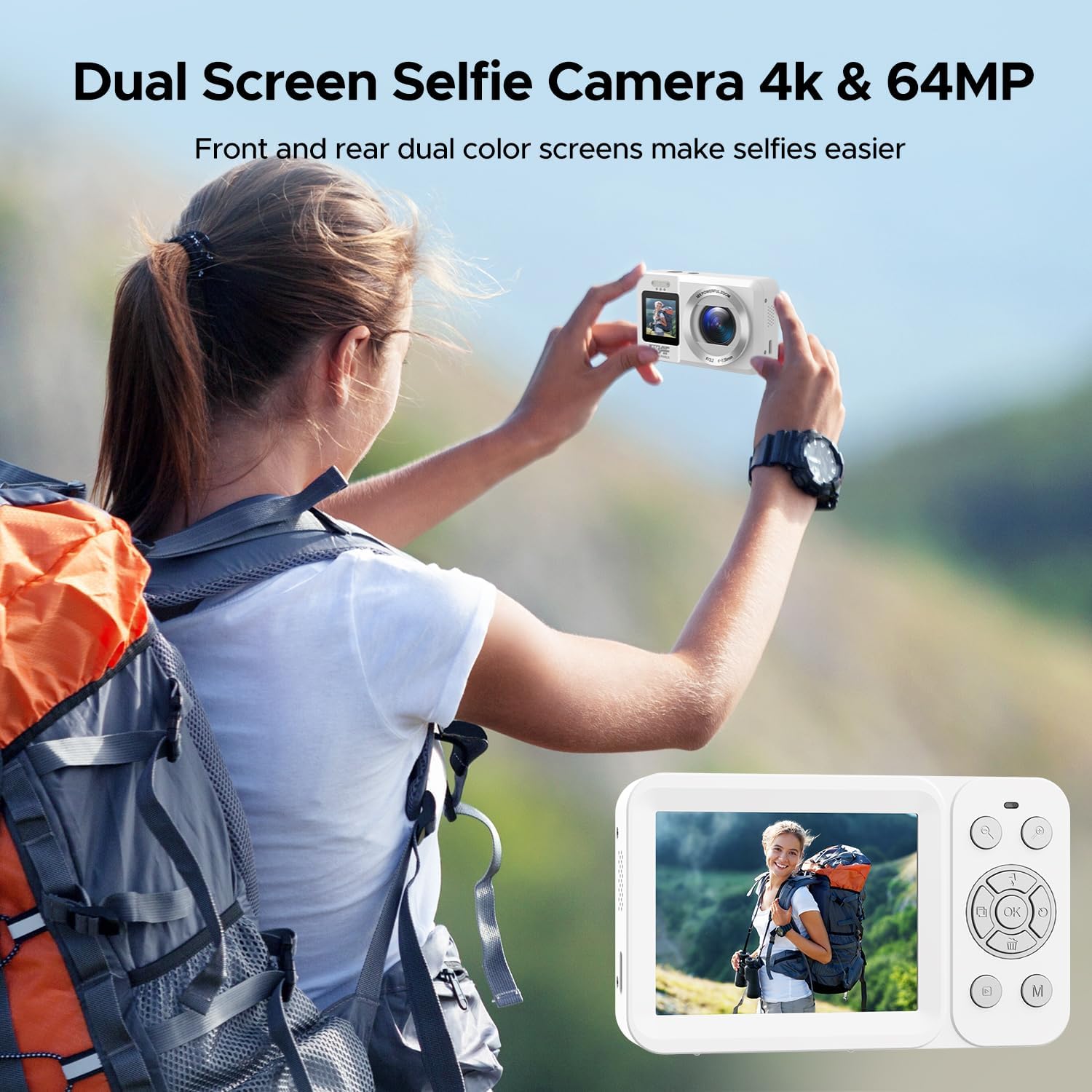
The dual-screen design simplifies taking selfies and reviewing shots.
Autofocus Feature
The camera features a one-touch autofocus function. To focus on your subject, half-press the shutter button. The camera will automatically adjust the focus to ensure clear and sharp images before you fully press the shutter to capture the photo.
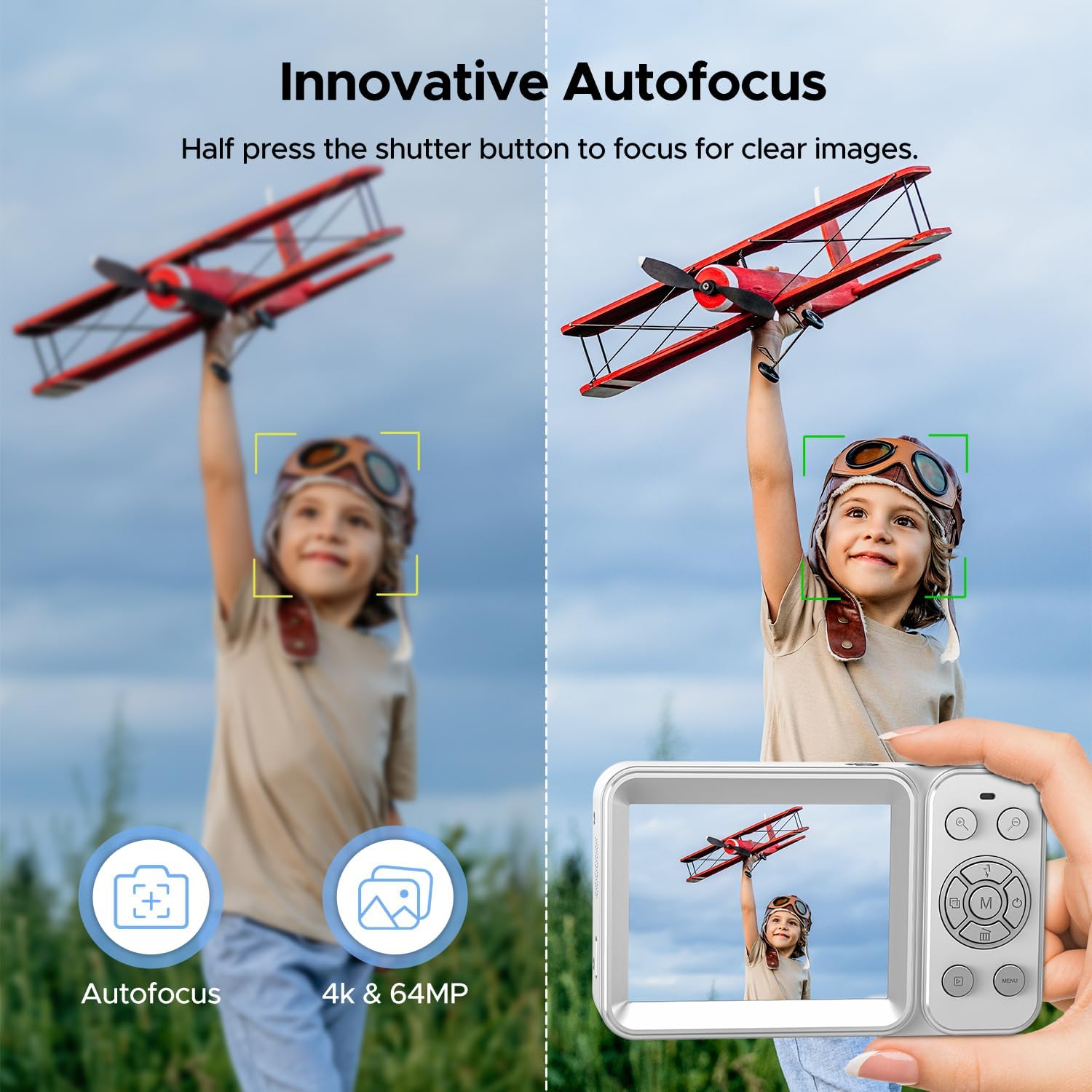
Illustrating the camera's innovative autofocus capability for clear images.
Digital Zoom and Fill Light
The camera offers 18x digital zoom, allowing you to capture details from a distance. Use the zoom controls (usually marked with 'W' for wide and 'T' for telephoto) to adjust the magnification. Additionally, a built-in fill light is available to supplement the light source in low-light conditions, ensuring your photos and videos remain bright and clear.

Demonstration of 18x digital zoom and creative filter options.

The fill light function enhances visibility in low-light environments.
Webcam Mode
This camera can function as a webcam. Connect it to your computer via the USB Type-C cable. Select 'PC Camera' mode on the camera's screen when prompted. This allows you to use the camera for video calls, live broadcasts, or online teaching on platforms like TikTok, YouTube, and Facebook.

Utilizing the camera as a network PC camera for various online activities.
Transferring Files
To transfer photos and videos to your computer or smartphone, connect the camera using the provided USB Type-C data cable. Select 'Mass Storage Mode' on the camera's screen. Your device will recognize the camera as an external drive, allowing you to easily copy files.

Simple connection for transferring videos and pictures.
Photo and Video Modes
The camera supports various photo and video modes to suit your needs:
- Timed Shooting: Set a delay before the photo is taken.
- Auto Photo Mode: Automatically adjusts settings for optimal photos.
- Continuous Shooting: Capture a rapid sequence of photos.
- Normal Photo Mode: Standard single-shot photography.
- Normal Video Mode: Standard video recording.
- Slow Motion Recording: Capture video at a higher frame rate for slow-motion playback.
- Loop Recording: Continuously record video, overwriting older footage when the memory card is full.
- Timelapse Recording: Capture a sequence of images at set intervals to create a time-lapse video.

Various photo modes to meet different shooting requirements.

Diverse video recording options for capturing life's moments.
Adjusting Settings
Navigate the camera's menu using the directional buttons and the 'OK' button to access and adjust various settings such as photo resolution, video resolution, color effects, white balance, ISO, exposure, and more. Refer to the on-screen prompts for specific adjustments.
This video demonstrates navigating the camera's settings menu to adjust various parameters like photo resolution, video resolution, and color effects.
Maintenance
Proper maintenance ensures the longevity and optimal performance of your camera:
- Cleaning: Use the provided cleaning cloth to gently wipe the camera body and screen. For the lens, use a specialized lens cleaning solution and cloth to avoid scratches.
- Storage: Store the camera in a cool, dry place away from direct sunlight, extreme temperatures, and high humidity. Use the included storage bag for protection.
- Battery Care: Avoid fully discharging the battery frequently. Charge it regularly, even if not in use, to maintain battery health. Remove the battery if the camera will not be used for an extended period.
- SD Card: Format the SD card periodically to prevent data corruption and ensure optimal recording performance. Back up important files before formatting.
Troubleshooting
If you encounter any issues with your camera, refer to the table below for common problems and solutions:
| Problem | Possible Cause | Solution |
|---|---|---|
| Camera does not power on | Low or no battery charge; improperly inserted battery | Charge the battery fully. Ensure the battery is inserted correctly. |
| Cannot take photos/videos | SD card full or not inserted; incorrect mode selected | Insert or free up space on the SD card. Select the correct photo/video mode. |
| Images are blurry | Out of focus; dirty lens; insufficient light | Half-press shutter to autofocus. Clean the lens. Use fill light or shoot in brighter conditions. |
| Cannot transfer files to computer | Incorrect USB mode; faulty cable/port | Ensure 'Mass Storage Mode' is selected on camera. Try a different USB port or cable. |
Specifications
| Feature | Detail |
|---|---|
| Brand | CAMWORLD |
| Model Name | AC20XE |
| Effective Still Resolution | 64 MP |
| Video Resolution | 4K (2160p) at 30FPS |
| Digital Zoom | 18x |
| Front Screen Size | 1.4 Inches |
| Rear Screen Size | 2.8 Inches |
| Photo Sensor Technology | CMOS |
| Image Stabilization | Digital |
| Storage Media | 32GB SD Card (included) |
| Connectivity | USB Type-C |
| Battery Type | Lithium Ion (1200 mAh) |
| Special Features | Dual Screen, Autofocus, Fill Light, Webcam Functionality |
| Color | White |
| Item Dimensions (D x W x H) | 1"D x 3.94"W x 2.36"H |
Warranty and Support
Your CAMWORLD 4K Digital Camera comes with a 2-Year Manufacturer Warranty. For any support inquiries, technical assistance, or warranty claims, please refer to the contact information provided in the physical user manual included with your product. You can also visit the official CAMWORLD store on Amazon for additional resources and product information: CAMWORLD Store.