1. Introduction
This manual provides detailed instructions for the installation, operation, and maintenance of your liyidaing Android 14 Car Stereo Radio. Please read this manual thoroughly before use to ensure proper functionality and safety. This unit features a 10.1-inch QLED touchscreen, Android 14 operating system, 4GB RAM, and 64GB internal storage, offering advanced connectivity and entertainment options for your vehicle.
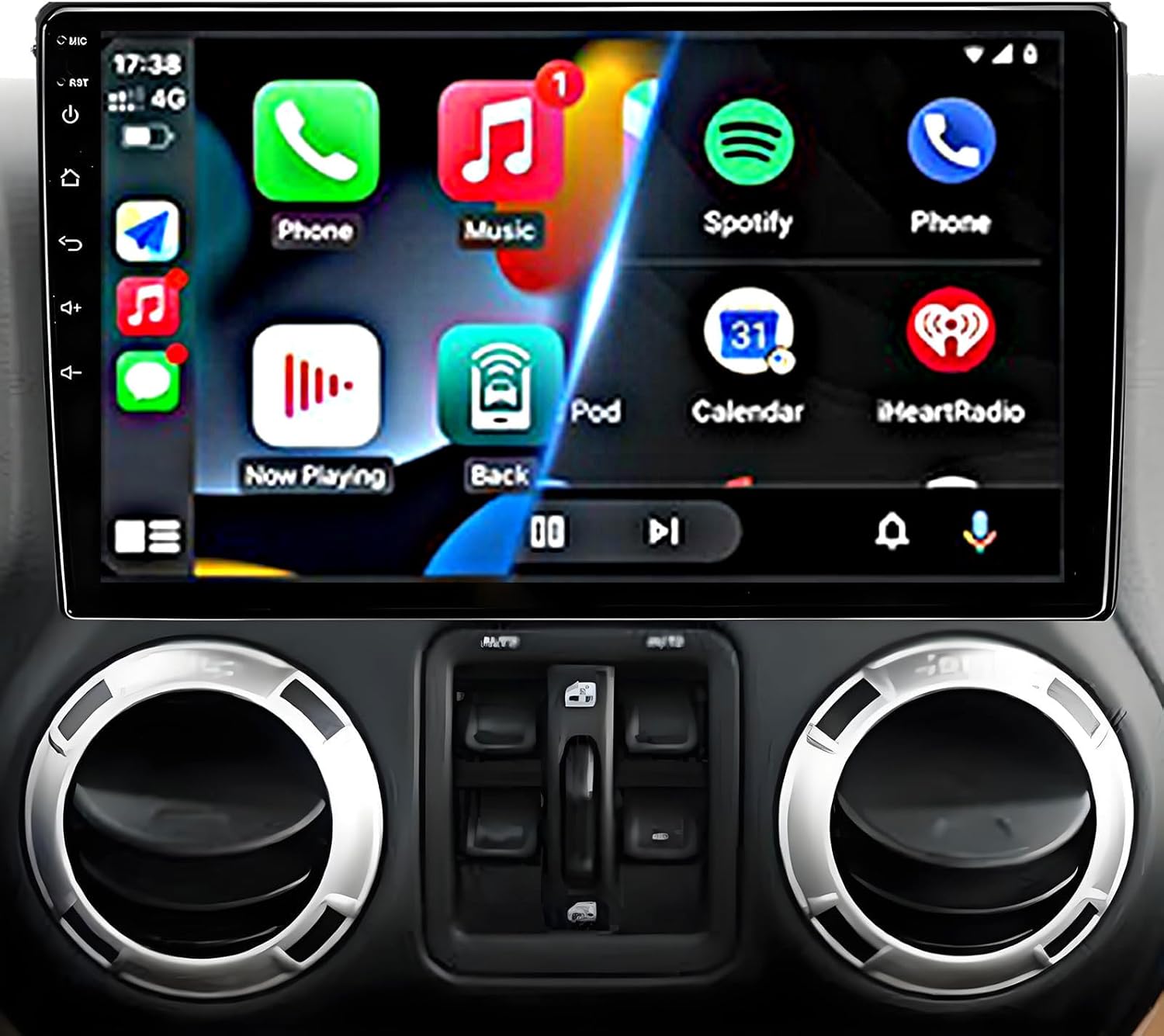
Image 1.1: The liyidaing Android 14 Car Stereo Radio with its 10.1-inch display integrated into a vehicle's dashboard, showcasing a user-friendly application interface.
2. Vehicle Compatibility
This in-dash head unit is designed to fit a variety of Jeep and Chrysler models. Please verify your vehicle's make, model, and year against the list below to ensure compatibility.
- Jeep: Wrangler/Unlimited (2007-2018), Compass (2009-2016), Patriot (2009-2016), Grand Cherokee (2005-2011), Liberty (2008-2011), Commander (2008-2011)
- Chrysler: Sebring (2007-2010), Town&Country (2007-2010), Grand Caravan (2011-2014)
- Dodge: Charger (2008-2010), Ram Pickup 1500/2500/3500 (2009-2012)
If you are uncertain about compatibility, please contact customer support for assistance.

Image 2.1: Visual representation of compatible vehicle dashboards with the liyidaing car stereo unit, detailing specific models and years.
3. What's Included
The product package typically includes the following components:
- Android Radio Head Unit
- Instruction of Installation
- User Manual
- Pry Tool
- Dash-kit Frame
- GPS Module
- USB Cable
- Back Camera
- Radio Antenna Adapter
- Wiring Harness with Canbus Box

Image 3.1: An overview of the main unit and all accompanying accessories, including cables, antenna, and installation tools.
4. Product Features
The liyidaing Android 14 Car Stereo Radio offers a range of advanced features for an enhanced in-car experience:
- Operating System: Upgraded Android 14 with 4GB RAM and 64GB internal storage for efficient performance.
- Display: 10.1-inch FHD QLED capacitive multi-touch IPS screen, supporting picture-in-picture (PIP) and split-screen functionality.
- Wireless Connectivity: Built-in Wireless CarPlay and Android Auto for seamless smartphone integration.
- Internet Access: 5GHz Wi-Fi and 4G cellular connection support (requires external SIM or tethering) for online apps and streaming.
- Navigation: Integrated GPS navigation with Google Maps and voice guidance.
- Bluetooth: Bluetooth 5.0 for hands-free calling and synchronized contact lists.
- Audio: Supports DSP (Digital Signal Processor) for high-quality sound output.
- Radio: FM/AM/RDS radio tuner.
- Multimedia: Supports most audio and video formats, mobile screen projection (Mirror Link).
- Camera Support: Compatible with original car cameras and includes support for a reverse camera display.
- Steering Wheel Control (SWC): Fully compatible with existing steering wheel controls.
- Customizable UI: Offers 18 different user interface themes to choose from.

Image 4.1: Wireless CarPlay and Android Auto functionality, allowing smartphone features to be accessed directly on the car stereo display.

Image 4.2: The split-screen feature allows simultaneous use of two applications, such as navigation and media playback.

Image 4.3: Reverse camera support provides a clear view of the area behind the vehicle with dynamic parking lines for assistance.
5. Installation
Installation of the liyidaing Android 14 Car Stereo Radio requires careful attention to wiring and vehicle-specific mounting. It is recommended that installation be performed by a qualified professional. Refer to the included 'Instruction of Installation' manual for detailed, step-by-step guidance specific to your vehicle model.
General Steps:
- Preparation: Disconnect the vehicle's battery before beginning any electrical work.
- Remove Old Unit: Carefully remove the existing car stereo and trim panels using the provided pry tool.
- Wiring: Connect the new unit's wiring harness to the vehicle's harness, ensuring all connections (power, speakers, GPS, USB, reverse input, radio antenna) are secure. The Canbus box should be integrated as per instructions.
- Mounting: Install the dash-kit frame and secure the Android Radio head unit into the dashboard opening.
- Test: Reconnect the battery and test all functions of the new stereo before fully reassembling the dashboard.
- Final Assembly: Reinstall all trim panels.
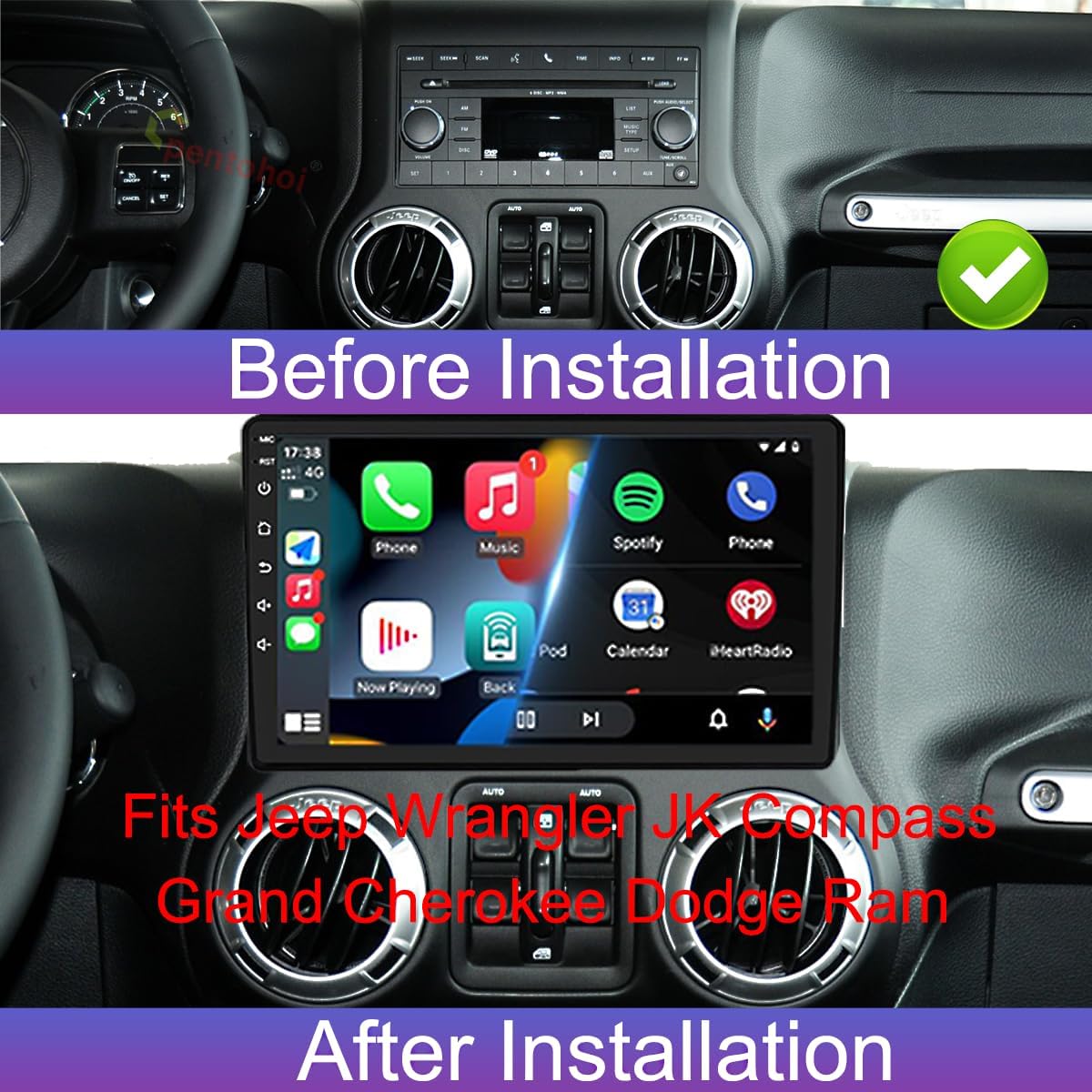
Image 5.1: A visual comparison demonstrating the seamless integration of the liyidaing car stereo into the dashboard after installation.
6. Operation
This section outlines the basic operation of your liyidaing Android 14 Car Stereo Radio.
6.1 Power On/Off
Press and hold the power button (usually located on the front panel or side) to turn the unit on or off. A short press may mute audio or put the unit into standby mode.
6.2 Touchscreen Interface
The 10.1-inch QLED touchscreen allows for intuitive control. Swipe left/right to navigate between home screens, tap icons to open applications, and use pinch-to-zoom gestures where supported.
6.3 Wireless CarPlay & Android Auto
- Ensure Bluetooth and Wi-Fi are enabled on your smartphone.
- On the car stereo, open the CarPlay or Android Auto application.
- Follow the on-screen prompts to pair your phone via Bluetooth. Once paired, the system will automatically establish a Wi-Fi connection for CarPlay/Android Auto.
- Your phone's compatible apps will now be displayed on the stereo screen.

Image 6.1: Demonstrates the wireless connection of both Apple CarPlay and Android Auto to the head unit.
6.4 GPS Navigation
Access the pre-installed navigation application (e.g., Google Maps) from the home screen. Ensure the GPS module is properly connected for accurate positioning. You can download other navigation apps from the Google Play Store.

Image 6.2: The GPS function displaying a navigation route on the stereo screen.
6.5 Radio (FM/AM/RDS)
Select the Radio application. Use the on-screen controls to scan for stations, save presets, and switch between FM and AM bands. RDS (Radio Data System) provides station information where available.

Image 6.3: The FM/AM/RDS radio interface for tuning and managing stations.
6.6 Bluetooth
Open the Bluetooth application to pair your phone or other Bluetooth devices. Once paired, you can make hands-free calls, stream audio, and access your phone's contact list.

Image 6.4: Bluetooth 5.0 connectivity for hands-free communication and audio streaming.
6.7 Split Screen Function
To activate split screen, open an application, then swipe from the bottom or side of the screen (depending on UI settings) to reveal the recent apps menu. Drag a second compatible app to the other half of the screen to use both simultaneously.
6.8 UI Customization
The unit offers 18 different UI themes. Navigate to the 'Theme' or 'Settings' menu to browse and select your preferred interface style.
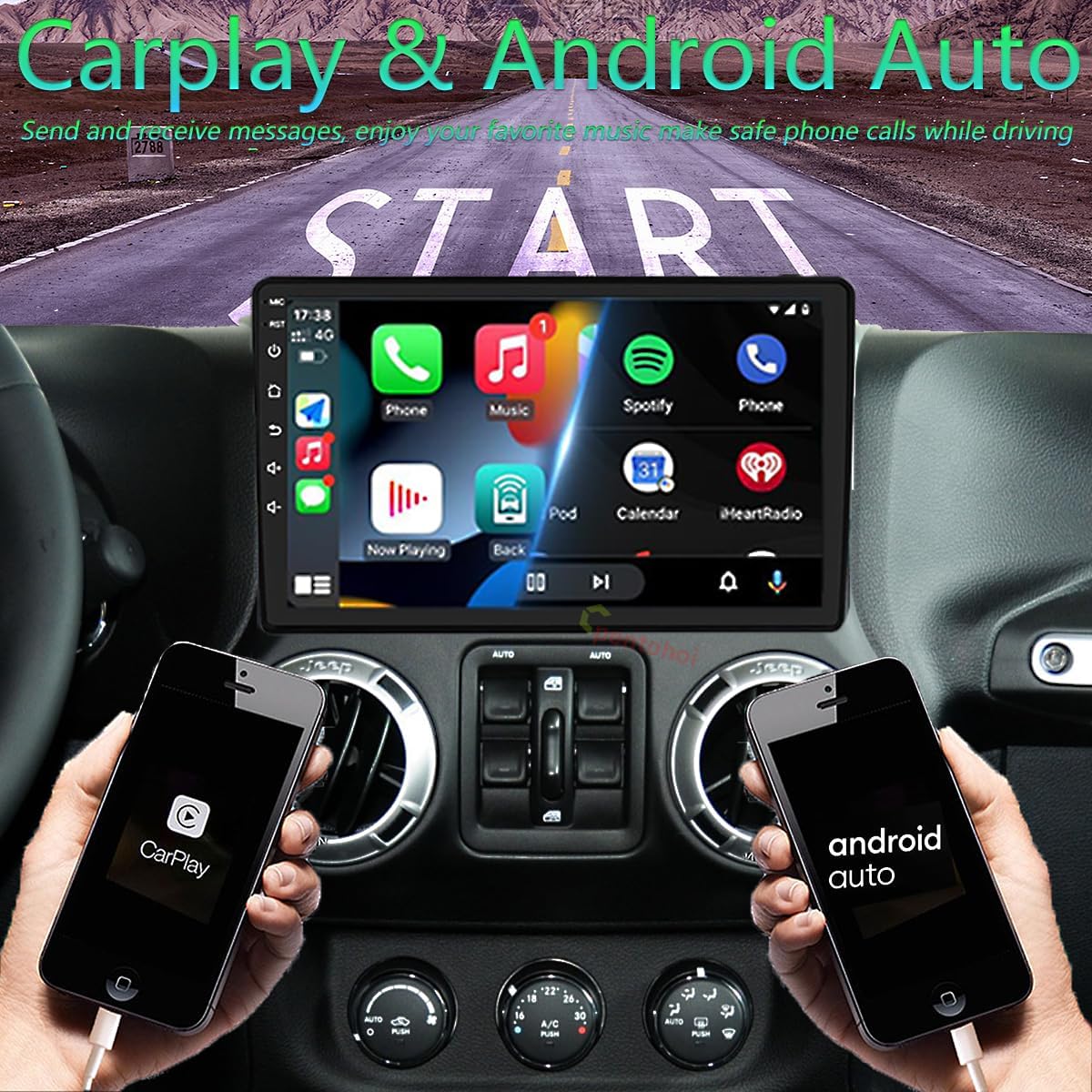
Image 6.5: A selection of 18 customizable user interface themes for personalized display.
7. Maintenance
Proper maintenance ensures the longevity and optimal performance of your car stereo.
7.1 Screen Cleaning
Use a soft, lint-free cloth slightly dampened with a screen cleaner or water to gently wipe the touchscreen. Avoid abrasive materials or harsh chemicals that could damage the display.
7.2 Software Updates
Periodically check for available software updates through the system settings. Updates can improve performance, add new features, and fix bugs. Ensure a stable internet connection during updates.
8. Troubleshooting
This section addresses common issues you might encounter and provides potential solutions.
8.1 Unit Does Not Power On
- Check all power connections and fuses.
- Ensure the vehicle's battery is properly connected and charged.
8.2 Poor Radio Reception
- Verify the radio antenna adapter is securely connected.
- Ensure the antenna itself is in good condition and properly installed.
8.3 CarPlay/Android Auto Not Connecting
- Confirm Bluetooth and Wi-Fi are active on your smartphone and the stereo.
- Ensure the CarPlay/Android Auto app on the stereo is open.
- Try restarting both your phone and the stereo unit.
- Some units may require a specific app (e.g., 'Zlink') to facilitate the connection. Check the unit's app drawer.
8.4 Google Play Store Issues (Downloads/Connection)
- Verify the unit has a stable internet connection via Wi-Fi or 4G tethering.
- Clear the cache and data for the Google Play Store and Google Play Services apps in the unit's settings.
- Ensure the date and time settings are correct.
8.5 Battery Drain After Installation
- This can indicate incorrect wiring, particularly with the constant and accessory power lines. Consult the installation guide or a professional installer to verify wiring.
- Ensure the unit is fully powering off and not just entering standby mode when the vehicle is turned off.
8.6 Audio Zones Not Functioning
- Check the audio settings within the stereo's interface for speaker balance, fader, and zone configurations.
- Verify speaker wiring connections.
9. Specifications
10. Warranty and Customer Support
10.1 Warranty Information
This product comes with a 3-year warranty from the date of purchase. This warranty covers manufacturing defects and ensures the product functions as intended under normal use. Please retain your proof of purchase for warranty claims.
10.2 Customer Service
liyidaing is committed to providing excellent customer service. We offer:
- 30-day free replacement for eligible issues.
- Lifetime technical support.
- Responses to inquiries within 24 hours.
For technical assistance or any questions regarding your product, please contact us through the Amazon platform:
- Navigate to the product page on Amazon.
- Click on "Liyidaing Store" located under the "Add to Cart" button.
- On the seller's page, click the "Ask a Question" button.

Image 10.1: Instructions on how to access customer support via the Amazon platform.
Related Documents - 4GB+64GB
| Feature | Detail |
|---|---|
| Model Number | 4GB+64GB |
| Operating System | Android 14 |
| Memory (RAM) | 4GB |
| Storage (ROM) | 64GB |
| Display Size | 10.1 Inches |
| Display Type | QLED Touchscreen |
| Connectivity Technology | USB, Bluetooth 5.0, 5GHz Wi-Fi, 4G Cellular (external support) |
| Special Features | Wireless CarPlay, Android Auto, GPS Navigation, Split Screen, Mirror Link, SWC Support, DSP Sound |
| Item Weight | 3.96 pounds (1.8 Kilograms) |
| Package Dimensions | 12.36 x 12.24 x 5.28 inches |
| Mounting Type | Dashboard Mount |
 |
BINIZE Android 13 AI Box User Guide: Wireless CarPlay, Android Auto, and Multimedia Features A comprehensive guide to the BINIZE Android 13 AI Box, covering setup, features like Wireless CarPlay and Android Auto, Bluetooth connectivity, SIM card usage, and troubleshooting. |
 |
CarlinKit CPC200-Tbox Ai Box CarPlay: Wireless Adapter & Media Box User Guide Comprehensive user guide for the CarlinKit CPC200-Tbox Ai Box CarPlay, detailing its features as a wireless CarPlay/Android Auto adapter and media streaming box. Includes system specifications, product details, compatibility, and certifications. |
 |
BMW 3 Series E46 Installation Manual - Eonon Head Unit Step-by-step installation guide for an Eonon head unit in a BMW 3 Series 1999-2004 (E46). Covers removal of factory components and installation of the new unit. |
 |
XTRONS TAD128 10.1" QLED Car Multimedia Player User Manual Comprehensive user manual for the XTRONS TAD128, a 10.1" QLED 4K Android 14 car multimedia player. Learn about installation, operation, safety, radio, navigation, Bluetooth, multimedia, Carplay, Android Auto, and troubleshooting. |
 |
10.1-Inch Android Car MP5 Player with Wireless CarPlay & Android Auto - Features, Specs, and Troubleshooting Detailed overview of the 10.1-inch Android car MP5 player, including features like Wireless CarPlay, Android Auto, GPS navigation, Hi-Fi audio, and specifications. Includes package contents and troubleshooting tips for common issues. |
 |
Car Radio User Manual: Features, Setup, and Troubleshooting Guide Comprehensive user manual for your car radio system. Learn about installation, key features like navigation, multimedia, phone connectivity (Bluetooth, CarPlay, Android Auto), settings, and troubleshooting. Get the most out of your car's infotainment system. |