
1. Introduction
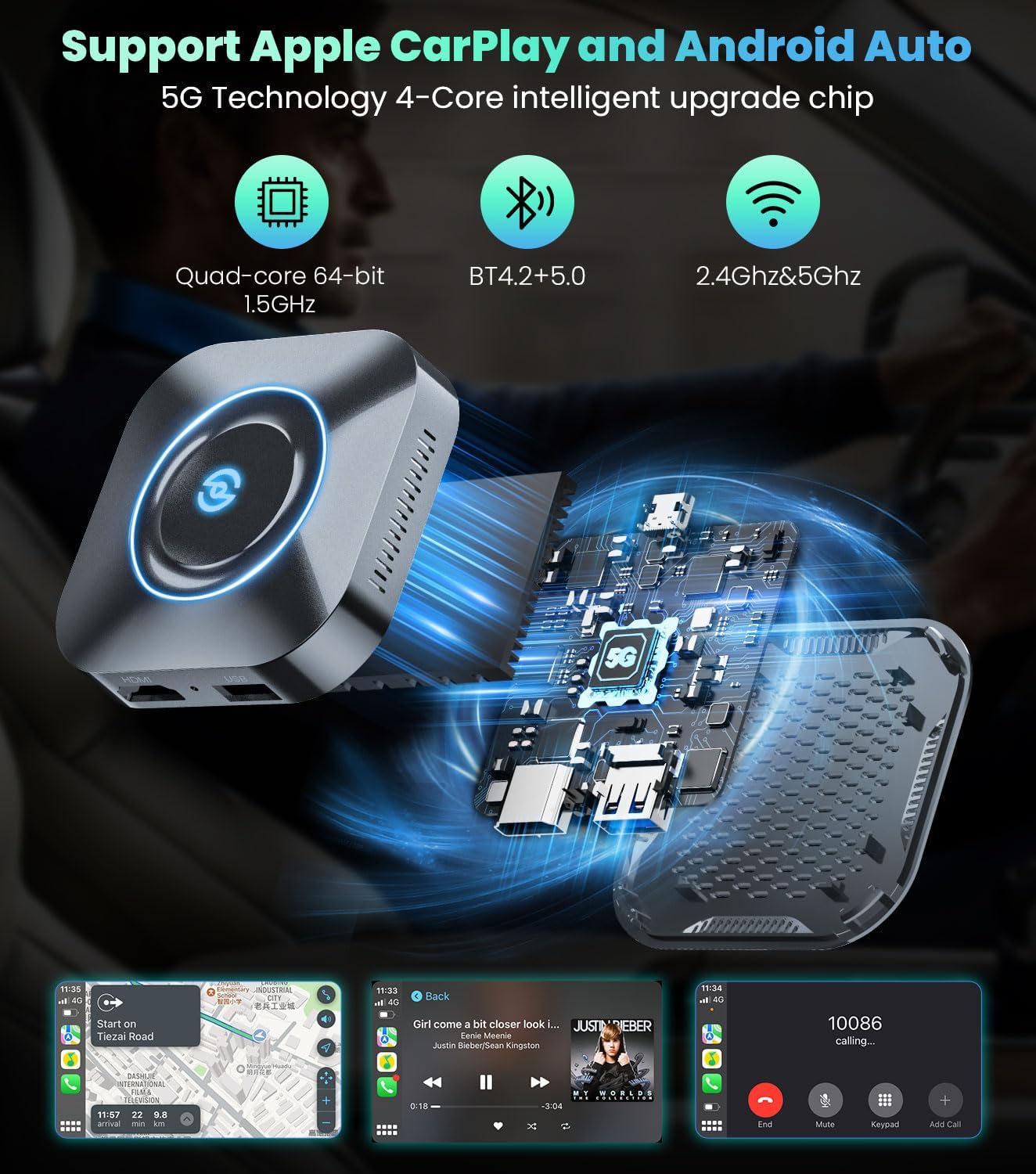
The AuroraLink CarPlay Magic Ai Box 2.0 is an advanced wireless adapter designed to convert wired CarPlay and Android Auto systems into wireless functionality. This device integrates an Android 11.0 multimedia system, allowing users to stream content from popular applications like Netflix and YouTube directly on their car's display. It also supports phone mirroring and USB media playback, enhancing in-car entertainment and connectivity.

2. Safety Information
- Do not operate the device or access multimedia content in a way that distracts you from driving. Always prioritize road safety.
- Ensure the device is securely placed and does not obstruct your view or interfere with vehicle controls.
- Avoid exposing the device to extreme temperatures, direct sunlight, or moisture.
- Use only the provided cables and power adapters to prevent damage to the device or vehicle.
- Do not attempt to disassemble or repair the device yourself. Refer to qualified service personnel.
3. Package Contents
Verify that all items are present in the package:
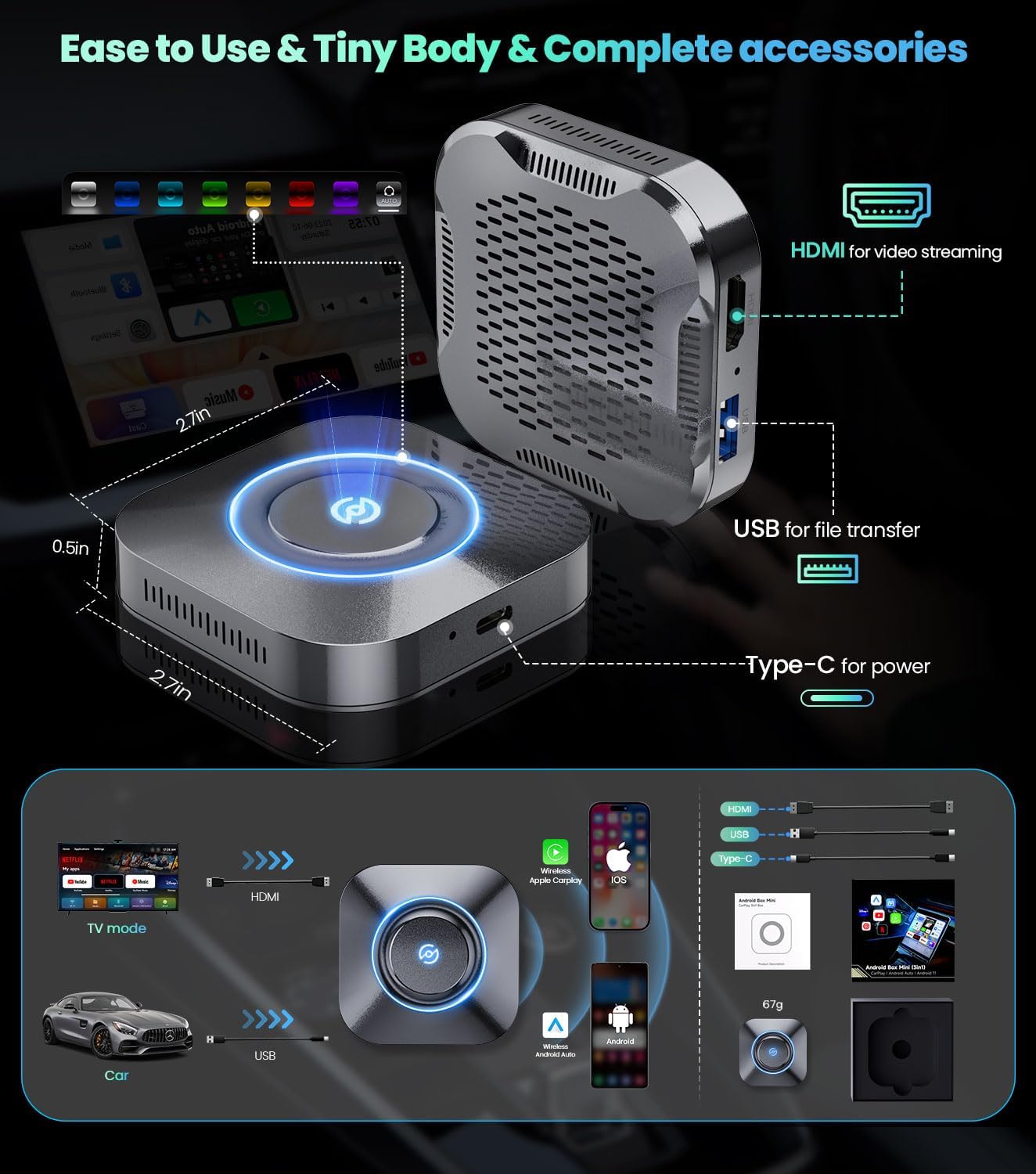
- CarPlay Magic Ai Box 2.0 (Model: R603)
- USB Cable
- HDMI Cable (if applicable, for TV connection)
4. Setup Instructions
Follow these steps to set up your AuroraLink CarPlay Magic Ai Box 2.0:
- Connect to Car: Insert the CarPlay Magic Ai Box 2.0 into your car's USB port that supports wired CarPlay. Ensure your car has factory wired CarPlay for compatibility.
- Power On: The device will power on automatically once connected.
- Bluetooth Pairing: On your smartphone, enable Bluetooth and search for the device's Bluetooth name (refer to the device screen for the exact name). Pair your phone with the device.
- Wi-Fi Connection (Optional for Streaming): For accessing online streaming services, connect the device to your phone's hotspot or a Wi-Fi network. Navigate to the device's settings to configure Wi-Fi.
- Initial Boot: Allow the device a few moments to boot up and display the main interface on your car's screen.

5. Operating Instructions
5.1 Wireless CarPlay / Android Auto
Once connected, the device will automatically launch either Wireless Apple CarPlay or Wireless Android Auto, depending on your smartphone. You can switch between these modes or access the built-in Android 11.0 system from the main interface.
5.2 Multimedia Streaming
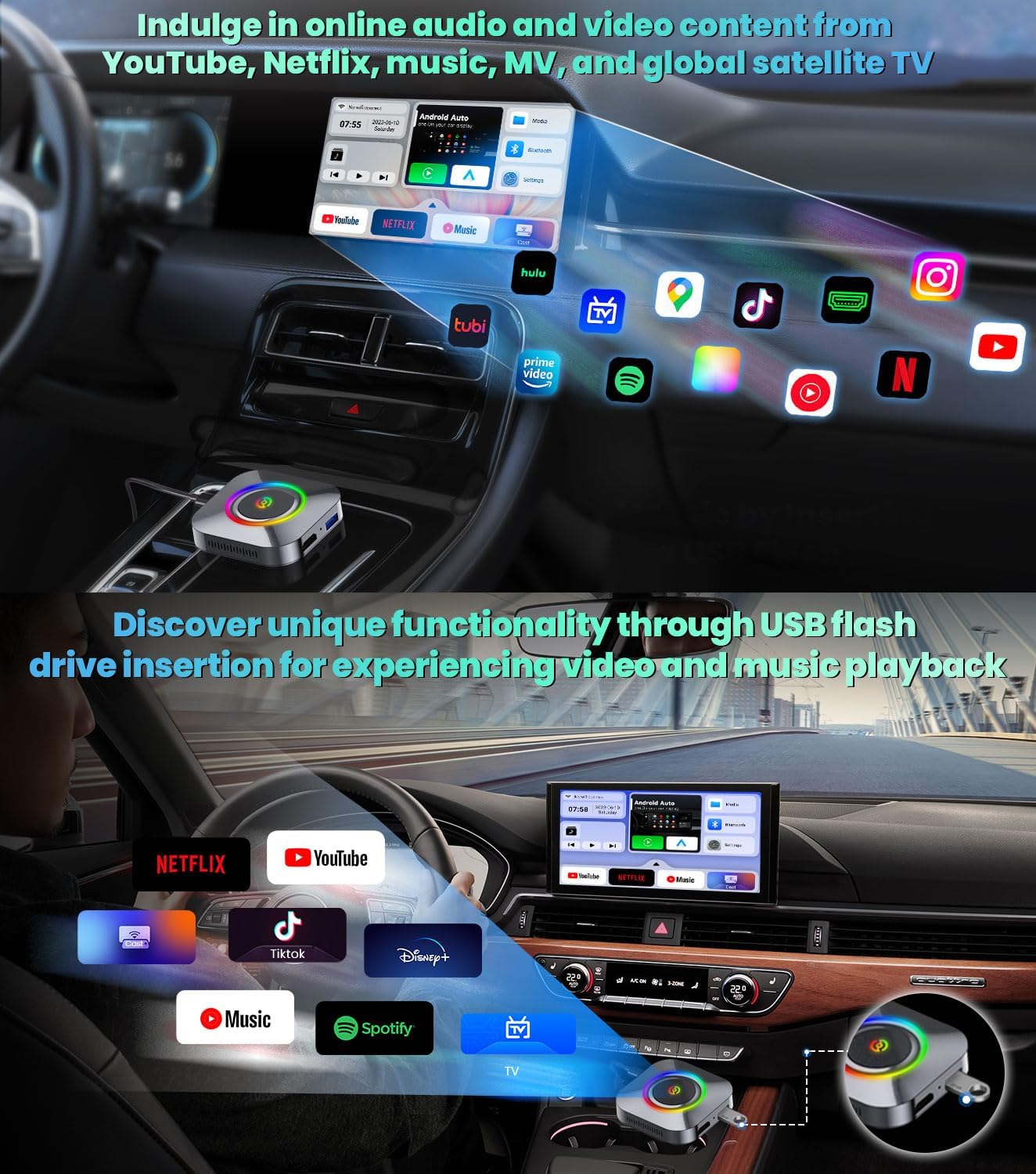
To enjoy streaming services like Netflix, YouTube, TikTok, or Spotify:
- Ensure the device is connected to a Wi-Fi network or your phone's hotspot.
- From the main interface, select the desired application icon.
- Log in to your account if required and begin streaming content.
5.3 USB Flash Drive Playback
The device supports media playback directly from a USB flash drive. Insert the USB drive into the designated USB port on the device. Navigate to the 'Media' or 'File Manager' application on the device's interface to browse and play your stored videos and music.
5.4 Phone/Tablet Mirroring
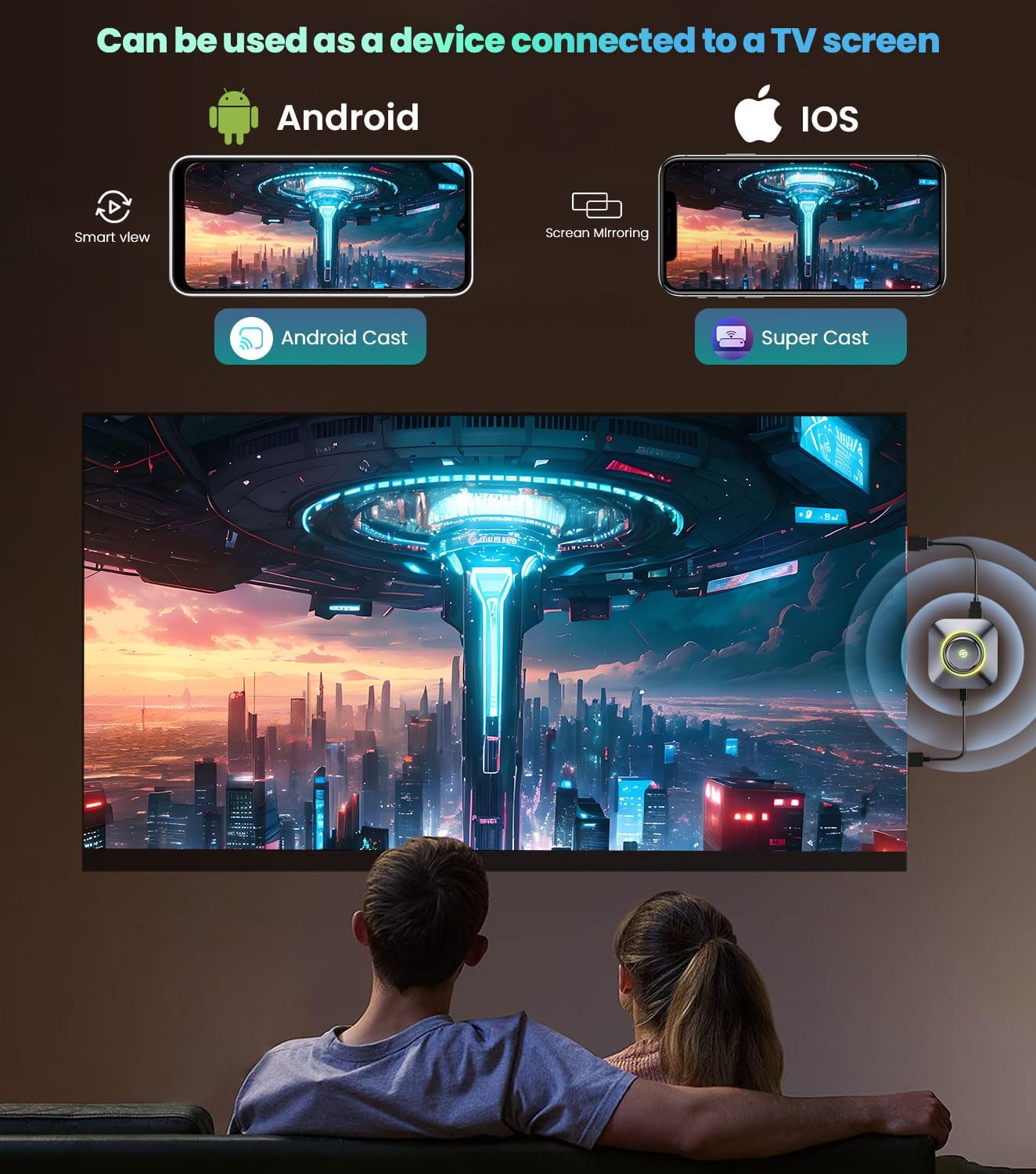
The CarPlay Magic Ai Box 2.0 can mirror content from your phone or tablet to your car's display or an external TV screen via HDMI. Use the 'Cast' or 'Miracast' function on the device and follow the on-screen instructions to connect your mobile device.

5.5 Car Compatibility
This device is designed to work with vehicles equipped with factory wired CarPlay. It is compatible with a wide range of car brands, but it is not applicable to BMW vehicles.
6. Maintenance
- Keep the device clean by wiping it with a soft, dry cloth. Avoid using harsh chemicals or abrasive cleaners.
- Ensure the ports are free from dust and debris to maintain optimal connectivity.
- Store the device in a cool, dry place when not in use.
- Regularly check for firmware updates to ensure the best performance and compatibility.
7. Troubleshooting
- No Display/Black Screen: Ensure the device is properly connected to the car's USB port. Try a different USB port if available. Restart your car's infotainment system.
- Connectivity Issues (Bluetooth/Wi-Fi): Ensure Bluetooth is enabled on your phone and the device. Forget the device from your phone's Bluetooth settings and re-pair. For Wi-Fi, ensure the hotspot is active and has a strong signal.
- Resolution Issues: If the display resolution is incorrect or the screen is not fully visible, navigate to the device's settings. Look for display or DPI adjustment options to optimize the screen fit for your car's display.
- App Performance Issues: If applications are slow or crashing, try clearing the cache through the device's settings. Avoid installing an excessive number of apps, as this can impact performance.
- No Audio: Check the volume settings on both the device and your car's infotainment system. Ensure the correct audio output is selected.
- Device Not Recognized: Ensure your car's wired CarPlay system is active and functioning correctly. Some vehicles may require specific settings to allow external devices.
8. Specifications
| Brand | AuroraLink |
| Model Number | R603 |
| Product Dimensions | 1 x 1 x 1 inches (2.7"L x 2.7"W x 0.5"H) |
| Item Weight | 8.1 ounces |
| Connectivity Technologies | Bluetooth, HDMI, USB, Wi-Fi (2.4G/5G) |
| Special Features | HDMI Output, Wireless CarPlay, Wireless Android Auto, Android 11.0 System, USB Media Playback |
| Scanner Resolution | 1080p |
| Color | Grey |
| Manufacturer | AuroraLink |
| First Available | October 6, 2024 |
9. Warranty Information
For detailed warranty information, please refer to the product packaging or contact AuroraLink customer support directly. Warranty terms and conditions may vary by region and retailer.
10. Customer Support
If you encounter any issues or have questions regarding your AuroraLink CarPlay Magic Ai Box 2.0, please contact AuroraLink customer support through their official website or the contact information provided with your purchase. Please have your model number (R603) and purchase details ready when contacting support.