
1. Introduction
Welcome to the instruction manual for your new ASHATA Professional 4K HD Dual Cameras RC Quadcopter. This drone is designed for both adults and beginners, offering advanced features for an enjoyable flight experience. Please read this manual thoroughly before operating the drone to ensure safe and correct usage.
Package Contents
Your ASHATA RC Quadcopter package includes the following items:
- ASHATA RC Quadcopter (Drone)
- Remote Controller with LCD Display
- Rechargeable Batteries (2 included)
- USB Charging Cable
- Spare Propellers
- Screwdriver
- User Manual
- 8GB Small Memory Card

Image 1.1: ASHATA Drone and Remote Controller neatly packed in the included carrying case.

Image 1.2: The ASHATA drone with its arms unfolded, ready for flight.

Image 1.3: Overview of the ASHATA drone highlighting its key features and components.
2. Setup
2.1 Drone Preparation
- Unfold the Drone Arms: Gently unfold the drone's arms until they click into place.
- Install Battery: Insert a fully charged battery into the drone's battery compartment. Ensure it is securely latched.
- Insert Memory Card: Insert the provided 8GB memory card into the drone's memory card slot for recording footage.

Image 2.1: The high-capacity 7.4V drone battery, designed for extended flight times.
2.2 Remote Controller Setup
- Install AAA Batteries: Open the battery compartment on the back of the remote controller and insert 3 AAA batteries (not included).
- Mount Smartphone: Extend the phone holder on the remote controller and securely mount your smartphone.
- Connect Smartphone: Use the appropriate cable (Lightning, USB-C, etc., provided) to connect your smartphone to the remote controller.
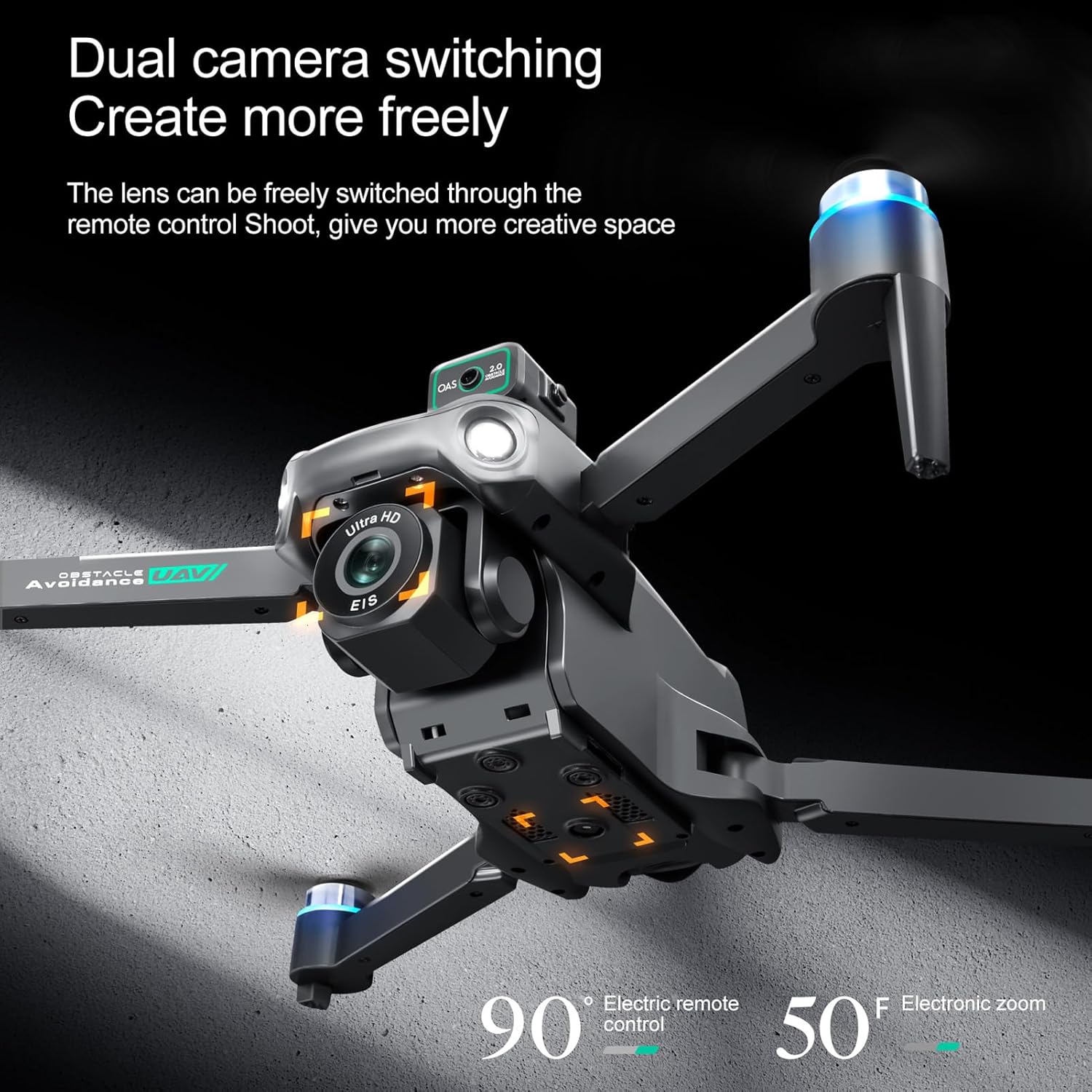
Image 2.2: The remote controller with a smartphone mounted, displaying the live camera feed from the drone.
2.3 App Download and Connection
- Download App: Scan the QR code in the Quick Start Guide or search for the "HS FLY" app in your smartphone's app store (iOS/Android) and install it.
- Power On Drone: Press and hold the power button on the drone for 2 seconds until the indicator lights flash.
- Power On Remote: Press and hold the power button on the remote controller for 2 seconds. The remote will automatically pair with the drone.
- Connect via App: Open the "HS FLY" app on your smartphone. Follow the on-screen prompts to connect to the drone's Wi-Fi signal.
2.4 Calibration
For the first flight, it is recommended to calibrate the drone for optimal performance.
- Compass Calibration: Place the drone on a flat, level surface. In the app, go to "Control" and tap "Calibrate Compass." Follow the on-screen instructions to perform horizontal and vertical rotations of the drone until calibration is complete.
- Gyroscope Calibration: After compass calibration, ensure the drone is still on a flat surface. In the app, tap "Gyroscope Calibration." The drone's indicator lights will flash rapidly and then turn solid, indicating successful calibration.
Video 2.3: Holy Stone Instruction Video. This video demonstrates general drone setup, including unboxing, battery installation, app download, and pairing. Note: The drone model shown in the video may differ slightly from your ASHATA drone.
Video 2.4: Ameta S20 4K GPS Drone First Use Guide. This video provides a step-by-step guide for initial drone setup and calibration. Note: The drone model shown in the video may differ slightly from your ASHATA drone.
3. Operating Instructions
3.1 Pre-Flight Checks
- Ensure all drone arms are fully extended.
- Verify the battery is fully charged and securely installed.
- Check that propellers are free from damage and obstructions.
- Confirm the remote controller is powered on and connected to the drone.
- Fly in an open area, away from obstacles, people, and animals.
3.2 Takeoff and Landing
- One-Key Takeoff: Press the One-Key Takeoff button on the remote controller. The drone will automatically ascend and hover at a safe altitude.
- Manual Takeoff: Push both joysticks inward at 45 degrees to unlock the motors. Then, push the left control stick forward to ascend.
- One-Key Landing: Press the One-Key Landing button. The drone will automatically descend and land.
- Manual Landing: Pull the left control stick backward to descend and land the drone.
3.3 Flight Controls
The remote controller features two joysticks for precise flight control:
- Left Joystick: Controls altitude (push up/down) and rotation (push left/right).
- Right Joystick: Controls forward/backward movement (push up/down) and left/right strafing (push left/right).
3.4 Intelligent Flight Functions
The ASHATA drone is equipped with several intelligent features for an enhanced flying experience:
- One Key Return Home: Automatically returns the drone to its takeoff point when activated or when battery is low/signal is lost.
- Intelligent Obstacle Avoidance: Utilizes sensors to detect and avoid obstacles.
- Optical Hovering: Maintains stable hovering indoors or in areas with weak GPS.
- Intelligent Follow Modes: The drone can follow a designated subject.
- Point of Interest Flying: The drone can circle a specific point.
- Customizable Flight Paths: Draw a path on the app, and the drone will follow it.
- Real-Time Video Transmission: View live footage on your smartphone via the app.
- Emergency Stop: Immediately stops the drone in an emergency.
- One Key Circle Flight: Performs a circular flight path automatically.
- Gesture Photography: Use hand gestures to trigger photo or video recording.

Image 3.1: Visual representation of Intelligent Follow, Waypoint Flight, and Gesture Photography features.
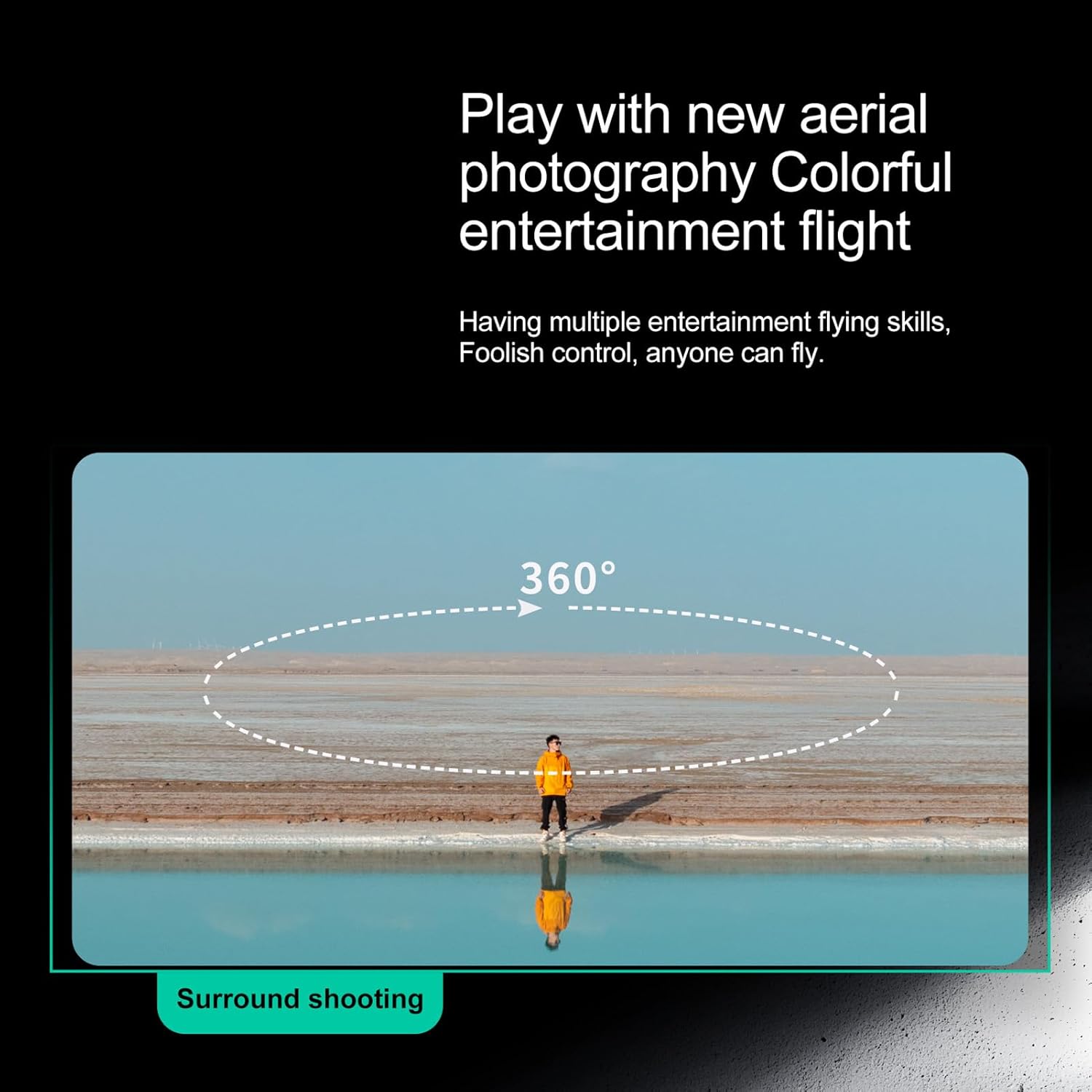
Image 3.2: The drone performing a 360-degree surround shooting maneuver.
3.5 Camera Operation
The drone features high-definition dual cameras with EIS electronic stabilization. The front lens can be adjusted via the remote control.
- Take Photos: Press the photo button on the remote or tap the photo icon in the app.
- Record Videos: Press the video button on the remote or tap the video icon in the app to start/stop recording.
- Adjust Camera Angle: Use the dedicated buttons on the remote controller to adjust the camera's vertical angle.
- View Footage: Access recorded photos and videos directly through the app's album or by connecting the memory card to a computer.
Image 3.3: The drone's dual camera system, allowing for flexible shooting angles and perspectives.
4. Maintenance
4.1 Battery Care
- Always fully charge batteries before each flight.
- Do not overcharge or over-discharge batteries.
- Store batteries in a cool, dry place away from direct sunlight and extreme temperatures.
- If not used for an extended period, charge batteries to about 50% capacity.
4.2 Cleaning
- Use a soft, dry cloth to clean the drone and remote controller.
- Avoid using solvents or harsh chemicals.
- Keep the camera lens clean for clear footage.
4.3 Propeller Replacement
- Regularly inspect propellers for any cracks, bends, or damage.
- If a propeller is damaged, replace it immediately with a spare propeller using the provided screwdriver. Ensure correct orientation (A/B propellers).
5. Troubleshooting
If you encounter any issues, please refer to the following common solutions:
- Drone not powering on: Ensure the battery is fully charged and correctly inserted.
- Remote not connecting to drone: Ensure both devices are powered on and within range. Re-pair the remote and drone as per setup instructions.
- App not displaying live feed: Check your smartphone's Wi-Fi connection to the drone. Restart the app and drone if necessary.
- Unstable flight: Perform gyroscope and compass calibration in an open, interference-free environment. Check propellers for damage.
- Poor video/photo quality: Ensure the camera lens is clean and the memory card is properly inserted.
6. Specifications
| Feature | Detail |
|---|---|
| Brand | ASHATA |
| Model Number | ASHATAn42scyfvbw-12 |
| Material Type | Plastic |
| Colour | Black |
| Parcel Dimensions | 30 x 22 x 9 cm; 1.09 kg |
| Age Range (Description) | Adult |
| Special Features | Professional 4K HD dual cameras, intelligent obstacle avoidance, optical hovering |
| Video Capture Resolution | 2.7K |
| Connectivity Technology | 5G |
| Battery Capacity | 2200 Milliamp Hours |
| Video Capture Format | MP4 |
| Control Type | Remote Control or App Control |
| Maximum Range | 2000 Meters |
| Includes Remote? | Yes |
| Includes Rechargeable Battery | Yes |
| Optical Sensor Technology | CMOS |
7. Warranty and Support
For warranty information or technical support, please refer to the contact details provided with your purchase documentation or visit the official ASHATA website. Keep your purchase receipt as proof of purchase.