
GCSOAR B0DNJTD46K
GCSOAR Busy Light LED Indicator User Manual
Model: B0DNJTD46K
Introduction
The GCSOAR Busy Light LED Indicator is designed to effectively communicate your availability and focus in an office environment. This device helps minimize interruptions by visually signaling your status, allowing colleagues to respect your privacy when you are engaged in important tasks. It features two distinct modes (red for busy, green for available) and a simple touch interface for status modification.
Safety Information
- Keep the device away from water and excessive moisture.
- Do not expose to extreme temperatures or direct sunlight for prolonged periods.
- Avoid dropping or subjecting the device to strong impacts.
- Use only the provided charging cable or a compatible Type-C charger.
- Do not attempt to disassemble or repair the device yourself. Refer to qualified personnel for service.
Package Contents
- GCSOAR Busy Light LED Indicator
- Type-C Charging Cable
- Power Adapter
- User Manual (this document)
Product Overview
The GCSOAR Busy Light features a sleek, compact design with a matte finish. It is primarily composed of plastic and houses an LED light source capable of displaying different colors to indicate status.
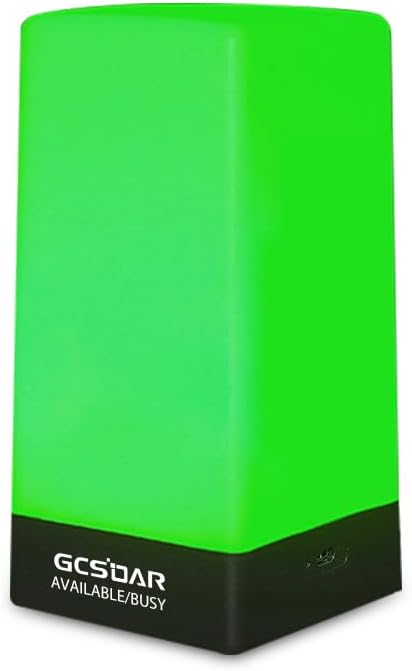
Image: The GCSOAR Busy Light illuminated in green, indicating an 'Available' status. The base shows the GCSOAR logo and "AVAILABLE/BUSY" text.
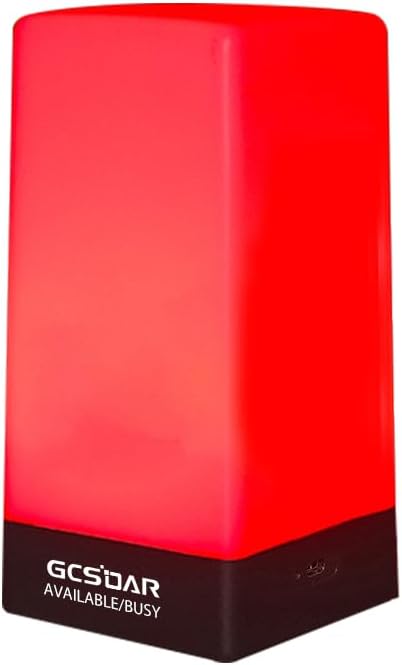
Image: The GCSOAR Busy Light illuminated in red, indicating a 'Busy' status. The base shows the GCSOAR logo and "AVAILABLE/BUSY" text.
Components:
- LED Light Panel: Displays the status color (Green/Red).
- Induction Button: Located on the base, used to change the status.
- Type-C Charging Port: For power input and charging.
- Base: Provides stability and houses the controls.
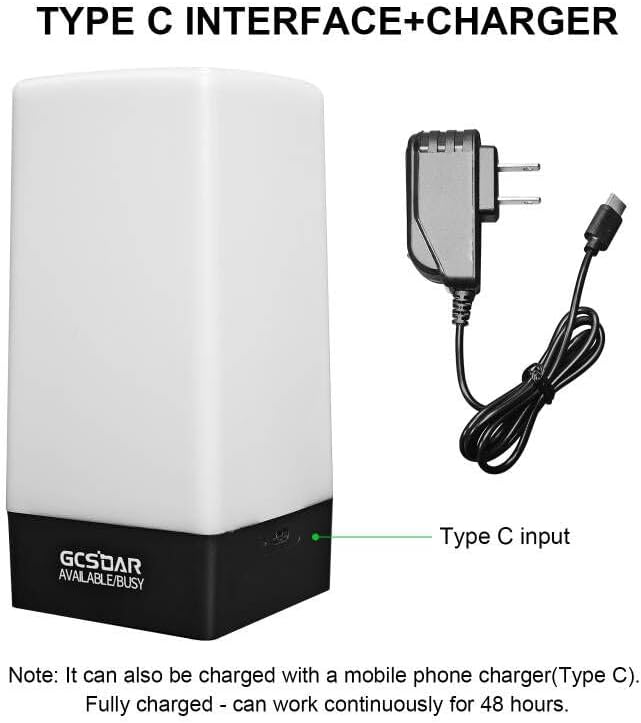
Image: The GCSOAR Busy Light showing its Type-C input port on the side of the base, alongside the included Type-C charging cable and power adapter.
Setup
- Unpack the Device: Carefully remove the GCSOAR Busy Light and all accessories from the packaging.
- Charge the Device:
Connect the provided Type-C charging cable to the Type-C port on the back of the busy light's base. Plug the other end of the cable into the power adapter and then into a wall outlet. A full charge takes approximately one hour and allows for continuous operation for up to 48 hours.
- Placement: Place the busy light on your desk or monitor in a visible location where it can be easily seen by colleagues. Its compact design allows for discreet placement.

Image: A woman working at a desk with the GCSOAR Busy Light placed prominently, illuminated in red to indicate a 'Busy' status.

Image: A woman working at a desk with the GCSOAR Busy Light placed prominently, illuminated in green to indicate an 'Available' status.
Operation
The GCSOAR Busy Light offers two primary modes to indicate your availability:
- Green Light: Indicates "Available" or "Do Not Disturb" (depending on your preference).
- Red Light: Indicates "Busy" or "In a Meeting".
Changing Status:
To change the status of the busy light, simply touch the induction button located on the base of the device. Each touch will toggle between the green and red light modes.

Image: A close-up of a finger touching the induction button on the base of the GCSOAR Busy Light. Accompanying graphics show a red hexagon labeled "Busy" and a green hexagon labeled "Available", illustrating the two status options.
Maintenance
- Cleaning: Wipe the surface of the busy light with a soft, dry, or slightly damp cloth. Do not use abrasive cleaners or solvents.
- Storage: When not in use for extended periods, store the device in a cool, dry place away from direct sunlight.
- Battery Care: To prolong battery life, avoid fully discharging the device frequently. Recharge it when the light dims or stops responding.
Troubleshooting
| Problem | Possible Cause | Solution |
|---|---|---|
| Light does not turn on. | Battery is depleted. | Charge the device using the provided Type-C cable and power adapter. |
| Light does not change color. | Induction button not pressed correctly or device is unresponsive. | Ensure you are firmly touching the induction button. If unresponsive, try charging the device or restarting it (if applicable, by fully discharging and recharging). |
| Short battery life. | Battery not fully charged or aging battery. | Ensure the device is fully charged (approx. 1 hour for 48 hours of use). If the issue persists, contact customer support. |
Specifications
| Feature | Detail |
|---|---|
| Product Dimensions | 2.95"D x 2.95"W x 6.1"H |
| Item Weight | 8 ounces (0.16 kg / 0.35 lbs) |
| Base Material | Plastic |
| Finish Type | Matte |
| Bulb Base | G4 |
| Charging Interface | Type-C |
| Battery Life (Full Charge) | Up to 48 hours continuous use |

Image: A diagram illustrating the dimensions of the GCSOAR Busy Light, showing a height of 6.1 inches and a base of 2.95 inches by 2.95 inches. The weight is also noted as 0.16kg/0.35lb.
Warranty and Support
For warranty information or technical support, please refer to the contact details provided with your purchase or visit the official GCSOAR website. Keep your purchase receipt for warranty claims.
GCSOAR Store: Visit the GCSOAR Store on Amazon
Ask a question about this manual
Ask about setup, troubleshooting, compatibility, parts, safety, or missing instructions. Manuals+ will review the question and use this page’s manual context to help answer it.