
Introduction
This manual provides detailed instructions for the CATIGA SD-1299 Mechanical Switch Calculator. Designed for home, school, and office use, this 12-digit desktop calculator features a large LCD display, mechanical switch keys for tactile feedback, and dual solar and battery power for reliable operation.

Image: The CATIGA SD-1299 Mechanical Switch Calculator, showcasing its lavender color, large 12-digit display, and round mechanical keys.
Setup
Power Source
The CATIGA SD-1299 calculator operates using a dual power system: solar energy and a single AAA battery (included). This ensures continuous functionality in various lighting conditions.
- Solar Power: The calculator utilizes solar power when sufficient light is available.
- Battery Power: In low light conditions or when solar power is insufficient, the calculator automatically switches to battery power. A single AAA battery is pre-installed.
Battery Installation/Replacement
- Ensure the calculator is powered off.
- Locate the battery compartment on the back of the calculator.
- Open the battery compartment cover.
- Insert or replace the AAA battery, ensuring correct polarity (+/-).
- Close the battery compartment cover securely.

Image: Illustration of the calculator's dual power system, highlighting the solar panel and the pre-installed battery compartment.
Power On/Off
- Power On: Press the ON/C-CE button to turn on the calculator.
- Auto Power-Off: The calculator features an automatic power-off function that activates after approximately 6 minutes of inactivity to conserve battery life.
Operating Instructions
Basic Arithmetic Operations
Perform standard calculations using the numerical keys and operation buttons.
- Addition (+): Enter the first number, press +, enter the second number, then press =.
- Subtraction (-): Enter the first number, press -, enter the second number, then press =.
- Multiplication (x): Enter the first number, press x, enter the second number, then press =.
- Division (÷): Enter the first number, press ÷, enter the second number, then press =.
Key Functions
| Key | Function |
|---|---|
| ON/C-CE | Powers on the calculator. Clears the last entry (CE) or clears all (C) if pressed twice. |
| AC | All Clear. Clears all entries and resets the calculator. |
| +/- | Changes the sign of the displayed number (positive to negative, or vice versa). |
| % | Percentage calculation. |
| √ | Square root calculation. |
| M+ | Adds the displayed value to the memory. |
| M- | Subtracts the displayed value from the memory. |
| MRC | Memory Recall (first press) or Memory Clear (second press). |
| GT | Grand Total. Displays the sum of all results calculated with the "=" key. |
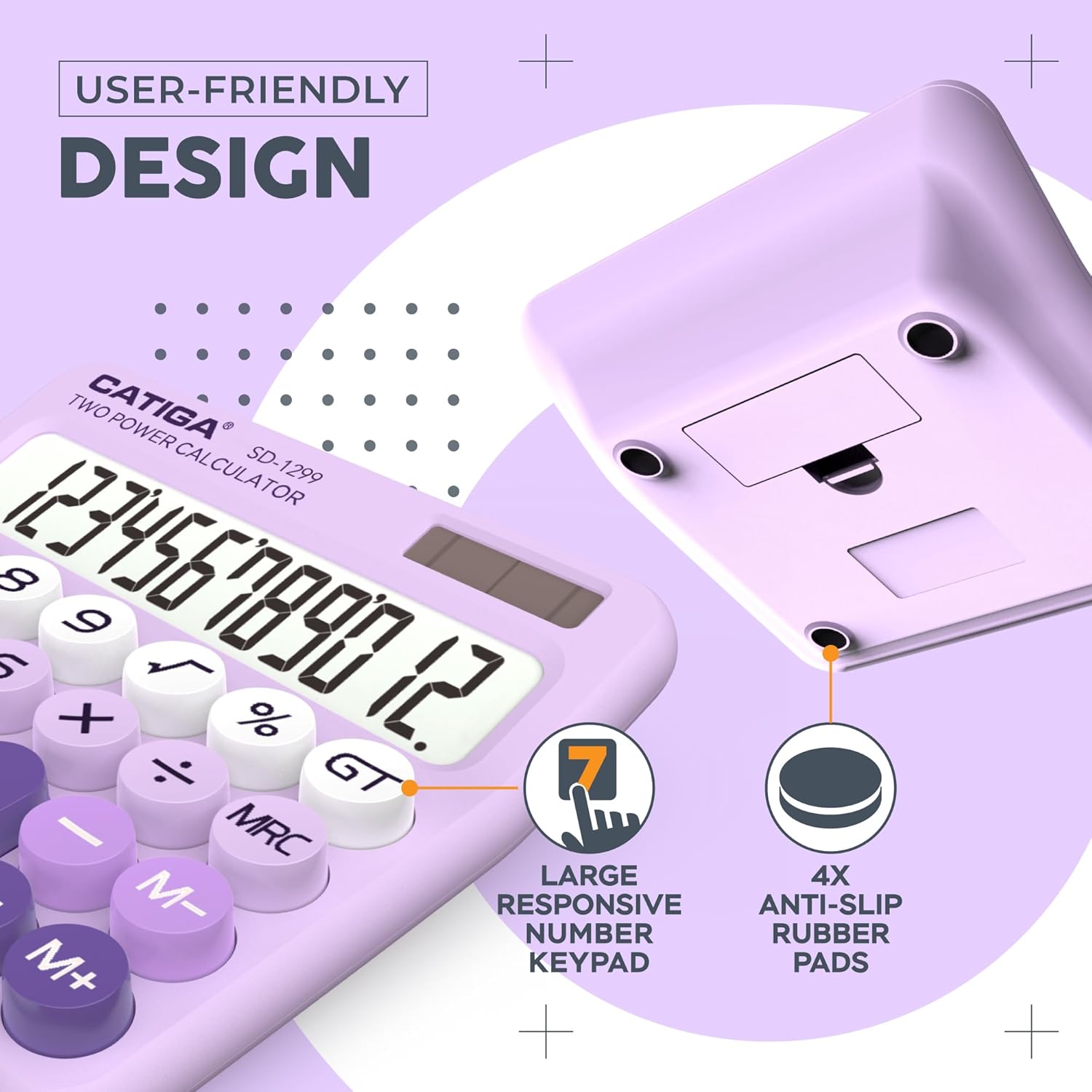
Image: Close-up of the calculator's keypad, highlighting the large, responsive buttons and anti-slip rubber pads on the base.
Features
- Mechanical Switch Key Feel: The keys are designed to mimic the tactile feedback and distinct clicking sound of a mechanical keyboard, promoting fast and accurate input and reducing hand fatigue.
- 12-Digit Large LCD Display: Features an extra-large 5-inch LCD screen with a 15-degree angled vertical back for optimal visibility, ensuring numbers are clear and easy to read.
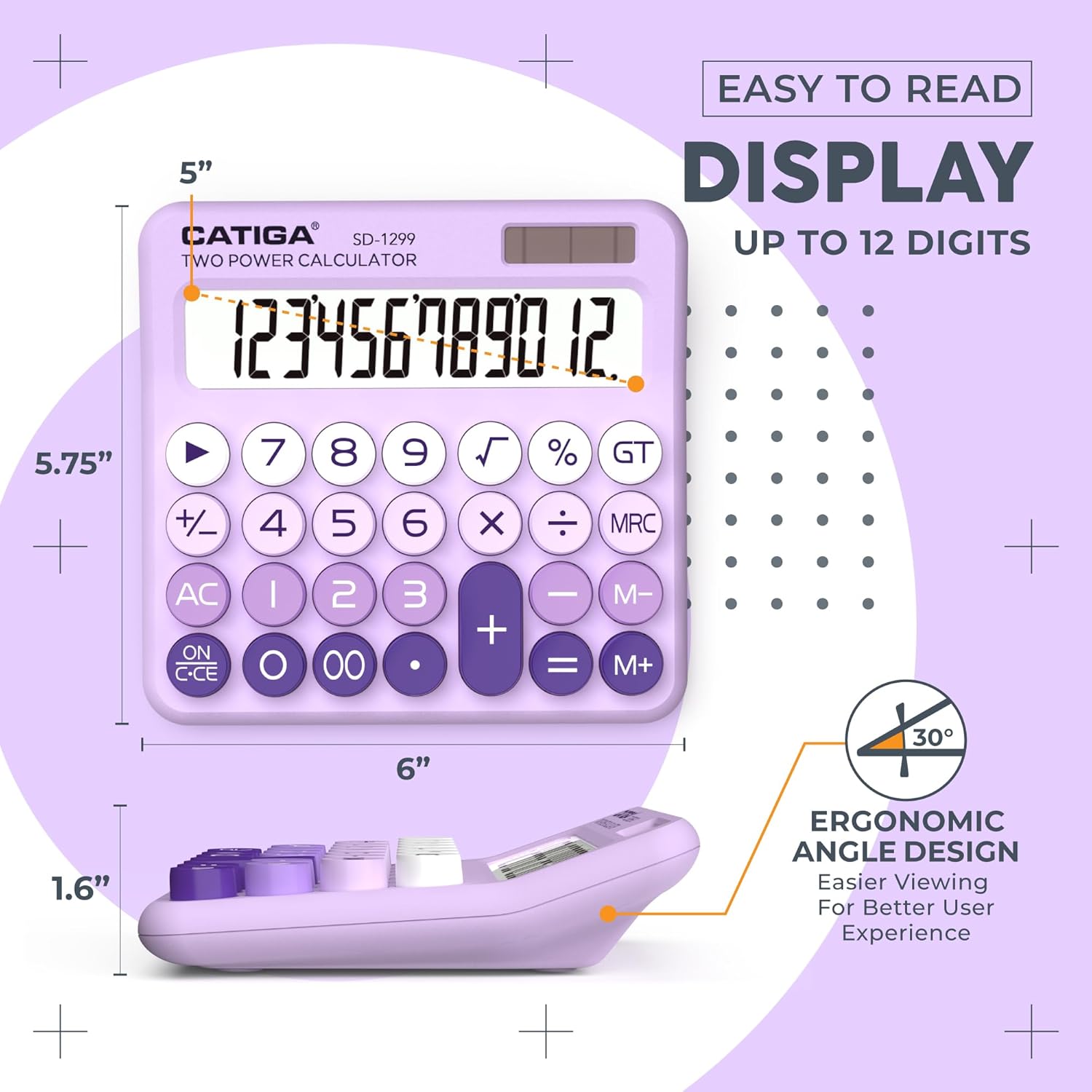
Image: The calculator's large 12-digit LCD display and its ergonomic 15-degree viewing angle for enhanced readability.
- Dual Power (Solar & Battery): Operates efficiently with both solar and battery power, providing continuous use. The auto power-off feature conserves battery life.
- Durable Construction with Anti-Slip Stability: Constructed from high-quality ABS material for durability. Equipped with four anti-slip foot pads to ensure stability on various surfaces during use.
- Ergonomic and Portable Design: Features typewriter-style round keys and an ergonomic design for comfortable typing. Its compact and lightweight nature makes it suitable for both desktop and handheld use, and easy to transport.
Maintenance
- Cleaning: Use a soft, dry cloth to clean the calculator's exterior. For stubborn marks, slightly dampen the cloth with water. Avoid using harsh chemicals or abrasive cleaners.
- Storage: Store the calculator in a cool, dry place away from direct sunlight and extreme temperatures.
- Battery Care: If the calculator will not be used for an extended period, it is recommended to remove the AAA battery to prevent leakage.
Troubleshooting
| Problem | Possible Cause | Solution |
|---|---|---|
| Display is blank or dim. | Insufficient light for solar power, or low/dead battery. | Move the calculator to a brighter area. Replace the AAA battery. |
| Calculator does not turn on. | Battery is dead or incorrectly installed. | Check battery polarity and replace if necessary. Ensure sufficient light for solar operation. |
| Incorrect calculation results. | Incorrect key input or previous calculation not cleared. | Press AC to clear all entries and restart the calculation. Double-check your input. |
| Keys are unresponsive. | Dust or debris under the keys, or a temporary software glitch. | Gently clean around the keys. Press AC to reset the calculator. If the issue persists, remove and reinsert the battery. |
Specifications
- Model: SD-1299
- Display: 12-Digit Large LCD, 5 inches (13 cm) visible screen diagonal
- Power Source: Dual Power (Solar and 1x AAA Battery)
- Battery: 1 AAA battery (included)
- Product Dimensions: 5.9 x 5.7 x 0.1 inches
- Item Weight: 9.1 ounces
- Material: High-quality ABS
- Auto Power-Off: Approximately 6 minutes of inactivity
Warranty and Support
CATIGA is committed to providing quality products and customer satisfaction.
- Customer Support: 24/7 customer support is available.
- Lifetime Phone Support: Lifetime support by phone is available from 9 AM to 5 PM PST.
- Return Guarantee: A 30-day unconditional return guarantee is provided.

Image: Visual representation of CATIGA's customer support, including 24/7 availability, lifetime phone support, and a 30-day return guarantee.
For further assistance or inquiries, please refer to the contact information provided with your product packaging or visit the official CATIGA website.