
Introduction
This manual provides detailed instructions for the safe and effective use of your Bewinner 5K 72MP HD Digital Camera. Please read this manual thoroughly before operating the camera and retain it for future reference. This camera is designed for capturing high-resolution photos and videos with features like dual cameras, a 2.8-inch screen, timelapse photography, and 18X digital zoom.
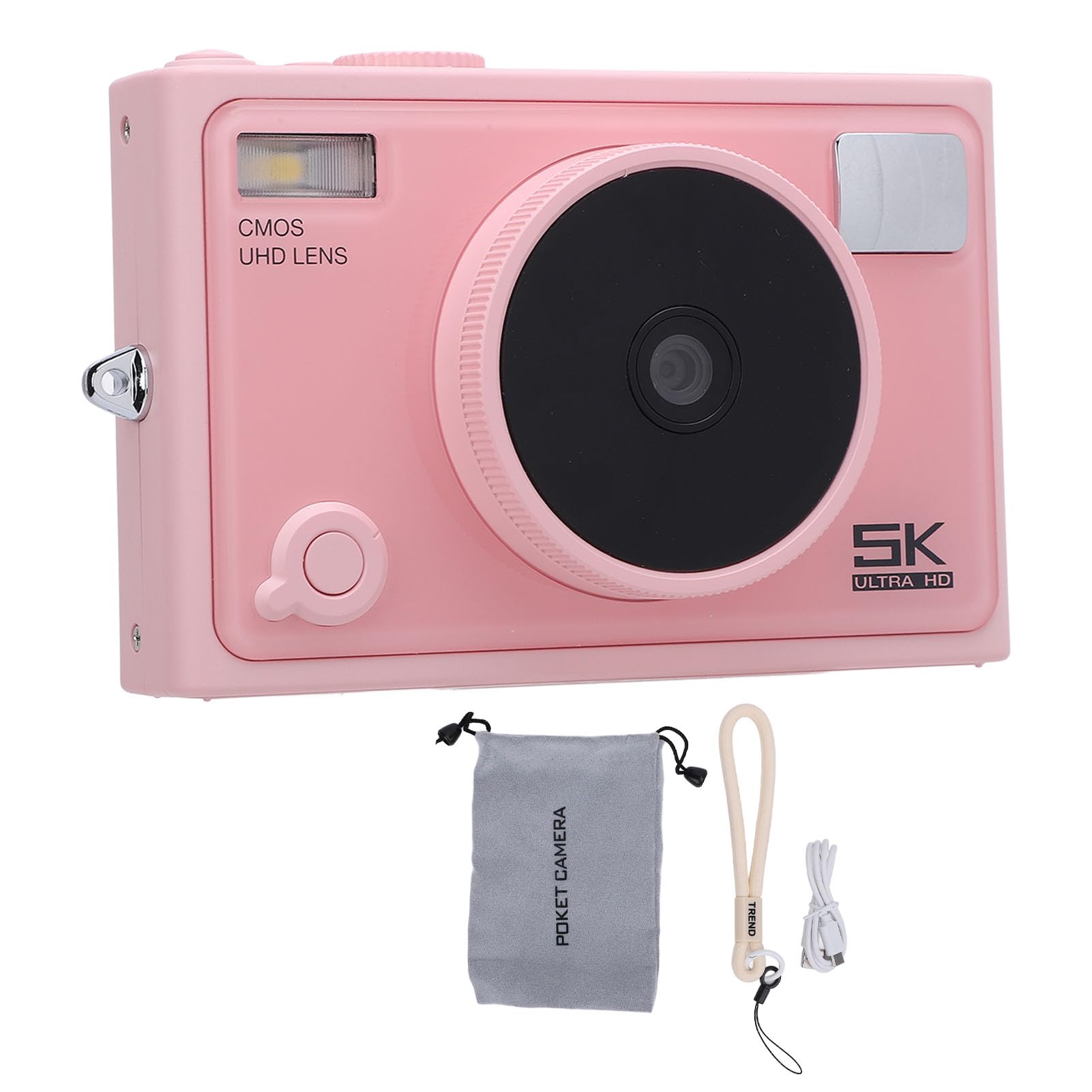
Image: Front view of the Bewinner 5K 72MP HD Digital Camera.
Safety Information
- Do not expose the camera to water or moisture.
- Avoid dropping the camera or subjecting it to strong impacts.
- Keep the camera away from direct sunlight and high temperatures.
- Use only the specified battery type (NP-40) and charger.
- Do not attempt to disassemble or modify the camera.
- Keep out of reach of small children.
Package Contents
Verify that all items are present in the package:
- 1 x 5K Digital Camera
- 1 x Camera Strap
- 1 x USB Cable
- 1 x User Manual
- 1 x Camera Pouch
Note: A standard memory card is not included and must be purchased separately. The camera supports up to 128GB.
Product Overview
The Bewinner 5K 72MP HD Digital Camera offers a range of features for capturing high-quality images and videos:
- 5K 72MP Resolution: Capture crisp details with 5K 72MP resolution for photos and professional 5K videos.
- 18X Digital Zoom: Magnify your subjects with 18 times digital zoom.
- 2.8-inch HD Screen: View your shots clearly on the 2.8-inch HD screen with enhanced light transmission and color reproduction.
- Wireless Connectivity: Connect to smartphones or tablets for remote control and instant sharing of photos and videos.
- Special Effects Filters: Apply various photography filters for creative styles.
- Timelapse and Slow Motion: Explore creative possibilities with built-in timelapse and slow motion photography modes.
- 1300mAh High Capacity Battery: Enjoy extended usage with the included 1300mAh lithium-ion battery.
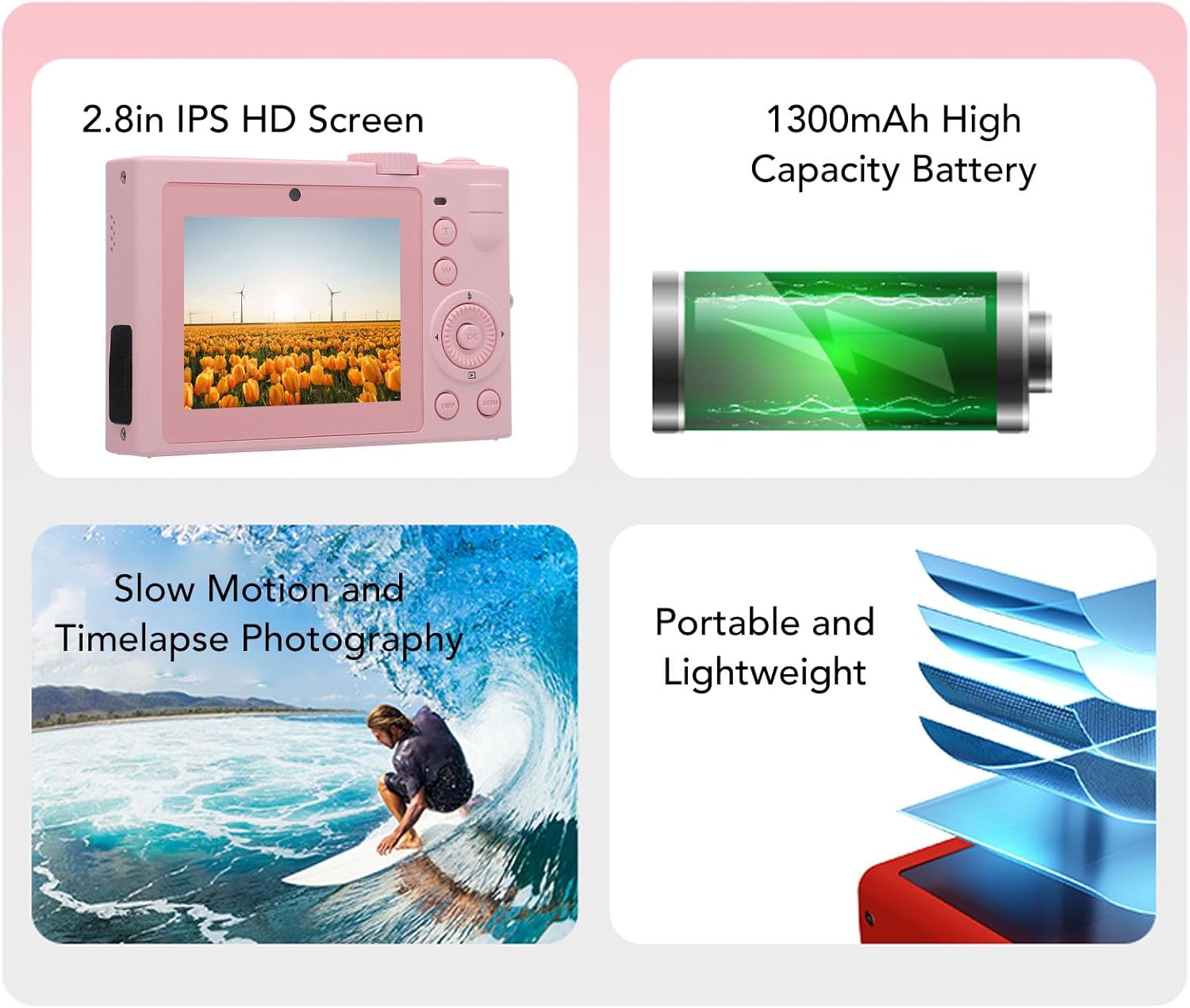
Image: Overview of key camera features including screen, battery, and photography modes.
Setup
1. Battery Installation
- Locate the battery compartment cover on the bottom of the camera.
- Slide the latch to open the cover.
- Insert the NP-40 lithium-ion battery (1300mAh) into the compartment, ensuring the correct polarity.
- Close the battery compartment cover until it clicks securely.
2. Memory Card Insertion
- Locate the memory card slot, typically near the battery compartment or on the side.
- Insert a standard memory card (up to 128GB, not included) into the slot with the contacts facing the correct direction. Push until it clicks into place.
- To remove, gently push the card in again until it springs out.
3. Charging the Battery
- Connect the camera to a power source using the provided USB cable.
- The charging indicator light will illuminate. It will turn off or change color when charging is complete.

Image: Side view of the camera, highlighting the USB port for charging and data transfer.
Operating Instructions
1. Powering On/Off
Press and hold the power button (usually located on the top or side) to turn the camera on or off. The camera is ready to use upon power on.

Image: Rear view of the camera, showing the 2.8-inch HD screen and control buttons.
2. Basic Photography
- Mode Selection: Use the mode dial or menu to select between photo and video modes.
- Zoom: Use the zoom buttons (often marked 'W' for wide and 'T' for telephoto) to adjust the 18X digital zoom.
- Focus: The camera typically features automatic focus.
- Shutter Button: Press the shutter button halfway to focus, then fully to capture a photo.
3. Video Recording
- Switch to video mode.
- Press the record button (often marked with a red dot) to start and stop recording 5K video.

Image: Illustrates the 5K video recording capability, showing playback on a large screen.
4. Special Effects and Modes
- Filters: Access the menu to apply various special effects filters to your photos.
- Timelapse Photography: Set the interval and duration for timelapse sequences through the camera settings.
- Slow Motion: Select slow motion mode for capturing dynamic scenes in slow motion.

Image: Examples of special effects filters that can be applied to photos.
5. Wireless Connectivity
- Activate the wireless fidelity function in the camera settings.
- On your smartphone or tablet, search for the camera's wireless network and connect.
- Use the dedicated camera application (if available) for remote control, photo transfer, and viewing.

Image: Illustration of the camera's wireless connectivity features, including remote photography and wireless transmission to a smartphone.
Maintenance
- Cleaning: Use a soft, dry cloth to clean the camera body. For the lens, use a specialized lens cleaning cloth and solution.
- Storage: When not in use, store the camera in a cool, dry place, preferably in the provided camera pouch, away from dust and extreme temperatures.
- Battery Care: Remove the battery if the camera will not be used for an extended period. Charge the battery periodically to maintain its lifespan.
Troubleshooting
| Problem | Possible Cause | Solution |
|---|---|---|
| Camera does not power on. | Battery is depleted or incorrectly inserted. | Charge the battery. Ensure the battery is inserted with correct polarity. |
| Cannot take photos/videos. | Memory card is full, locked, or not inserted. | Insert a memory card. Check if the card is locked. Delete unnecessary files or format the card. |
| Poor image quality. | Lens is dirty, insufficient lighting, or incorrect settings. | Clean the lens. Ensure adequate lighting. Adjust camera settings as needed. |
| Wireless connection fails. | Wireless function is off, or incorrect pairing. | Ensure wireless function is enabled on the camera. Re-attempt pairing with your device. |
Specifications
| Brand | Bewinner |
| Model Name | Bewinnerc1dy9uoiqb-12 |
| Maximum Image Resolution | 72 MP |
| Maximum Video Resolution | 5K |
| Optical Zoom | 18 x |
| Screen Size | 2.8 Inches |
| Battery Type | Lithium Ion Battery (NP-40) |
| Battery Capacity | 1300mAh |
| Storage Support | Up to 128GB Standard Memory Card (Not Included) |
| Connectivity Technology | Wireless Fidelity (Wi-Fi) |
| Color | Pink |
Warranty and Support
For warranty information and technical support, please refer to the documentation included with your purchase or visit the official Bewinner website. Keep your proof of purchase for warranty claims.