
1. Introduction
This manual provides instructions for the installation, operation, and maintenance of your DEWENWILS 300W WiFi Low Voltage Landscape Transformer. This device converts 120V AC household power to a safe 12V or 14V AC output, suitable for outdoor landscape lighting applications. It features WiFi connectivity for smart control via the DEWENWILS app, Amazon Alexa, and Google Assistant, along with three independent control zones.
2. Safety Information
- Read all instructions before installing or using this transformer.
- Electrical Hazard: Always disconnect power at the circuit breaker before installing or servicing.
- Outdoor Use Only: This transformer is designed for outdoor use. Ensure all connections are waterproof and protected from moisture.
- Mounting: Mount the transformer at least 1 foot (30 cm) above ground level to prevent water damage.
- Wiring: Do not exceed the maximum wattage of 300W. Ensure proper wire gauge is used for your lighting load and distance.
- Compatibility: Do not use with dimmers.
- FCC Compliance: This device complies with Part 15 of the FCC Rules. Operation is subject to the condition that this device does not cause harmful interference.
3. Product Features
- Voltage Conversion: Converts 120V AC to safe 12V/14V AC output, up to 300W.
- WiFi & Smart Control: Manage lights via the "DEWENWILS" app (2.4GHz WiFi only), Amazon Alexa, and Google Assistant. No separate hub required.
- Three Independent Zones: Customize lighting setups with three individually controllable zones, selectable between 12V or 14V AC output.
- Weatherproof Design: Robust metal casing protects against rain, snow, dust, and wear for indoor and outdoor use.
- Five Timer Modes: Schedule, Circulate, Random, Countdown, and Astronomical for flexible lighting control.
4. Specifications
| Specification | Value |
|---|---|
| Input Voltage | 120V AC |
| Output Voltage | 12V AC / 14V AC |
| Maximum Power | 300W |
| WiFi Frequency | 2.4GHz (only) |
| Product Dimensions | 30.5D x 17.8W x 20.3H Centimetres (12 x 7 x 8 inches) |
| Item Weight | 5.44 kg (12 Pounds) |
| Power Source | AC Mains |
| Mounting Type | Wall Mount |
| Certifications | FCC Listed, ETL Certified |
| Cord Length | 3.3 feet (18AWG Heavy Duty Cord) |
5. Setup and Installation
5.1 Unpacking and Inspection
Carefully remove the transformer from its packaging. Inspect the unit for any signs of damage. If damage is found, do not proceed with installation and contact customer support.
5.2 Mounting the Transformer
- Choose a suitable outdoor location for mounting. The transformer must be mounted at least 1 foot (30 cm) above ground level.
- Use the three mounting holes on the back of the unit to securely fix it to a wall or sturdy surface. Ensure the mounting surface can support the weight of the transformer.

5.3 Wiring Connections
- Ensure the transformer is unplugged from the main power supply.
- Open the transformer's cover. Locate the terminal blocks for the three zones. Each zone has terminals for COM (Common), 12V, and 14V.
- Connect your low voltage landscape lighting wires to the appropriate terminals. For each zone, connect the common wire from your lights to the 'COM' terminal and the positive wire to either the '12V' or '14V' terminal, depending on your lighting requirements.
- Ensure all wire connections are secure and properly tightened.
- Close the transformer's cover securely.

5.4 App Download and WiFi Connection
- Download the "DEWENWILS" app from your smartphone's app store.
- Plug the transformer into a 120V AC outlet.
- Open the DEWENWILS app and follow the on-screen instructions to add a new device.
- The transformer supports only 2.4GHz WiFi. If your router supports both 5GHz and 2.4GHz, ensure your phone is connected to the 2.4GHz network during the pairing process.
- The app will guide you through the automatic pairing process by pressing the "+" button in the app.

6. Operating Instructions
6.1 Manual Zone Control
The transformer features three physical buttons on its control panel, labeled 'ZONE1', 'ZONE2', and 'ZONE3'. Pressing a 'Zone' button allows you to cycle through the output options for that specific zone: OFF, 12V AC, or 14V AC.
6.2 Smart App Control
Once connected to the DEWENWILS app, you can control each of the three zones independently and utilize various timer modes:
- Schedule Mode: Set specific ON/OFF times for your lights. The minimum interval is 1 minute.
- Circulate Mode: Program the device to turn ON/OFF repeatedly during a set period. For example, turn off for 10 minutes every 30 minutes within a specific timeframe.
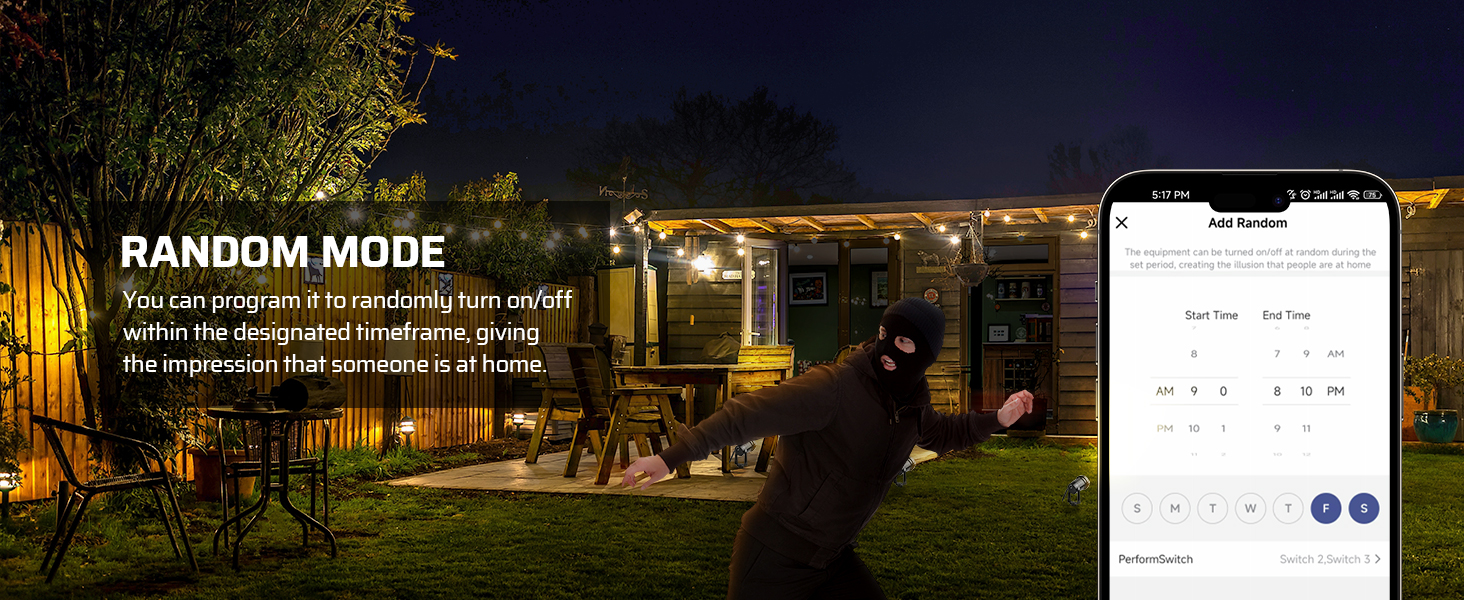
- Random Mode: Lights turn ON/OFF randomly within a designated timeframe, creating the impression that someone is home.
- Countdown Mode: Set a countdown timer for the lights to turn ON or OFF after a specified duration.
- Astronomical Mode: Automatically turns lights ON at dusk and OFF at dawn based on local sunrise/sunset times.


6.3 Voice Control
The transformer is compatible with Amazon Alexa and Google Assistant. Once integrated with your smart home system, you can use voice commands to control your landscape lighting. For example, "Alexa, turn on the landscape lights" or "Hey Google, turn off Zone 1."

7. Maintenance
- Regular Inspection: Periodically check the transformer and wiring for any signs of damage, wear, or loose connections.
- Cleaning: Keep the transformer's exterior clean from dirt and debris. Use a soft, dry cloth. Do not use harsh chemicals or abrasive cleaners.
- Moisture Protection: Ensure the transformer's cover remains securely closed to protect internal components from moisture.
- Ventilation: Ensure the area around the transformer is clear to allow for proper ventilation and prevent overheating.
8. Troubleshooting
| Problem | Possible Cause | Solution |
|---|---|---|
| Lights not turning on | No power to transformer; Loose wiring; Overload; Faulty lights. | Check power outlet and circuit breaker. Verify all wire connections are secure. Reduce total wattage of connected lights. Test individual lights. |
| WiFi connection issues | Incorrect WiFi frequency; Weak signal; Incorrect password. | Ensure your router is broadcasting 2.4GHz WiFi and your phone is connected to it during setup. Move transformer closer to router. Re-enter WiFi password in app. |
| App control not responding | No internet connection; App glitch; Transformer offline. | Check your home internet connection. Restart the DEWENWILS app. Unplug and re-plug the transformer to restart it. |
| Voice control not working | Incorrect device name; Integration issue with Alexa/Google. | Verify the device name in the Alexa/Google Home app matches your voice command. Re-link the DEWENWILS skill/service in your smart assistant app. |
9. Warranty and Support
This DEWENWILS device is ETL certified, ensuring it has been rigorously tested for safety. It comes with a 1-year insurance, reflecting industry-leading credit.
For any questions, technical support, or warranty claims, please contact DEWENWILS customer service. After-sales service aims for a fast response within 24 hours.