
CATIGA SD-1299
CATIGA SD-1299 Mechanical Switch Calculator User Manual
Model: SD-1299 | Brand: CATIGA
Introduction
Welcome to the user manual for your new CATIGA SD-1299 Mechanical Switch Calculator. This calculator is designed for efficiency and comfort, featuring a responsive mechanical switch keypad, dual power sources, and a large, clear display. It is suitable for various environments, including home, school, and office settings. Please read this manual thoroughly to ensure proper use and maintenance of your device.
Key Features
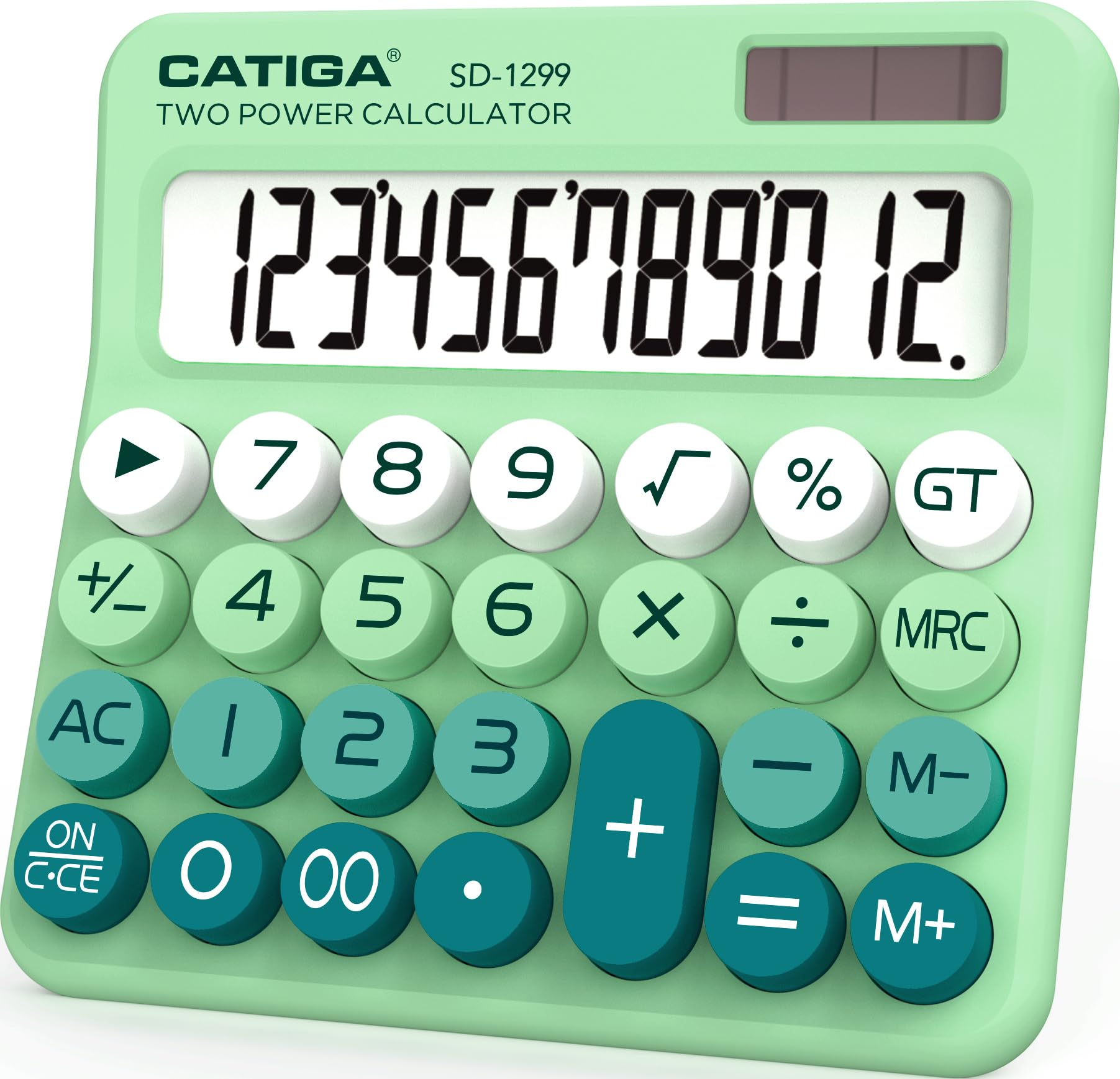
- Mechanical Switch Key Feel: Provides tactile feedback and a distinct clicking sound for accurate and satisfying input. Large, ergonomically spaced buttons reduce hand fatigue.
- Dual Power (Solar and Battery): Ensures continuous operation. Features an auto power-off function after 6 minutes of inactivity to conserve battery life. Powered by solar energy and a single AAA battery (included).
- 12-Digit Large LCD Display: A 5-inch extra-large LCD screen with a 15° angled vertical back for optimal visibility and easy readability of numbers.
- Durable Construction: Crafted from high-quality Acrylonitrile Butadiene Styrene (ABS) material for long-lasting use.
- Anti-Slip Stability: Equipped with anti-slip foot pads to keep the calculator stable on any surface during use.
Setup
Power Source Activation
Your CATIGA SD-1299 calculator operates on dual power: solar and battery. It comes with a pre-installed AAA battery. For optimal performance, ensure the calculator is exposed to sufficient light for solar power or that the battery is correctly installed.
- Battery Installation: The calculator includes a pre-installed AAA battery. If the display is dim or unresponsive in low light, you may need to check or replace the battery. The battery compartment is located on the back of the unit. Use a small screwdriver to open the compartment, insert a new AAA battery with the correct polarity, and secure the cover.
- Solar Power: The solar panel is located above the display. For best results, use the calculator in a well-lit environment. The calculator will automatically switch to solar power when sufficient light is available, conserving battery life.
Initial Use
Press the ON/C button to turn on the calculator and clear any previous entries. The display should show '0'.
Operating Instructions
Basic Arithmetic Operations
- Entering Numbers: Use the number keys (0-9) to input values.
- Addition (+): Enter the first number, press the + button, enter the second number, then press = for the result.
- Subtraction (-): Enter the first number, press the - button, enter the second number, then press = for the result.
- Multiplication (×): Enter the first number, press the × button, enter the second number, then press = for the result.
- Division (÷): Enter the first number, press the ÷ button, enter the second number, then press = for the result.
- Percentage (%): Enter a number, press % to convert it to a decimal percentage. For percentage calculations (e.g., 10% of 200), enter 200, press ×, enter 10, press %, then press =.
- Square Root (√): Enter a number, then press the √ button to calculate its square root.
- Memory Functions (M+, M-, MRC):
- M+: Adds the displayed number to the memory.
- M-: Subtracts the displayed number from the memory.
- MRC: Press once to recall the memory value. Press twice to clear the memory.
Clearing Entries
- Clear Entry (CE): Clears the last entered number or operation.
- On/Clear (ON/C): Turns the calculator on and clears all entries and memory.
Maintenance
- Cleaning: Use a soft, dry cloth to clean the calculator's surface. Do not use liquid cleaners or abrasive materials.
- Storage: Store the calculator in a cool, dry place away from direct sunlight and extreme temperatures.
- Battery Replacement: If the display becomes dim or the calculator functions erratically, replace the AAA battery as described in the Setup section.
Troubleshooting
- Calculator does not turn on:
- Ensure there is sufficient light for the solar panel.
- Check if the AAA battery is correctly installed and not depleted. Replace if necessary.
- Display is dim or numbers are hard to read:
- Move the calculator to a brighter area.
- Replace the AAA battery.
- Incorrect calculation results:
- Press ON/C to clear all previous entries and memory before starting a new calculation.
- Double-check your input and the order of operations.
Specifications
| Feature | Detail |
|---|---|
| Brand | CATIGA |
| Model Name | SD-1299 |
| Calculator Type | Standard Function |
| Power Source | Solar Powered, Battery (AAA) |
| Screen Size | 5 Inches |
| Display Type | LCD |
| Enclosure Material | Acrylonitrile Butadiene Styrene (ABS) |
| Item Dimensions L x W | 5.9"L x 5.7"W |
| UPC | 813629024667 |
| Manufacturer | Jeoly / Catiga Electronic Co. Ltd |
Warranty and Support
Your CATIGA SD-1299 calculator comes with a 1 Year Limited Warranty. For warranty claims, technical support, or any inquiries, please contact CATIGA customer support.
For more information, visit the official CATIGA Store on Amazon.
Product Images


Ask a question about this manual
Ask about setup, troubleshooting, compatibility, parts, safety, or missing instructions. Manuals+ will review the question and use this page’s manual context to help answer it.