1. Introduction
Thank you for choosing the Kinhank K16 Portable Monitor. This 16-inch 2.5K QHD IPS HDR display is designed to enhance your productivity and entertainment experience on the go. With its high resolution, fast refresh rate, and versatile connectivity, it serves as an excellent second screen for laptops, gaming consoles, and smartphones. This manual provides detailed instructions for setup, operation, maintenance, and troubleshooting to ensure optimal performance and longevity of your device.

Image: The Kinhank K16 Portable Monitor, showcasing its sleek design and integrated stand.
2. Package Contents
Please check the package contents upon unboxing to ensure all items are present and in good condition:
- Kinhank K16 Portable Monitor x1
- Magnetic Leather Case (doubles as stand) x1
- USB Type-C to USB Type-C Cable x1
- HDMI to HDMI Cable x1
- PD Charger x1
- User Manual x1

Image: A visual representation of the Kinhank K16 package contents, including the monitor, magnetic case, cables, charger, and manual.
3. Product Overview (Ports & Controls)
Familiarize yourself with the ports and buttons on your Kinhank K16 monitor:

Image: Detailed view of the Kinhank K16 monitor's side, highlighting the location and function of each port and control button.
- Standard HD IN: HDMI input for video and audio signals.
- Full Function Type-C Port: Supports video, audio, and power delivery via a single USB-C cable.
- Power/Return Button: Powers the monitor on/off and acts as a return button in the OSD menu.
- Brightness Control: Adjusts screen brightness.
- OSD (On-Screen Display) Button: Accesses the monitor's settings menu.
- Volume Button: Adjusts the audio output volume.
- Audio Jack (3.5mm): Connect external headphones or speakers.
4. Setup
The Kinhank K16 monitor is designed for plug-and-play convenience. No additional drivers or software are required for most connections.
4.1 Connecting to Devices
The monitor supports two primary connection methods:

Image: Illustration of USB-C and HDMI connection methods for the portable monitor.
- USB-C Connection (Single Cable):
If your laptop, smartphone, or other device has a full-function USB-C port (supporting DisplayPort Alternate Mode and Power Delivery), you can connect the monitor using only the included USB Type-C to Type-C cable. This single cable will transmit video, audio, and power to the monitor.
Image: Connecting the K16 monitor to a laptop using a single USB-C cable for extended display.

Image: Extending a smartphone screen to the K16 monitor using a single USB-C cable.
- HDMI Connection:
If your device does not have a full-function USB-C port, you can use the included HDMI cable for video and audio transmission. In this setup, the monitor will require external power via the included Type-C power cable and PD charger.
Image: Connecting the K16 monitor to a Mini PC using HDMI for video and a separate USB-C cable for power.

Image: The K16 monitor connected to various gaming consoles, demonstrating its use as a portable gaming display.
4.2 Using the Magnetic Smart Cover
The included magnetic smart cover protects your monitor and doubles as a stable stand. Fold the cover into a triangular prism shape to prop up the monitor at various viewing angles.
4.3 VESA Mounting
The Kinhank K16 features 75mm x 75mm VESA holes on the back, allowing you to mount it on compatible monitor arms or wall mounts for a more permanent setup.

Image: The K16 monitor's VESA mounting capability, illustrating how it can be attached to a monitor stand.
5. Operating the Monitor
5.1 Display Modes
When connected to a computer, you can configure the display mode:
- Duplicate Mode: Mirrors your primary display.
- Extend Mode: Extends your desktop, providing more screen real estate for multitasking.
- Second Screen Only: Displays content only on the portable monitor.
These settings are typically adjusted through your operating system's display settings (e.g., Windows Display Settings, macOS System Preferences).
5.2 OSD (On-Screen Display) Menu
Use the OSD button to access the monitor's settings menu. Navigate using the brightness and volume buttons, and confirm selections with the OSD button or power button (for return).
Key OSD settings include:
- Brightness & Contrast: Adjust visual output.
- Color Settings: Adjust color temperature, gamma, and color gamut.
- HDR Mode: Enable/disable High Dynamic Range for richer colors and contrast.
- FreeSync: Enable/disable AMD FreeSync for smoother gaming (requires compatible GPU).
- Low Blue Light: Activate eye protection mode to reduce blue light emission.
- Aspect Ratio: Adjust display aspect ratio (e.g., 16:9, 16:10).
- Input Source: Manually select HDMI or Type-C input.
5.3 Landscape and Portrait Modes
The monitor automatically or manually supports both landscape and portrait orientations, offering flexibility for different tasks such as document reading or coding.

Image: The K16 monitor demonstrating its ability to switch between landscape and portrait modes for various applications.
5.4 Gaming Features
The K16 monitor is optimized for gaming with a 144Hz refresh rate and 3ms low latency, providing a smooth and responsive experience. AMD FreeSync technology further reduces screen tearing and stuttering when paired with a compatible graphics card.
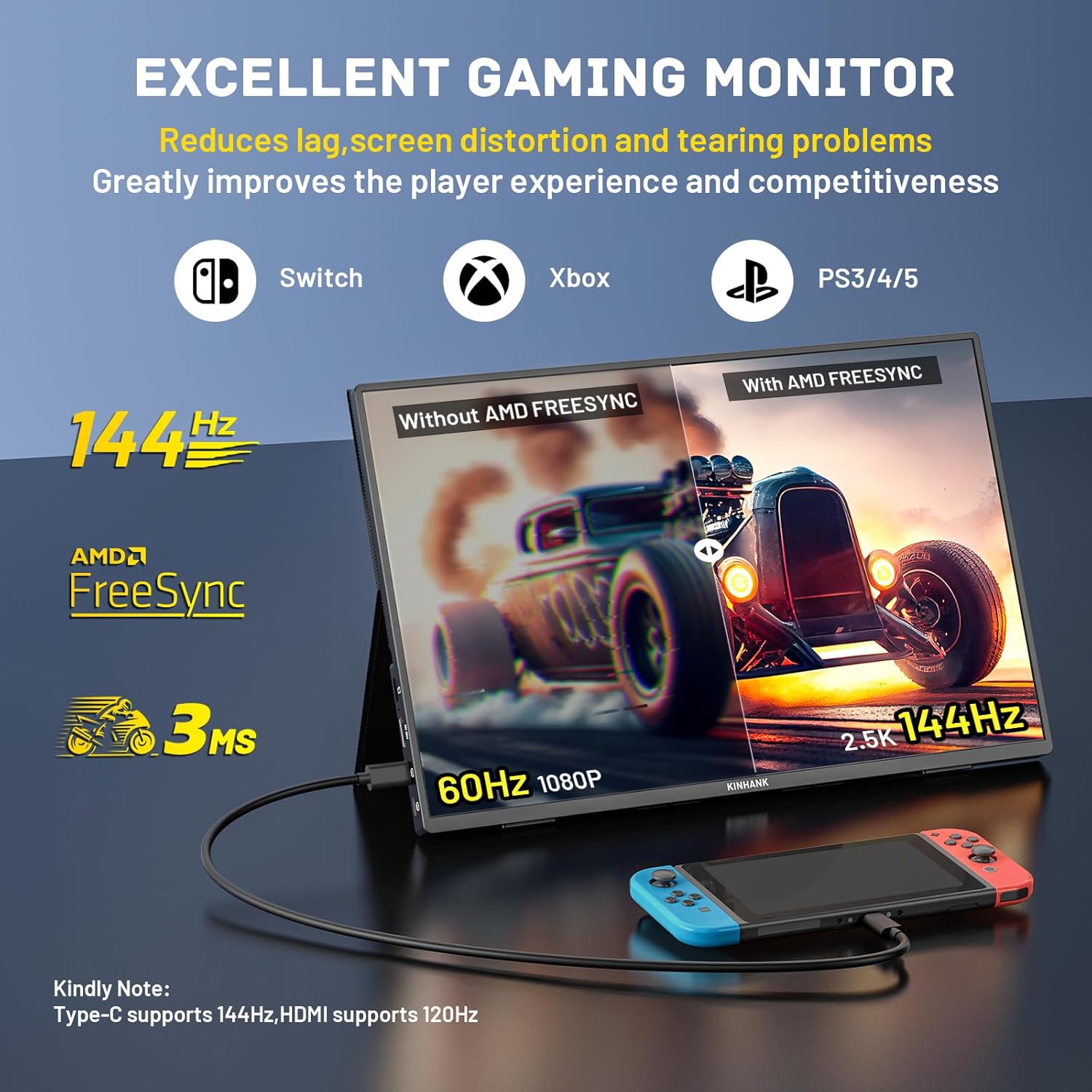
Image: The K16 monitor showcasing its gaming capabilities, emphasizing high refresh rate and low latency.
6. Maintenance
Proper care and maintenance will extend the life of your Kinhank K16 monitor:
- Cleaning the Screen: Use a soft, lint-free cloth lightly dampened with water or a screen-cleaning solution. Avoid harsh chemicals or abrasive materials.
- Cleaning the Casing: Wipe the aluminum alloy casing with a soft, dry cloth.
- Storage: When not in use, store the monitor in its magnetic leather case to protect it from dust and scratches. Avoid extreme temperatures or humidity.
- Handling: Always handle the monitor by its edges. Avoid applying pressure directly to the screen.
7. Troubleshooting
If you encounter issues with your Kinhank K16 monitor, refer to the following common problems and solutions:
| Problem | Possible Cause | Solution |
|---|---|---|
| No display/"No Signal" | Incorrect input source selected; loose cable connection; insufficient power; device not outputting signal. | Ensure cables are securely connected. Check if the monitor is receiving power. Select the correct input source via the OSD menu. Verify your source device is outputting a signal. |
| Screen flickering/unstable image | Cable quality; refresh rate mismatch; power fluctuations. | Try a different cable. Ensure the refresh rate on your source device matches the monitor's capabilities. Use the provided PD charger for stable power. |
| No sound from monitor speakers | Volume too low; audio output settings on source device; faulty cable. | Increase monitor volume via OSD. Check audio output settings on your connected device (e.g., set to K16 monitor). Ensure the cable supports audio transmission. |
| Monitor not powering on | No power supply; faulty power adapter/cable. | Ensure the PD charger is connected to a working power outlet and the monitor's Type-C power port. Try a different power outlet or cable if available. |
| Cannot adjust brightness/settings | OSD locked; specific mode limitations. | Check the OSD menu for any 'lock' features. Some settings may be greyed out depending on the active mode (e.g., HDR). |
If the problem persists after trying these solutions, please contact Kinhank customer support for further assistance.
8. Specifications
Detailed technical specifications for the Kinhank K16 Portable Monitor:

Image: Key display features of the K16 monitor, including resolution, brightness, and color gamut.
| Feature | Specification |
|---|---|
| Model Number | K16 |
| Screen Size | 16 Inches |
| Display Type | IPS LCD |
| Resolution | 2560 x 1600 Pixels (2.5K QHD+) |
| Aspect Ratio | 16:10 |
| Refresh Rate | 144Hz (Type-C), 120Hz (HDMI) |
| Response Time | 3ms |
| Brightness | 500 nits (cd/m²) |
| Color Gamut | 100% sRGB |
| Viewing Angle | 178° (Horizontal/Vertical) |
| HDR Support | Yes |
| FreeSync Support | Yes |
| Speakers | Dual Stereo Speakers |
| Connectivity | 1x Full Function USB-C, 1x Standard HDMI, 1x 3.5mm Audio Jack |
| VESA Mount | 75mm x 75mm |
| Product Dimensions | 0.55 x 13.77 x 9.5 inches |
| Item Weight | 1.9 pounds (monitor only), 3.74 pounds (with packaging) |
| Casing Material | CNC Aluminum Alloy |
9. Warranty & Support
Kinhank stands behind the quality of its products. The K16 portable monitor comes with the following:
- 2 Years Unlimited Warranty: Covers manufacturing defects and ensures product reliability.
- 30-Day No-Hassle Return Service: For easy returns if you are not satisfied.
- 24-Month Product Warranty: Specific warranty period for the device.
- Life-Time Technical Support: Ongoing assistance for any technical queries or issues.
- 24 Hours Customer Service: Dedicated support available around the clock.
For warranty claims, technical assistance, or any other inquiries, please contact Kinhank customer support through the contact information provided with your purchase or on the official Kinhank website.


